


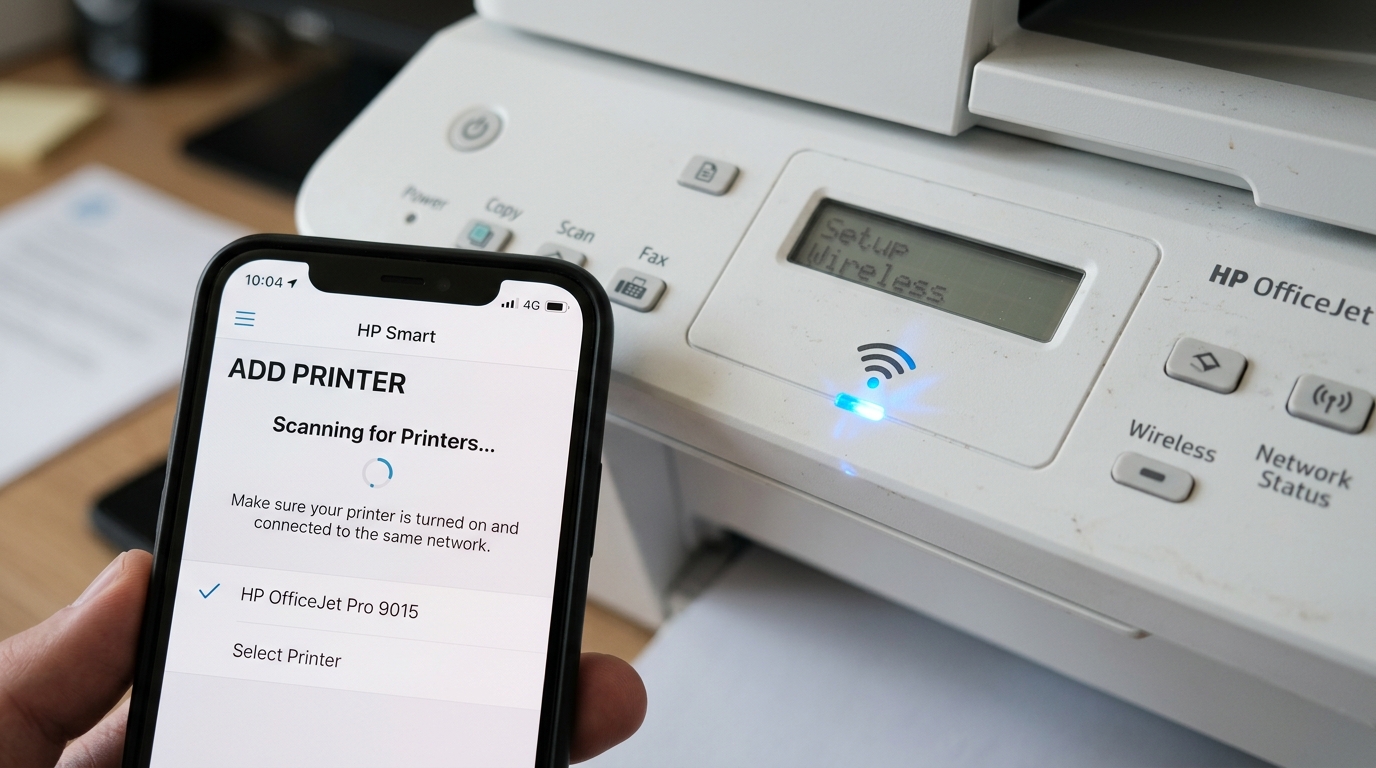
Why the HP DeskJet 4155e Won't Connect to Wi-Fi
The HP DeskJet 4155e is an HP+ printer, which means it requires an HP account and an internet connection to activate and operate. This design introduces connectivity requirements that older printers never had, and it is the most common source of connection failures.
This guide covers every known Wi-Fi issue with the 4155e.
Step 1: Verify the HP+ Activation Requirement
Unlike traditional printers, the DeskJet 4155e will not print at all until it is registered to an HP account. If you skipped account creation during setup, the printer may be stuck in a limbo state where it shows as connected to Wi-Fi but refuses to print.
- Open the HP Smart app on your phone or PC.
- Sign in to your HP account (or create one at hpsmart.com).
- Follow the in-app prompts to add the 4155e — this completes the HP+ activation.
- Only after this step will the printer accept print jobs.
Step 2: Check the Wi-Fi Band (2.4GHz Required)
The HP DeskJet 4155e supports 2.4GHz Wi-Fi only. It does not support 5GHz. If your router is broadcasting a combined "Smart Connect" SSID that automatically assigns devices to 2.4 or 5GHz, the printer may be pushed to the 5GHz band and fail to connect.
- Log into your router's admin panel (usually at 192.168.1.1 or 192.168.0.1).
- Find the Wireless settings and check if "Smart Connect" or "Band Steering" is enabled. Temporarily disable it.
- Ensure the 2.4GHz network has its own visible SSID (e.g., "HomeNetwork_2.4G") and connect the printer to that specific one.
Step 3: Restore Network Settings on the Printer
If the printer is stuck trying to connect to an old network (e.g., from a previous house or router change), you need to wipe its stored Wi-Fi credentials.
- On the printer's touchscreen, tap the wireless icon (the Wi-Fi bars).
- Tap Settings > Restore Network Settings.
- The printer will restart and enter setup mode (the Wi-Fi light will flash).
- Run the HP Smart app setup again to reconnect.
Step 4: Use the WPS Button Method
If the app-based setup is failing, try the hardware WPS push-button method:
- Press the Wireless button on the printer, then immediately press the WPS button on your router within 2 minutes.
- The printer's Wi-Fi light will flash rapidly while connecting, then turn solid when connected.
- This method bypasses the HP Smart app entirely and can succeed when app-based setup fails.
Step 5: Use USB Cable to Push Wi-Fi Credentials
If WPS is not available on your router, use a USB cable as a temporary bridge:
- Connect the printer to your PC with a standard USB-A to USB-B cable.
- Open the HP Smart app and select Add Printer > Set up a new printer.
- The app will detect the printer via USB and prompt you to enter your Wi-Fi network name and password.
- The credentials are transmitted from your PC to the printer over the USB cable.
- Once saved, disconnect the USB — the printer will use Wi-Fi from now on.
Step 6: Check Router Security Settings
The DeskJet 4155e supports WPA2 security. Some newer routers default to WPA3-only mode, which this printer cannot negotiate.
- In your router settings, find the Security Mode option.
- Change it from WPA3 Personal to WPA2/WPA3 Personal (Mixed) or simply WPA2 Personal.
- Save and reconnect the printer.
Advanced Troubleshooting
If none of the above steps work, try these advanced fixes:
- Firewall blocking: Windows Defender Firewall can block HP discovery (UDP port 5353 and TCP port 9100). Temporarily disable the firewall and test printing. If it works, add HP Smart as a firewall exception.
- Reinstall HP Smart: Completely uninstall the HP Smart app, restart your device, and reinstall it fresh from the Microsoft Store or hp.com.
- Router channel: If you live in an apartment with many Wi-Fi networks, try changing your router's 2.4GHz channel to 1, 6, or 11 to reduce interference.
Frequently Asked Questions
Can I use the HP DeskJet 4155e without an HP account?
No. The HP+ program is mandatory for this printer.
Does the 4155e work on a 5GHz Wi-Fi network?
No. 4GHz Wi-Fi.
My 4155e shows "Connected" in HP Smart but I can't print — why?
This is the HP+ activation issue. The printer connects to Wi-Fi but won't accept jobs until it is registered to your HP account.
Can I connect the 4155e to public Wi-Fi or a mobile hotspot?
The 4155e can connect to a mobile hotspot, but it requires the hotspot to be a standard WPA2 network without captive portal login pages. Public Wi-Fi with login pages (airports, hotels, coffee shops) will not work because the printer cannot complete the browser-based authentication step.
When to Contact HP Support
If you have tried all the steps above and the 4155e still refuses to connect to Wi-Fi, the printer's wireless module may be defective. Contact HP Support at support.hp.com. The DeskJet 4155e carries a 1-year limited warranty covering hardware defects including the wireless module.
