


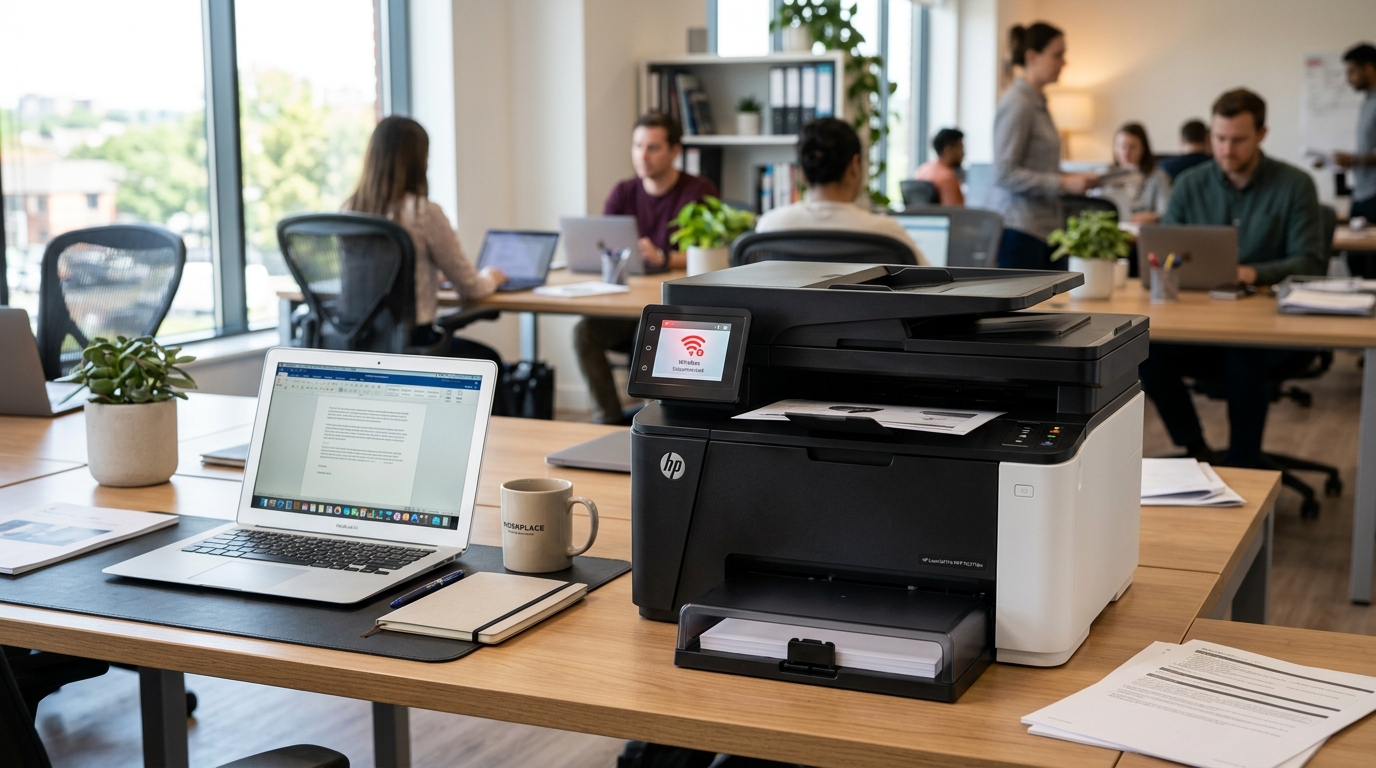
Why the HP LaserJet M209dwe Keeps Going Offline
The HP LaserJet M209dwe is an HP+ laser printer. Its connection behavior is different from traditional Wi-Fi printers.
The printer must maintain a local network connection. It must also have an active connection to HP's cloud servers.
When either link drops, the M209dwe appears offline in Windows. It may still have power and a Wi-Fi signal.
Step 1: Restart the Complete Chain
Before any advanced fixes, restart everything in the correct order:
- Turn the M209dwe completely OFF using the power button.
- Unplug your router or modem for 30 seconds. Plug it back in.
- Wait for the router to fully reconnect to the internet.
- Turn the M209dwe back ON. Wait for it to complete its startup warmup.
- On your Windows PC, open the print queue. Right-click the HP printer and select See what's printing. Cancel all pending jobs.
- Right-click the printer again. Uncheck Use Printer Offline if it is checked.
Step 2: Set a Static IP Address to Prevent Offline Drops
The most common cause of offline issues is a changing IP address. Windows remembers the old IP. It cannot find the printer at the new one.
- Print a Network Configuration Page. Press the wireless button and the information button at the same time. The IP address is printed at the top.
- Type that IP address into a browser address bar. This opens the HP Embedded Web Server (EWS).
- Navigate to Network>Network > Wired or Wireless > IPv4 Configuration.
- Change from Automatic (DHCP) to Manual.
- Enter a static IP in your router's range. Keep it outside the DHCP pool.
- Enter your router's IP as the Default Gateway. Use 8.8.8.8 as the DNS server.
- Save settings. Update the printer port in Windows to match the new static IP.
Step 3: Update the Printer Port in Windows
If the IP has changed, you must update the printer port in Windows:
- Open Settings > Bluetooth & devices > Printers & scanners.
- Click your HP M209dwe and select Printer properties.
- Go to the Ports tab . Find the port your printer uses.
- Select it and click Configure Port.
- Update the IP address to match the current printer IP. Click OK and Apply.
Step 4: Restart the Windows Print Spooler
A crashed print spooler makes all printers appear offline. This happens regardless of their actual network status:
- Press Windows Key + R. Type
services.mscand press Enter. - Scroll to Print Spooler . Right-click it and select Restart.
- After the service restarts, try printing a test page.
Step 5: Reconnect via HP Smart App
If the above steps fail, the HP+ cloud connection may be disrupted:
- Open HP Smart. If the M209dwe shows as offline, tap it and select Reconnect.
- If reconnect fails, remove the printer from HP Smart entirely. Re-add it fresh.
Advanced Troubleshooting
- Sleep mode issue: The M209dwe enters deep sleep after 10 minutes. When it wakes, the network reconnection takes 20 to 30 seconds. This makes it appear offline. Reduce the sleep timer via EWS.
- Firewall blocking: Windows Defender can prevent printer discovery. Try disabling the firewall temporarily. If it works, add HP Smart as a firewall exception.
Frequently Asked Questions
Why does the M209dwe go offline every night?
This is usually caused by your router renewing DHCP leases. The printer gets a new IP address.
Can I use the M209dwe without a Wi-Fi connection?
Yes, via USB cable. Connect the printer to your PC via USB.
Does the M209dwe go offline when HP's servers are down?
In some cases, yes. HP+ printers check in with HP's cloud servers periodically.
When to Contact HP Support
The M209dwe might continue going offline daily. If a static IP and spooler restart fail, contact HP Support. Their remote diagnostics can check the cloud connection health.
