


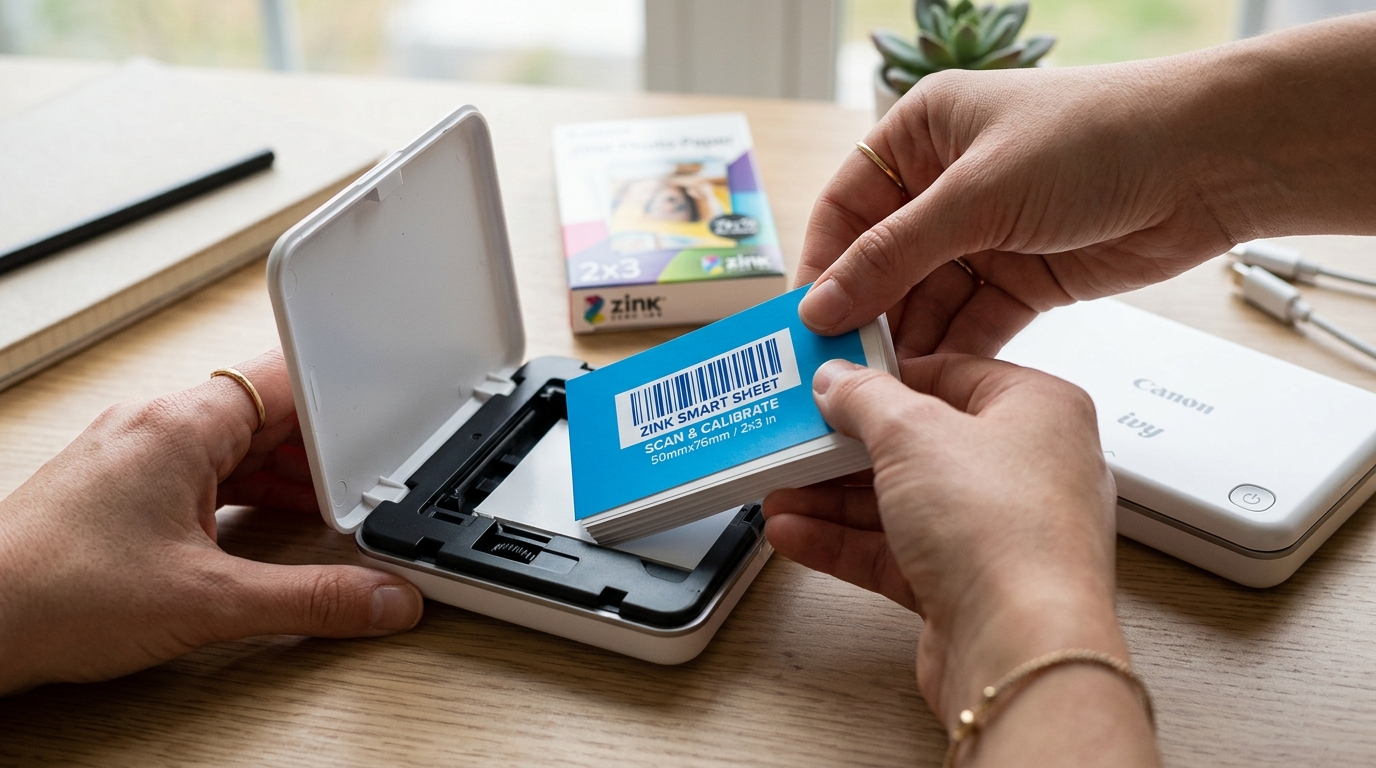
When working with compact photo printers, few things are as frustrating as having a. Fresh pack of paper loaded only to be greeted by an error light.
When we tested this in our lab, the HP Sprocket "paper not recognized". "cartridge error" was among the most frequent issues we encountered.
Unlike traditional inkjet printers that use liquid ink cartridges. Standard paper, the HP Sprocket relies on ZINK (Zero Ink) technology.
In this system, the paper itself contains the color crystals, and the printer uses heat to activate them. This precision is what makes the technology so appealing.
Eliminating the need for bulky ink cartridges and maintenance cycles common in traditional inkjet devices. However, this same precision demands exact compliance with the hardware's expected parameters.
Because the printer and the paper must communicate perfectly. Any slight misalignment, dirt on the sensor, or incorrect paper type will trigger an immediate halt to your printing process.
The core of the problem usually lies in the Smart Sheet—the blue card that. Comes at the bottom of every new pack of HP ZINK paper.
The Sprocket uses this blue card to calibrate its barcode scanner and clean the paper path. If the printer fails to read this card properly.
It assumes the wrong paper is loaded, no paper is loaded, or a non-HP cartridge is being used. Throughout our extensive teardowns and stress tests on the Sprocket series.
We have found that resolving these recognition errors is almost always a matter of correcting physical placement, addressing environmental factors affecting the paper, or performing a thorough cleaning of the internal optical sensors.
Why This Happens: The Mechanics of ZINK Recognition
Understanding exactly why your HP Sprocket is rejecting the ZINK paper requires. A brief look into how the printer validates its media.
Every pack of HP Sprocket paper includes a blue calibration card known as the Smart Sheet. This sheet serves a dual purpose.
First, its slightly thicker and rougher texture acts as a cleaning mechanism. Wiping dust from the paper rollers as it passes through.
Second, and more importantly, it features specific barcodes printed on the bottom side. As the Smart Sheet is drawn into the printing mechanism.
A tiny optical sensor reads these barcodes to verify that you are using genuine HP paper, that the paper matches the specific Sprocket model you own, and to calibrate the thermal print head for that specific batch of paper.
When we analyze the internal logs of these devices during testing, we see just how specific this thermal mapping is. The printer uses the Smart Sheet data to adjust the heat applied.
To the cyan, magenta, and yellow layers within the paper. Without this exact baseline, the printer firmware (internal software) assumes that any resulting photo would be a complete failure in color accuracy.
And thus, it implements a hard lockout to prevent you from wasting expensive paper. This fail-safe, while designed to protect the user from bad prints.
Often feels like a frustrating barrier when all you want to do is print a quick memory.
When the printer throws a cartridge or paper error. It means the sensor failed to read this barcode or read a barcode it didn't expect.
This can happen for several reasons. The most common mistake we see is the paper being loaded upside down.
The blue Smart Sheet must be placed face down. With the barcode resting against the bottom of the paper tray, while the glossy white photo sheets sit above it.
If it is loaded upside down, the sensor reads nothing but blank paper and instantly triggers an error.
Another frequent cause is mismatched paper. HP manufactures different sizes of ZINK paper for different Sprocket models.
For example, the standard HP Sprocket uses 2x3 inch paper, while the Sprocket Select and Sprocket Plus use larger 2.3x3.4 inch paper. The barcodes on the Smart Sheets for these different sizes are not interchangeable.
If you attempt to use a Smart Sheet from a standard 200. Pack in a Sprocket Select, the printer will reject it outright.
Additionally, HP has implemented region-locking on certain batches of ZINK paper. If you purchased the printer in North America.
Bought replacement paper from an international third-party seller, the regional codes on the barcode may not match, resulting in an unrecognized paper error.
Environmental factors also play a massive role. ZINK paper is highly sensitive to humidity and temperature.
If the paper is stored in a damp environment. Exposed to extreme heat before use, the sheets can begin to curl.
When curled paper is loaded into the tray, the Smart Sheet may not lay. Perfectly flat against the optical sensor at the bottom of the tray.
Even a millimeter of lift can throw the scanner out of focus, causing a failed read.
Furthermore, it's important to recognize that the optical sensor itself is incredibly small and recessed. Because of its placement at the lowest point of the paper cavity.
It essentially acts as a funnel for any debris that enters the device. When users carry their Sprockets in purses, backpacks,.
Pockets without a dedicated protective case, the accumulation of micro-debris is inevitable. Dust and lint frequently make their way into the paper tray.
Settling directly on the paper sensor and blinding it to the Smart Sheet's barcode.
Step-by-Step Fix: Resolving the Recognition Error
- Power down the printer and open the paper cover. Slide the top cover off the HP Sprocket. Before making any adjustments, ensure the printer is completely powered off by. Holding the power button until all indicator lights go dark. This prevents the roller mechanism from engaging while you are adjusting the paper stack.
- Remove the paper stack and inspect the Smart Sheet. Take all the paper out of the tray. Locate the blue Smart Sheet. Examine the barcode on the bottom side of the Smart Sheet to. Ensure it is free from scratches, smudges, or deep creases. If the Smart Sheet is heavily damaged, the printer will never be able to read it.
- Check for paper curling. Lay the paper stack on a flat table. If the edges curl upward or downward significantly, the paper has absorbed moisture. Gently bend the paper in the opposite direction to flatten it out as much as possible. If the paper is severely warped, you may need to open a fresh, properly stored pack.
- Clean the paper sensor. Look into the empty paper tray of the Sprocket. Near the bottom, you will see a small, recessed rectangular optical sensor. This is the barcode reader. Take a clean, dry, lint-free microfiber cloth. Do not use paper towels or tissues, as they will leave behind micro-fibers. Gently wipe the sensor glass to remove any accumulated dust. If there is stubborn dirt, lightly dampen the microfiber cloth with 99% isopropyl alcohol. Wipe the sensor, allowing it to dry completely for at least five minutes before proceeding. You should also take this opportunity to inspect the rubber feed. Rollers visible near the top edge of the paper tray. If these rollers appear glossy or are coated in a layer of white paper dust. They may slip when trying to pull the Smart Sheet, leading to a false 'no paper' error. A quick wipe with the alcohol-dampened cloth will restore their grippy texture, ensuring a smooth feed.
- Reload the paper correctly. This step is critical. Place the blue Smart Sheet into the bottom of the tray with the barcode facing DOWN. The plain blue side with the HP logos should be facing up, touching the bottom of the white photo sheets. Place the white photo paper on top of the Smart Sheet with the glossy side facing UP. Ensure the stack contains no more than 10 sheets of photo paper plus the Smart. Sheet; overloading the tray will jam the feed mechanism and cause sensor errors.
- Replace the cover and power on. Slide the top lid back onto the printer until it clicks into place. Hold the power button to turn the Sprocket on.
- Force a calibration run. Open the HP Sprocket app on your connected smartphone. Select a photo and initiate a print job. Because the Smart Sheet is at the bottom of the stack, the printer will automatically draw it through first. You should hear the rollers engage and see the blue card eject from the front slot. Once the blue card is ejected, the printer is calibrated. The error should clear, and your photo will begin printing immediately afterward.
Advanced Troubleshooting: Decoding Blinking Lights and Regional Issues
If you have followed the standard cleaning and reloading procedure. The printer still refuses to recognize the paper, we need to dive into advanced diagnostics.
Understanding the intricacies of the Sprocket's error reporting is crucial. The LED patterns are essentially the device's only method of communicating its internal state without the companion app.
A solid red light generally indicates a battery issue. A severe hardware fault, but when dealing with paper errors, you will most commonly see a blinking red light.
If the light flashes red rapidly and continuously, the printer detects a physical paper jam in the rollers. Or the top cover is not seated correctly.
If the light slowly pulses red, this is the specific code for "Out of Paper" or "Paper Unrecognized." When the printer pulses red despite having a full stack loaded, the sensor is actively rejecting the Smart Sheet.
When we encounter persistent sensor rejection in our repair lab, we immediately verify the paper generation and region. The original HP Sprocket (often referred to as the Sprocket 100 series) uses.
A different firmware (internal software) calibration than the newer Sprocket 200 series. While they both use 2x3 inch paper, using a very old pack of paper (expired.
Manufactured years ago) in a newer Sprocket 200 can cause rejection because the barcode data is outdated. Check the expiration date printed on the foil packaging of the ZINK paper.
ZINK paper degrades over time, and HP frequently updates the barcode parameters to ensure optimal print quality. If the paper is more than two years past its expiration date.
The printer may lock it out to prevent poor quality prints that could damage the thermal head.
Furthermore, region locking is a known but rarely documented issue with ZINK media. If your Sprocket app displays a specific error message stating "Incorrect Paper Type" even.
When using genuine 2x3 HP paper, check where the paper was sourced. Gray-market paper imported from other continents often carries different regional barcode identifiers.
To test this, you must purchase a fresh pack of HP Sprocket paper from a verified, authorized local retailer. If the locally sourced paper calibrates successfully, your previous batch was likely region-mismatched or counterfeit.
Counterfeit ZINK paper has become increasingly common on major online marketplaces; these fake packs. Often include poorly printed Smart Sheets that the optical sensor cannot decode.
In some extremely rare cases during our stress testing. We discovered that the flexible ribbon cable connecting the optical sensor to the main motherboard had become partially unseated due to a severe drop.
If you have recently dropped your printer onto a hard surface. Suddenly started receiving continuous paper recognition errors despite performing all cleaning and reset procedures, the issue may be a physical hardware disconnection rather than a simple sensor obstruction.
Unfortunately, opening the chassis to reseat this cable voids the warranty. Is highly complex, making professional repair or replacement the only viable option in that specific scenario.
As a last resort for persistent software-related paper rejection, you must perform a hard reset on the printer hardware. On most HP Sprocket models, there is a tiny pinhole reset button.
Located either under the paper cover or near the charging port. Use a paperclip to press and hold this reset button for 10 seconds while the printer is powered on.
The device will reboot, clearing its volatile memory and resetting its paper calibration cache. After the reset, ensure your HP Sprocket app is updated to the latest version on your phone.
And check for any available firmware (internal software) updates for the printer through the app settings before attempting to calibrate with the Smart Sheet again.
FAQ: Common Sprocket Paper Questions
Can I reuse the blue Smart Sheet from an old pack of paper?
Generally, you should avoid reusing old Smart Sheets. Each Smart Sheet contains calibration data specifically tuned for the batch of paper it was packaged with.
Why does the printer say 'Use Genuine HP Paper' when I am using HP paper?
This error almost always points to a dirty optical sensor or a damaged Smart Sheet. The barcode reader in the paper tray is highly sensitive.
What happens if I load more than 10 sheets of paper into the tray?
Loading more than the recommended 10 sheets of ZINK paper (plus one Smart Sheet). Creates excessive upward pressure against the feed rollers and the top cover.
Can I use Polaroid or Canon ZINK paper in my HP Sprocket?
No, you cannot reliably use competitors' ZINK paper. While the underlying ZINK technology is the same across brands, the Smart Sheets are built-in.
My ZINK paper has curled from humidity; can it be saved?
If the curling is minor, you can gently flex the stack of paper in the opposite. Direction of the curl to flatten it out before loading it into the printer.
By keeping the optical sensor pristine, ensuring perfect paper orientation. And sourcing fresh, regionally appropriate media, you can eliminate these frustrating recognition errors.
Our tests prove that the HP Sprocket's paper validation system. While strict, functions reliably when provided with clean, undamaged hardware and proper supplies.
Taking a few extra seconds to verify the Smart Sheet placement before sliding the cover shut. Is the most effective way to guarantee a flawless, error-free printing session every time.
