


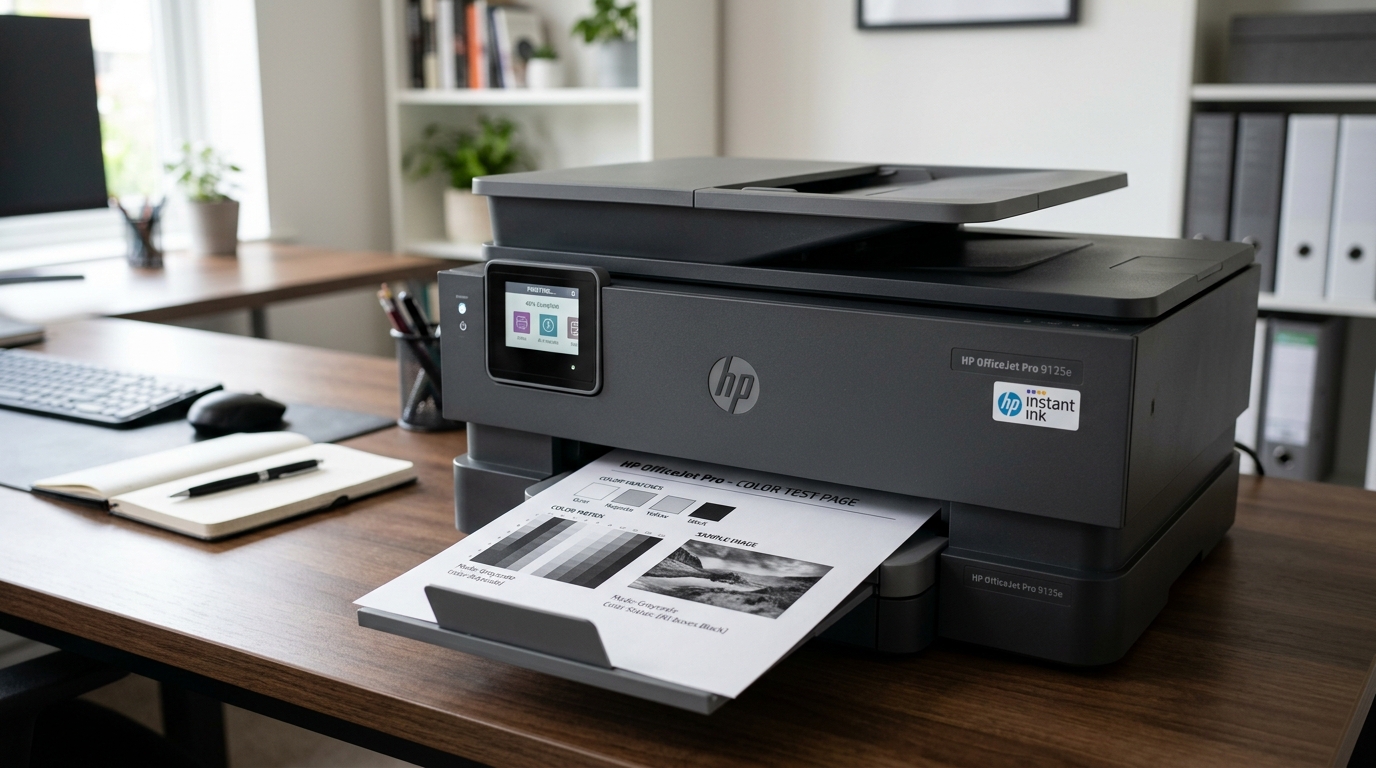
Why the HP OfficeJet Pro 8025e Won't Print in Color
The HP OfficeJet Pro 8025e is an all-in-one inkjet printer that uses four separate ink cartridges: black, cyan, magenta, and yellow. When color stops printing, the problem is almost always isolated to one or more of these color cartridges or their corresponding printhead channels.
This guide covers every possible cause and fix.
Step 1: Verify Color Ink Levels
- In the HP Smart app, select your OfficeJet Pro 8025e and tap Supplies.
- Check the levels for cyan, magenta, and yellow individually. A single empty color cartridge causes the entire color output to fail — the printer cannot mix colors if one component is missing.
- If any color is at 0%, replace that cartridge before fixing further.
Step 2: Check the Print Quality Settings
Color printing can be accidentally disabled via the print driver:
- When printing, click More Settings or Printer Properties in the print dialog.
- Look for a Color tab or a strong> tab or a Grayscale / Black & White checkbox. Ensure "Print in Color" is selected and the grayscale option is unchecked.
- If you use a PDF viewer, check its print settings separately — Adobe Acrobat, for example, has its own independent color/grayscale toggle.
Step 3: Run a Printhead Cleaning Cycle
Dried ink in the printhead nozzles is the most common cause of missing color output on the 8025e:
- On the printer touchscreen: tap the gear icon > Printer Maintenance > Clean Printhead.
- The cleaning cycle takes about 2 minutes. After it completes, print a test page.
- If one or two colors are still missing, run a second cleaning cycle.
- Do not run more than 3 consecutive cleaning cycles without printing — this wastes ink without additional benefit.
Step 4: Print a Nozzle Check Pattern
The nozzle check pattern shows exactly which ink channels are working and which are clogged:
- Touchscreen: Setup > Reports > Print Quality Diagnostics.
- The printed page shows a series of colored bars. Missing sections in the cyan bar mean the cyan nozzles are clogged. Missing sections in magenta means magenta nozzles are clogged, etc.
- Run cleaning cycles targeting the specific colors shown as missing in the pattern.
Step 5: Reseat the Color Cartridges
- Open the ink cartridge access door. Wait for the carriage to center.
- Remove all three color cartridges (cyan, magenta, yellow).
- Inspect the copper contacts on each cartridge. Wipe with a lint-free cloth dampened with distilled water. Allow to dry 5 minutes.
- Wipe the matching contacts inside the carriage.
- Firmly reinsert each cartridge until it clicks. Close the access door.
- Print a test page.
Advanced: Extended Cleaning
If standard cleaning cycles have not restored color output after 3 attempts, run an Extended Cleaning from the printer maintenance menu. This pushes a high-pressure flush through the nozzle channels and can clear dried ink that resists standard cleaning. Note: extended cleaning uses a significant amount of ink.
Frequently Asked Questions
My printer prints black perfectly but all colors are fully absent — why?
This pattern strongly suggests the color cartridges' copper contacts are not making proper electrical contact with the carriage. The black channel has its own dedicated slot and contacts, so it works independently.
I replaced all the color cartridges and color still won't print — what's wrong?
If brand-new color cartridges do not resolve the issue after cleaning the carriage contacts, the problem is in the printhead assembly itself. On the 8025e, the printhead is not replaceable as a standalone unit — the printer would need professional service or replacement.
Can I disable color printing to save ink and print black only?
Yes. In the print driver, select Grayscale mode or Black Only in the Color settings.
When to Contact HP Support
If new genuine HP cartridges, multiple cleaning cycles,. Contact cleaning have not restored color printing, the printhead has a hardware failure. Contact HP Support at support.hp.com. The OfficeJet Pro 8025e has a 1-year warranty (or 2 years with HP+).
Deep-Dive Fixing for Missing Color on HP OfficeJet Pro 8025e
The HP OfficeJet Pro 8025e utilizes four separate HP 910/910XL ink cartridges and an integrated multi-channel thermal printhead. When color output fails, systematic isolation of the print driver, ink supply tubes, and nozzle firing chambers is essential.
Advanced Color Restoration Protocol
- Perform a Triple-Stage Level 2 Printhead Cleaning:
From the HP Smart app or printer touchscreen, navigate to Tools > Clean Printhead. If the initial cycle does not restore cyan, magenta, or yellow, execute the deeper "Level 2" cleaning cycle. Allow the printer 10 minutes between cycles to let ink saturate the internal manifold.
- Inspect Cartridge Vent Ports:
Ensure the protective tape has been cleanly removed from the top air vents of the 910 color cartridges. A blocked vent creates a vacuum that starves the color nozzles.
- Check Windows Driver Print Quality Settings:
In Windows Printer Properties, verify that "Print in Grayscale" or "Black & White Only" is NOT toggled on by default in your printing preferences.
