


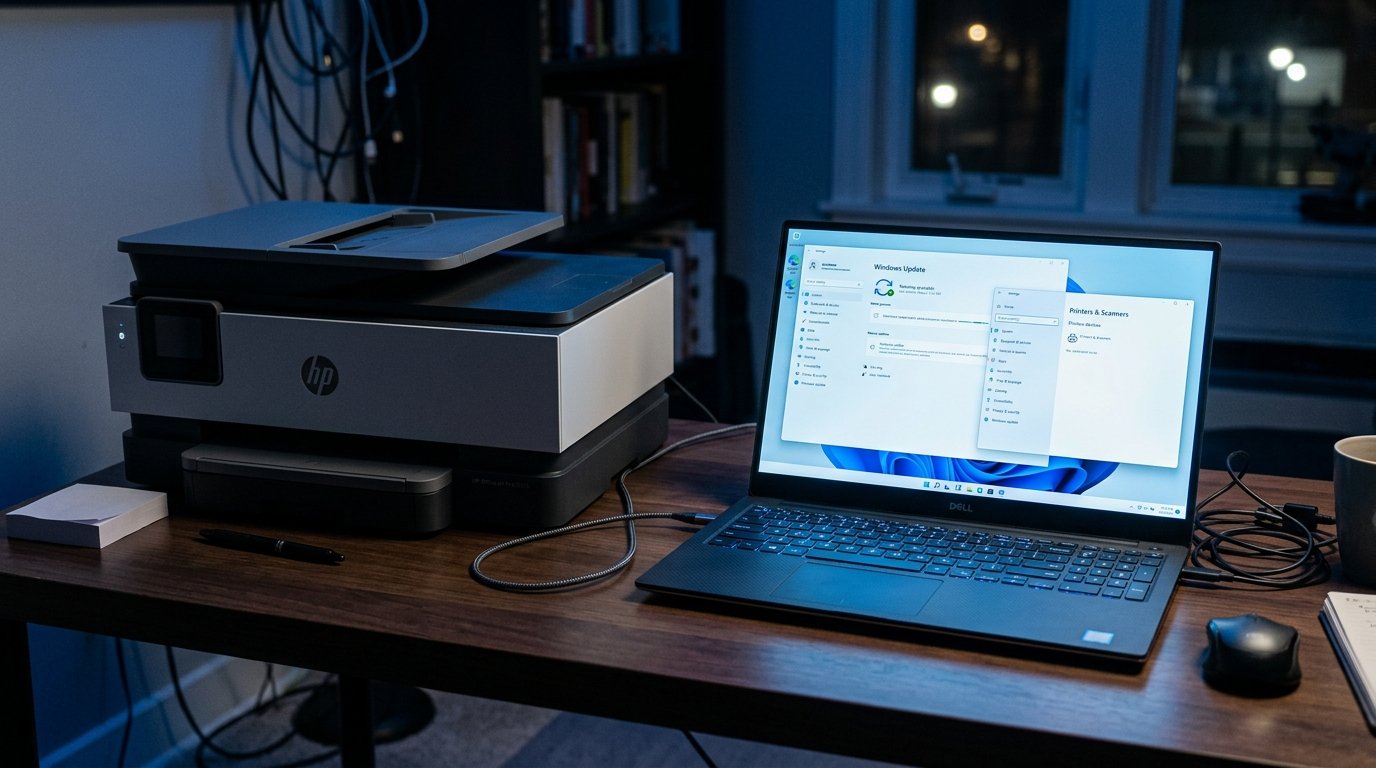
The Quick Answer
HP printer driver missing after a Windows update? A repair tech explains why, and the hidden Optional Updates section most people never check.
Everything was working fine before the update ran. Now your printer is either completely gone from your printer list, or it's there.
But throws errors the moment you try to print —. And the timing lines up exactly with whatever Windows update installed itself recently.
This isn't a coincidence,. And it's more common than you'd expect, because Windows updates and printer drivers have a genuinely complicated relationship that most people never have a reason to learn about until it breaks something.
Quick-Fix Summary
Fast version:
- Check Printers & Scanners to confirm whether the printer is truly gone or just malfunctioning.
- Run Windows Update again — sometimes a driver reinstalls automatically on a second pass.
- Check the hidden Optional Updates section — my uncommon tip, and where manufacturer drivers often hide.
- Download and reinstall the driver manually from HP's site if automatic methods don't help.
- Roll back the update as a last resort if it's clearly the direct cause and a fix isn't yet available.
Fix 1: Confirm What's Actually Missing
Open Settings → Bluetooth & devices → Printers & scanners. And check whether your HP printer is listed at all.
If it's not there, the driver itself was likely removed. If it's still listed.
But won't print, showing errors or an offline status, the driver may be partially broken rather than fully gone — a meaningfully different problem with a different starting fix.
Why this matters: these two symptoms point toward different next steps,. And confirming which one you're actually dealing with before proceeding saves you from troubleshooting the wrong scenario entirely.
Fix 2: Run Windows Update Again
Go to Settings → Windows Update and check for updates, even if you believe you're fully current. Let any pending updates install completely, including a restart if prompted.
Why this works: driver removal during a major Windows update is sometimes followed, on a subsequent update check, by an automatic driver reinstallation that Microsoft pushes out separately once compatibility issues are identified. And resolved on their end.
This is a passive fix that costs you nothing. But a few minutes,.
And it resolves more of these cases than people expect.
Fix 3: Check the Hidden Optional Updates Section (My Uncommon Tip)
Here's the fix that solves the case Fix 2 leaves behind,. And it hides in a section of Windows Update that a large share of users have genuinely never opened,. Because nothing prompts you to look there.
Go to Settings → Windows Update, and look for a link or section labeled Advanced options. Within that, find Optional updates (sometimes shown as a small text link rather than a prominent button). Click into it, and look specifically under a category like Driver updates.
What you're looking for: manufacturer-submitted drivers, including HP printer drivers, are frequently distributed through Windows Update. But classified as optional rather than automatically installed — meaning Windows knows a compatible driver exists for your hardware,.
But won't install it without you actively finding this section. And checking the box yourself.
If your printer's driver got removed during a major update and a replacement exists, it's very often sitting right here, waiting, completely unnoticed.
Why this works: Microsoft deliberately doesn't push every available driver automatically, partly to avoid unwanted or unnecessary driver changes for users who didn't ask for them —. But this means genuinely needed replacement drivers, like one that just got removed from your system during an update, can sit in this optional category indefinitely unless you go looking.
This is precisely the kind of "it's technically available. But nobody finds it" problem that explains why so many people conclude a driver is permanently gone when it's actually one checkbox away, hidden behind a section of Windows Update that most people have simply never had a reason to open before.
Fix 4: Manually Download and Reinstall From HP
If Windows Update, including the Optional updates section, doesn't turn up anything useful, go directly to HP's official support site, search for your exact printer model,. And download the Full Feature Software.
And Driver package for your current Windows version. Run the installer,.
And if your printer is still listed in Printers & Scanners despite not working, remove that broken entry first before reinstalling fresh.
Why this works: this bypasses Windows' automatic driver distribution system entirely. And installs directly from the source, which is the most reliable path when the more passive automatic methods haven't turned anything up — it guarantees you're working with a current, complete driver package rather than waiting for Windows to surface one on its own timeline.
Fix 5: Roll Back the Update as a Last Resort
If you're confident a specific recent Windows update caused this,. And no working driver is available yet through any of the methods above, go to Settings → Windows Update → Update history → Uninstall updates,.
And remove the specific update you suspect, if it's still within the uninstall window Windows allows.
Why this works: this directly undoes whatever change broke driver compatibility, restoring your previous working state while you wait for either Microsoft or HP to release a proper fix. It's a genuinely last-resort option though — you'll also lose whatever legitimate improvements.
And security fixes that update included,. And Windows only allows uninstalling certain updates within a limited window after they install, so this isn't always available depending on how much time has passed.
When to Call a Professional
If none of the above restores your driver — Windows Update shows nothing new, Optional updates has no relevant entry, a manual HP download doesn't resolve it,. And rolling back isn't available or doesn't help — contact HP support directly.
And describe exactly which Windows update coincided with the problem, since driver compatibility issues following specific major Windows releases are a recognized category HP actively tracks. And responds to.
In the meantime, if you urgently need to print, connecting the printer to a different, currently-working computer, or printing via a phone through the HP Smart app, can serve as a temporary bridge while a permanent fix is sorted out.
FAQ
Why would a Windows update remove my printer driver in the first place?
Major Windows updates occasionally clean up or replace drivers system-wide as part of their installation process,. And if a compatible updated driver for your specific printer isn't immediately available or properly flagged, the old one can be removed without an immediate replacement being installed.
What's the difference between regular Windows Update and the Optional updates section?
Regular Windows Update installs security patches. And system updates automatically. The Optional updates section, found under Advanced options, contains additional items — frequently including manufacturer drivers — that Windows has identified as compatible. But won't install without your explicit action.
Is it safe to manually install a driver from HP's website instead of waiting for Windows?
Yes — downloading directly from HP's official support site is a reliable, safe method,. And it's often faster than waiting for Windows to surface a replacement driver on its own automatic schedule.
Should I just roll back the Windows update instead of troubleshooting the driver?
Only as a last resort, since you'll lose other improvements from that update,. And Windows only allows this within a limited time window. Try the driver-focused fixes first — checking Optional updates. And manually reinstalling from HP resolve the vast majority of cases without needing to roll back anything.
An HP printer driver missing after a Windows update is a more common, better-understood problem than it feels like in the moment. Run Windows Update again,.
But don't stop there — check the Optional updates section specifically, since that's where replacement drivers often sit completely unused. If that comes up empty, a manual download straight from HP closes the gap reliably every time.
