


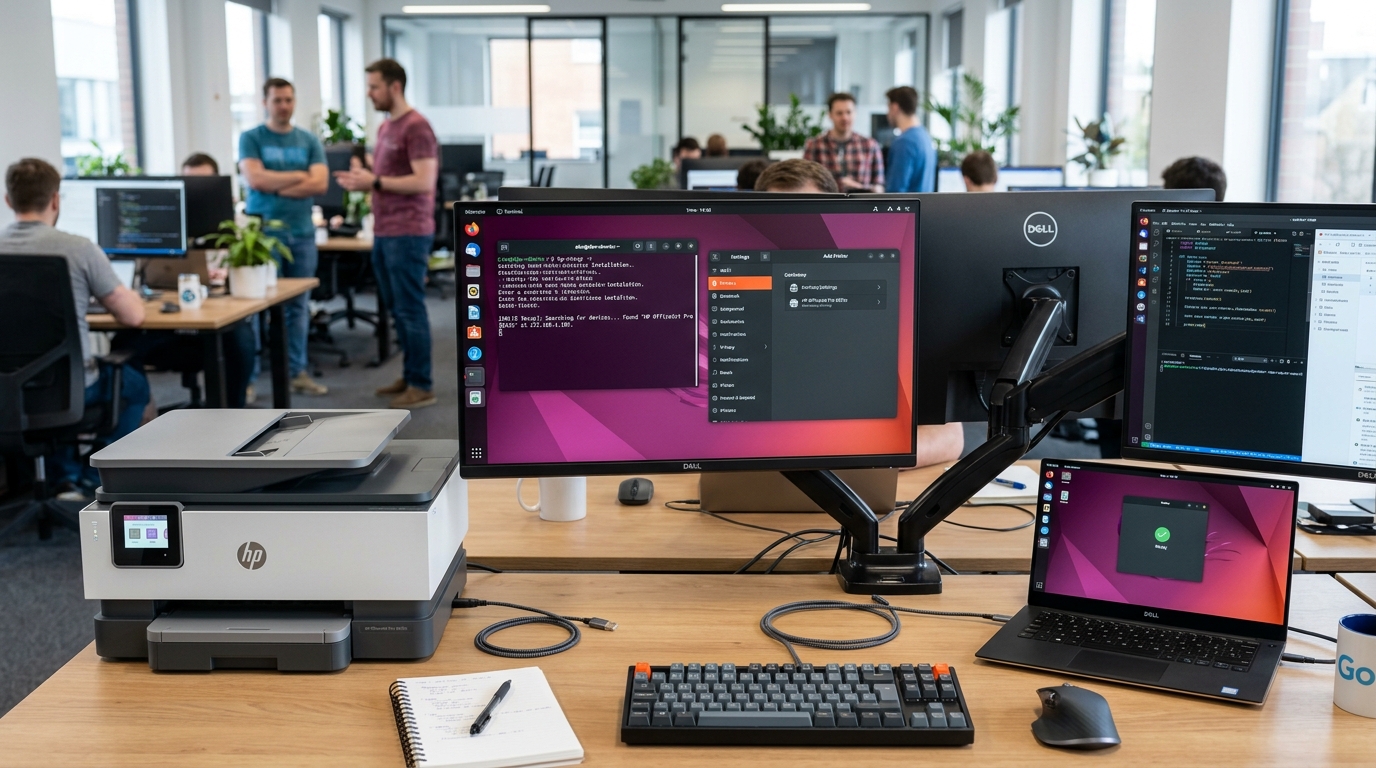
HP Linux Printing Architecture on Ubuntu
HP printers on Ubuntu and Debian-based distributions rely on HPLIP (HP Linux Imaging and Printing). HPLIP provides printing, scanning, and fax support.
While basic printing works out of the box through driverless IPP-Everywhere, multi-function features and LaserJet engines require HPLIP's proprietary binary plugin.
Step 1: Install HPLIP and GUI Utilities via APT
Ubuntu includes HPLIP in its official universe repository:
- Update your package list: Open terminal (Ctrl+Alt+T) and run
sudo apt update. - Install HPLIP and the Toolbox GUI: Run
sudo apt install hplip hplip-gui -yto install the core drivers and system tray utility. - Install CUPS print daemon: Ensure the printing service is active by running
sudo systemctl enable --now cups. - Add your user account to the lpadmin group: Run
sudo usermod -aG lpadmin,scanner $USERto grant printer management rights without constant root prompts. - Log out and log back in: The new group permissions only take effect after starting a fresh user session.
Step 2: Run the HP Setup Wizard
Use the interactive terminal or GUI tool to detect and configure the printer:
- For USB connections: Plug the USB cable directly into your PC and run
hp-setup. - For Network / Wi-Fi printers: Run
hp-setup -iand choose option 1 (Network/Ethernet/Wireless). - Manual IP specification: If auto-discovery does not find your printer, pass the static IP directly:
hp-setup 192.168.1.150. - Select the PPD file: Accept the recommended PPD driver description suggested by the installer.
- Send a test page: Confirm the print test page prompt on your screen to verify communication.
Step 3: Install the HP Proprietary Plugin (LaserJet & Scan Engines)
Many HP LaserJet and Color LaserJet models require a proprietary binary blob to render print files:
- Launch the plugin installer: In your terminal, run
hp-plugin. - Select download source: Choose option 1: Download and install the plugin from an HP authorized server.
- Accept the license agreement: Read and accept the driver terms by typing
y. - Verify installation: Run
hp-check -t. Confirm that the "Plugin status" line shows as installed.
Frequently Asked Questions
Do I need to download the .run file from HP's website?
No. We strongly recommend using Ubuntu's official apt repository package. The third-party .run script from HP frequently fails on modern Python 3.10+ environments.
Can I manage my HP printer via the browser on Ubuntu?
Yes. Navigate to http://localhost:631 to access the CUPS web administration console for queue pausing, ink monitoring, and default paper tray settings.
Why does my HP printer show as "Paused" in Ubuntu settings?
This happens after a print job error. Open terminal and run cupsenable <printer-name> && cupsaccept <printer-name> to unpause the queue.
