


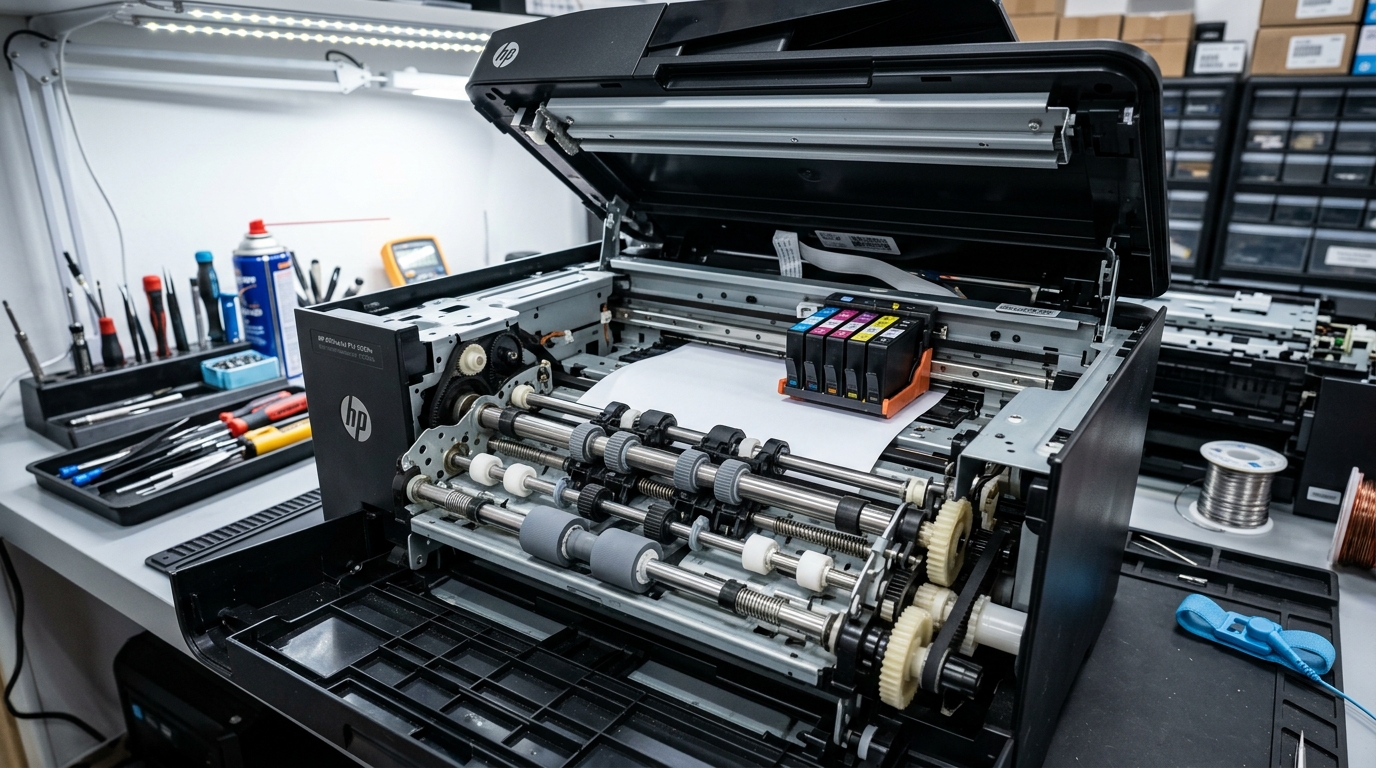
The Quick Answer
HP printer making a grinding noise when printing? A repair tech explains the one test that pinpoints exactly which part is causing it.
Grinding is one of those noises that makes you want to unplug the printer immediately and back away slowly. Reasonable instinct, but before you assume the worst, there's a simple diagnostic test that takes about two minutes. Tells you far more than just listening ever will — specifically, which part of the printer is actually responsible, rather than guessing at the whole machine.Quick-Fix Summary
Fast version:
- Check for jams and debris along the entire paper path.
- Confirm the carriage moves freely by hand with the printer off.
- Clean the feed rollers if they're visibly dirty or glazed.
- Test each paper tray individually if your printer has more than one — my uncommon tip, and the fastest way to isolate the cause.
- Accept that gear wear happens on older printers, and know when replacement makes more sense than repair.
Fix 1: Check the Entire Paper Path for Jams and Debris
Open every accessible door — front, rear, top — and check the full paper path carefully for torn scraps, small objects,. Debris, not just the areas immediately visible from the front.
Why this works:a grinding sound often means something is physically resisting a gear or roller's normal movement,. And even a small scrap of paper caught in the wrong spot is enough to produce a genuinely alarming grinding noise that has nothing to do with anything actually broken.
Fix 2: Confirm the Carriage Moves Freely
With the printer powered off, open the cartridge access door. Gently try sliding the print carriage back and forth by hand. It should move with light, even resistance across its full range of travel.
Why this works:a stalled carriage — one that's caught, obstructed,. Unable to complete its normal travel — is a well-documented cause of grinding noise on HP inkjets specifically.
If the carriage won't move freely, you're dealing with a carriage stall rather than a paper feed issue,. That changes where you look next.
Fix 3: Clean the Feed Rollers
Power off and unplug the printer. Open the cartridge access area and locate the feed rollers — the rubber or textured rollers that pull paper through.
Dampen a lint-free cloth with distilled water, press it against the rollers,. Rotate them with your fingers to clean the full surface.
Let them dry completely, about 10 minutes, before closing everything up.
Why this works:dust and paper fiber buildup on rollers reduces their grip, and a roller struggling to grab paper properly can produce grinding. Clicking sounds as it works harder than it should to feed each sheet.
Fix 4: Test Each Paper Tray Individually (My Uncommon Tip)
Here's the diagnostic step that separates a guess from an actual diagnosis,. It's specific to any printer with more than one paper tray.
If your printer offers multiple trays — a main tray and a separate legal or specialty tray, for instance — print a test page from each tray one at a time, listening carefully for whether the grinding noise happens on every tray or only a specific one. This single test is exactly how experienced technicians narrow down a grinding complaint on a multi-tray printer,.
Because the answer changes everything about where the problem actually lives.
If the noise only happens from one specific tray:the cause is almost certainly localized to that tray's own pickup mechanism — its rollers, its pickup arm,. How the tray itself is seated.
Pull that tray out slowly and check whether it slides smoothly and squarely, or feels rough and misaligned. Reseat it fully, confirm paper isn't loaded too tightly against the guides (paper should have.
A small amount of give, with visible air gaps between sheets after fanning the stack), and clean that tray's specific rollers as described in Fix 3.
If the noise happens from every tray equally:the cause is more likely something central and shared across the whole feed path — a drive gear, a shared belt,. A more general mechanical issue rather than anything specific to one tray's hardware.
Why this works:without this test, a grinding noise on a multi-tray printer is genuinely ambiguous — you're left guessing whether to focus on one tray's mechanism. The printer's central drive system, and cleaning or adjusting the wrong one wastes time without resolving anything.
The tray test converts a vague complaint into a specific, localized answer in about two minutes, using nothing. Paper and your own ears.
This is precisely the kind of diagnostic step a professional runs automatically and a general troubleshooting guide almost never mentions,. Because it only applies to multi-tray printers specifically — but when it applies, it's the single most useful thing you can do before touching a screwdriver.
Fix 5: Know When It's Genuine Wear
If you've ruled out jams, confirmed the carriage moves freely, cleaned the rollers, and isolated (or ruled out) a specific tray —. Grinding persists, especially on an older printer that's seen years of regular use — you may be dealing with a genuinely worn internal gear.
Plastic gears inside consumer-grade printers, particularly lower-cost inkjet models, do wear down over years of operation,. This is a normal, expected end-of-life pattern rather than a sign you did something wrong.
Why this matters:on an older, lower-cost printer, professional gear repair often costs more than the printer is worth,. Continuing to run a printer with genuinely worn gears tends to lead to worsening jams over time as the mechanism degrades further.
Knowing when you've hit this point — rather than continuing to chase a mechanical problem. The machine has simply outgrown — saves you time and money you'd otherwise spend fighting an unwinnable battle.
When to Call a Professional
If the tray test confirms the noise is central rather than tray-specific, and cleaning and. Jam-clearing haven't resolved it, or if the carriage genuinely won't move freely even after clearing visible obstructions, contact HP support with your printer's serial number and describe exactly what the tray test revealed — that detail alone gives their diagnostics a considerable head start.
For an older printer well past warranty showing signs of genuine gear wear, weigh a. Repair quote honestly against the cost of a comparable new unit; on lower-cost consumer printers, replacement is very often the more sensible choice.
FAQ
Why does my printer grind on startup but seem to work okay afterward?
This pattern often points to a carriage that's stalling briefly during its initial positioning routine before recovering. Check that the carriage moves freely by hand with the printer off,. Clear any obstruction along its full travel path.
My printer only grinds when I print from one specific tray. What does that mean?
This is a genuinely useful clue — it points to that tray's own pickup rollers. Seating rather than a central mechanical issue. Reseat the tray fully, check that paper isn't loaded too tightly, and clean that tray's specific rollers.
Is grinding always a sign of something seriously wrong?
Not necessarily — sometimes it's a simple jam or a dirty roller that clears up completely with basic cleaning. But persistent grinding on an older printer, especially after ruling out the simple causes, can. Point to genuine gear wear that's a normal, if unwelcome, sign of the printer's age.
Should I keep using my printer if it's grinding but still prints okay?
Be cautious about this — a grinding printer often has an active mechanical problem that tends to worsen over time rather than stay stable,. Continuing to use it can lead to a jam that damages other components. It's worth addressing sooner rather than later.
An HP printer grinding noise when printing has a real, findable cause most of the time,. The fastest way to find it — on any printer with more than one tray — is simply testing each tray individually and listening.
That two-minute test alone often tells you exactly where to focus, saving you from cleaning. Adjusting parts that were never the actual problem.
Additional Resources
If you are still experiencing issues after trying the steps above, you may need to consult the official documentation. Download the latest firmware (internal software) for your specific printer model.
