


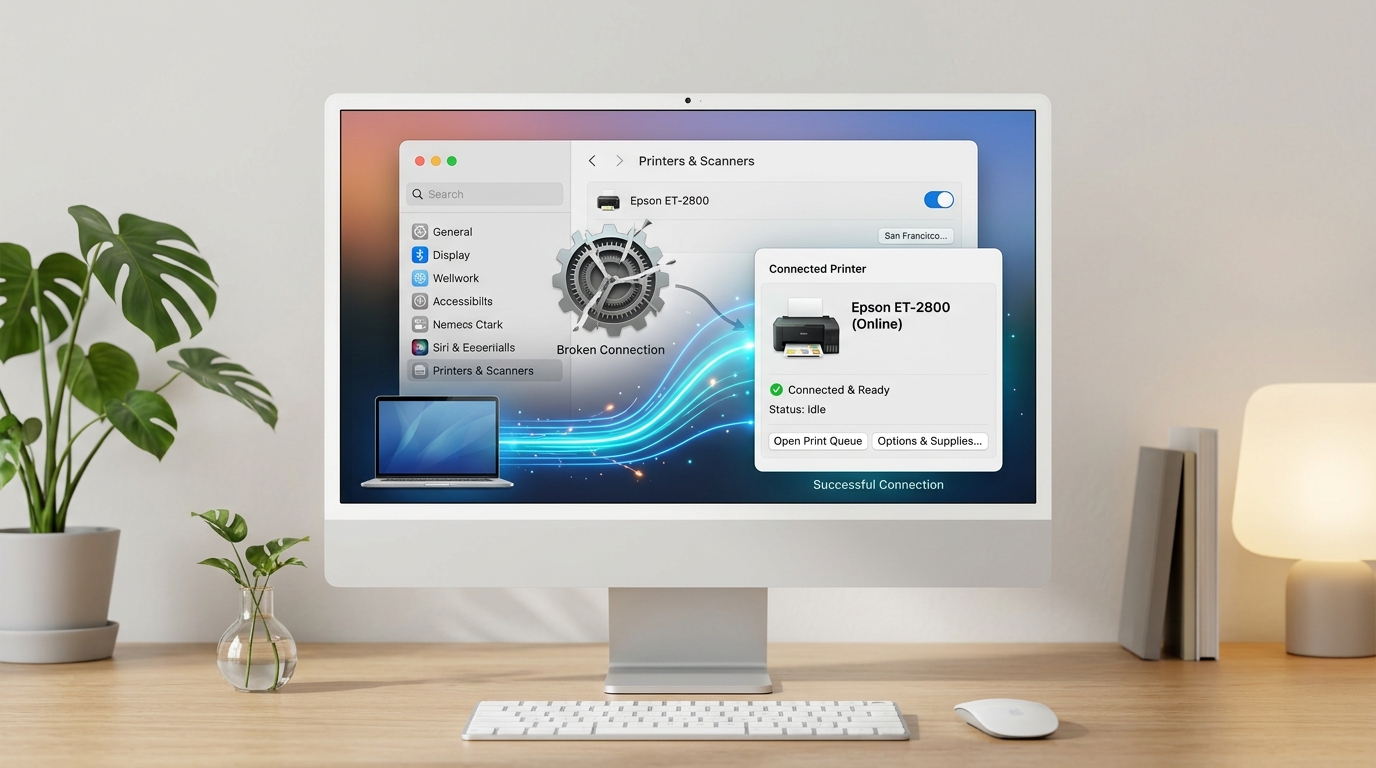
Why HP Utility Won't Open on Mac
HP Utility is a macOS application bundled with HP printer drivers that provides access to printer maintenance tools: ink level monitoring, printhead cleaning, alignment,. Supply ordering.
When HP Utility refuses to open on Mac, the cause is almost always an incompatibility between the HP software version. Your current macOS version — particularly after a macOS major version upgrade.
Understanding the HP Utility / HP Smart Transition
HP deprecated the legacy "HP Utility" application starting with macOS Monterey (12. x). On modern Macs (macOS Monterey, Ventura,. Sonoma), HP Utility may either fail to open or show a message that it is no longer supported.HP Smart app, available free from the Mac App Store.
If you are on macOS Monterey or later and HP Utility won't open, installing HP Smart is the intended solution.
Step 1: Install HP Smart (Recommended for macOS 12+)
- Open the Mac App Store .
- Search for HP Smart and install it (it is free and official from HP Inc. ).
- Open HP Smart and add your printer. HP Smart replicates all the core HP Utility functions: ink levels, printhead cleaning, alignment, supply ordering, and diagnostics.
Step 2: Reinstall HP Printer Drivers (macOS 11 and Earlier)
If you are on macOS Big Sur (11.
- Open the Mac App Store and search for your HP printer model. Apple and HP distribute printer-specific driver packages through the App Store as "printer plugins.
- Alternatively, go to support. hp. com, enter your Mac's macOS version, download the full HP software package, and reinstall it.
- After reinstalling the driver package, HP Utility will be in your Applications folder > Hewlett-Packard subfolder.
Step 3: Reset the Printing System (Nuclear Option)
A corrupted printer installation can prevent HP Utility from launching even when the application file appears intact:
- Open System Preferences (or System Settings on Ventura+) > Printers & Scanners.
- Right-click (or Control-click) in the printer list on the left side.
- Select Reset printing system Confirm the dialog. This removes all printers and driver data.
- Re-add your HP printer using the + button. macOS will download a fresh driver from Apple's servers.
- After re-adding, check Applications > Hewlett-Packard for HP Utility.
Step 4: Check for macOS Gatekeeper / Security Blocks
macOS Gatekeeper can block HP Utility from opening if it detects an unsigned or quarantined application file:
- Try to open HP Utility by double-clicking it in Finder.
- If you see the message "HP Utility cannot be opened because it is from an unidentified developer": go to System Preferences > Security & Privacy > General.
- Click Open Anyway next to /strong> next to the HP Utility warning.
- Alternatively: right-click HP Utility in Finder and select Open — this bypasses Gatekeeper for that specific launch.
Advanced: Remove All HP Software and Start Fresh
If HP Utility continues to fail, old HP software components may be conflicting:
- Download the HP Uninstaller from support. hp. com (search for "HP Uninstaller for Mac").
- Run the HP Uninstaller and remove all HP software components including drivers, utilities, and plugins.
- Restart your Mac.
- Reinstall fresh from support. hp. com or use the Mac App Store to install HP Smart.
Frequently Asked Questions
Is HP Utility still supported on macOS Ventura and Sonoma?
No. HP Utility is not compatible with macOS Ventura (13.
HP Smart doesn't have the same features as HP Utility — how do I access advanced maintenance?
In HP Smart on Mac: click your printer tile, then click the gear icon > Printer Home Page (EWS). The HP Embedded Web Server opens in your browser.
HP Utility opens but says the printer is offline even though it's printing fine — why?
This is a known HP Utility display bug. The utility lost its connection to the printer's monitoring service (HP Launcher).
Can I manage my HP printer without HP Utility or HP Smart?
Yes. Type your printer's IP address into a browser to access the HP Embedded Web Server (EWS).
When to Contact HP Support
If you are on macOS Big Sur or earlier. HP Utility still won't open after a fresh reinstall and a printing system reset, contact HP Support at support. hp. com.
Provide your exact macOS version. HP printer model — HP Support can confirm whether your printer model has known incompatibilities with your specific macOS version.
