


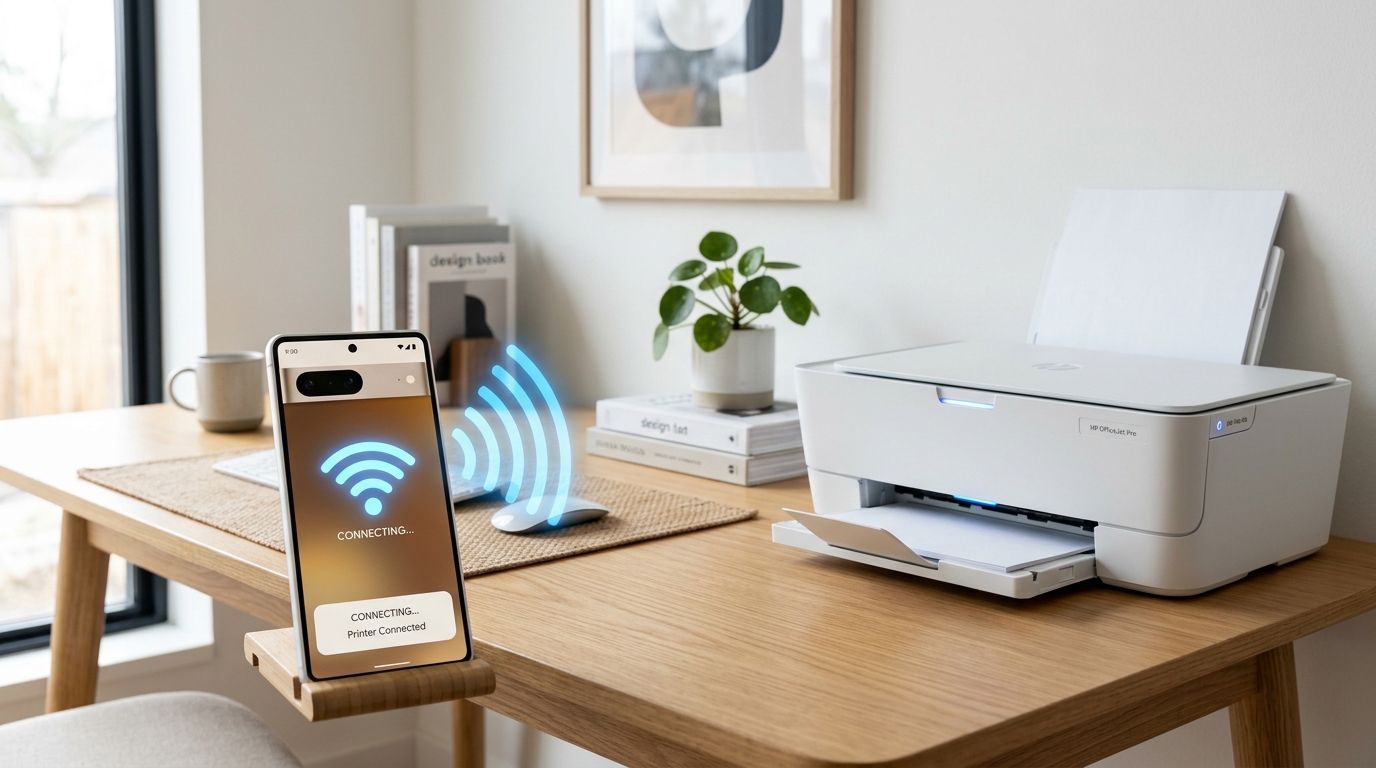
Why Your HP Printer Isn't Showing Up in AirPrint on iPhone
AirPrint is Apple's built-in wireless printing protocol. When you tap Print on an iPhone or iPad, iOS automatically discovers compatible printers on the same Wi-Fi network — no app or driver installation required.
If your HP printer doesn't appear in the AirPrint printer list, it means iOS cannot discover it, the printer is on a different network segment. The AirPrint service on the printer has stalled.
Step 1: Verify Both Devices Are on the Same Wi-Fi Network
This is the most common cause. AirPrint uses mDNS (Bonjour) for discovery, which only works within the same network subnet:
- On your iPhone: Settings > Wi-Fi. Note the network name your phone is connected to.
- On your HP printer: Print a Network settings Page (Settings > Reports > Network settings) and check the SSID field.
- Both must show the exact g>exact same network name. If your router broadcasts separate 2.4GHz and 5GHz networks with different names, your phone may be on 5GHz while the HP printer is on 2.4GHz — they appear separate to AirPrint discovery even though it is the same physical router.
Step 2: Restart the Printer and iPhone
- Turn the HP printer completely off using the power button. Wait 30 seconds. Turn it back on.
- On your iPhone: Settings > General > Shut Down (or press and hold the side button). Power it off completely, wait 10 seconds, then turn it on.
- Try printing again after both devices have fully restarted. AirPrint discovery caches can become stale and a fresh restart clears them.
Step 3: Check That AirPrint Is Enabled on the HP Printer
AirPrint is enabled by default on most HP printers but can be accidentally disabled via the Embedded Web Server:
- Type the printer's IP address into a browser to open HP EWS.
- Navigate to Network>Network > AirPrint.
- Ensure AirPrint is set to Enabled.
- Click Apply and restart the printer.
Step 4: Check Your Router for mDNS/Bonjour Issues
AirPrint uses mDNS (multicast DNS, also called Bonjour) to broadcast the printer's presence on the network. Some routers block multicast traffic by default:
- Log into your router admin panel and look for a setting called mDNS proxy, Bonjour proxy, or Multicast forwarding.
- If you have both 2.4GHz and 5GHz networks, look for an AP Isolation or Client Isolation setting. When enabled, devices on the same Wi-Fi network cannot discover each other — including AirPrint discovery. Disable AP Isolation.
- If you have a mesh Wi-Fi system (Eero, Google Nest, Orbi), ensure the printer and iPhone are associated with the same mesh node. That the mesh system has mDNS roaming enabled.
Step 5: Update HP Printer firmware (internal software) (internal software)
firmware (internal software) (internal software) updates frequently include AirPrint compatibility improvements:
- On the HP Smart app: select your printer > Printer Details > Update Printer.
- Or via EWS: General > firmware (internal software) (internal software) Update > Check for Updates.
- Install any available updates and restart the printer.
- Try AirPrint again after the update completes.
Advanced: Assign a Static IP to the HP Printer
If the printer's IP address changes frequently due to DHCP lease renewals, AirPrint discovery can break because iOS cached the old IP. Setting a static IP prevents this:
- In HP EWS: Network > IPv4 settings > change to Manual.
- Enter a static IP outside your router's DHCP range (e.g., 192.168.1.200).
- Set the gateway to your router's IP and use 8.8.8.8 as the DNS server.
- Apply and restart the printer.
Frequently Asked Questions
Does AirPrint work over mobile data (cellular)?
No. AirPrint requires both your iPhone and the HP printer to be on the same local Wi-Fi network.
Which HP printers support AirPrint?
The vast majority of HP printers released after 2012 support AirPrint. com/en-us/HT201311.
AirPrint worked yesterday but stopped today — what happened?
This is almost always a DHCP IP address change. The printer got a new IP from your router and iOS still remembers the old one.
When to Contact HP Support
If your HP printer appears in HP Smart app but not in AirPrint, there is likely a firmware (internal software) (internal software) bug with the AirPrint mDNS broadcast on your specific printer model. Contact HP Support at support.hp.com with your printer's exact model number and firmware (internal software) (internal software) version (both found on the Network settings Page).
