


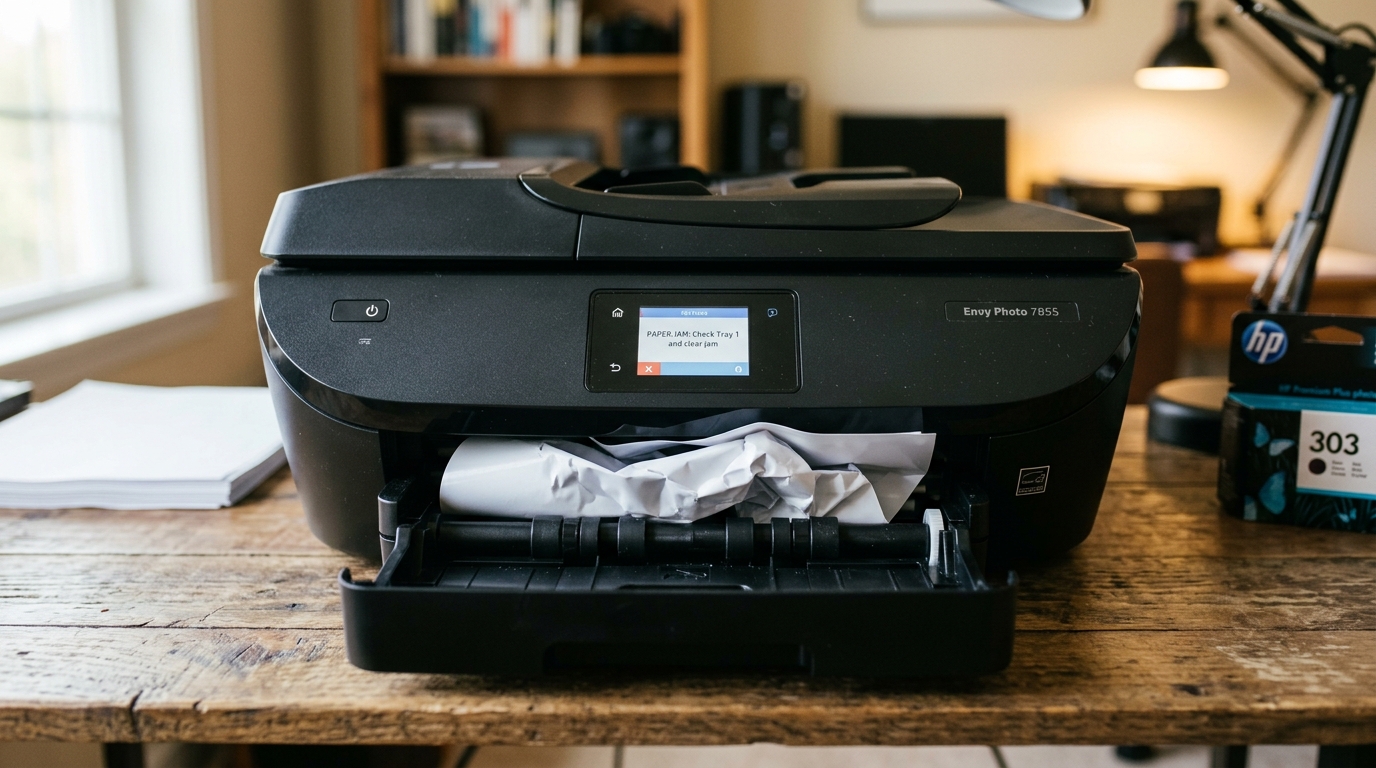
Understanding the HP Envy Photo 7855 Paper Jam Error
The HP Envy Photo 7855 is a photo-focused all-in-one inkjet printer with two paper trays — a main input tray and a dedicated photo tray. Because it handles both standard letter paper and small 4x6 photo paper, it has more paper path complexity than a standard printer.
Jam errors can originate from multiple locations simultaneously.
Step 1: Check All Access Points
The Envy Photo 7855 has four distinct areas where paper can jam:
- Main input tray (bottom): Pull the tray out fully. Remove all paper. Inspect the tray slot with a flashlight for torn scraps.
- Photo tray (top): Slide out the small photo tray completely. Check for photo paper that has slipped sideways or curled inside the slot.
- Rear clean-out access door: Press the tabs on both sides of the rear door and remove it. Check with a flashlight for paper lodged in the feed rollers.
- ADF (Automatic Document Feeder): Open the ADF lid on top of the printer. Check the document feeder path for any jammed originals.
Step 2: Clearing a Jam Without Tearing
- Turn the printer OFF before clearing any jam.
- Pull jammed paper slowly and evenly using both hands. Never yank. If the paper tears, remaining fragments will trigger repeat jam errors.
- If you can only see a corner of the paper: use rubber-tipped tweezers to get a firm grip before pulling slowly.
- After clearing, blast compressed air into the rear access door opening to remove any microconfetti.
- Reattach the rear door firmly on both sides.
Step 3: Photo Paper Jam Specific Issues
Photo paper jams in the Envy Photo 7855 are often caused by loading issues rather than mechanical failure:
- Curled photo paper: HP photo paper can curl from humidity. Fan and flex the stack before loading. Load photo paper print-side down.
- Wrong size setting:If the driver is set to "Letter". You loaded 4x6 photo paper, the printer will try to feed it through the wrong path and jam. Always verify your media size settings match what's loaded in the photo tray.
- Overfilling the photo tray: The photo tray holds a maximum of 15 sheets of photo paper. Overfilling causes multiple sheets to be grabbed at once (a double-feed), which jams in the feed rollers.
Step 4: Clean the Feed Rollers
Worn or dirty rubber rollers lose their grip and allow paper to slip and fold. This is the second most common cause of recurring jams:
- Dampen a lint-free cloth with distilled water (not isopropyl alcohol — it dries rubber).
- Access the rollers through the rear clean-out door opening.
- Send a print command and quickly cancel it — this advances the rollers slightly.
- Wipe the exposed roller surface firmly and rotate through the full circumference.
- Allow 10 minutes to dry before loading paper and testing.
Advanced: Check the Carriage for Obstruction
If the jam error appears but no paper is visible anywhere, the printhead carriage itself may be physically stuck:
- Open the cartridge access door (do not turn the printer off first).
- Look inside the carriage path for any foreign objects: paper clips, sticky label backing, torn paper corners.
- If the carriage itself won't move when prompted, there may be a broken plastic piece blocking its track. Contact HP Support — this requires service.
Frequently Asked Questions
Why does my Envy Photo 7855 jam specifically with glossy photo paper?
Glossy photo paper has a more slippery surface than standard matte paper. When the rubber pickup rollers become slightly worn or glazed, they lose grip specifically on glossy surfaces.
Can the Envy Photo 7855 handle cardstock or thick paper?
The 7855 supports paper up to 67 lb (250 g/m²) through the main tray. Feeding cardstock thicker than this will cause jams in the rollers.
The jam error appears every time I use the ADF — is the ADF broken?
ADF jams on the 7855 are usually caused by originals that are stapled, taped, torn at the edges, or too small (smaller than 4x6). Remove staples before scanning.
When to Contact HP Support
If jam errors persist after clearing all four access points. Cleaning the rollers, the printer may have a mechanical failure in the feed system. Contact HP Support at support.hp.com. The Envy Photo 7855 has a 1-year limited warranty covering manufacturing defects in the paper handling mechanism.
