


Why the HP Envy 6055e Reports a Paper Jam When Nothing Is There
The HP Envy 6055e uses small optical and mechanical sensors. These sensors track paper as it moves through the printer.
A sensor can get stuck or blocked by a scrap of paper. A physical sensor flag can also get bent when you clear a jam.
When this happens, the printer will always report a jam. It does this even when the paper path is completely clear.
This guide walks through every access point. It also covers every fix method for the Envy 6055e.
The Three Access Points on the HP Envy 6055e
The Envy 6055e has three distinct zones. Paper can hide in these areas after a jam.
- Front Input Tray: This is the paper slot at the front bottom. Remove all paper. Use a flashlight to inspect deep inside the slot. Look for torn corners or curled paper edges.
- Rear Clean-Out Access Door: Press the two square grey tabs on the back at the same time. Pull the rear door off. Look inside with a flashlight. Paper scraps here cause most phantom jams. Reattach the door firmly when you finish. Both sides must snap closed.
- Front Document Output Area: Look at the front output tray. This is where printed pages come out. Paper can fold and wedge itself past the exit rollers. You can only see this with a flashlight angled from below.
Step-by-Step Jam Clearance
- Turn the printer OFF. Do not clear jams while the printer is on.
- Remove all paper from the input tray.
- Open the rear clean-out door. If you see paper, grip it with both hands. Pull it slowly and steadily. Never yank the paper. Yanking tears the paper and leaves scraps behind. These scraps will cause future jams.
- Use tweezers if the paper is torn and you only see a corner. Grip the corner with the tweezers and pull slowly.
- Blast compressed air into the rear door opening after clearing the jam. This will remove any tiny paper scraps.
- Reattach the rear door firmly.
- Look inside the front input tray with a flashlight. Remove any visible paper pieces.
- Power the printer back on. Let it finish its startup cycle. Try a test print.
Checking the Paper Sensor Flag
Inside the input tray area is a small plastic arm. This is called the sensor flag.
It can be white or grey. Loaded paper pushes this arm down.
The arm springs back up when the tray is empty. A previous jam may have bent this arm down.
If so, the printer permanently reads "paper present". This causes a phantom jam loop.
- Turn the printer OFF. Remove all paper from the tray.
- Shine a flashlight into the input slot. Look for a small hinged plastic piece. It is near the center-back of the tray.
- Check if the piece points down into the tray. If it does, gently use a toothpick to nudge it back up.
- Contact HP Support if the flag is broken off. This requires printer repair.
Cleaning the Paper Feed Rollers
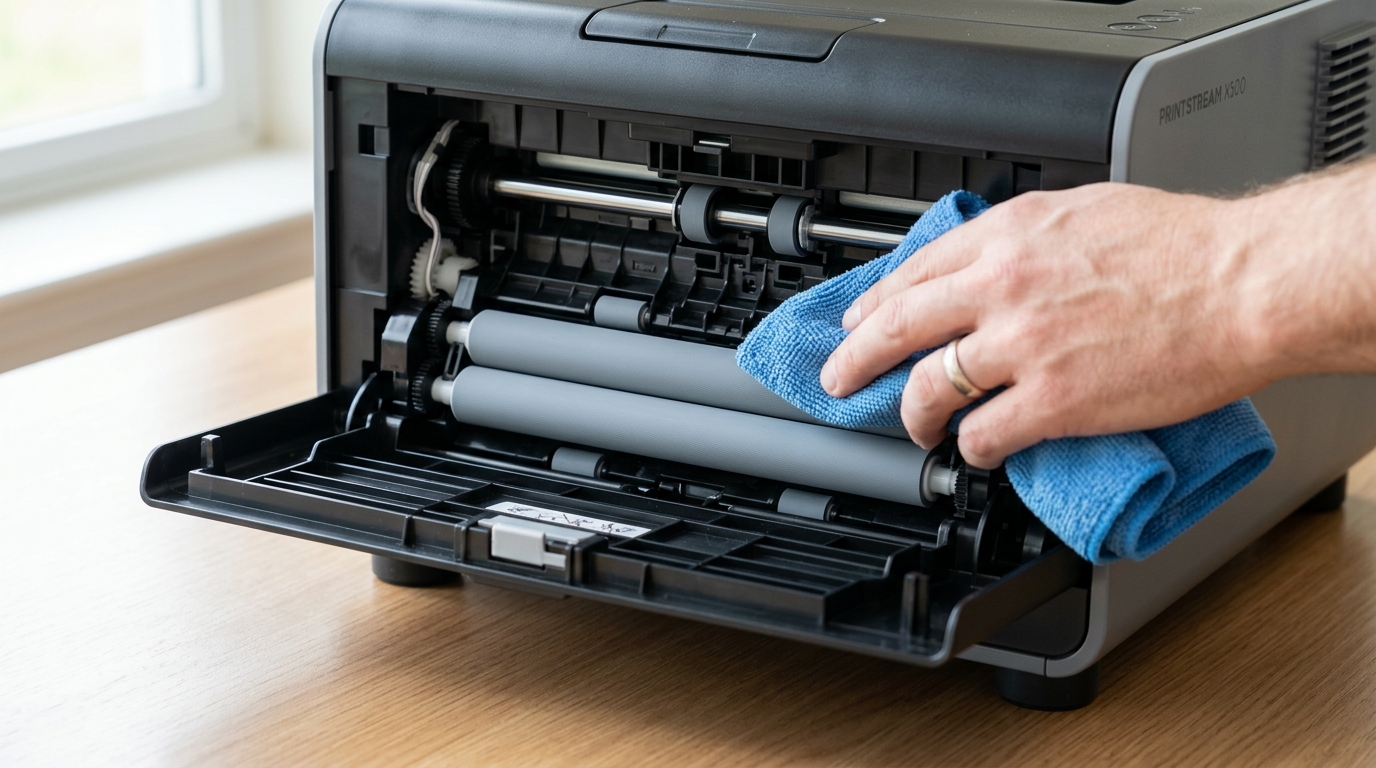
The Envy 6055e has four rubber rollers. Two pickup rollers grab paper from the input tray. Two feed rollers move the paper through the print zone. Worn or dirty rollers can cause paper to misfeed. This will trigger the jam sensors.
- Dampen a lint-free cloth with distilled water.
- Open the rear clean-out door to access the rollers.
- Send a print job and quickly press Cancel. This moves the rollers by one rotation.
- Wipe the exposed roller surface with the damp cloth. Do this as the roller moves. Clean the entire surface of each roller.
- Wait 10 minutes for the rollers to dry before testing.
HP Envy 6055e Firmware Update for Phantom Jams
HP released a firmware (internal software) update for early units of the 6055e. A bug caused the jam sensor to get stuck after clearing a jam. The sensor would not reset without this firmware (internal software) update.
- Make sure the printer is connected to Wi-Fi.
- Open HP Smart. Select your Envy 6055e. Click Printer Details. Click Update Printer.
- Install any available updates. The update takes 3 to 5 minutes. The printer restarts on its own.
- Run a test print after the update. Firmware (internal software) versions from after mid-2022 fix the phantom jam issue.
Frequently Asked Questions
The HP Smart app shows a jam on my phone but the printer paper path is clear — why?
The HP Smart app shows the error state reported by the printer's sensors. It does not do a separate scan.
How many jam sensors does the HP Envy 6055e have?
The 6055e has at least three jam detection parts. It has an input tray sensor flag.
What if the jam clears but the error comes back after 2-3 prints?
Jams that return after a few prints mean the pickup rollers are worn. They cannot grip the paper cleanly every time.
Can I remove the jam sensor entirely to bypass the error?
Do not do this. The jam sensors prevent the printer from grinding jammed paper.
When to Contact HP Support
Contact HP Support at support.hp.com if the jam error continues. Do this after you clear all access points and check the sensor flag.
Also do this after you clean the rollers and update the firmware (internal software). The Envy 6055e has a 1-year standard warranty.
It has a 2-year warranty with HP+. HP can run a remote check using the HP Smart app.
This finds the exact broken sensor.
