


The Quick Answer
HP+ printer stuck on setup screen? A repair tech explains why it hangs, 5 real fixes, and the VPN/DNS setting almost nobody suspects. (140 characters)
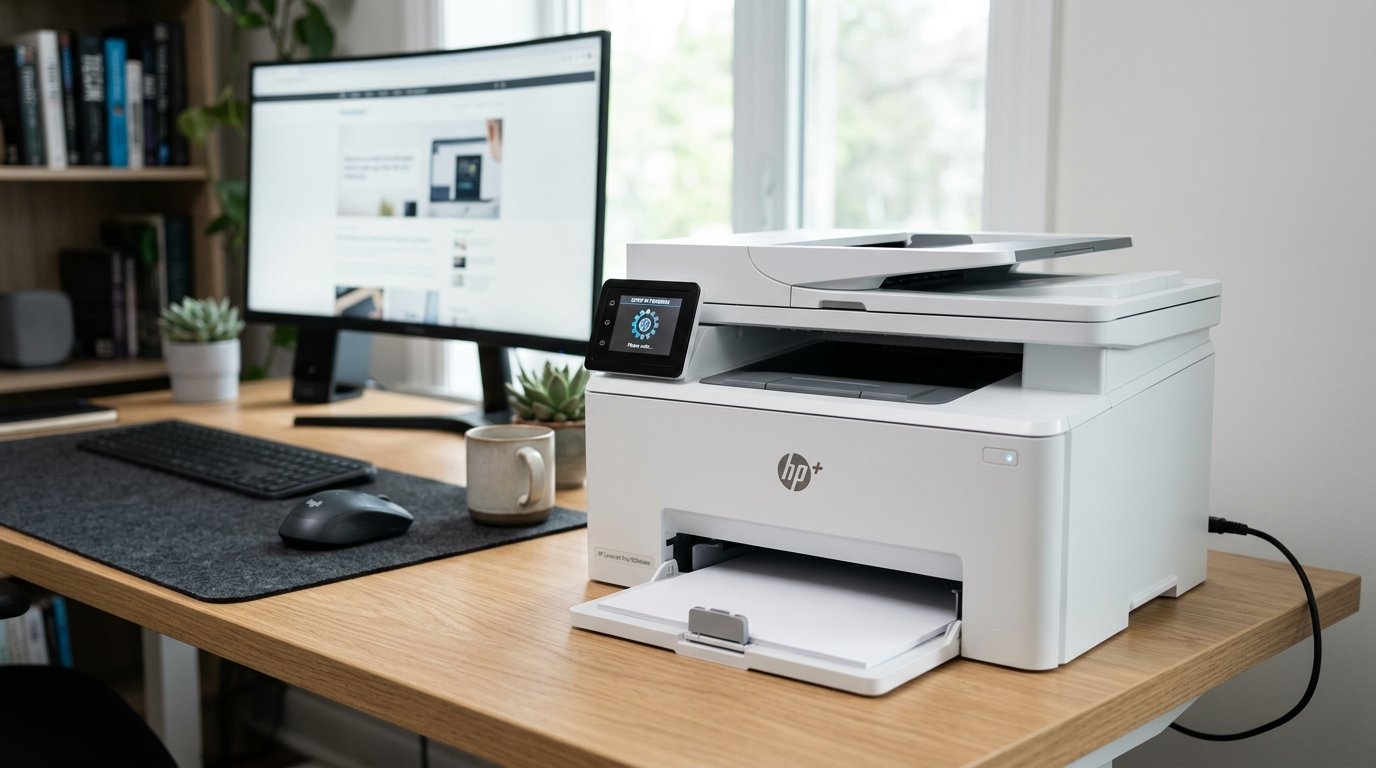
Brand-new printer, box barely open, and it's already stuck spinning on a setup screen that won't move forward. If your HP+ printer is stuck on setup screen — a loading circle that never finishes, a "connecting" message that never connects, or a wizard that silently resets to step one — you haven't done anything wrong.
HP+ setup is genuinely stricter than a normal printer install, because it requires a live conversation with HP's servers before the printer will even accept ink. When that conversation gets interrupted, the wizard just... waits, forever, with no error message to tell you why.
I've walked more than a few frustrated new owners through this exact screen. Here's the order I work it in, ending with the cause that catches the most tech-savvy households completely off guard.
Quick-Fix Summary
The fast version:
- Confirm real internet, not just Wi-Fi — connected to a router isn't the same as connected to the internet.
- Switch to the HP Smart app to complete setup instead of fighting the on-screen wizard.
- Move off the 5GHz band if your router is dual-band and the printer prefers 2.4GHz.
- Full power cycle the printer and restart the setup process from scratch.
- Disable VPN and private DNS — the fix almost nobody suspects, and it's often the actual culprit.
Why HP+ Setup Is Different (and Stricter)
A normal printer just needs to talk to your computer or phone. An HP+ printer needs to talk to your computer or phone and reach out over the internet to HP's own activation servers, confirm your HP account, and register the printer against it — all before the wizard will let you past the setup screen.
That's more handshakes than a regular printer needs, and more handshakes means more places for one weak link to stall the whole chain silently.
Why this matters: every fix below targets one specific handshake in that chain. Knowing there are multiple conversations happening, not just one, changes how you troubleshoot a screen that gives you zero error detail to go on.
Fix 1: Verify Actual Internet, Not Just Wi-Fi
Connect a phone or laptop to the exact same Wi-Fi network the printer is trying to join, and load a random website. Confirm it's genuinely fast and working — not just "connected" with a weak or intermittent signal.
Why this works: a device can show "connected to Wi-Fi" while barely reaching the internet at all — weak signal, an overloaded router, or an ISP hiccup all produce this. HP+'s activation handshake needs a clean connection through to HP's servers, and setup wizards rarely distinguish "no internet" from "just thinking" — they show the same spinning wheel either way.
Fix 2: Let the App Finish What the Wizard Started
Rather than fighting the printer's own touchscreen wizard, open the HP Smart app on your phone or computer, sign into your HP account, and let the app search for and set up the printer directly.
Why this works: the on-screen setup wizard and the HP Smart app both drive the same activation process, but the app gets more frequent updates and handles network hiccups more gracefully than firmware baked onto the printer at the factory. In my shop, switching to the app is often the single fastest way past a wizard that's stuck spinning for no visible reason — it's essentially the same road with better shocks.
Fix 3: Try the Other Wi-Fi Band
If your router broadcasts both 2.4GHz and 5GHz networks — often under the same name, or as separate names like "HomeWiFi" and "HomeWiFi-5G" — connect the printer specifically to the 2.4GHz network during setup.
Why this works: many HP+ printers, especially entry and mid-range models, have weaker 5GHz radio performance or run into compatibility quirks with certain router chipsets on that band. 2.4GHz has a longer range and broader compatibility, even though it's technically the slower band.
A printer struggling to hold a stable 5GHz connection can look identical to one that's simply "stuck" — the setup screen doesn't know the difference, it just waits.
Fix 4: The Full Restart
Power the printer completely off. Unplug it from the wall for a full 60 seconds. Plug back in, power on, and start the setup process again from the very beginning — don't try to resume a stalled setup partway through.
Why this works: a setup process that's genuinely stuck mid-handshake often leaves the printer holding a half-completed state that a simple retry can't clear. Starting fresh from a true power-off gives every step — Wi-Fi join, account link, activation — a clean attempt instead of building on top of whatever failed the first time.
Fix 5: Disable VPN and Private DNS (My Uncommon Tip)
Here's the cause that trips up exactly the households you'd least expect — the tech-savvy ones running a VPN for privacy, or a custom DNS service like a Pi-hole or a privacy-focused DNS provider for ad-blocking. It sounds unrelated to a printer. It isn't.
HP+ activation makes specific calls out to HP's servers to verify your account and register the device, and it needs those calls to complete cleanly and quickly. A VPN can route that traffic through a distant server or a provider HP's activation system doesn't expect, adding delay or outright blocking the handshake.
A privacy DNS service or ad-blocking DNS filter can do something sneakier: it can silently block or redirect the specific domains HP's activation servers live on, while every other website on the internet loads perfectly — so your internet looks completely fine while the printer's specific conversation with HP never completes.
The fix: temporarily disable any VPN on the network or the device driving setup, and temporarily switch your router or device back to a standard DNS (or your ISP's default) rather than a custom privacy DNS. Complete HP+ setup, then re-enable your normal privacy tools afterward — they don't interfere with day-to-day printing once activation is done.
Why this works: the printer's activation servers are pickier than a normal website about how traffic reaches them, and every layer of privacy tooling between the printer and HP's servers is one more place the handshake can quietly fail. This is precisely the kind of cause that never shows up in basic troubleshooting guides, because "check your VPN" sounds like strange advice for a printer — until you've watched it solve a setup that had been stuck for two days.
When to Call a Professional
If a genuinely clean internet connection, the HP Smart app, the 2.4GHz band, a full restart, and a VPN/DNS check all fail to move the setup screen forward, contact HP support directly — this can indicate a problem on HP's activation servers themselves, a defective Wi-Fi radio in the unit, or an account-side registration conflict none of these fixes can resolve from your end. Have your printer's serial number and HP account email ready;
activation issues are a known support category, and if the unit is defective, it's typically covered under standard warranty since this happens during initial setup, not after months of use.
FAQ
Why does my brand-new HP+ printer get stuck on the setup screen?
HP+ requires the printer to complete an online activation handshake with HP's servers before it'll accept ink or finish setup. Any weak link in that chain — internet, network band, VPN, or DNS — can stall the wizard with no visible error.
Can I skip HP+ setup and just use the printer normally?
Not on a printer that shipped with HP+ enabled — it won't accept cartridges or finish initial setup until activation completes. You can look into your printer's specific HP+ opt-out policy afterward, but setup itself has to finish first.
Why would a VPN affect a printer's setup?
HP+'s activation calls out to specific HP servers, and a VPN can route or delay that traffic in ways the activation system doesn't expect — even while every other website works fine for you.
Is it faster to use the HP Smart app instead of the printer's touchscreen wizard?
Often, yes. The app receives more frequent updates and tends to handle network hiccups better than the wizard built into the printer's firmware. If the touchscreen is stuck, switching to the app is one of the fastest ways past it.
An HP+ printer stuck on setup screen is almost always a broken handshake somewhere between the printer and HP's activation servers — not a dead printer. Check for real internet, let the app take over, try the 2.4GHz band, restart clean, and if you run a VPN or custom DNS, turn it off just long enough to get through activation.
Nine times out of ten, one of those five steps is the missing link.
Additional Resources
If you are still experiencing issues after trying the steps above, you may need to consult the official documentation or download the latest firmware for your specific printer model. We recommend checking the following official resources:
