


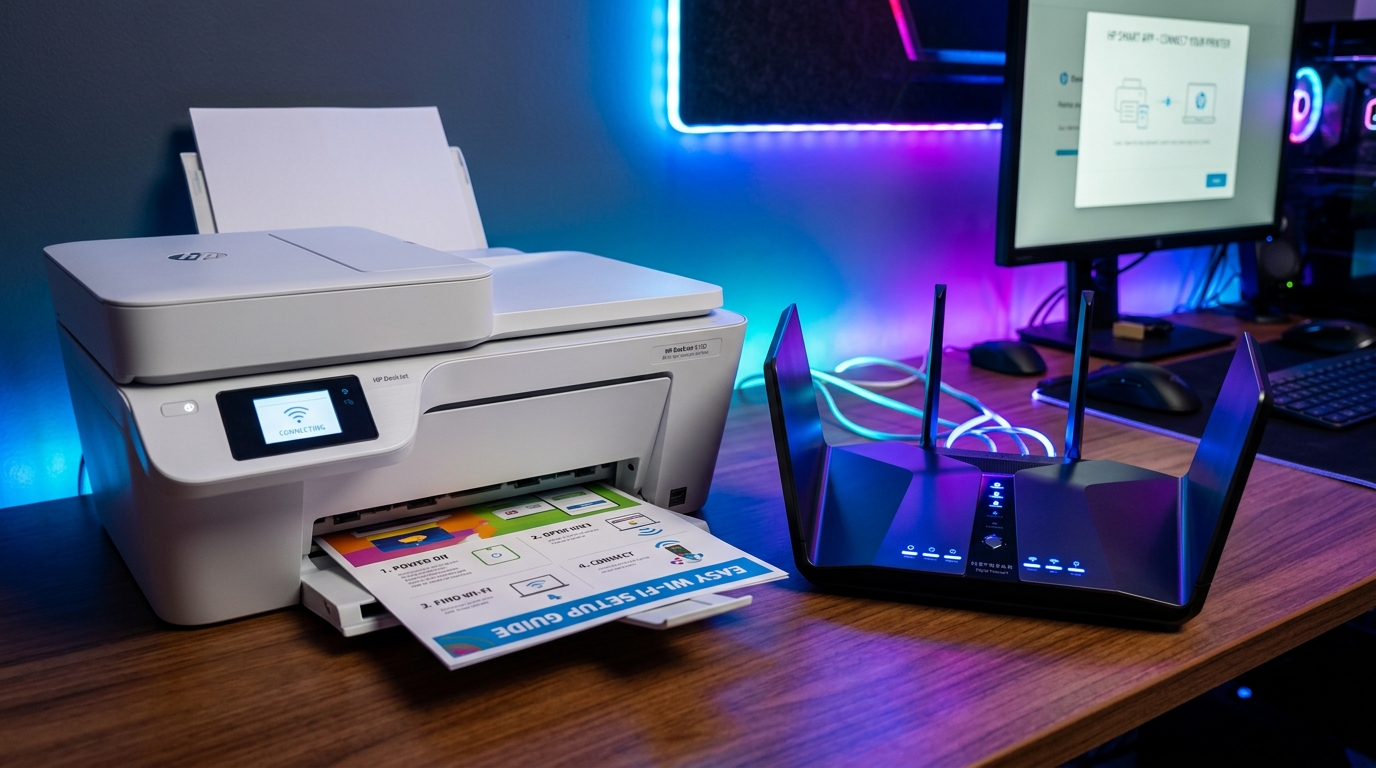
The Quick Answer
HP DeskJet 4155e connects to Wi-Fi but says no internet? A repair tech explains the DNS setting behind this specific, confusing pattern.
There's a particular flavor of frustrating that's unique to this exact symptom: the printer's own status page proudly reports "Connected to wireless network," lists a. Valid IP address, shows excellent signal strength — and still can't reach the internet, can't check for updates, can't use any cloud-dependent feature at all. Everything about the connection looks perfect except the one thing that actually matters. This guide covers full setup from scratch, and then goes deep on that specific "connected but. No internet" pattern, because it has a distinct, fixable cause most people never think to check.Quick Summary
- Use the correct setup mode button sequence on the printer's control panel.
- Connect via 2.4GHz, and avoid mesh/extender networks during initial setup if possible.
- Reset and start over if setup fails partway through.
- Check DNS settings manually if you're connected but can't reach the internet — my uncommon tip, and a genuinely different cause than a weak signal.
- Reset wireless settings after any location change , including travel.
Fix 1: Enter Setup Mode Correctly
On the printer's control panel, press and hold the Cancel and Wireless buttons together until the power button starts flashingThe power button will flash briefly, then remain solidly lit, and shortly after, the. Wireless light will begin flashing — this sequence indicates the printer is ready for setup.
On your phone or computer, open the HP Smart app, tap Add Printer, then Setup a New PrinterOpen your device's Wi-Fi settings and connect to the network named. Something like "HP-Setup" momentarily, then return to the app to continue.
Why this works:this specific button sequence puts the printer into a temporary setup mode where it broadcasts its own network specifically so your phone or. Computer can reach it directly to hand over your real Wi-Fi credentials, without either device needing to already be on the same network beforehand.
Fix 2: Connect via 2.4GHz, and Be Cautious With Mesh Systems
If your router broadcasts separate 2.4GHz and 5GHz networks, connect the printer to 2.4GHz specifically during setup. If you're running a mesh Wi-Fi system with multiplenodes, be aware that setup can be considerably more complicated on these systems — if you're able to temporarily connect closer to your.
Primary router node, or use a setup profile that isn't actively load-balancing devices between nodes, that can smooth out an otherwise inconsistent setup process.
Why this works: 2.4GHzoffers better range and interference tolerance than 5GHz, and mesh systems introduce genuine complexity during the sensitive handshake period of setup — a. Device getting handed between nodes mid-setup is a documented source of failed connections that has nothing to do with anything you're doing wrong.
Fix 3: Reset and Start Completely Over If Setup Fails
If setup fails partway through, don't try to resume it — reset the printer's wireless settings from its control panel network menu, and begin the entire process again from Fix 1.
Why this works:a partially completed setup can leave the printer holding onto a half-configured network state. That interferes with subsequent attempts, even once you've corrected whatever caused the original failure. Starting genuinely fresh avoids fighting leftover confusion from the last attempt.
Fix 4: Check DNS Settings Manually (My Uncommon Tip)
Here's the fix for the specific, confusing pattern described at the top of this. Guide — a printer that's genuinely, successfully connected to your Wi-Fi network, with a valid IP addressand strong signal, but that can't reach the internet for anything: firmware. (internal software) update checks, cloud printing features, or any HP+ account functionality.
This is a DNS problem, not a Wi-Fi problem, and the. Two are genuinely different layers that most troubleshooting advice lumps together.
Your printer being connected to your network with a good signal proves the Wi-Fi connection itself is fine. But reaching the actual internet requires a separate step: translating web addresses.
Into the numeric addresses computers use, a job handled by DNS servers. If the printer's DNS settings are pointing at a server it can no longer reach — which can happen after connecting the printer on a different network previously, such as during travel.
Or simply due to a DNS server that's become temporarily unreachable — the printer can be completely, successfully connected to Wi-Fi while being entirely unable to actually reach anything on the internet.
To check and fix this: access the printer's network settings, either through its control panel. Menu or through its Embedded Web Server (type the printer's IP address into a browser).
Look for DNS settings, often found under IPv4 or network settings details. If it's currently set to a specific manual DNS server address, particularly one that might.
Be left over from a different network the printer was previously connected to, switch it to Automatic/DHCP so it pulls DNS settings fresh from your current router, or manually enter a widely reliable public DNS server like 8.8.8.8 (Google's public DNS) as an alternative.
Why this works:this directly addresses the layer of the problem that a simple "check the Wi-Fi. Signal" troubleshooting step never touches, because the Wi-Fi signal was never actually the issue.
This is exactly the kind of cause reported by DeskJet 4155e owners who traveled internationally with the printer and returned home to find it "connected" but non-functional. For anything requiring genuine internet access — the printer's remembered DNS settings from the travel network didn't automatically correct itself just because the Wi-Fi network changed back.
Understanding that connectivityand DNS resolution are separate, independently-failable layers turns a baffling "it. Says it's connected but nothing works" mystery into a specific, checkable setting.
Fix 5: Reset Wireless Settings After Any Location Change
If you've recently moved the printer to a different location —. A different room, a different building, or especially a different country — resetits wireless settings completely and set it up fresh on your. Current network, rather than expecting it to transition smoothly on its own.
Why this works: this is exactly the kind of situation that produces the DNS mismatch described in Fix 4, along with more general connection confusion. A clean reset and fresh setup on the network you're actually currently using avoids carrying forward.
Settings details that made sense on a previous network but actively cause problems on this one.
When to Call a Professional
If you've completed setup correctly, confirmed 2.4GHzand accounted for any mesh system complexity, and reset DNS settings to automatic or a reliable public server — and the printer still can't reach the internet despite showing a solid Wi-Fi connection — contact HP support with your.
Printer's serial number and specifically mention that DNS settings have already been checked and reset, since that rules out the most common cause of exactly this symptom and helps direct their diagnosis toward something more unusual on your specific network.
FAQ
Why does my DeskJet 4155e say it's connected to Wi-Fi but has no internet access?
This is very often a DNS issue, not a Wi-Fi issue — the printer can successfully join your network while still. Being unable to resolve internet addresses if its DNS settings point at an unreachable server, often left over from a previous network. Reset8.
Can traveling with this printer really cause connection problems when I get home?
Yes — this is a specifically documented pattern. The printer can retain DNS or network settings details from wherever it last connected. And those settings don't always update cleanly just because you've returned to a different network.
Should I connect this printer to a mobile hotspot instead of a router?
This model has documented difficulty acknowledging mobile hotspot connections during setup specifically, according to HP's own support guidance. A genuine router or standard Wi-Fi network is more reliable for setup than a phone hotspot.
Why does mesh Wi-Fi make setup harder?
Mesh systems can hand a device between nodes during the sensitive setup. Handshake period, interrupting the process in ways that have nothing to do with signal strength or anything you've configured incorrectly. Setting up closer to your primary node can help.
HP DeskJet 4155e Wi-Fi setup4GHz band — but if you end up with a printer that's genuinely connected and. Still can't reach the internet, remember that connectivity and DNS resolution are two separate things.
Check the DNS settings specifically, especially after any travel or network change, and. A connection that looked perfectly healthy but did nothing usually starts working immediately.
