


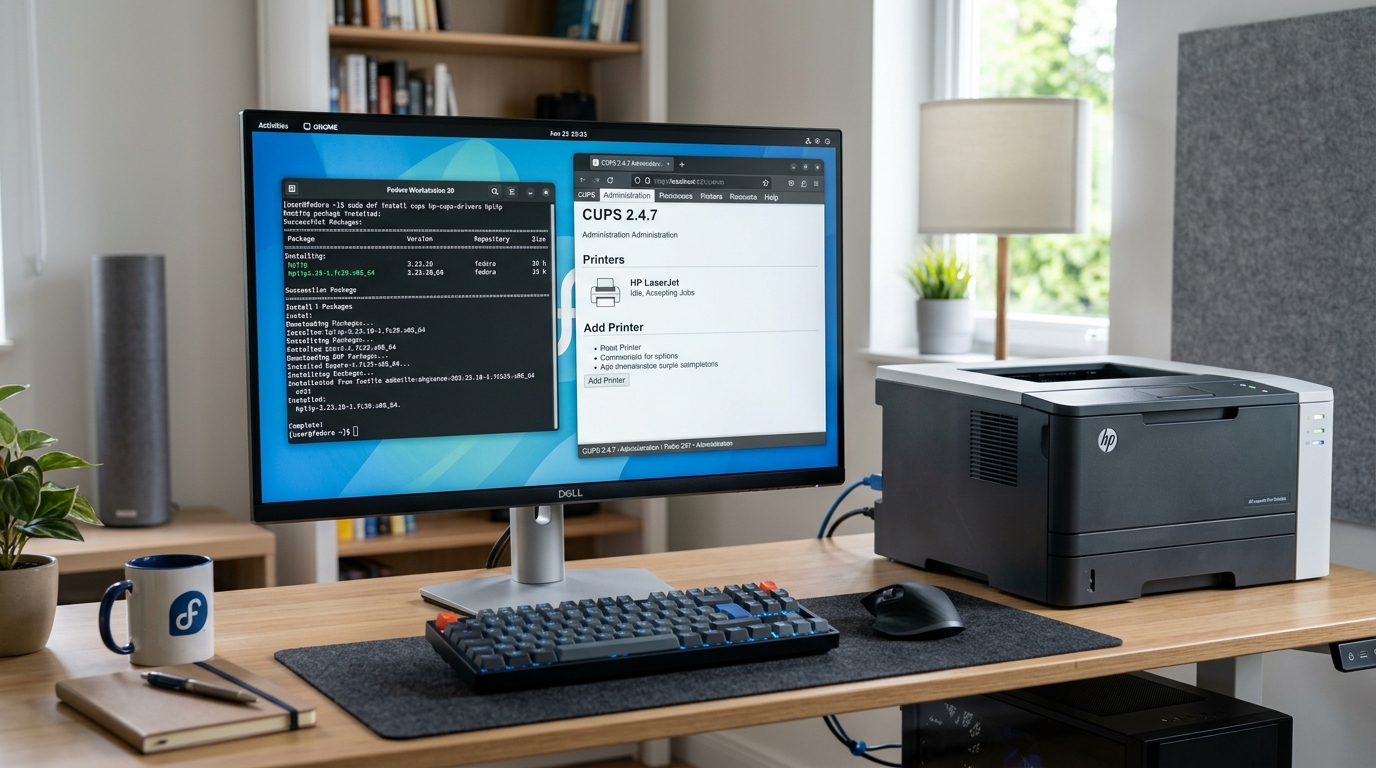
HP Printing Architecture on Fedora Workstation
Fedora Linux uses modern printing standards including CUPS, DNF package management, and strict firewalld rules.
Configuring an HP printer on Fedora requires installing HPLIP via DNF, enabling the CUPS service, and opening network ports in firewalld for mDNS discovery.
Step 1: Install HPLIP and SANE via DNF
Install the necessary driver packages from Fedora's official repositories:
- Update your system: Open terminal and run
sudo dnf upgrade --refresh. - Install HPLIP packages: Run
sudo dnf install hplip hplip-gui -yto install the driver framework and graphical toolbox. - Install scanning backends: Run
sudo dnf install sane-backends sane-backends-drivers-scanners sane-airscan -y. - Enable the CUPS printing service: Run
sudo systemctl enable --now cupsto ensure print queues start on boot.
Step 2: Configure firewalld for Network Printer Discovery
Fedora's default firewall configuration blocks incoming mDNS and SNMP printer broadcasts:
- Allow mDNS service: Run
sudo firewall-cmd --add-service=mdns --permanent. - Allow IPP printing service: Run
sudo firewall-cmd --add-service=ipp --permanent. - Allow HP discovery service: Run
sudo firewall-cmd --add-service=ipp-client --permanent. - Reload the firewall: Run
sudo firewall-cmd --reloadto apply the new rules immediately.
Step 3: Run HP Setup and Install the Proprietary Plugin
Configure the printer queue and install the required proprietary binary blobs:
- Launch the setup wizard: In terminal, run
hp-setup. - Select connection type: Choose Network/Wireless or USB depending on your connection.
- Install the proprietary plugin: When prompted, select Download and install plugin from HP server.
- Check GPG key validation: If prompted to accept the HP driver key, press
yto confirm. - Print test page: Confirm the print test prompt to verify driver installation.
Step 4: Driverless IPP-Everywhere Setup (Zero-Driver Option)
Modern HP printers manufactured after 2015 support driverless printing natively in Fedora:
- Open GNOME Settings: Navigate to Settings > Printers.
- Unlock panel: Click Unlock in the top-right corner and enter your sudo password.
- Add Printer: Click Add Printer. Fedora will automatically discover the printer via AirPrint / IPP-Everywhere.
- Select Driverless: Choose the driverless profile. This bypasses HPLIP entirely and requires zero maintenance during Fedora OS version upgrades.
Frequently Asked Questions
Does SELinux block HP printer drivers on Fedora?
In rare cases, SELinux restricts third-party binary plugins. If printing fails, check sudo ausearch -m avc -ts recent to see if audit denials are logged.
Why does hp-setup fail with Python errors on Fedora?
This happens if PyQt dependencies are missing. Run sudo dnf install python3-pyqt5 python3-dbus to install the required graphical libraries.
Can I print from Flatpak applications on Fedora?
Yes. Flatpak apps use the XDG Desktop Portal to communicate with CUPS. As long as the printer is configured in system CUPS, all Flatpaks can print.
