


The Quick Answer
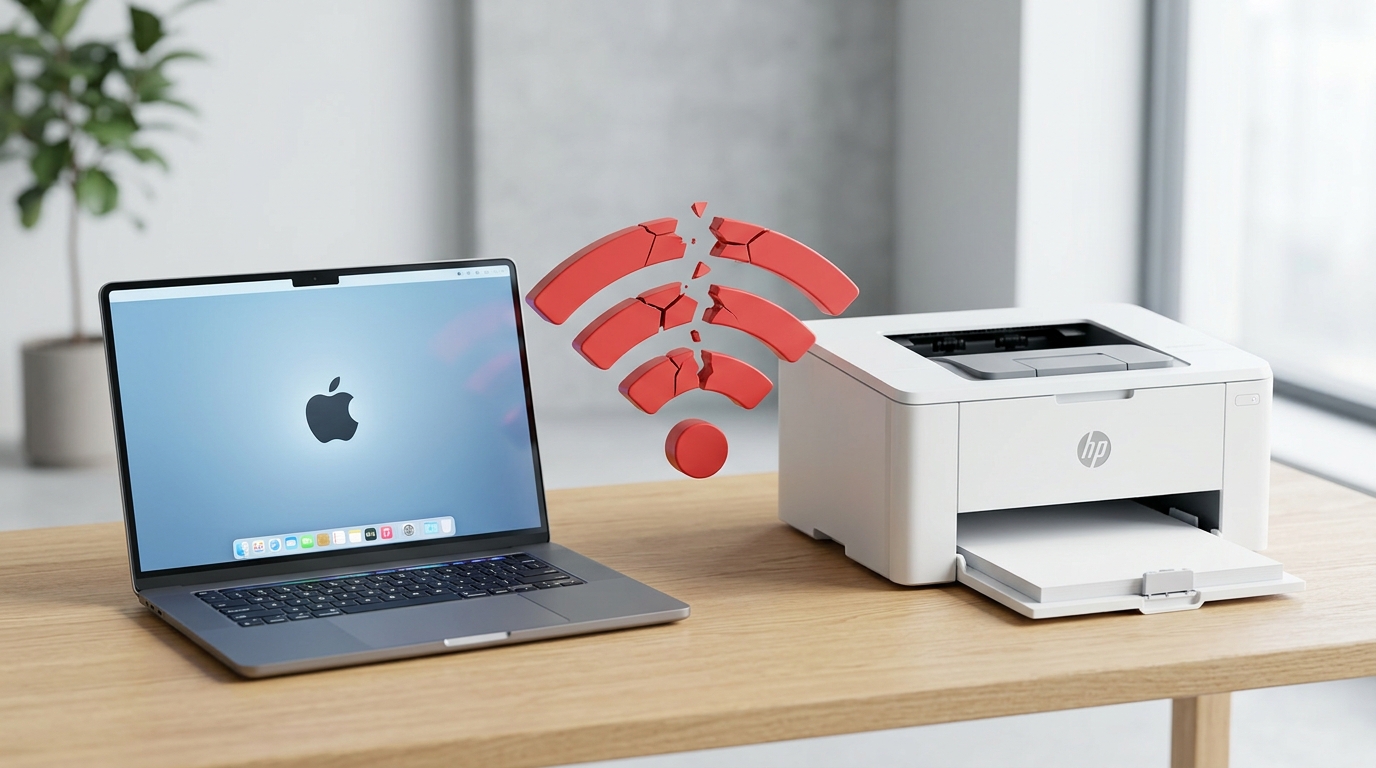
HP printer not showing up on macOS Sequoia? A repair tech explains the counterintuitive fix: sometimes avoiding HP's own driver is the right move.
If your HP printer vanished, stopped responding, or won't add at all since updating to macOS Sequoia, you're far from alone — this has been one of the more widely reported HP-and-Mac compatibility headaches since Sequoia's release, showing up repeatedly across both Apple's. And HP's own support communities.
The frustrating part is that the usual instinct — reinstall the HP driver — sometimes makes things worse rather than better,. And understanding why changes how you should approach fixing this.
Quick-Fix Summary
Fast version:
- Remove the existing printer entry completely before trying anything else.
- Reset the printing system through a hidden right-click menu.
- Re-add the printer and watch closely which driver macOS selects.
- Consider skipping HP's driver entirely for AirPrint-capable models — my uncommon tip,. And the counterintuitive fix that resolves the most cases.
- Check for firmware (internal software) updates on the printer itself, not just software on your Mac.
Fix 1: Remove the Existing Printer Entry
Open System Settings → Printers & Scanners, select your HP printer, and click the minus button to remove it completely.
Why this works: after a major macOS update, a printer entry that worked fine under the previous system can be pointing at a broken or outdated queue settings that Sequoia doesn't handle correctly,. And no amount of troubleshooting a broken entry accomplishes as much as starting genuinely fresh.
Fix 2: Reset the Printing System
In the same Printers & Scanners window, right-click (or Control-click) directly in the printer list — even on empty space if the list is now blank. A hidden menu appears with the option Reset printing system. Select it, enter your Mac password when prompted,. And restart your Mac.
Why this works: macOS builds its printing on an underlying system that maintains its own database of every printer. And queue it's ever known about,.
And that database can become corrupted during a major OS transition like the Sequoia update. This option wipes that entire database clean, which is often the only way to fully clear whatever broken state is preventing your printer from being detected properly — a normal remove-and-re-add sometimes isn't a deep enough reset to fix it.
Fair warning: this removes every printer. And scanner currently configured on your Mac, not just the HP one — you'll need to re-add all of them afterward.
Fix 3: Re-Add the Printer and Watch the Driver Selection
Click the plus button to add a printer. When your HP model appears in the list, before clicking Add, check the Use dropdown menu.
Note which driver macOS has automatically selected — it may default to a generic AirPrint option, a Secure AirPrint option, or attempt to find an HP-specific driver depending on your printer model. And what's currently installed.
Why this works: this is the moment that determines a great deal about whether things work smoothly afterward,. And paying attention here — rather than clicking through quickly — sets up the more targeted fix in Step 4 correctly.
Fix 4: Consider Skipping HP's Own Driver for AirPrint Models (My Uncommon Tip)
Here's the fix that goes against most people's natural instinct,. And it's specifically what resolved this exact problem for a meaningful number of affected users according to HP's own support community discussions.
HP has stopped actively maintaining updated drivers for many of their AirPrint-capable printer models. If your printer supports AirPrint — which describes a large share of HP's more recent consumer.
And small-business printers — your natural instinct is likely to hunt down. And install "the correct HP driver" for Sequoia, assuming that's what's missing.
For many of these models, that instinct is exactly backward: the fix is to deliberately avoid installing any HP-specific driver at all,. And let macOS handle the printer entirely through its own built-in AirPrint and Bonjour support instead.
To do this: after resetting the printing system. And removing any existing entry, add the printer fresh,.
And in the Use dropdown, specifically select an option like AirPrint or Secure AirPrint rather than searching for or downloading any separate HP driver software. If HP Easy Start or the HP Smart app prompts you to install additional driver software during this process, you can decline that step for AirPrint-capable models specifically.
And let macOS's native support handle the connection instead.
Why this works: when HP no longer actively updates a driver for current macOS versions, an outdated HP driver attempting to run under Sequoia's stricter system requirements can actively interfere with the connection — producing exactly the kind of "printer not showing up" or "printer shows. But won't respond" symptoms you're experiencing — rather than simply failing to add any useful functionality.
AirPrint, by contrast, is a standard Apple maintains. And updates directly as part of macOS itself, independent of whether HP has kept pace with the latest Mac operating system.
For AirPrint-capable printers, letting Apple's own actively-maintained system handle the connection sidesteps the entire compatibility gap that an aging, unmaintained HP driver creates. You'll lose some HP-specific convenience features this way — like advanced ink level reporting integrated into the printer's own entry —.
But basic, reliable printing and often scanning through AirPrint tends to work considerably better than fighting an outdated driver that HP isn't actively fixing for this macOS version.
Fix 5: Check for Printer-Side Firmware (internal software) Updates
Through the printer's own control panel, or the HP Smart app on another device, check for. And install any available firmware (internal software) update for the printer itself — this is separate from anything on your Mac.
Why this works: HP has released firmware (internal software) updates in the past specifically addressing certain macOS compatibility issues from the printer's side of the connection,. And this is worth checking even though it feels like the Mac should be where the problem lives — sometimes the fix genuinely comes from the printer's end instead.
When to Call a Professional
If you've reset the printing system, tried adding the printer with AirPrint specifically selected rather than an HP driver,. And confirmed the printer's firmware (internal software) is current —.
And it still won't appear or respond on macOS Sequoia — try setting it up from a different device on the network first (a phone through the HP Smart app, for instance) to confirm the printer itself is functioning. And reachable on your network at all.
If it works from another device but never from the Mac specifically, this points toward a deeper Sequoia-specific compatibility issue worth raising directly with both HP support and, if the printer is confirmed healthy and reachable, Apple support as well, since HP support communities have noted this affecting Apple's own printing framework in some cases, not solely HP's software.
FAQ
Why did my HP printer stop working specifically after updating to macOS Sequoia?
This is a widely reported compatibility issue, particularly affecting AirPrint-capable HP models where HP's own printer drivers haven't kept pace with Sequoia's updated system requirements, sometimes causing outdated drivers to interfere with the connection rather than simply not helping.
Should I install the HP driver or skip it entirely?
For AirPrint-capable printers specifically, try skipping HP's own driver. And selecting AirPrint or Secure AirPrint in the Use dropdown when adding the printer instead. This counterintuitive approach has resolved this exact problem for many affected users.
What does "Reset printing system" actually do, and is it safe?
It clears macOS's entire underlying printer. And scanner database, removing every configured printer, not just the problematic HP one. It's safe. And doesn't affect any of your documents or files,. But you will need to re-add all your printers afterward.
Will I lose features by using AirPrint instead of HP's own driver?
Some HP-specific conveniences, like detailed ink level integration in the printer's system entry, may not be available through AirPrint alone. Basic printing. And often scanning, however, tend to work more reliably through AirPrint than through an unmaintained HP driver on a current macOS version.
If your HP printer isn't showing up on macOS Sequoia, the fix that resolves this most often runs against instinct: reset the printing system, remove any old entry,. And for AirPrint-capable models, deliberately choose AirPrint over an HP driver when you add it back.
HP hasn't kept every driver current for this macOS version,. And letting Apple's own actively-maintained system take over is often the more reliable path forward.
