


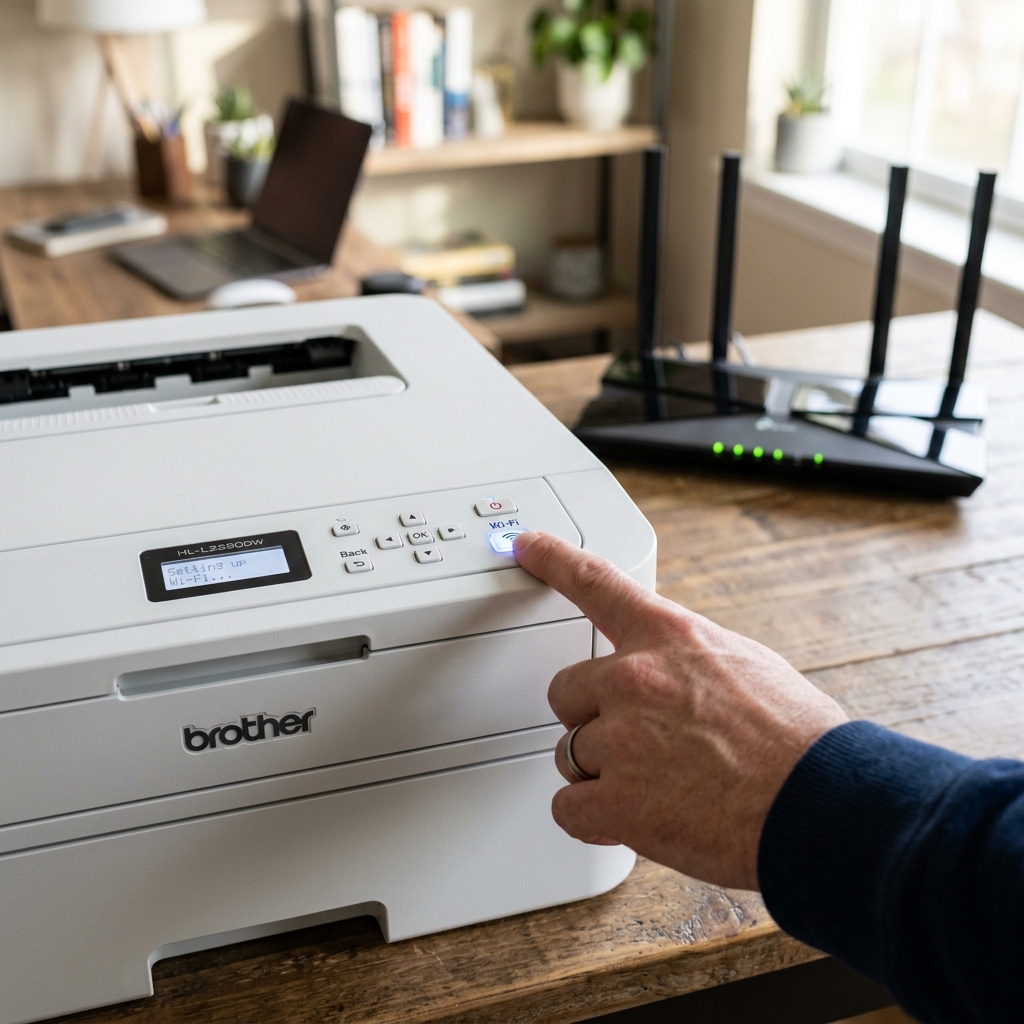
If you've already worked through the general TS-02 checklist — router's on, printer's close. No obstruction — and your network still doesn't show up in the printer's list of available networks at all, there's a specific hardware limitation worth checking before anything else: a real share of Brother printers only support the 2.4GHz Wi-Fi band.
And can't see a 5GHz-only network no matter how strong the signal is.
Why This Happens
Most home routers today broadcast on two separate bands — 2.4GHz and 5GHz — sometimes under the same network name. Sometimes as two visibly different names.
5GHz offers faster speeds but shorter range; 2.4GHz reaches farther and penetrates walls better. Many Brother printers, particularly entry-level and older models, only have hardware capable of detecting and joining the 2.4GHz band.
If your router is broadcasting your main network exclusively on 5GHz. Or if you've set your printer's default network to a 5GHz-only broadcast, the printer isn't failing to connect — it genuinely cannot see that network exists at all.
Why this matters: this isn't a settings problem or a range problem. No amount of moving the printer closer or removing obstructions fixes a band the printer's hardware was never built to detect.
How to Check if This Is Your Situation
On your phone or computer, look at your list of available Wi-Fi networks. If your router broadcasts two separate names — often something like "HomeNetwork" and "HomeNetwork-5G" — that's a strong sign you have distinct bands available separately.
If you only see one combined network name, your router may be using "band steering," automatically assigning devices to whichever band it decides is best. This can sometimes push your printer toward 5GHz without your explicit choice.
Fix 1: Connect to the 2.4GHz Network Specifically
If your router broadcasts separate network names for each band. Select the 2.4GHz one specifically during printer setup, even if your other devices default to the 5GHz option.
Why this works: this directly gives the printer a network its hardware can actually detect and join. Sidestepping the band limitation entirely rather than fighting it.
Fix 2: Temporarily Disable Band Steering
If your router combines both bands under one name using band steering, log into your router's settings and look for an option to disable this feature. Or to separate the bands into two distinct network names, at least temporarily during printer setup.
Why this works: band steering can prevent a 2.4GHz-only device from cleanly selecting the band it needs. Since the router is making that choice on the device's behalf. Splitting the bands into separate names gives you direct, explicit control during setup.
Fix 3: Confirm Your Exact Model's Band Support
Check your specific printer model's specification sheet on Brother's support site to confirm definitively whether it supports 2.4GHz only. Or both bands.
Why this works: this removes any guesswork. If your model is confirmed 2.4GHz-only, you know with certainty that connecting to a 5GHz-only network was never going to work. And you can stop troubleshooting range or obstruction entirely and focus on band selection instead.
When to Call a Professional
If you've confirmed your printer supports 2.4GHz, connected specifically to that band (disabling band steering if needed). And the network still doesn't appear at all, this points toward a genuine wireless hardware issue rather than a band mismatch, worth contacting Brother support about directly.
The 2.4GHz vs. 5GHz Radio Frequency Dilemma in Brother Printers
Almost all Brother consumer and small-office printers are engineered with 2.4GHz 802.11b/g/n wireless network cards. They do not contain 5GHz radio receivers.
While 5GHz Wi-Fi provides higher peak data throughput for streaming 4K video. 2.4GHz provides vastly superior physical range and wall-penetrating capability — perfect for low-bandwidth, intermittent printer traffic.
However, modern mesh routers create significant connection friction when handling legacy 2.4GHz-only client devices.
Common Router Band Steering Conflicts
- Single SSID Band Steering: Routers often broadcast one unified network name (e.g., "Smith_WiFi") across both frequencies. The router's internal steering algorithms try to force connected clients onto 5GHz for speed. When the Brother printer attempts to join, it cannot negotiate the 5GHz beacon, resulting in intermittent drops or TS-02 failures.
- Separating the Wi-Fi Bands:
- Log into your router's admin interface.
- Locate the Wireless Settings tab.
- Disable "Smart Connect" or "Unified SSID".
- Rename the 5GHz network to something distinct (e.g., "Smith_WiFi_5G") while leaving the 2.4GHz network as "Smith_WiFi".
- Connect your Brother printer explicitly to the 2.4GHz network.
- Using the Dedicated "IoT" Network Feature: If your router (such as Asus, TP-Link Deco, or Netgear) offers an "IoT Network" toggle, enable it. IoT networks operate on pure 2.4GHz with WPA2 security, providing a rock-solid channel for smart appliances and Brother printers.
Frequently Asked Questions
Can my computer print to the Brother printer if my computer is on 5GHz and the printer is on 2.4GHz?
Yes, absolutely. 4GHz and 5GHz bands are connected to the same local router subnet and "AP Isolation" is disabled.
Are there any Brother printers that support 5GHz natively?
Select recent enterprise-grade Brother color laser series (such as the HL-L8360CDW and MFC-L8900CDW equipped with dual-band optional cards) support 5GHz. But the vast majority of consumer HL and MFC models remain 2.4GHz-only.
