


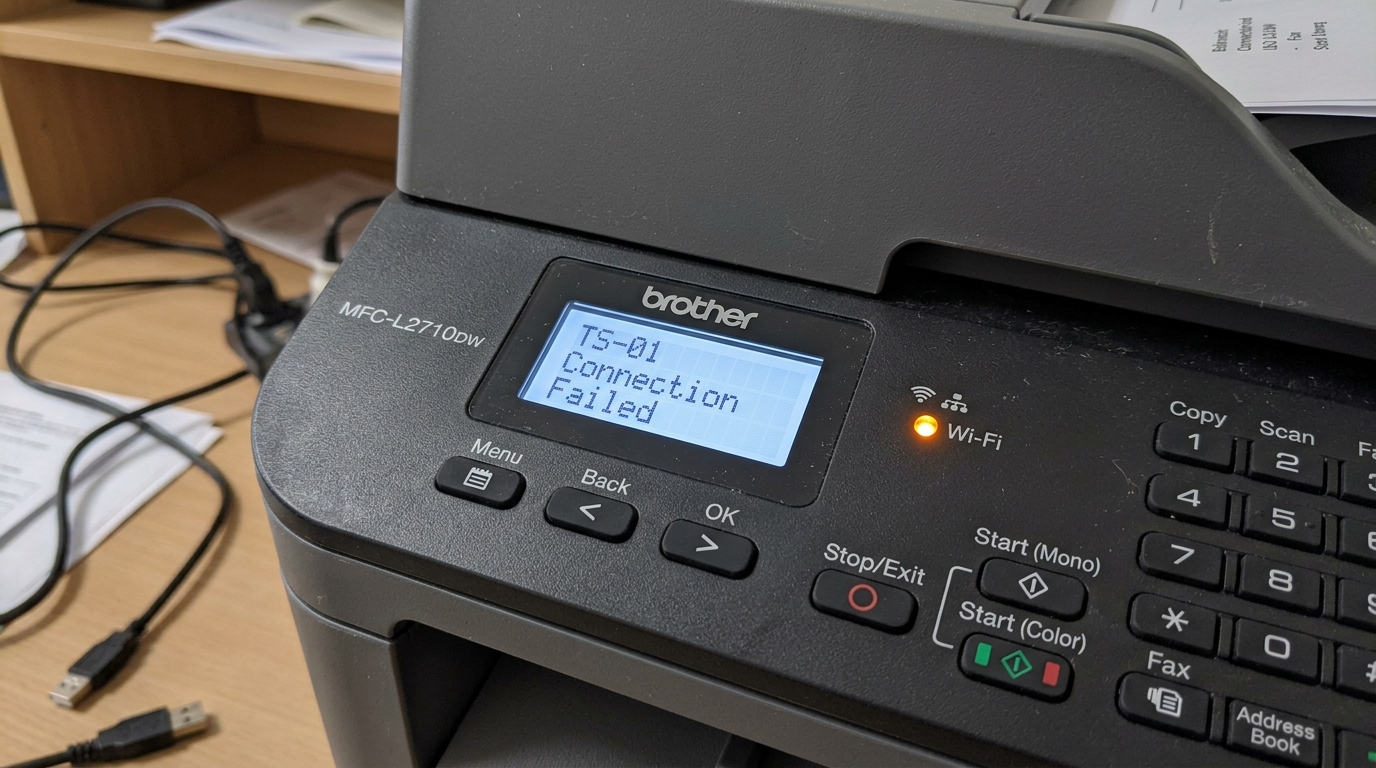
Of every wireless error code Brother uses, TS-01 is genuinely the simplest one to understand and the fastest to fix. It doesn't mean anything is wrong with your network, your router. Or Your password — it means your printer's own wireless radio isn't switched on yet.
What TS-01 Actually Means
Brother's official explanation is direct: the wireless setting is not activated. Your printer has a Wi-Fi radio built in, but that radio has its own on/off state separate from the printer's power button. And TS-01 appears specifically when you're attempting wireless setup while that radio is still switched off.
Why this matters: there's no network troubleshooting to do here at all. This is a single setting on the printer itself, and turning it on resolves TS-01 completely.
Fix: Turn On the Wireless Setting
If your printer has an Ethernet cable currently plugged in. Disconnect it first — some models won't activate wireless while a wired connection is present.
Then, on button-only models without a full display, hold down the GO button for 10 seconds. Release it once the printer prints a Network settings page confirming the new wireless setting.
On models with a menu display, navigate to Network → WLAN → Network I/F (or similarly named network interface setting) and set it to WLAN or Wireless instead of Wired or Off.
Why this works: this directly switches on the radio hardware that wireless setup depends on. Once it's active, the printer can move on to actually detecting and connecting to your network. This Is a separate step entirely from this one.
After Turning It On
Once the wireless setting is confirmed active. Run through your printer's wireless setup wizard again from the beginning, either through the control panel or the Brother iPrint&Scan app, to select your network and enter your password.
Why this works: TS-01 only addresses whether the radio is on, not the actual connection itself. Completing setup from here is a normal wireless settings process. No different from setting up any other printer once its wireless hardware is confirmed active.
When to Call a Professional
If you've disconnected any Ethernet cable, confirmed the wireless setting is switched to WLAN. And TS-01 still appears immediately every time you attempt setup, the printer's wireless radio itself may have a genuine hardware fault.
This is uncommon for what's normally a simple setting. But Worth raising with Brother support if the setting genuinely won't hold.
Detailed Diagnostic Breakdown of Brother Error TS-01
When your Brother WLAN Diagnostic Report prints with TS-01 at the top, it represents the simplest yet most overlooked wireless. Fault: the printer's physical Wi-Fi radio interface is toggled OFF in the firmware (internal software) settings.
When wireless is disabled, the printer completely powers down its internal antenna. Ignoring all router signals, WPS pairing attempts, and network discovery scans.
Step-by-Step Instructions to Re-Enable the Wireless Radio
- For Touchscreen Models (MFC Series):
- Press the Settings (Wrench/Gear) icon on the home screen.
- Select All Settings > Network > WLAN > Enable WLAN (or WLAN Enable).
- Select On. The screen will display "Accepted".
- The Wi-Fi indicator icon will appear at the top of the display and begin searching for your network.
- For Keypad LCD Models (HL & DCP Series):
- Press the Menu button on the control panel.
- Use the Up/Down arrow keys to navigate to Network and press OK.
- Scroll to WLAN d press OK.
- Scroll to WLAN Enable, press OK, select On, and press OK.
- Press Stop/Exit to return to the ready screen.
- For Single-Button Models (HL-1210W / HL-L2305W):
Press the physical Wi-Fi button on the top panel once. The blue Wi-Fi LED will illuminate. If it remains off, hold the Wi-Fi button down for 3 seconds to toggle the internal wireless module power relay.
Frequently Asked Questions
Why did my Brother printer's Wi-Fi turn off by itself?
If you connected an Ethernet cable to the printer's rear network port. Brother firmware (internal software) automatically disables the Wi-Fi radio to prevent network bridge loop collisions between the wired and wireless interfaces.
Can I run both Ethernet and Wi-Fi simultaneously on a Brother printer?
No. Brother printers are engineered with mutual interface exclusion: either Wired LAN or.
Advanced RF Antenna Diagnostics for Brother TS-01
When TS-01 appears, the printer's wireless subsystem is in an unpowered sleep state. In addition to menu toggling, on commercial Brother MFC workgroup printers, verify that the Physical Ethernet Cable is disconnected from the rear RJ-45 jack.
Brother mainboards contain a mechanical sensing switch inside the Ethernet port: plugging. In a network cable physically disables line power to the Wi-Fi RF amplifier chip.
Network EEPROM Flash Procedure for TS-01
- Enter Menuong>Menu > Network > Network Reset.
- Press 1strong>1 (or select Yes).
- Hold down the 1 button for 2ong> button for 2 seconds to execute an EEPROM flash reset. The machine will reboot and initialize the wireless radio into its default factory state.
- Navigate to Menuong>Menu > Network > WLAN > Setup Wizard to reconnect to your 2.4GHz network.
