


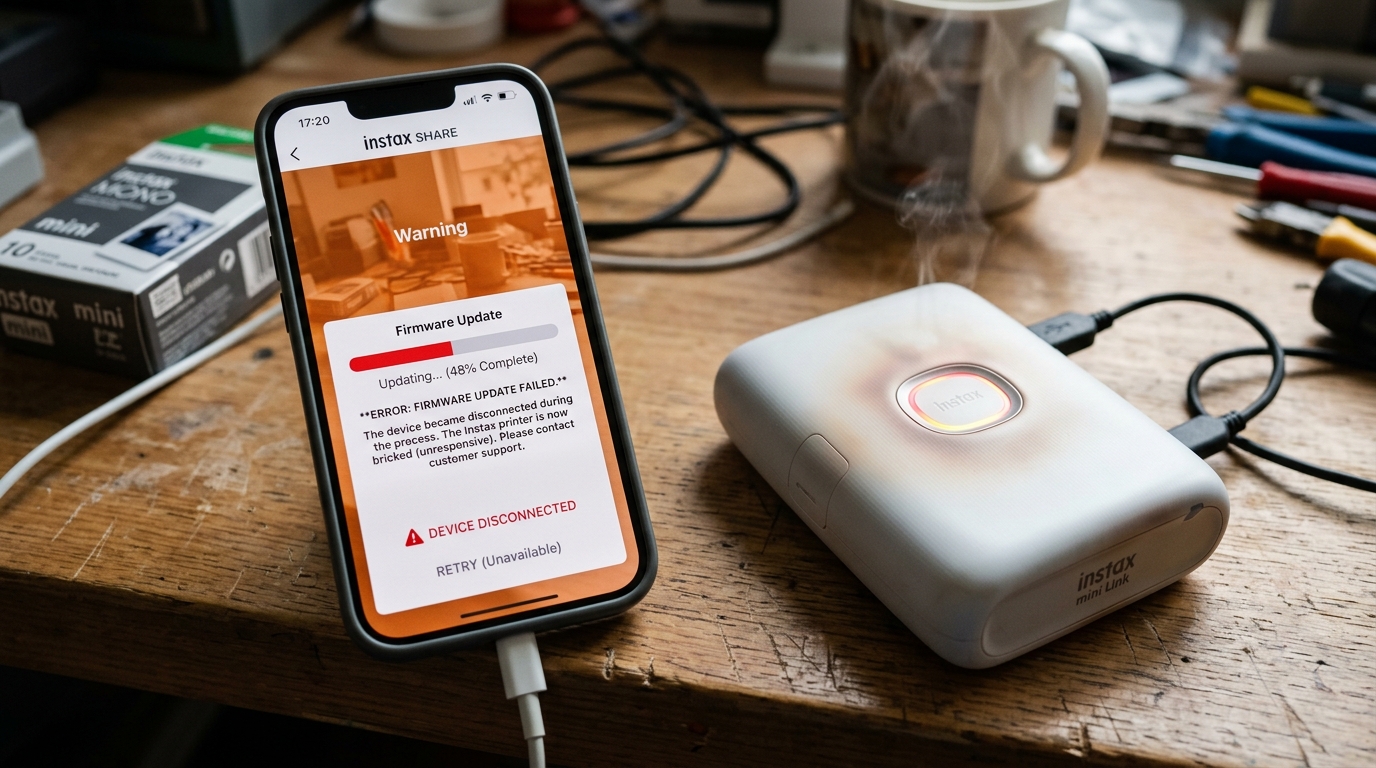
The Fujifilm Instax Link series (including the Mini Link, Square Link, and Link Wide) has revolutionized mobile photography by allowing users to print instant photos directly from their smartphones via Bluetooth. However, the reliance on continuous wireless communication and frequent firmware updates introduces complexities.
One of the most severe issues users face is the device becoming completely unresponsive—often stuck during a firmware update, displaying solid or flashing red LEDs indicating an overheating condition, or simply refusing to connect to the app. When standard troubleshooting fails, a hard factory reset is often the only way to recover the device.
This technical article explores the underlying causes of these critical failures, provides a definitive guide to forcing a reset, and details advanced recovery procedures for bricked Instax Link printers.
Why This Happens
The architecture of a modern Instax Link printer is essentially a small, embedded Linux or RTOS system managing Bluetooth Low Energy (BLE) communications, a complex battery management system (BMS), and precise mechanical stepper motors for the film ejection process. When a firmware update is initiated via the Instax app, the smartphone transfers a binary payload to the printer's flash memory.
If this transfer is interrupted by Bluetooth interference, a dying smartphone battery, or the app crashing in the background, the printer is left with an incomplete or corrupted bootloader. Upon restarting, the processor attempts to execute the corrupted code, fails, and enters a halted state, commonly referred to as being "bricked" or stuck.
Overheating issues are tied to the battery management system and the thermal demands of the development process. Exposing the Instax film requires a surprisingly high burst of energy to drive the LED exposure array and the ejection motors.
If the device is used continuously in a warm environment, or if it is left in direct sunlight, the internal thermistors will register a dangerously high temperature. To prevent lithium-ion battery degradation or a catastrophic thermal event, the logic board immediately halts all operations, flashes a red LED warning, and refuses to print or charge until the internal temperature drops to a safe threshold.
Sometimes, a software glitch in the BMS can cause a false overheating state, requiring a hard reset to clear the errant thermal flag in the memory.
Step-by-Step Fix
- Address the Overheating State (If Applicable): If the LED ring is flashing red rapidly, the printer believes it is too hot. Do not attempt to charge or reset it yet. Turn the device off (if it responds to the power button) and place it in a cool, dry area away from direct sunlight for at least 30 to 45 minutes. Attempting to force operations while the thermistor reads high will only prolong the lockout.
- Ensure Sufficient Baseline Power: A device cannot be reset if it lacks the power to execute the reset routine. Plug the Instax Link into a reliable, high-quality USB wall charger (not a computer USB port, which may provide insufficient amperage). Let it charge for at least 20 minutes before attempting the reset procedure. The LED should pulse to indicate charging.
- Locate the Hidden Reset Button: Fujifilm designed the Instax Link devices with a hardware reset switch specifically to recover from frozen states. You will need a paperclip, a SIM ejector tool, or a very thin needle. Locate the tiny pinhole on the body of the printer. On the Mini Link, it is typically located near the micro-USB/USB-C charging port or inside the film door compartment (varies slightly by generation).
- Execute the Hard Reset: While the printer is powered on (or in its stuck state), insert the tool into the pinhole and gently press down. You should feel a distinct tactile click. Hold the button down for approximately 5 to 10 seconds. The LED ring will completely power off, indicating the main processor power has been interrupted and reset.
- Clear the App Cache and Bluetooth Pairings: Before attempting to reconnect, you must clear the corrupted connection state on your smartphone. On your phone, go to the Bluetooth settings, find the "INSTAX-XXXXXXX" device, and select "Forget this device" or "Unpair." Next, go to your phone's app settings, force stop the Instax Link app, and clear its cache (and data, if necessary).
- Re-initialize and Connect: Turn the Instax Link printer back on. The LED ring should illuminate normally (usually flashing blue, indicating it is ready to pair). Open the freshly reset Instax Link app, grant necessary Bluetooth and location permissions, and follow the on-screen prompts to discover and pair the printer as if it were brand new.
- Re-attempt Firmware Update (Safely): If the device was stuck due to a failed update, the app will likely prompt you to update again. Ensure your phone is connected to a stable Wi-Fi network, the printer is plugged into the wall charger, and keep the phone directly next to the printer throughout the entire process to prevent Bluetooth dropouts. Do not switch apps or let the phone screen sleep.
Advanced Troubleshooting
If the hardware reset button fails to revive the printer—meaning the LED ring remains completely dark even when plugged into power, or it immediately returns to a solid red error state—the issue transcends a simple software lockup. In rare cases of a severely botched firmware update, the bootloader itself is destroyed.
Unlike some professional equipment, consumer devices like the Instax Link do not have accessible JTAG headers or easy ways to flash the EEPROM directly via USB. If the device is truly bricked at the bootloader level, it generally requires motherboard replacement by an authorized Fujifilm repair center.
Another advanced hardware failure involves the internal battery degrading to the point where its internal resistance is too high to provide the necessary burst current for the ejection motor. When the motor tries to spin, the voltage drops drastically, causing the logic board to brownout and reset mid-print, often interpreted by users as the printer being "stuck." While opening the case voids the warranty, technicians can verify this by measuring the battery voltage under load using a multimeter.
If the voltage sags below 3.2V when the print command is sent, the internal lithium polymer cell must be carefully desoldered and replaced with a compatible unit of the same capacity and discharge rating.
Finally, inspect the film ejection slot and the internal gears (accessible by opening the film door). Sometimes, a physical jam—a piece of film that didn't eject properly or a broken plastic gear tooth—will cause the motor to overdraw current.
The mainboard detects this overcurrent condition and instantly shuts down the system to prevent a fire hazard, illuminating the error LED. Manually clearing the jam or using a spudger to ensure the gear train moves freely is necessary before the logic board will clear the error state and resume normal operation.
FAQ
Will resetting the printer waste the film currently inside?
A software/hardware reset using the pinhole button does not physically eject film or expose the current pack to light. However, if you open the film door to look for the reset button or inspect the gears, you will expose the remaining film to light, ruining the rest of the pack.
Why does the firmware update fail so often?
Firmware updates over Bluetooth Low Energy (BLE) are inherently risky due to the low bandwidth and susceptibility to interference from other 2.4GHz devices (like Wi-Fi routers, microwaves, or other Bluetooth devices). A momentary drop in connection can corrupt the binary payload being transferred to the printer.
The red light is flashing, but the printer doesn't feel hot. Why?
This is often a false positive triggered by a software glitch in the battery management system. The thermistor might be reporting an inaccurate value, or the logic board's memory is stuck in an error state.
Can I replace the internal battery myself?
While technically possible for someone skilled in electronics repair, it is highly discouraged. Opening the heavily glued casing is difficult and usually causes cosmetic damage.
My phone cannot find the printer even after a reset. What's wrong?
Ensure that you have completely "forgotten" the device in your phone's native Bluetooth settings menu. The Instax app cannot connect if the OS is holding onto a corrupted legacy pairing profile.
