


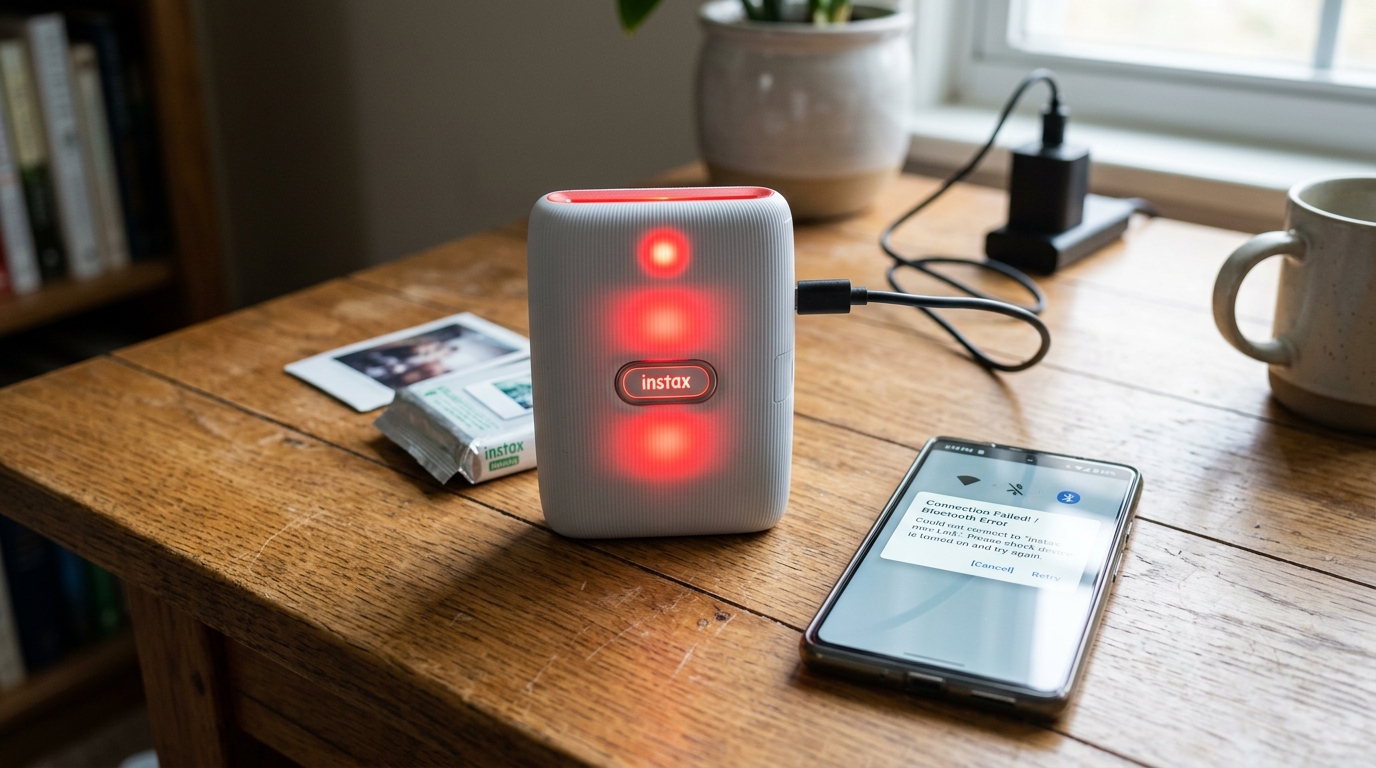
Introduction to Instax Link Disconnection Issues
If your Fujifilm Instax Link printer keeps disconnecting or shows as connected but won't print, you are not alone. This is one of the most common issues reported by users of the Instax Mini Link.
Square Link, and Link Wide printers. The frustration of trying to capture a special moment only to.
Have the printer fail to communicate with your smartphone can be immense. This comprehensive guide will walk you through everything you need to know about why this happens.
How to troubleshoot it systematically, and advanced methods to ensure a stable Bluetooth connection. By understanding the underlying mechanics of Bluetooth Low Energy (BLE) and the Instax application.
You can resolve these connectivity gremlins once and for all and get back to printing your favorite memories instantly.
The Instax Link series relies heavily on a seamless Bluetooth connection between your iOS. Or Android device and the printer hardware.
Unlike older Wi-Fi based printers, Bluetooth is designed to be more power-efficient. But can sometimes be more susceptible to interference, caching issues, or operating system restrictions.
When the app says "Connected" but pressing print results in a failure. Or an endless loading circle, there is typically a breakdown in data transmission rather than a hardware failure.
We will explore every possible avenue to restore full functionality.
Why This Happens: The Root Causes
Understanding why your Instax Link is misbehaving is the first step toward a permanent fix. Several factors can cause the connection to drop or data transmission to fail, even when the pairing appears successful.
- Bluetooth Cache Corruption: Over time, the Bluetooth cache on your smartphone can become cluttered or corrupted. This cache stores device profiles and connection histories to speed up pairing. When it becomes corrupt, the phone might think it's connected to the printer. But it's using outdated or conflicting profile data.
- Aggressive Battery Optimization: Modern smartphones, particularly Android devices, employ aggressive battery management systems. These systems frequently kill background processes to save power. If the Instax app is put to sleep. Or its background Bluetooth access is restricted, the connection will sever right when you attempt to send an image.
- Firmware (internal software) (internal software) Mismatch:If your smartphone's operating system has been updated. But the printer's firmware (internal software) (internal software) remains outdated, communication protocols may no longer align perfectly. Manufacturers regularly release firmware (internal software) (internal software) updates to address these specific synchronization bugs.
- Interference from Other Devices:4 GHz spectrum. If you are in an environment with numerous active Bluetooth devices (headphones. Smartwatches, speakers) or strong Wi-Fi signals. Interference can cause packet loss, leading to a disconnected state during the data-heavy printing phase.
- Location Services Restrictions:On many mobile operating systems, Bluetooth scanning. And pairing require Location Services to be enabled and permission granted to the specific app. If Location Services are toggled off or the Instax app lacks the necessary permissions, the connection will fail silently.
By pinpointing which of these root causes is affecting your setup. You can apply the most effective solution from our step-by-step guide below.
Step-by-Step Fix
Follow these steps sequentially to resolve the disconnecting issue. Do not skip steps, as they are ordered from the most common and easiest fixes to the more involved ones.
- Perform a Hard Reset on the Printer: Locate the reset button on your Instax Link printer. It is typically a small pinhole near the charging port or under a flap. Use a paperclip to press and hold this button for 5-10 seconds while the printer is turned on. The LED lights should flash or turn off, indicating a successful reset. This clears any temporary glitches in the printer's memory.
- Unpair and Forget the Device: Open your smartphone's Bluetooth settings. Locate the Instax printer in your list of paired devices. (it will usually be named "INSTAX-" followed by a serial number). Select the 'i' icon or gear icon next to it and choose "Forget This Device" or "Unpair". This removes the existing, potentially corrupt, connection profile.
- Clear Bluetooth Cache (Android) or Reset Network Settings (iOS):For Android users, go to Settings > Apps > System Apps. (or show system processes) > Bluetooth > Storage, and tap "Clear Cache". For iOS users, if the issue is stubborn, you can go to Settings > General > Transfer. Or Reset iPhone > Reset > Reset Network Settings (Note: This will also forget all saved Wi-Fi networks).
- Check App Permissions: Open your phone's settings and find the Instax application. Ensure that it has full permissions for "Bluetooth" (or "Nearby Devices" on Android) and "Location". Set the location permission to "Allow all the time". Or "Allow while using the app" to prevent the OS from blocking the connection.
- Disable Battery Optimization for the App: On Android, go to Settings > Battery > Battery Optimization (or similar, depending on the manufacturer). Find the Instax app and select "Don't optimize" or "Unrestricted". On iOS, ensure "Background App Refresh" is enabled for the Instax app in Settings.
- Re-pair Through the App, Not Settings: This is crucial. Do not pair the printer through your phone's general Bluetooth menu. Instead, open the Instax Mini Link/Square Link app, navigate to settings, and select the option to connect a new printer. Follow the on-screen prompts to pair from within the app itself.
- Update Printer Firmware (internal software) (internal software): Once successfully connected via the app, immediately check for firmware (internal software) (internal software) updates. In the app settings, look for "Printer Version" or "Firmware (internal software) (internal software) Update". If an update is available, ensure your printer is plugged into a charger and proceed with the update. Do not interrupt this process.
- Charge to 100%: Sometimes, a low battery can cause the Bluetooth module to power down to conserve energy. Plug your printer into a high-quality wall adapter and let it charge completely before trying to print again.
Advanced Troubleshooting
If the step-by-step guide did not resolve your issue. You may need to explore advanced troubleshooting methods to identify the culprit.
Isolate the Environment:To rule out interference, take the printer and your phone to an area with minimal electronic devices (like a park. Or a quiet room away from routers and smart home hubs). Try connecting and printing there. If it works, environmental interference in your home is the likely cause.
Test with a Different Device: The problem may lie with your smartphone rather than the printer. , if you have an iPhone, try an Android, or vice versa). Download the app and attempt to connect.
If it works flawlessly on the second device, your primary phone's Bluetooth hardware or software is at fault.
Check for Conflicting Apps: Certain apps running in the background can interfere with Bluetooth connections. Contact tracing apps, smartwatch companion apps, or other apps that constantly scan for Bluetooth devices can cause conflicts. Try temporarily disabling or force-closing these apps before using the Instax printer.
Examine the Print History:Sometimes a corrupt image file stuck in the app's print queue. Can cause the connection to drop when it tries to send it. Clear the app's cache and data entirely, or reinstall the app to wipe any problematic cached files.
FAQ
Why does the app say connected, but the printer light flashes red?
A flashing red light usually indicates a hardware error. Such as being out of film, a paper jam, or a critically low battery, rather than a Bluetooth issue.
Can I connect my Instax Link to multiple phones at once?
No, the Instax Link printers can only maintain an active connection with one device at a time. If someone else previously connected to it, they must disconnect or turn off their Bluetooth before you can connect.
Does the printer need Wi-Fi to work?
No, the Instax Link series relies entirely on Bluetooth for communication with your smartphone. A Wi-Fi connection is not required to print.
How long does the Bluetooth connection typically last?
If inactive, the printer will usually auto-power off after a few minutes to save battery, dropping the connection. While in active use, the connection should remain stable indefinitely.
I lost the manual, where is the reset button?
The location varies slightly by model, but it is almost always a tiny pinhole requiring a paperclip. Look near the USB charging port or on the bottom of the device.
