


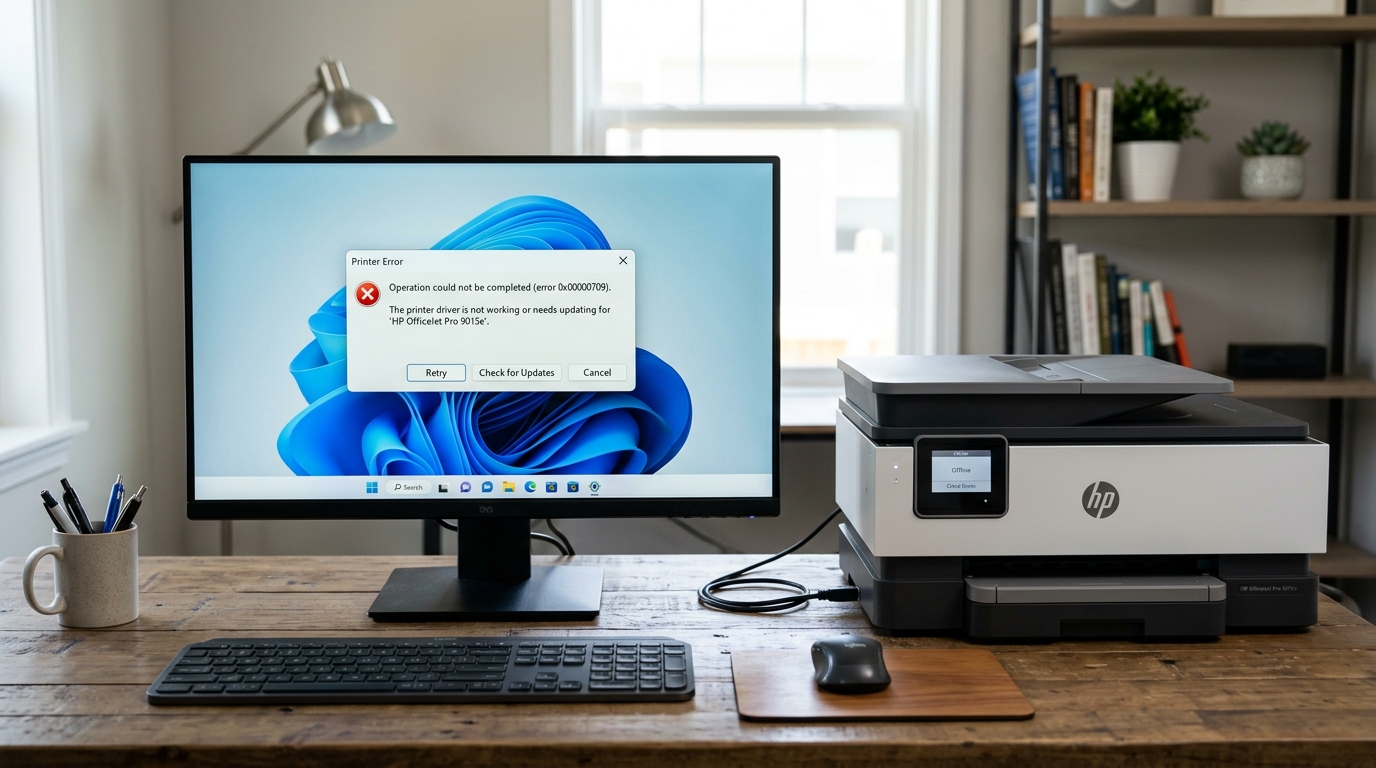
Why "Driver is Unavailable" Appears in Windows 11
When Windows 11 shows a yellow triangle next to your HP printer with the message "Driver is Unavailable," it means Windows cannot find a compatible driver for the printer. This problem became widespread after Microsoft's Windows 11 security updates removed many legacy HP printer drivers and replaced the driver system with a generic IPP (Internet Printing Protocol) driver framework.
The good news: this is almost always fixable without hardware replacement.
Method 1: Windows Update (Optional Drivers)
Microsoft periodically releases HP-specific drivers through Windows Update's Optional section:
- Go to Settings > Windows Update > Advanced Options > Optional Updates.
- Expand the Driver Updates section.
- Look for any HP driver listed. If found, check the box and click Download and Install.
- Restart your PC after installation completes.
Method 2: Download the Full HP Software Package
The most reliable fix is downloading the complete HP driver package directly from HP:
- Open a browser and go to support.hp.com.
- Type your exact HP printer model into the search bar.
- Click your printer from the results, then select Software and Drivers.
- Ensure the operating system is set to Windows 11 (64-bit).
- Download the Full Feature Software and Driver package (not the Basic Driver — the basic driver lacks troubleshooting utilities).
- Run the installer as Administrator. Follow the prompts and restart when asked.
Method 3: HP Print and Scan Doctor (Automatic Fix)
HP's free diagnostic utility can automatically detect and fix driver issues:
- Download HP Print and Scan Doctor from hp.com/go/tools.
- Run the tool (no installation required — it is a portable .exe).
- Click Start and select your printer from the list.
- If the printer shows a driver warning, click Fix Printing.
- The tool will automatically download and install the correct driver.
Method 4: Manually Remove the Broken Driver
If a corrupted driver is blocking a fresh install, you must remove it first:
- Press Windows Key + R, type
printmanagement.msc, and press Enter to open Print Management. - Expand Print Servers > [Your PC Name] > Drivers.
- Right-click your HP printer driver and select Delete. If it gives an error, select Remove Driver Package.
- Go to Settings > Bluetooth & devices > Printers & scanners. Find your HP printer, click it, and select Remove.
- Restart your PC.
- Reinstall the driver using Method 2 above.
Method 5: Add Printer by IP Address
If your HP printer is on a network and the driver keeps failing, bypass automatic detection:
- Print a network configuration page from the printer (usually Settings > Reports > Network Configuration) to find the printer's IP address.
- In Windows: Settings > Bluetooth & devices > Printers & scanners > Add a printer or scanner.
- Click The printer that I want isn't listed.
- Select Add a printer using a TCP/IP address or hostname.
- Enter the printer's IP address. Windows will install a basic driver that allows printing even without the full HP software.
Advanced: 32-bit vs 64-bit Driver Mismatch
Some older HP printers (produced before 2015) only have 32-bit drivers available. Windows 11 is exclusively 64-bit and cannot run 32-bit drivers. If your HP printer is very old and no Windows 11 64-bit driver exists on HP's website, these are your options:
- Use the built-in Windows generic IPP driver (supports basic printing but not scanning or HP-specific features)
- Connect the printer via USB and use Mopria Print Service (pre-installed in Windows 11)
- Consider upgrading to a newer HP printer model with full Windows 11 support
Frequently Asked Questions
Will uninstalling and reinstalling Windows fix the "Driver is Unavailable" error?
No — reinstalling Windows is not needed. The issue is with the HP driver package, not with Windows itself.
My HP printer worked perfectly before a Windows Update — is that the cause?
Yes. Microsoft's Windows 11 cumulative updates have removed legacy print driver infrastructure multiple times (notably with updates KB5006670 and KB5007189).
Does the "Driver is Unavailable" error mean the printer is broken?
No. The printer hardware is fine.
Can I use a USB connection instead of Wi-Fi to bypass the driver issue?
A USB connection still requires the driver to be installed. However, Windows may automatically find and install a basic USB driver when you connect the cable, which can be an easier path to getting the printer working initially.
When to Contact HP Support
If you have exhausted all methods above and the driver still fails to install, contact HP Support at support.hp.com. HP's virtual agent can run remote diagnostics on your printer. For very old HP printers no longer supported on Windows 11, HP may offer a trade-in program or discounted upgrade pricing.
