


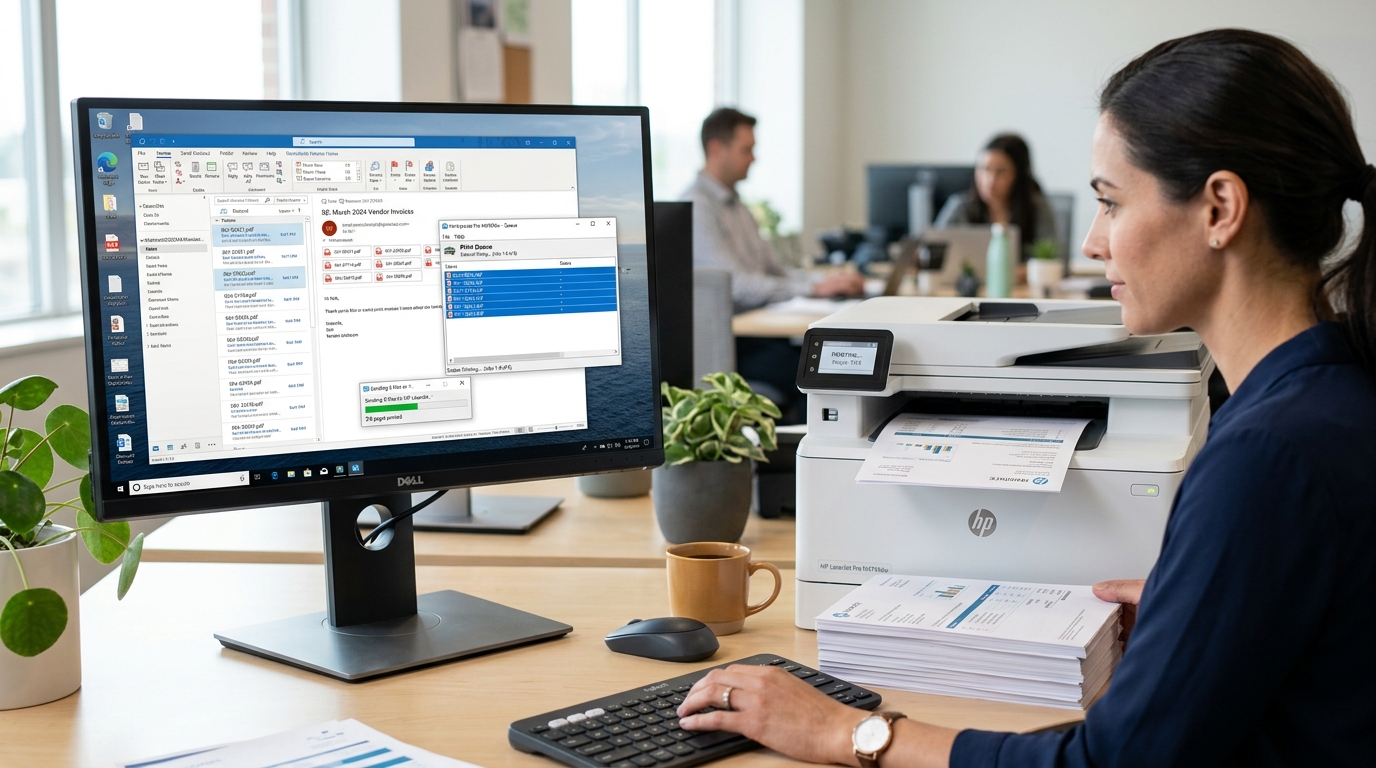
The Challenge of Multi-Attachment Printing
Receiving multiple purchase orders, invoices, or signed contracts across multiple emails requires opening and printing each PDF individually. This repetitive process is slow and introduces human error.
Using desktop automated spooling, email client rules, or cloud storage workflows allows you to queue dozens of PDF attachments to your printer in seconds.
Method 1: Use Outlook Quick Print on Multiple Messages
Microsoft Outlook Desktop includes a native command to print attachments across multiple highlighted emails:
- Highlight target messages: Hold the Ctrl key and select each email containing the PDF attachments you need to print.
- Right-click selection: Right-click on any of the highlighted emails in your message list.
- Select Quick Print: Click Quick Print from the context menu.
- Confirm attachment prompt: Outlook prompts: "Do you want to open or print attachments?" Click Print to send every PDF attachment to your default printer without opening viewer windows.
Method 2: Batch Print via Windows Print Queue Drag-and-Drop
If you use Gmail or webmail, downloading attachments into a single folder enables fast system-level spooling:
- Download attachments to a folder: Save all incoming email attachments into a temporary desktop folder.
- Open your printer queue: In Windows, go to Settings > Bluetooth & devices > Printers & scanners, select your printer, and click Open queue.
- Select all PDF files: In your downloads folder, press Ctrl + A to highlight all PDF documents.
- Drag into the queue window: Drag the highlighted files and drop them directly into the open printer queue window. Windows automatically spools and prints each PDF sequentially.
Method 3: Batch Print via Google Drive Sync
For Chromebook and Google Workspace users without desktop email clients:
- Save attachments to Google Drive: In Gmail, click the Save all to Drive icon on each message to pool PDFs into a dedicated Drive folder.
- Select all files in Drive: Open Google Drive, hold Shift, and select all stored PDF attachments.
- Click Print: Press Ctrl + P. Google Drive automatically merges the selected PDFs into a single unified print preview job for seamless output.
Frequently Asked Questions
Will Outlook Quick Print also print the body of the email?
Outlook prompts you to print either the attachment only or both the message body and the attached document.
How many PDFs can I drag into the Windows print queue at once?
You can drag up to 15 PDFs at a time; larger batches should be queued in smaller groups to prevent memory buffer overruns.
Can I batch print password-protected PDF attachments?
No, encrypted PDFs require entering the password in a viewer before the print stream can be decrypted and sent to the printer.
