


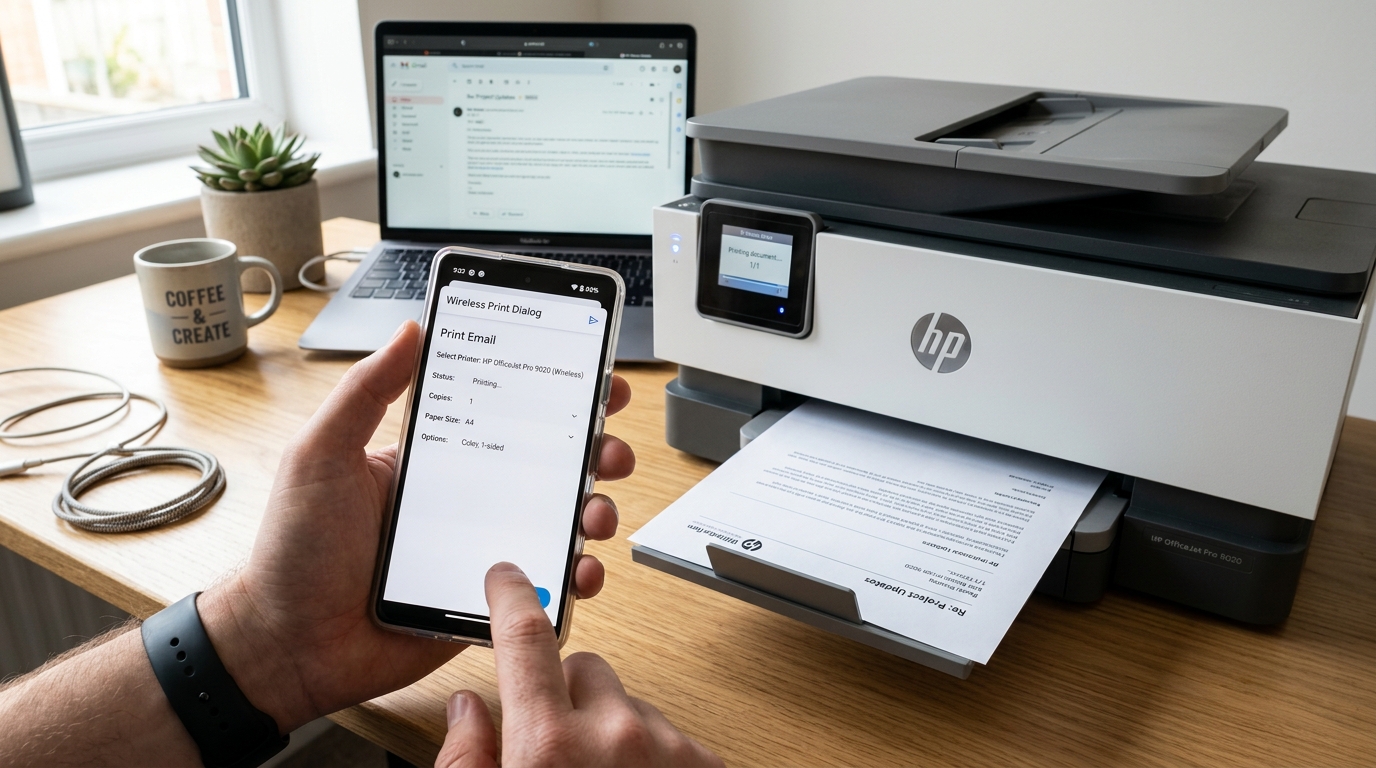
Wireless Email Printing from Smartphones
Modern mobile operating systems make printing emails, receipts, and boarding passes straightforward without turning on a computer. Both iOS and Android feature built-in driverless printing standards.
Apple devices utilize native AirPrint technology, while Android devices use the Mopria Alliance Print Service to discover and print to almost any modern Wi-Fi printer.
Step 1: Print from Apple Mail on iPhone and iPad
Apple Mail integrates directly with AirPrint-certified network printers:
- Open the target email: Open the Apple Mail app and tap the message you wish to print.
- Tap the Reply / Share arrow: Tap the curved arrow icon at the bottom right corner of the screen.
- Select Print: Scroll down the action sheet and tap Print.
- Choose your printer: Tap Select Printer and tap your wireless printer from the discovered AirPrint list.
- Adjust settings: Set your copy count, color mode, and page range, then tap Print in the upper-right corner.
Step 2: Print from the Gmail App on iOS (iPhone / iPad)
The Gmail iOS app uses an in-message action menu rather than the system share sheet:
- Open the email message: Navigate to the email you need inside the Gmail app.
- Tap the three dots: Tap the horizontal three dots (...) located in the upper-right corner of the email card.
- Select Print: Tap Print > AirPrint.
- Send to printer: Choose your AirPrint-enabled printer and tap Print.
Step 3: Print from Gmail on Android Devices
Android devices discover local network printers using the Default Print Service or Mopria plugin:
- Open the email in Gmail: Open the specific email you want to print in the Android Gmail app.
- Open the message menu: Tap the vertical three dots (⋮) in the top-right corner of the message header (next to the reply icon).
- Tap Print: Select Print from the dropdown list.
- Select your printer: Tap the top printer dropdown (which may initially say "Save as PDF") and select your active Wi-Fi printer.
- Tap the Printer icon: Confirm your paper size and orientation, then tap the yellow/blue circular printer icon to print.
Step 4: Print Without a Wi-Fi Router via Wi-Fi Direct
If you are away from home or your office Wi-Fi router is offline:
- Enable Wi-Fi Direct on printer: Press the Wi-Fi Direct button on your printer control panel to turn on its local wireless beacon.
- Connect your phone to printer network: Open Wi-Fi settings on your phone and join the printer's direct SSID (e.g.,
DIRECT-xx-HP DeskJet). - Enter default password: Enter the Wi-Fi Direct password shown on the printer display or printed network test sheet (typically
12345678). - Print normally: Return to Mail or Gmail and send your print job directly across the direct peer-to-peer connection.
Frequently Asked Questions
Why does my iPhone say "No AirPrint Printers Found"?
Ensure your iPhone and printer are connected to the exact same Wi-Fi network and that the printer is on a 2.4 GHz network band.
How do I print an attachment from an email on my phone?
Tap the attachment to open its full preview, tap the Share or Three Dots icon, and select Print directly from the document viewer.
Do I need to install a special manufacturer app to print emails from Android?
No, standard Android devices include the Default Print Service; manufacturer apps (like HP Smart or Canon PRINT) are optional.
