


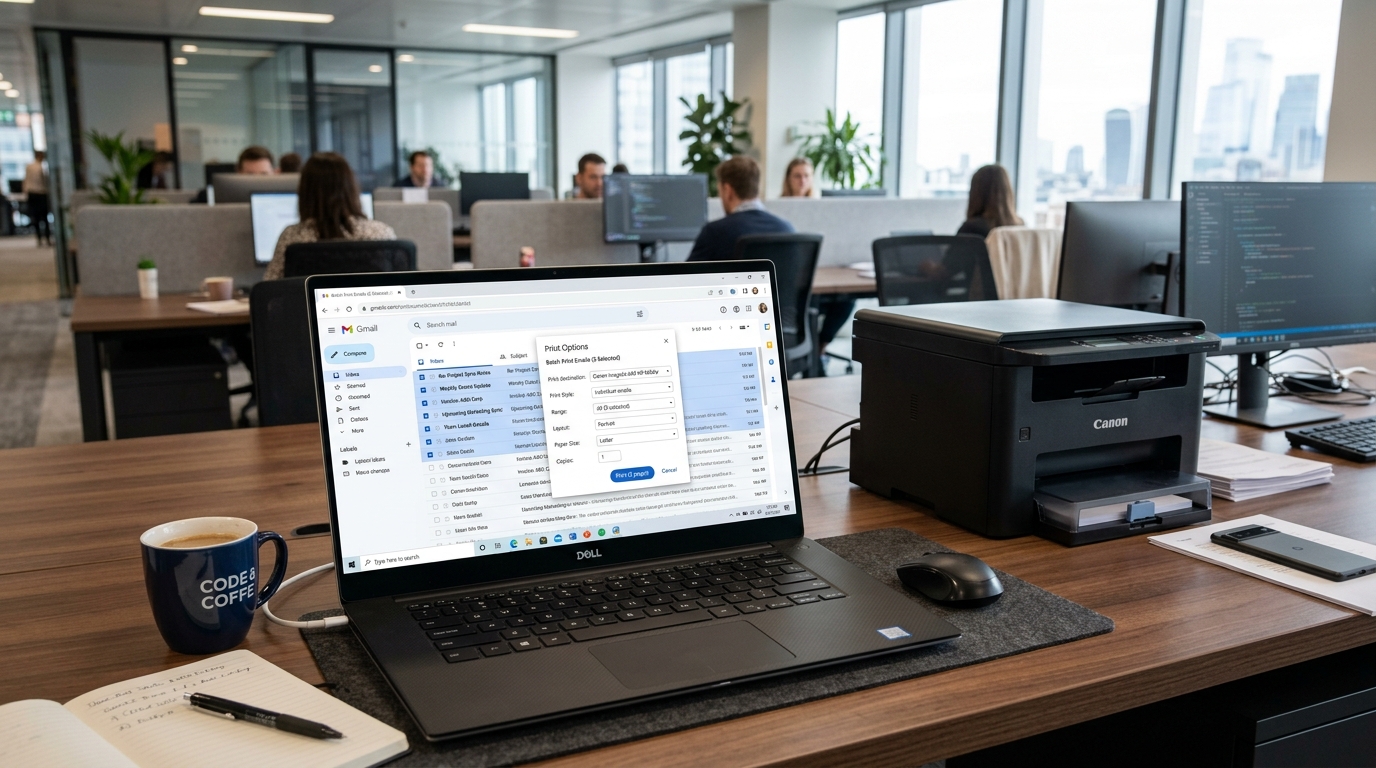
Overcoming Gmail's Native Printing Limit
Gmail is built for screen reading and lacks a single native button to bulk print selected messages. Checking multiple boxes in your inbox only reveals bulk actions for archiving, labeling, or deleting.
When legal discovery, tax auditing, or business travel demands printing dozens of emails, opening each message individually wastes hours. Several reliable workflows bypass this interface bottleneck.
Method 1: Connect Gmail to Thunderbird or Outlook Desktop
Syncing your Gmail account with a standard desktop email client enables native multi-select batch printing:
- Enable IMAP in Gmail: Open Gmail settings in your browser, navigate to Forwarding and POP/IMAP, and ensure Enable IMAP is checked.
- Add account to Thunderbird: Open Mozilla Thunderbird or Microsoft Outlook and sign in with your Google credentials via OAuth.
- Select multiple messages: Hold the Ctrl key (or Cmd on Mac) and click each email you need to print.
- Execute batch print: Right-click the highlighted emails and choose Print. The desktop client spools every message sequentially to your physical printer.
Method 2: Export and Merge Multiple Emails via Google Drive
Consolidating messages into a single merged PDF file allows one-click printing without third-party desktop software:
- Apply a dedicated label: Create a temporary label in Gmail (e.g.,
BatchPrint) and tag all target emails. - Use Google Workspace Marketplace Add-on: Install an add-on such as "Save Emails and Attachments" to export labeled emails to Google Drive as separate PDFs.
- Merge files in Drive: Highlight the exported PDFs in your Drive folder, right-click, and select Merge to Single PDF.
- Print the consolidated file: Open the merged PDF document in your browser or Acrobat and send the full job to your printer.
Method 3: Use Chrome Extensions for One-Click Batch Printing
Browser add-ons automate the background spooling of multiple Gmail conversations directly inside Chrome:
- Install a verified extension: Add "Multi Email Forward & Print for Gmail" from the Chrome Web Store.
- Select messages via checkboxes: Select the checkboxes next to the target emails in your Gmail inbox view.
- Click the batch print icon: Click the new printer icon added to the top Gmail toolbar.
- Configure page margins: In the generated print preview window, review formatting and send the consolidated document to your printer.
Frequently Asked Questions
Can I print multiple Gmail emails natively without add-ons?
No, the native Gmail web interface requires opening each message or conversation thread individually to access the print button.
Why does Thunderbird print duplicate headers on each email?
Thunderbird treats each message as an independent document; you can disable header printing in Thunderbird page setup preferences.
Does batch printing include attached PDF files automatically?
Standard email printing only prints the body text; attachments must be batch printed through an attachment workflow.
