


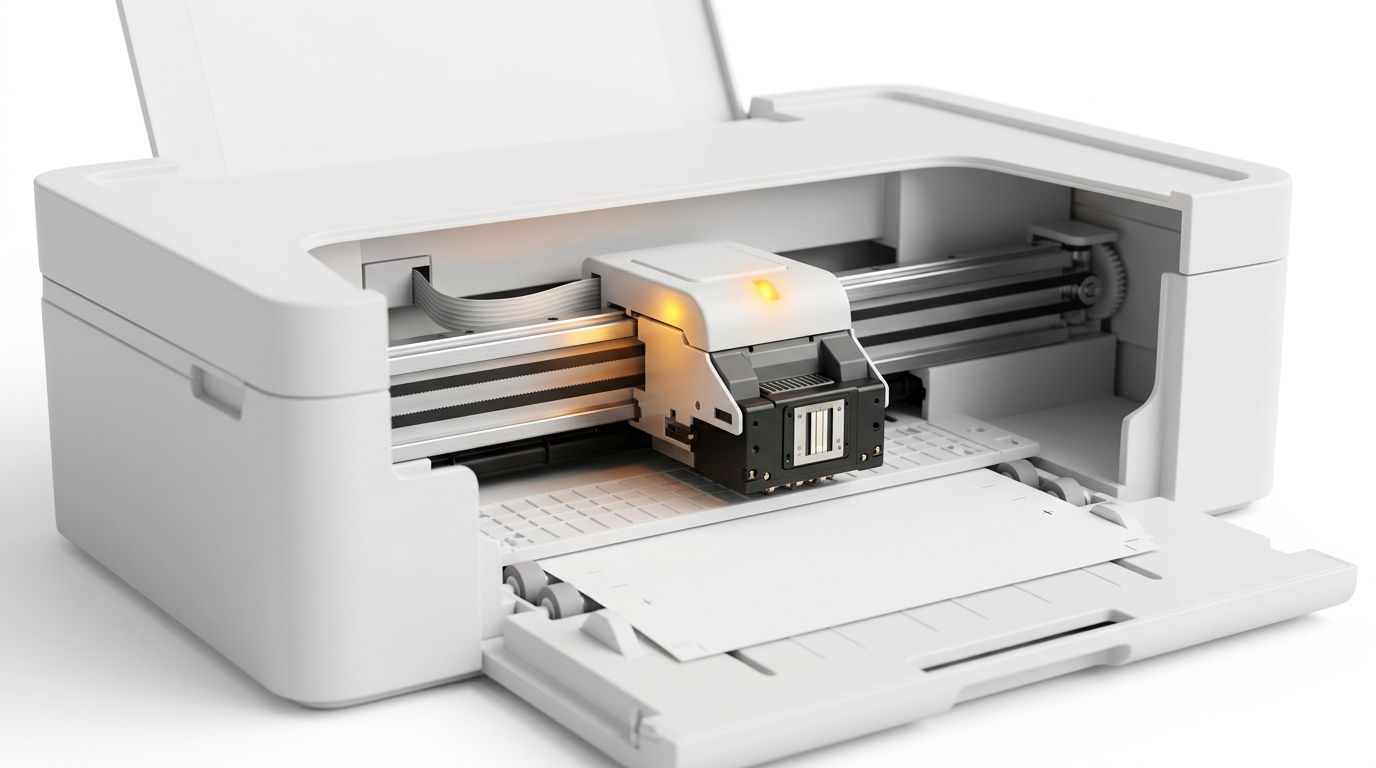
The Quick Answer
HP Envy 6055e printhead error explained by a repair tech: the E0 code, real fixes. The Instant Ink connection almost nobody checks first.
You installed new cartridges, everything looked fine. Now the printer refuses to work with an error pointing at the printhead.
If your HP Envy 6055e is throwing a printhead error — often shown as an E0code on the control panel — before you assume the worst, know this: in my repair shop, this specific error on this specific printer has a cause that has nothing to do with broken hardware more often than you'd expect.
It's tied to something most owners never think to check.
Let's go through the real fixes in order, ending with the connection almost every guide skips entirely.
Quick-Fix Summary
Fast version:
- Reseat every cartridge, not just the one you last touched.
- Clean the cartridge contacts with a dry, lint-free cloth.
- Run a full power cycle — off, unplugged, genuinely reset.
- Clean the printhead itself if cleaning contacts alone doesn't work.
- Check your Instant Ink enrollment status — my uncommon tip, and a surprisingly common trigger for this exact error.
What an E0 Error Actually Means
On the Envy 6055e, an E0 error generally indicates the printer is having trouble recognizing or communicating with a cartridge — which. Of how tightly ink communication and printhead function are linked on this model, gets described as a "printhead error" even when the cartridge is the actual point of failure.It's the printer's way of saying "I can't confirm what's installed here is what I expect,".
Is a broader category than a purely mechanical printhead fault.
Why this framing matters: a recognition problem and a genuine hardware failure need completely different fixes.Most E0 cases in my experience trace back to recognition — contacts, seating. Account status — rather than a physically broken printhead.
Fix 1: Reseat Every Cartridge
Open the printer, remove all installed cartridges — not just the one you most recently changed. Reinstall each one firmly until it clicks into place. Confirm none are sitting at a slight angle or protruding above the others.
Why this works:even a cartridge you didn't touch can shift slightly during the process of installing a different one. The printer checks all cartridges as part of its startup sequence.One loosely seated cartridge anywhere in the lineup can trigger an error that reads as a general printhead.
Cartridge fault rather than pointing to the specific culprit.
Fix 2: Clean the Cartridge Contacts
Remove each cartridge. Gently wipe the copper-colored contact points with a dry, lint-free cloth or cotton swab — no water needed for a quick pass, though a swab lightly dampened with distilled water works well for visible residue. Let anything you dampen dry fully before reinstalling.
Why this works:these gold or copper contacts are how the printer electronically identifies and communicates with each cartridge. Even light ink residue or dust can interrupt that communication enough to trigger a recognition error. This is a genuinely common cause and takes under two minutes to rule out.
Fix 3: The Full Power Cycle
Turn the printer off, unplug it from the wall completely. Leave it unplugged for a full 60 seconds before reconnecting and powering back on.
Why this works:a real unplug forces the printer to restart its internal firmware (internal software). Re-run its cartridge recognition checks from a genuinely clean state, rather than a power-button restart that can leave some internal status flags unchanged.
This clears a meaningful share of E0 errors on its own, especially ones that appeared right after a cartridge swap.
Fix 4: Clean the Printhead Itself
If contacts are clean. Reseating hasn't helped, locate and carefully remove the printhead (check your printer's manual for the specific release mechanism — it's typically a small latch you lift after opening the cartridge access door).Gently clean the nozzle area with a lint-free cloth lightly dampened with distilled water.
Let it air dry completely — at least 10 to 15 minutes — before reinstalling.
Why this works:dried ink can build up on the printhead's actual nozzle surface over time, particularly if the printer sat unused for a stretch. That buildup can interfere with the same recognition and function checks that trigger an E0 error, separate from anything happening at the cartridge contacts themselves.
Fix 5: Check Your Instant Ink Enrollment Status (My Uncommon Tip)
Here's the cause that catches people off guard. It has nothing to do with anything physically inside the printer — and it's the fix that's ended more than one stubborn E0 case I've seen described online and at my own counter.
If this printer was ever enrolled in HP's Instant Ink subscription program — even if you believe it currently isn't. You're certain you never signed up — the printer may still be checking cartridge legitimacy against an enrollment status that's out of sync with reality.This commonly happens after a subscription cancellation, an account change.
Simply installing cartridges that are tied to Instant Ink eligibility on a printer whose enrollment status has since lapsed or never fully completed.
Go to hpconnected.com (or check within the HP Smart app) and sign in with the account associated with this printer.Confirm the actual current enrollment status — active, cancelled. Never enrolled — and make sure it matches what you believe to be true.If there's a mismatch, either complete enrollment properly if you intend to use Instant Ink.
Ensure you're using standard (non-Instant-Ink) cartridges if you're not enrolled.
Why this works:cartridges tied to the Instant Ink program are electronically linked to your account's eligibility. The printer cross-checks that eligibility as part of its normal cartridge verification — the same verification process an E0 error represents a failure of.A subscription that was cancelled without the printer being properly notified.
An enrollment that stalled partway through setup, can leave the printer permanently unable to validate cartridges it would otherwise accept without issue.This is precisely the kind of cause that never shows up in a purely mechanical troubleshooting guide. It lives in your HP account rather than anywhere inside the printer itself — and it's exactly why a customer swearing they've "tried everything" mechanical often hasn't tried this at all.
When to Call a Professional
If you've reseated and cleaned every cartridge, performed a full power cycle, cleaned the printhead itself. Confirmed your Instant Ink enrollment status matches reality — and the E0 error persists — a genuine printhead hardware fault becomes the more likely remaining explanation.Contact HP support with your printer's serial number; printhead issues on the Envy line are a recognized support category.
If the printer is still under warranty, replacement or a covered repair is usually straightforward. Out of warranty, compare any repair cost honestly against a comparable new unit — the Envy 6055e sits in a price range where replacement is often the more practical choice.
FAQ
What does an E0 error mean on the HP Envy 6055e?
It generally means the printer can't properly recognize or verify a cartridge, described broadly as a printhead or cartridge error. It's more often a communication or recognition issue than a physically broken part.
I just replaced my cartridges and I'm getting this error. Why?
Check that every cartridge — not just the new one — is fully seated. Clean the contact points on each with a dry cloth. Also worth checking: whether the new cartridges are Instant Ink cartridges being used on a printer that isn't currently enrolled.
Can my HP account really cause a printhead error?
Yes, indirectly. Cartridges tied to Instant Ink are verified against your account's enrollment status.A cancelled. Out-of-sync subscription can cause the printer to fail cartridge recognition checks that surface as an E0 or printhead-related error.
How do I check my printer's Instant Ink status?
Sign in at hpconnected.com or through the HP Smart app with the account associated with your printer. Review its current enrollment status directly rather than relying on memory of what you signed up for.
An HP Envy 6055e printhead error is rarely as final as it sounds.Reseat and clean your cartridges, give the printer a genuine power cycle, clean the printhead itself if needed. Don't overlook your Instant Ink enrollment status, because on this printer, an account-side mismatch can produce the exact same error as a hardware fault, with a far simpler fix.
Additional Resources
If you are still experiencing issues after trying the steps above, you may need to consult the official documentation. Download the latest firmware (internal software) for your specific printer model. We recommend checking the following official resources:
