


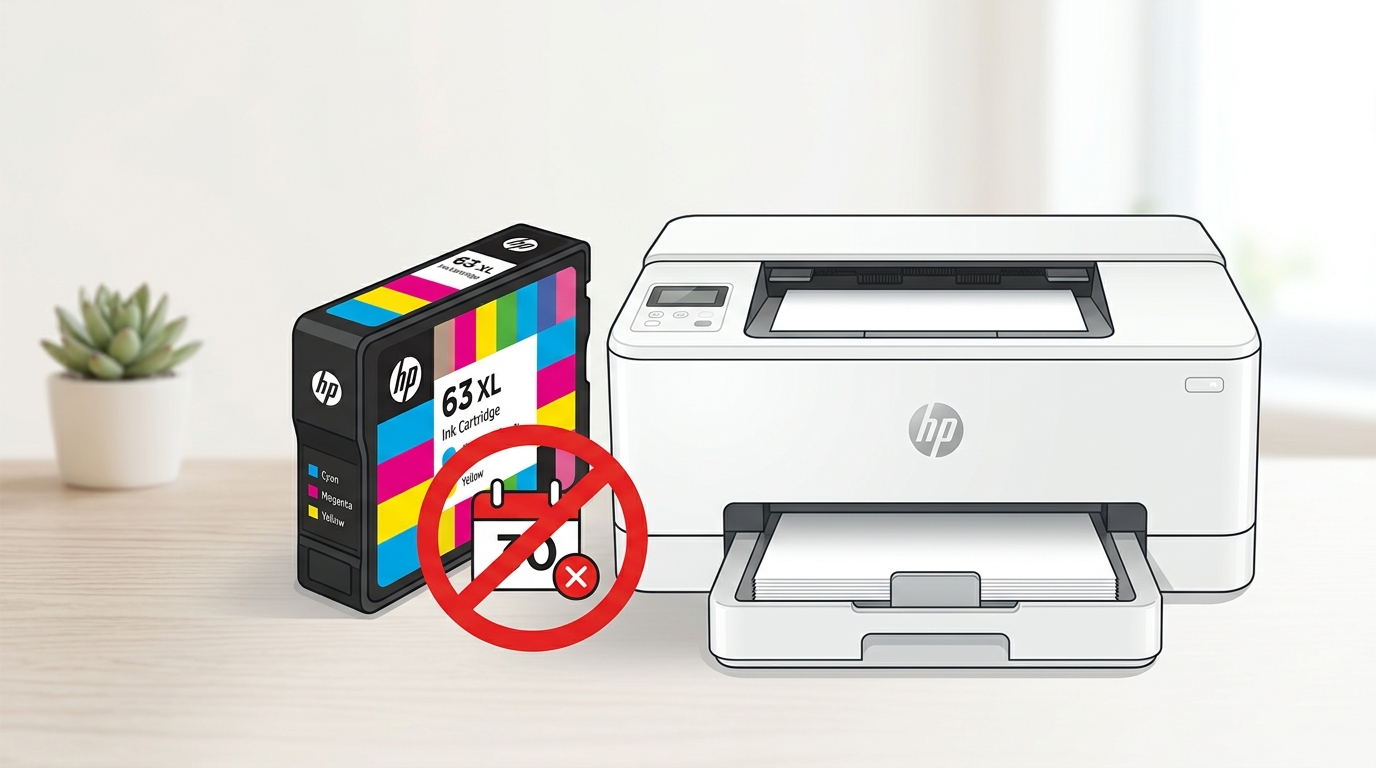
The Quick Answer
Want to cancel Instant Ink without losing the ability to print? A repair tech walks through the right order of steps and what to expect afterward.
Canceling a subscription shouldn't require a strategy, but with Instant Ink, doing it in the wrong order can leave you staring at an empty cartridge with no way to print until replacements arrive. If your goal is to cancel Instant Ink and keep your printer working without a gap, the sequence you follow matters just as much as the cancellation itself.
Quick Summary
- Order standard replacement cartridges first, before you cancel anything.
- Understand what happens to your current cartridges — they stop working immediately upon cancellation.
- Cancel through your HP account, not by simply ignoring bills.
- Know whether your printer is HP+ enabled — it changes what cartridges you can use afterward.
- Swap cartridges and test print before you actually need to print something important.
Step 1: Order Standard Cartridges Before You Cancel Anything
Before touching your Instant Ink account settings at all, figure out which standard (non-subscription) ink cartridges your printer model uses, and order them — from HP directly, an authorized retailer, or wherever you'd normally buy printer supplies. Have them in hand, or at least confirmed shipping, before you cancel.
Why this works: Instant Ink cartridges are tied to the subscription itself and stop functioning the moment you're no longer enrolled — this isn't a gradual wind-down, it's closer to a switch flipping. If you cancel first and then start shopping for replacements, you're guaranteed a gap where the printer physically cannot print anything, sometimes for days depending on shipping.
Ordering first means that gap either doesn't happen or is much shorter, because your new cartridges arrive close to when you actually cancel.
Step 2: Understand What Happens to Your Current Cartridges
Once you cancel, your existing Instant Ink cartridges — even ones with plenty of visible ink remaining — become unusable in that printer. This isn't a bug or an error;
it's how the subscription model is designed to work, similar to a phone that stops making calls once you cancel your carrier plan even though the phone itself is completely fine.
Why this works this way: Instant Ink cartridges are priced and distributed specifically for subscribers, at a cost structure that only makes sense within the ongoing subscription relationship — allowing them to keep working after cancellation would undermine the entire pricing model. Knowing this in advance means you won't be caught off guard trying to figure out why a cartridge that was working yesterday suddenly isn't today.
Step 3: Cancel Through Your Account Properly
Sign into hpconnected.com, navigate to your Instant Ink plan, and use the actual cancellation option rather than simply letting a payment fail or ignoring renewal notices. Follow through on any confirmation email HP sends to ensure the cancellation fully processes.
Why this works: canceling properly through your account gives you a clear, documented end date and confirmation, rather than an ambiguous situation where a failed payment might trigger account holds, collection attempts on an unpaid balance, or confusing partial-service states that a clean cancellation avoids entirely. It's a more controlled, predictable transition than letting the subscription lapse passively.
Step 4: Check Whether Your Printer Is HP+ Enabled
This is the step that determines what happens next, and it's worth confirming clearly before you're standing at the printer with new cartridges in hand. Check your printer's setup documentation, the HP Smart app, or your account details for whether your specific printer was activated as an HP+ printer during initial setup.
If your printer is HP+ enabled: it will only accept genuine HP cartridges going forward, even after canceling Instant Ink — this restriction is independent of your subscription status and doesn't lift when you cancel. Your standard cartridge purchase from Step 1 needs to be genuine HP ink specifically, not third-party or refilled cartridges, or you'll run into the same "not recognized" problems regardless of your subscription status.
If your printer is not HP+ enabled: canceling Instant Ink and switching to standard cartridges is more straightforward, and depending on your printer's design, you may have more flexibility with third-party or refilled cartridge options going forward.
Why this distinction matters so much: conflating these two systems is the single most common source of confusion and frustration after canceling Instant Ink. People assume canceling the subscription returns the printer to complete freedom, only to discover an HP+ printer is still restricting their cartridge choices — not because anything went wrong, but because HP+ and Instant Ink were always two separate systems solving different problems.
Step 5: Swap Cartridges and Test Before You Need To
Once your standard cartridges have arrived and your Instant Ink cancellation has processed, remove the old Instant Ink cartridges, install the new standard ones, and print a test page — ideally a day or two before you actually need the printer for something time-sensitive, not the morning of.
Why this works: this gives you a buffer to catch and resolve any unexpected hiccups — a cartridge that needs reseating, a driver that needs updating, an alignment that needs running — while there's no real deadline pressure, rather than discovering a problem in the middle of printing something you needed done an hour ago.
When to Call a Professional
If you've followed this sequence — ordered the correct cartridges (genuine HP, if your printer is HP+ enabled), properly canceled through your account, and installed the new cartridges — and the printer still won't recognize them or print, that points toward a separate recognition or hardware issue rather than anything related to the cancellation itself. Work through standard cartridge troubleshooting (checking contacts, reseating firmly, a full power cycle) first, and if that doesn't resolve it, contact HP support with your printer's serial number, since a printer that won't accept correctly-matched genuine cartridges after a clean subscription transition is a legitimate support case.
FAQ
Will my printer stop working the moment I cancel Instant Ink?
Your current Instant Ink cartridges will stop working immediately upon cancellation, but the printer itself is fine — you just need standard replacement cartridges installed to keep printing. Ordering those before you cancel avoids any gap.
Can I use cheaper third-party cartridges after canceling Instant Ink?
Only if your printer isn't HP+ enabled. HP+ printers require genuine HP cartridges regardless of your Instant Ink subscription status — canceling the subscription doesn't lift that separate restriction.
How do I know if my printer is HP+ enabled?
Check your account details at hpconnected.com, the HP Smart app's printer information, or your original setup documentation. It's worth confirming this before you buy replacement cartridges, so you order the right kind the first time.
Do I need to do anything to my current cartridges before canceling, like removing them?
No special action is needed — they'll simply stop functioning once the cancellation processes. Just make sure your replacement cartridges are ready to install so you're not left without a working printer in the meantime.
To cancel Instant Ink and keep your printer working without interruption, order your replacement cartridges first, know whether your printer is HP+ enabled so you buy the right kind, cancel cleanly through your account, and swap cartridges with a little buffer time before you actually need to print. Get the order right, and the whole transition is genuinely painless.
Additional Resources
If you are still experiencing issues after trying the steps above, you may need to consult the official documentation or download the latest firmware for your specific printer model. We recommend checking the following official resources:
