


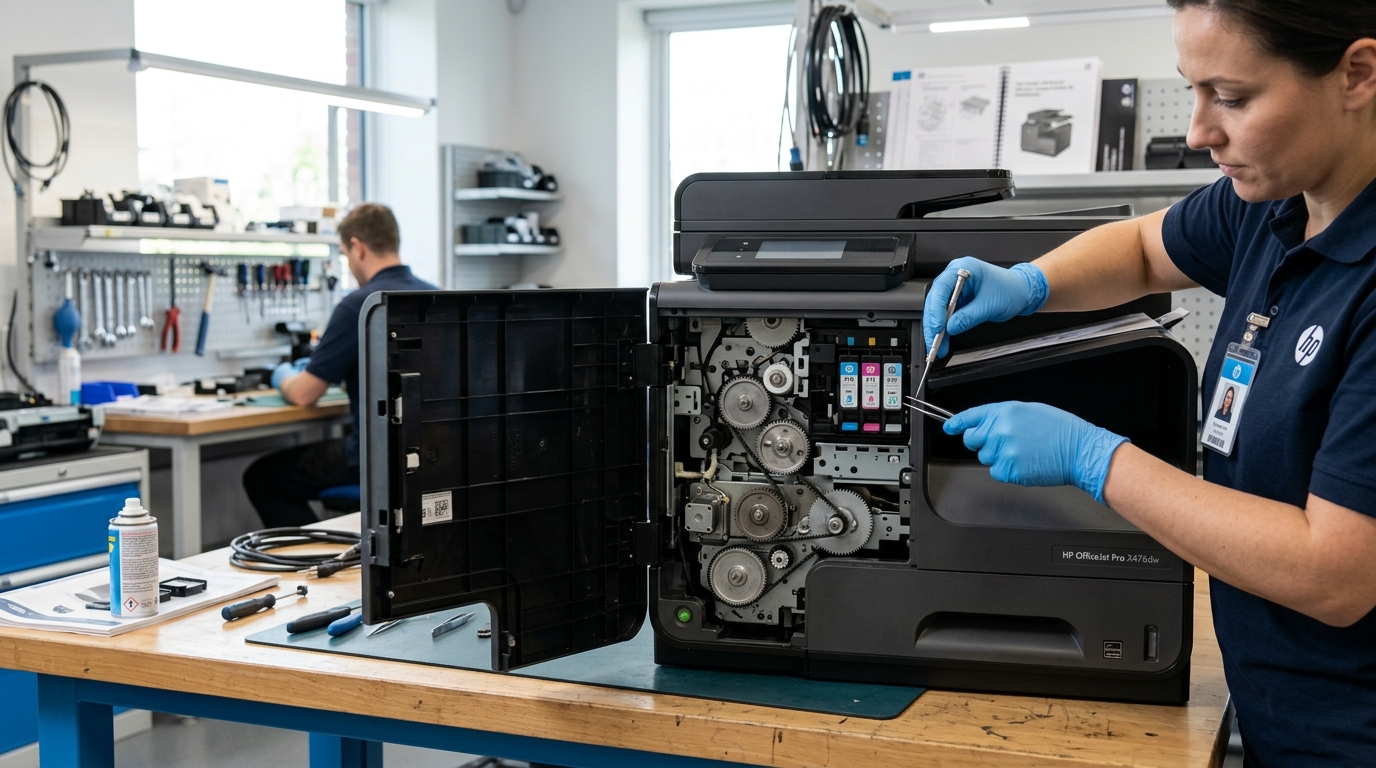
Understanding OfficeJet Pro X Printhead Faults
The HP OfficeJet Pro X series (X451, X476, X551, X576) features the original PageWide architecture. When the front panel displays "Printhead Problem" or error codes starting with 0xc6fd, plotting stops completely.
These errors rarely indicate a dead print bar. In our workshop, over 85% of Pro X printhead errors trace to a jammed service station web wiper or a slipping printhead lift motor gear.
Common 0xc6fd Printhead Error Codes Decoded
Identify the exact mechanical subsystem causing your error:
- 0xc6fd0013: Service Station Web Wiper End-of-Life. The internal fabric cleaning roll is exhausted or jammed.
- 0xc6fd0602: Printhead Lift Mechanism Stall. The motor that lowers the print bar into firing position encountered resistance.
- 0xc6fd0402: Carriage / Print Bar Optical Encoder Disc Error. Aerosol ink mist is obscuring the service station timing disc.
- 0xc6fd0802: Cap motor stall. The cap assembly failed to seal the printhead nozzles during shutdown.
Step 1: Perform a Hardware Power Drain Reset
Clear temporary micro-controller fault states stored in volatile memory:
- Disconnect power while ON: Unplug the AC power cord directly from the wall outlet while the printer is powered on.
- Disconnect communication cables: Remove USB and Ethernet cables from the rear ports.
- Drain residual capacitor charge: Press and hold the power button for 30 seconds.
- Wait 3 full minutes: Allow internal logic circuits to discharge completely.
- Reconnect power: Plug directly into a verified wall outlet without surge protectors. Power on and listen to the service station movement.
Step 2: Access the Secret Engineering Menu to Clear Faults
Reset the service station cycle count through HP's engineering menu:
- Access Engineering Menu: On the front panel, tap the following sequence: Back button > Home button > Back button > Back button.
- Open the Service Menu: Select Service Menu from the hidden options.
- Navigate to System Configuration: Tap System Configuration Menu > Service Station Status.
- Perform a Service Station Cycle: Choose Cycle Service Station. Watch through the top window as the wiper advances and the print bar lifts.
- Clear Error Flags: If the cycle completes smoothly, select Reset Printhead Error Flag and reboot.
Step 3: Inspect the Duplex Waste Collection Module
The duplex module under the printer houses the service station spittoon:
- Lower the left access door: Release the green latches to remove the duplex unit.
- Inspect the waste ink absorber: If the absorbent pads are overflowed with wet ink, ink will seep into the lift motor gears.
- Clean the optical encoder sensor: Use a dry microfiber cloth to wipe the clear plastic encoder disc located on the service station drive shaft.
- Reinstall firmly: Push the duplex module in until both latches click audibly.
Frequently Asked Questions
Can I replace just the printhead on an OfficeJet Pro X printer?
HP does not sell the PageWide print bar as a standalone field-replaceable customer part. If the printhead silicon dies are genuinely fried, the printer must be replaced.
Why does error 0xc6fd0013 return immediately after reboot?
Error 0xc6fd0013 indicates the fabric wiper roll has run out of clean cloth. You must replace the duplex service module or reset the web counter via the Engineering Menu.
What causes the loud clicking noise right before the printhead error?
Loud clicking indicates stripped teeth on the printhead lift gear. When the gear slips, the lift motor times out and triggers error 0xc6fd0602.
