


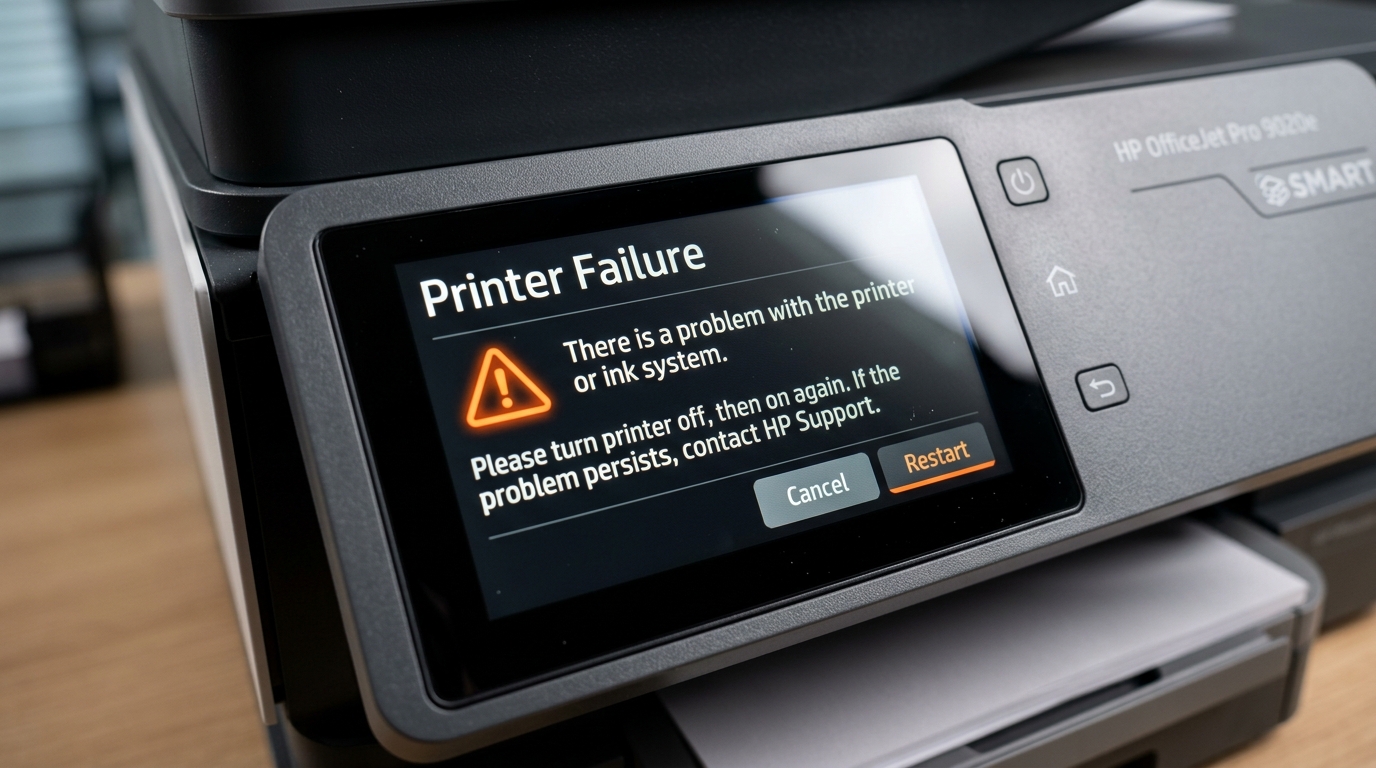
The Master Reference for HP Printer Error Messages & On-Screen Status Alerts
Unlike numerical error codes (such as 50.2 or 0x610000f6), HP printer error messages are descriptive, text-based status prompts and system alerts presented on host operating systems (Windows 11/10, macOS Sequoia/Sonoma), the HP Smart mobile app, or the printer's physical touchscreen control panel. When an HP printing engine encounters an operational bottleneck, communication timeout, hardware interlock fault, or DRM security validation failure, it displays a specific text warning to guide user action or halt execution.
While numerical codes pinpoint low-level microcode and electronic component states (as cataloged in our HP Printer Error Codes: Complete List, Meanings &
Solutions), text-based error messages frequently indicate driver handshake mismatches, background print spooler stalls, network port drift, optical sensor obstructions, or cartridge subscription flags. If you are troubleshooting broader hardware problems, you can also consult our comprehensive HP Printer Troubleshooting:
Complete Guide to Fix Common Problems.
This master guide details every major HP error message encountered in residential, commercial, and enterprise printing environments. For each message, you will find an explanation of the underlying system trigger, the exact software or electromechanical subsystem involved, and the verified step-by-step procedure required to clear the message and resume printing.
30-Second Fast Triage & Action Protocol
⚡ Emergency 60-Second Recovery for Frozen HP Error Messages:
- Restart the Host Print Spooler: On Windows, press
Win + R, typeservices.msc, locate Print Spooler, right-click, and select Restart. On macOS, open System Settings > Printers & Scanners, control-click your printer list, and select Reset Printing System. - Execute an Unfiltered DC Power Drain: While the printer is powered ON, disconnect the AC power cable directly from the rear of the printer. Unplug from the wall. Press and hold the physical Power button for 30 seconds to discharge all volatile CMOS cache registers and motor driver controllers.
- Direct Wall Socket Connection: Plug the power cord directly into an active wall socket (bypassing surge protectors or multi-plug extensions) and power the printer back on.
Master HP Error Messages Directory Table
Use this reference table to quickly locate your specific on-screen error message, identify where it originates, understand the technical cause, and apply the immediate solution:
| Error Message String | Display Source | Underlying Technical Cause | Immediate Technical Fix |
|---|---|---|---|
| Driver is Unavailable | Windows 10 / 11 Settings | Corrupted INF driver package or generic Microsoft IPP class driver conflict. | Remove device; delete driver package from Print Management; install full software suite. |
| Printer Offline / Offline But Connected | Windows / macOS / HP Smart | WSD port IP drift, SNMP status polling timeout, or router band isolation. | Switch from WSD to Standard TCP/IP Port with a static IP; disable SNMP Status Enabled. |
| User Intervention Required | Windows Print Queue / Spooler | Unacknowledged physical prompt: manual duplex flip, open cover, or paper tray mismatch. | Check printer LCD for prompts; press OK/Resume; purge stalled spooler temp files. |
| Filter Failed / Unable to Send Data | macOS CUPS Print Dialog | macOS CUPS raster filter crash caused by architecture mismatch (ARM64 vs x86). | Reset macOS Printing System; re-add printer using Apple AirPrint profile instead of HP driver. |
| Cartridge Cannot Be Used (HP+) | Printer LCD / HP Smart App | HP+ cloud connectivity requirement failed or cancelled Instant Ink cartridge detected. | Connect printer to 24/7 internet or install retail standard (non-Instant Ink) OEM cartridges. |
| Protected Cartridge Installed | Printer LCD / Desktop Alert | HP Cartridge Protection feature permanently locked the cartridge EEPROM to another printer. | Install new retail cartridge; disable HP Cartridge Protection in EWS to prevent future locks. |
| Incompatible Cartridge / Non-HP Chip | Printer Control Panel | Dynamic Security firmware update blocked third-party microchip cryptography. | Install updated compatible smart chip or genuine HP original supplies. |
| Door Open When Closed | Printer Screen / PC Dialog | Chassis interlock microswitch bent, broken actuator arm, or debris in optical slot. | Inspect physical plastic sensor tab; clean optical sensor slot with compressed air. |
| Paper Jam (Phantom / No Paper) | Printer Screen / HP Smart | Paper path photo-interrupter sensor flag stuck or microconfetti obscuring optical path. | Use flashlight to inspect feed path; gently flick sensor flag; clean rubber pickup rollers. |
| Printhead Missing or Failed | Printer LCD / Touchscreen | Oxidized copper contacts on carriage cradle or printhead ASIC electrical short. | Reseat printhead latch; clean electrical contact pads with 99% isopropyl alcohol. |
| Alignment Failed Repeatedly | Printer LCD / Touchscreen | Optical line sensor underneath carriage cannot read alignment pattern due to clogged nozzles. | Run printhead cleaning cycle; ensure clean white Letter/A4 paper is loaded in input tray. |
| HP Smart App Stuck Searching | HP Smart (PC / iOS / Android) | mDNS / Bonjour multicast packet blocking or dual-band 2.4GHz/5GHz router steering. | Add printer manually via direct IP address; enable Bonjour/Multicast in router firewall. |
Section 1: Operating System Print Dialog & Spooler Errors
When sending a print job from Windows or macOS, the operating system interacts with local spooler services and printer drivers. If this data pipeline stalls, the operating system generates descriptive error prompts.
1.1 "Driver is Unavailable" (Windows 11 / Windows 10)
The "Driver is Unavailable" message occurs when Windows detects the printer on the local network or USB bus but cannot locate a valid, signed 64-bit device driver inf package. This frequently happens after Windows Feature Updates, which replace proprietary HP vendor drivers with generic Microsoft IPP class drivers.
For a complete model-specific breakdown, read our guide on HP Printer "Driver is Unavailable" in Windows 11? Fix.
- Remove the Problematic Device: Open Settings > Bluetooth & Devices > Printers & Scanners. Select your HP printer and click Remove .
- Purge Cached Driver Packages: Press
Win + R, typeprintmanagement.msc, and hit Enter. In the left pane, navigate to Custom Filters > All Drivers. Locate any HP drivers, right-click, and select Remove Driver Package . - Download Official Full Feature Software: Navigate directly to the Official HP Software & Driver Downloads portal, input your exact model number, and install the complete offline software package rather than the basic Windows Store app.
1.2 "Printer Offline" & "Offline But Connected"
The "Printer Offline" status indicates that Windows or macOS cannot establish a real-time bi-directional polling connection with the printer, even if the printer is actively connected to Wi-Fi and printing internal self-test pages. This is primarily caused by Web Services for Devices (WSD) port drift, where dynamic IP reassignment by the DHCP router breaks the operating system's polling handle.
Consult our dedicated troubleshooting guides on HP Envy 5055 Offline But Connected? [Real Fix] and HP LaserJet M209dwe Keeps Going Offline? Fixed.
- Uncheck "Use Printer Offline": Open Control Panel > Devices and Printers. Double-click your HP printer to open the print queue. Click the Printer menu in the top bar and ensure that Use Printer Offline is unchecked.
- Create a Standard TCP/IP Port: In the printer properties dialog, go to the Ports tab, click Add Port, select Standard TCP/IP Port, click New Port, and enter your printer's static IP address (e.g.,
192.168.1.150). - Disable SNMP Status Polling: Under port configuration, uncheck SNMP Status Enabled. When SNMP polling is active, transient network packet delays cause Windows to immediately mark the printer offline. Detailed official diagnostics are outlined in Microsoft Support: Fix printer offline and print spooler problems in Windows.
1.3 "User Intervention Required"
This message appears in the Windows notification tray and print queue when the printer's DC controller halts execution pending physical user confirmation. Root triggers include:
- Manual Duplexing Pause: A two-sided document was sent to a single-sided manual duplex printer, and the engine is waiting for you to flip the printed stack and press the physical OK / Resume button.
- Paper Tray Mismatch: The driver requested Legal or Heavy Cardstock, but Tray 2 is configured for Plain Letter. The printer pauses until you verify the media on the control screen.
- Unseated Access Cover: A cartridge door or rear cleanout access panel microswitch is slightly ajar.
1.4 "Filter Failed" & "Unable to Send Print Data" (macOS)
On Apple Mac computers running macOS Sequoia, Sonoma, or Ventura, the "Filter Failed" alert is a Common Unix Printing System (CUPS) architectural error. It happens when the software filter responsible for translating PDF/PostScript commands into printer-specific raster language crashes due to an x86/ARM64 binary architecture incompatibility.
- Reset macOS Printing Architecture: Open System Settings > Printers & Scanners. Hold the
Controlkey and right-click inside the printer list. Select Reset Printing System... to flush corrupted CUPS daemon cache files. - Re-add via Native Apple AirPrint: Click Add Printer, select your HP device, and in the Use dropdown, select AirPrint or Secure AirPrint instead of selecting proprietary legacy HP driver binaries. Official macOS recovery steps are documented in Apple Support: Solve printing and CUPS filter problems on Mac.
1.5 "Error - Printing" & Hung Print Spooler Queues
When a document displays a permanent "Error - Printing" or "Deleting - Printing" status that refuses to cancel, the Windows Print Spooler binary (spoolsv.exe) has locked corrupted temporary cache files on disk. To execute a deep spooler wipe:
- Open Command Prompt as Administrator.
- Run net stop spooler to haltcode> to halt the spooler background service.
- Execute delde>del /Q /F /S "%systemroot%\System32\Spool\Printers\*.*" to wipe all damaged
.SPL(spool data) and.SHD(shadow tracking) files. - Run net start spooler to restart the spooler subsystem cleanly.
Section 2: Cartridge, Supply & HP+ Dynamic Security Messages
Modern HP printers integrate sophisticated cryptographic supply monitoring, anti-theft key exchange, and continuous cloud telemetry verification.
2.1 "Cartridge Cannot Be Used (HP+ Account Block)"
Printers ending with the lowercase "e" suffix (e.g., HP OfficeJet Pro 9015e, Envy 6055e, DeskJet 4155e, LaserJet M209dwe) feature HP+ cloud management. During initial setup, opting into HP+ enables an un-reversible firmware flag requiring an active HP Smart cloud connection and authentic HP original ink/toner.
For complete details on navigating these restrictions, read our guides on HP+ Blocking Third-Party Ink After an Update? Fix and Can You Bypass HP+ Without Instant Ink?
- Cloud Sync Timeout: If an HP+ printer is disconnected from the internet for more than 30 consecutive days, it displays this block message. Reconnecting the printer to an active Wi-Fi network with unrestricted outbound HTTPS (port 443) access clears the message automatically.
- Cancelled Instant Ink Supplies: Instant Ink subscription cartridges contain electronic kill-switch microcode. The moment a subscription is cancelled or billing lapses, the printer refuses to dispense ink from those cartridges, even if full. Standard retail cartridges must be installed to continue printing, as explained in How to Cancel Instant Ink and Keep Printing and Instant Ink Cartridge Shows Empty But It's Full? Fix.
2.2 "Protected Cartridge Installed"
HP includes a feature named HP Cartridge Protection in its driver software. When enabled, the printer writes a unique serial key into the cryptographic e-label memory of the installed ink or toner cartridge upon initialization.
That cartridge will permanently refuse to function in any other printer chassis, displaying "Protected Cartridge Installed".
- Recovery: A protected cartridge cannot be unlocked once serialized; it must be returned to its original printer.
- Preventing Future Locks: Open the printer's Embedded Web Server (EWS) by entering its IP address into a web browser. Navigate to Settings > Preferences > HP Cartridge Protection and set it to Disable Cartridge Protection.
2.3 "Incompatible Cartridges" & "Non-HP Chip Detected"
This message occurs when the cartridge microchip cannot complete the encrypted authentication handshake with the printer's DC controller ASIC. If you are using newly replaced cartridges, review HP DeskJet 2755e Cartridge Not Recognized? Fix.
- Contact Oxidation: Remove the cartridge. Use a dry, lint-free foam swab to clean the gold contact pins on the cartridge e-label chip and the matching spring-loaded pins inside the printer cradle.
- Dynamic Security Firmware Rollback / Update: HP regularly distributes Dynamic Security firmware updates via Wi-Fi that blacklist third-party chip algorithms. Using compatible cartridges with updated smart chips or authentic original cartridges resolves the block.
2.4 "Depleted Cartridges Must Be Replaced to Resume"
Unlike simple ribbon or dot-matrix printers, HP thermal inkjet printheads rely on liquid ink flowing through microscopic firing chambers to cool thermal firing resistors (which heat up to 300°C in microseconds). To prevent the printhead from physically melting and causing permanent damage, the firmware enforces a hard lock when an ink reservoir reaches absolute depletion.
Refilling depleted smart-chipped cartridges without an electronic chip resetter will not bypass this safety lock.
Section 3: Mechanical, Paper Handling & Optical Sensor Messages
Physical paper transport relies on precise optical sensors, motorized feed rollers, and mechanical interlocks throughout the chassis.
3.1 "Paper Jam in Tray / Rear Cleanout" (Phantom Jams)
When the printer displays "Paper Jam" but visual inspection shows no paper in the trays, the machine is experiencing a phantom jam. For detailed model-specific walk-throughs, refer to HP DeskJet 2755e Paper Jam But No Paper? [Fixed] and HP Envy 6055e Paper Jam But No Paper? (Solved).
- Microconfetti in Photo-Interrupters: When a sheet of paper is pulled forcefully during a jam, microscopic corners (microconfetti) often tear off inside the optical photo-sensor flag slot. Shine a high-intensity flashlight into the feed rollers and use anti-static tweezers to extract tiny paper scraps.
- Stuck Optical Sensor Lever: The mechanical plastic sensor flag can become dislodged from its pivot spring. Gently flick the black plastic sensor lever in the center of the paper path to ensure it springs back freely into the optical slot.
- Glazed Rubber Rollers: Clean the rubber pickup rollers using distilled water on a lint-free microfiber cloth. Never use isopropyl alcohol on rubber rollers, as it dries out the elastomer compounds, causing perpetual feed slippage.
3.2 "Door Open / Cover Open When Closed"
Printers feature mechanical interlock microswitches and optical slotted interrupters on front access doors, top scanner lids, and rear duplexer cleanout panels. If the printer insists a door is open when firmly shut, see our dedicated guide on HP Scanner Says 'Door Open' When It's Closed? Fix.
- Broken Actuator Tab: Inspect the plastic door frame for a small protruding plastic tab that depresses the internal microswitch when closed. If this tab has snapped off, the switch will never close.
- Debris in the Optical Channel: On flatbed scanners, dust or paper fibers inside the optical door-sensor channel prevent the light beam from completing its circuit. Clean the switch housing using compressed air.
3.3 "Paper Size Mismatch" & "Unexpected Paper Size"
This message occurs when the time taken for a page to traverse the Top-of-Page (TOP) sensor does not match the dimensions declared in the print job:
- Software vs. Hardware Dimension Conflict: A document formatted for A4 sent to a tray loaded with US Letter (8.5 x 11 in) triggers a size mismatch because A4 is longer and narrower than Letter.
- Cassette Guide Alignment: Ensure the plastic paper width and length sliders in the paper cassette click firmly against the edges of the media without bowing the paper stack.
Section 4: Printhead, Ink Delivery & Calibration Messages
Print quality and fluid delivery subsystems require precise hydraulic pressure, electrical continuity, and optical alignment.
4.1 "Printhead Missing or Failed" / "Problem with Printhead"
This critical alert indicates that the DC controller has detected an electrical open circuit or micro-resistor short on the printhead ASIC. For detailed teardown instructions, see HP OfficeJet Pro 9015e Printhead Missing or Failed.
- Carriage Cradle Latch Reseat: Power the printer on, open the access door to allow the carriage to move to the center, and unlatch the printhead assembly. Remove the printhead module and inspect the rear copper contact array.
- Solvent Contact Cleaning: Wipe the electrical contact pads using a lint-free cloth moistened with 99% anhydrous isopropyl alcohol to remove dried aerosolized ink mist. Also clean the mating gold spring pins inside the carriage cavity.
- Hardware Replacement: If the message persists immediately after reseating, internal thermal resistor silicon traces have fused, necessitating modular printhead replacement (e.g., OEM Part # 3WT90A).
4.2 "Automatic Printhead Alignment Failed Repeatedly"
After installing new cartridges or printheads, HP printers automatically print an alignment page and scan it to calculate bidirectional nozzle timing offsets. When this process fails repeatedly, follow our protocol on HP Printhead Alignment Keeps Failing? The Real Fix.
- Clogged Nozzles Causing Faint Calibration Marks: If nozzles are partially clogged, the optical scanner underneath the carriage cannot detect the printed cyan, magenta, and black alignment grid. Run 2 levels of automated printhead cleaning via the printer maintenance menu before retrying alignment.
- Improper Scanning Placement: On printers requiring manual glass scanning of the alignment sheet, ensure the page is placed face-down in the front-right corner against the glass alignment guides.
Section 5: Network, Cloud & HP Smart App Messages
Wireless discovery protocols, cloud authentication, and local network packet routing often generate communication alerts.
5.1 "HP Smart App Cannot Find Printer" / "Stuck Searching"
When the HP Smart application fails to detect the printer across Wi-Fi or local Ethernet, local mDNS (Multicast DNS) or Bonjour packets are being dropped by your network hardware. Consult HP Smart App Stuck Searching for Printer? [Fixed] and HP Printer Not in Your AirPrint List on iPhone? Fix.
- Disable Wireless Isolation & Enable Multicast: In your Wi-Fi router's administration settings, ensure that AP Isolation / Client Isolation is turned OFF, and that IGMP Snooping / Multicast Streams are ENABLED.
- 2.4 GHz Band Steering Conflicts: Many HP consumer printers only support 2.4 GHz Wi-Fi. If your router combines 2.4 GHz and 5 GHz under a single SSID with aggressive band-steering, the printer will drop offline. Temporarily split your Wi-Fi into separate 2.4 GHz and 5 GHz networks.
- Add Printer Directly via IP Address: In the HP Smart app or Windows Printer dialog, choose Add by IP Address to bypass local broadcast discovery entirely.
5.2 "Printer Cannot Connect to Web Services"
Web Services enables remote ePrint, HP Instant Ink automatic supply ordering, and HP Smart cloud access. When this connection fails, verify the following:
- DNS Server Settings: In the printer's Embedded Web Server (EWS), navigate to Network > IPv4 Configuration. Change the Primary DNS server from your router's default to Google Public DNS (
8.8.8.8) or Cloudflare DNS (1.1.1.1). - NTP Time Synchronization: If the printer's internal hardware clock drifts by more than 5 minutes from real-world time, SSL/TLS certificate verification fails during cloud handshakes. Synchronize the printer's time via the EWS Management tab.
Section 6: Memory & Embedded System Assertion Messages
Complex rasterization and corrupted data packets can trigger embedded firmware buffer overflows.
6.1 "Memory Low" & "Out of Memory"
Unlike personal computers with gigabytes of RAM, entry-level and mid-range printers have fixed onboard raster memory buffers (typically 128 MB to 512 MB). When a document with high-resolution CAD vectors, uncompressed 1200 DPI bitmap graphics, or multi-layered transparency overlays is sent, the buffer exhausts:
- Adjust Driver Raster Resolution: Open your printer driver preferences and decrease the print resolution from 1200 DPI (Best) to 600 DPI (Normal).
- Print as Image (Adobe Acrobat): In Adobe Acrobat, click Print > Advanced, and check Print As Image. This forces your computer's CPU to pre-render the page bitmap, offloading memory processing from the printer's hardware.
- Enable Page Protect: On LaserJet printers, enable the Page Protect setting in driver properties to force full-page rasterization prior to feeding paper.
6.2 "Firmware Corrupt / Ready 2 Download"
If an interrupted firmware update or flash ROM corruption occurs, the printer halts on boot displaying "Firmware Corrupt" or "Ready 2 Download":
- Pre-Boot USB Recovery: Download the latest official
.rfuor.fulfirmware binary from HP Support. Copy the file to a FAT32-formatted USB flash drive. Insert the drive into the printer's direct-connect USB port, access the Pre-Boot Administrator menu, and select Download > USB > Install to restore the operating system.
Section 7: Windows WMI & SNMP Telemetry Status Codes
Underneath the user-facing text strings, Windows tracks printer states through the Win32_Printer WMI class and SNMP MIB-II object identifiers. When troubleshooting recurring offline or intervention states, system administrators can inspect the exact integer status reported by the printer:
| WMI / PrinterStatus Code | Windows Reported Message | SNMP hrPrinterStatus OID | Recommended Remediation |
|---|---|---|---|
| 1 (Other) | Unknown Status / Initializing | 1.3.6.1.2.1.25.3.5.1.1 (1) | Allow boot sequence to finish; check USB cable. |
| 2 (Unknown) | Driver Communication Loss | 1.3.6.1.2.1.25.3.5.1.1 (2) | Restart Print Spooler; verify static IP binding. |
| 3 (Idle / Ready) | Ready to Print | 1.3.6.1.2.1.25.3.5.1.1 (3) | Normal operational state. |
| 4 (Printing) | Processing Job / Spooling | 1.3.6.1.2.1.25.3.5.1.1 (4) | Active page transfer in progress. |
| 5 (Warmup) | Warming Up / Calibrating | 1.3.6.1.2.1.25.3.5.1.1 (5) | Wait 45s for fuser heater warmup or color calibration. |
| 7 (Offline) | Printer Offline / Not Reachable | 1.3.6.1.2.1.25.3.5.1.1 (1) | Ping printer IP from PowerShell: Test-NetConnection -Port 9100. |
Section 8: Paper Feed Mechanism Diagnostics & Solenoid Wear Patterns
When physical transport error messages occur (such as "Out of Paper" when loaded or "Paper Jam in Tray 2"), mechanical wear on the pickup solenoid damper pad is a frequent hidden culprit:
- Solenoid Sticky Pad Failure: HP LaserJet paper pickup solenoids use a small sponge damper to absorb clicking noise when the metal armature actuates. Over 3 to 5 years, this sponge pad decomposes into a sticky adhesive residue. When the solenoid energizes, the metal armature sticks to the adhesive instead of instantly releasing. This causes the pickup roller to spin continuously for two rotations instead of one, pulling a second sheet immediately and triggering an instant "Paper Jam" or "Paper Size Mismatch" message.
- Remediation: Remove the side cover, locate the pickup solenoid, scrape away the decomposed sticky sponge pad with isopropyl alcohol, and apply a small piece of electrical tape or felt as a clean mechanical bumper.
Section 9: Linux CUPS Filter Pipeline Architecture & PPD Debugging
In enterprise Linux and Unix workstation environments (Ubuntu, Debian, Red Hat Enterprise Linux), HP printer status strings originate from the CUPS backend daemon. Understanding how Linux filters parse HP print jobs prevents recurring pipeline crashes:
- Inspect the CUPS Error Log: Open terminal and examine
/var/log/cups/error_logwith log level set to debug in/etc/cups/cupsd.conf(LogLevel debug). Search for lines containinghpcupsorfoomatic-ripexceptions. - Missing HPLIP Plugin Binary: Many HP LaserJets and multi-function machines require a proprietary binary plugin (containing closed-source scanning and rendering algorithms) that cannot be packaged in standard open-source Linux repositories. If a job fails silently or says "Stopped - 'Filter failed'", run
hp-plugin -ifrom a terminal to download and verify the cryptographically signed HP binary plugin. - PPD Syntax Validation: Verify that the PostScript Printer Description file in
/etc/cups/ppd/matches the printer's hardware personality. Runningcupstestppd /etc/cups/ppd/HP_Printer.ppdwill detect syntax errors or unsupported page constraints.
Section 10: Continuous Ink Flow & Tube Priming Messages (Smart Tank & PageWide)
On continuous bulk ink printers (such as HP Smart Tank 500, 600, 700 series and PageWide Enterprise printers), specialized messages appear when fluid pressure in the silicone transport tubes drops below operational thresholds:
- "Ink Flow Blocked / Check Ink Tubes": Air pockets have formed in the flexible silicone delivery lines between the ink tanks and the printhead carriage. To purge air bubbles, open the front lid, engage the mechanical tube transportation lock, and initiate a deep Power Ink Flush from the Embedded Web Server (EWS) under Tools > Utilities > Print Quality Toolbox.
- "Printhead Priming Incomplete": Occurs when the printer fails to draw sufficient vacuum during initial installation. Verify that the orange silicone transit clips and protective plastic tape have been completely removed from both the Black and Tri-Color printhead modules before latching the carriage lid.
Section 11: Windows Active Directory & Point-and-Print Restrictions
In corporate managed networks, users frequently encounter the error: "The Active Directory Domain Services is Currently Unavailable" or "Windows Cannot Connect to the Printer (Error 0x0000011b / 0x0000007c)" when attempting to map a shared HP printer from a print server:
- Point-and-Print Security Mitigation: Microsoft introduced security hardening (CVE-2021-34481) that restricts non-administrator users from installing shared printer drivers. In the Windows Group Policy Editor (
gpedit.msc), navigate to Computer Configuration > Administrative Templates > Printers > Point and Print Restrictions. Set the policy to Disabled or configure trusted print server FQDNs. - RpcAuthnLevelPrivacyEnabled Registry Fix: On the host print server, open Registry Editor and navigate to
HKEY_LOCAL_MACHINE\System\CurrentControlSet\Control\Print. Create a 32-bit DWORD namedRpcAuthnLevelPrivacyEnabledand set its value to0, then restart the Print Spooler service.
Section 12: Mobile BLE Setup & HP Smart Bluetooth Handshake Messages
During initial out-of-box setup, the HP Smart app uses Bluetooth Low Energy (BLE) to detect unconfigured printers before pushing local Wi-Fi credentials:
- "Printer Setup Incomplete / Cannot Find Printer via Bluetooth": Occurs when mobile location services or Bluetooth permissions are disabled in iOS/Android settings. The HP Smart app requires local location permissions to scan for BLE advertisement beacons.
- Setup Beacon Timeout: The printer's wireless BLE discovery beacon runs for exactly 2 hours after initial power-on. If the setup window expires, the front light bar turns solid amber. Press and hold the physical Wireless button on the rear chassis for 5 seconds to re-arm the BLE setup beacon.
Section 13: Step-by-Step Pre-Boot Administrator Recovery Protocol
For commercial HP LaserJet Enterprise and MFP printers locked in unrecoverable message loops (such as "Corrupt Firmware in ROM" or "System Failure - Turn Off and On"), executing a low-level clean boot restores production status:
- Turn the printer OFF.
- Turn the printer ON, and watch the control panel display. When the HP logo appears and the 1/8 progress counter begins, press the center of the touchscreen or press the physical Cancel (X) button to halt the OS kernel.
- The blue Pre-Boot Administrator Menu will load on screen.
- Touch Administrator and enter the technician service PIN (default is blank or found in the service manual).
- Navigate to Partial Clean : This wipes the volatile spool partition and registry settings on the internal eMMC/Hard Drive without deleting the base operating system.
- Press OK and select Continued select Continue to reboot the printer. The DC controller will reformat the job queue and rebuild the network routing table cleanly.
Section 14: Advanced Hardware Resets & NVRAM Initialization
When software troubleshooting cannot clear persistent on-screen error messages, execute a low-level hardware reset.
14.1 Accessing the Hidden 4-Tap Engineering Support Menu
On touchscreen HP OfficeJet, Envy, and Smart Tank printers:
- From the printer Home screen, tap the Back Arrow icon 4 times in rapid succession.
- The display opens the hidden Engineering Support Menu.
- Navigate to Resets Menu :
- Country / Language Reset: Clears localized regional configuration tables.
- Semi-Full Reset: Clears custom print preferences, recalibrates internal printhead timing, and resets networking without deleting lifetime page counters.
- Full OOBE Reset: Restores the machine to complete Out-Of-Box Experience factory defaults.
14.2 LaserJet Cold Reset Key Combinations
- Turn the printer OFF.
- Press and hold the Right g>Right Arrow + Cancel (X) buttons simultaneously while powering the printer ON.
- Hold until the screen displays "Permanent Storage Init" or "Cold Reset", then release. The engine will clear all internal registers and re-enumerate installed hardware modules.
Frequently Asked Questions (FAQ)
Why does my HP printer say "Driver is Unavailable" in Windows 11?
This message occurs when Windows detects the printer hardware but cannot bind a functional 64-bit driver inf package. It is frequently caused by corrupted Windows driver cache entries or generic IPP driver conflicts following Windows Updates.
How do I fix an HP printer that says "Offline" but is connected to Wi-Fi?
Open the print queue in Windows Control Panel and uncheck "Use Printer Offline" under the Printer menu. Then, convert the printer's connection from a dynamic WSD port to a Standard TCP/IP Port using the printer's fixed IP address, and disable SNMP Status Enabled under port properties.
What does "User Intervention Required" mean on an HP printer?
This alert indicates that the printer is waiting for physical user confirmation. Common causes include unacknowledged manual two-sided printing prompts, an open access door, an empty paper cassette, or an unconfirmed paper size prompt on the printer's control screen.
Why does my Mac say "Filter Failed" when printing to an HP printer?
A "Filter Failed" message on macOS indicates that the CUPS background raster filter crashed due to an architectural mismatch between older HP driver binaries and modern macOS versions. Reset the macOS Printing System and re-add the printer using the native Apple AirPrint driver profile.
What does "Protected Cartridge Installed" mean?
This message means the installed cartridge was electronically locked to another specific printer chassis using HP Cartridge Protection anti-theft DRM. Once locked, the cartridge cannot be used in a different printer.
How do I clear an HP "Paper Jam" message when there is no paper jammed?
Phantom paper jams occur when microconfetti (tiny torn paper scraps) blocks optical photo-interrupter sensor slots or when a plastic sensor flag becomes mechanically stuck. Shine a flashlight through the feed rollers, extract debris with tweezers, gently flick the sensor flag, and clean the rubber pickup rollers with distilled water.
Can I bypass "Cartridge Cannot Be Used" on an HP+ printer without paying for Instant Ink?
If the printer is enrolled in HP+, Instant Ink subscription cartridges will permanently lock the moment billing or subscription status lapses. However, you can resume printing without paying for Instant Ink by purchasing and installing genuine standard retail HP original cartridges.
Why does my HP printer say "Door Open" when the cover is closed?
This error occurs when the small plastic actuator tab on the door is bent or broken, preventing it from depressing the internal microswitch, or when dust blocks the optical sensor slot. Inspect the physical tab for damage and clean the sensor channel using compressed air.
What causes "Printhead Missing or Failed" on HP OfficeJet printers?
This alert indicates that the DC controller lost electrical communication with the printhead microchip or detected a short circuit. Unlatch the printhead, clean the copper contacts and cradle pins using 99% isopropyl alcohol, and reseat the latch firmly.
How do I fix "Out of Memory" errors on HP LaserJet printers?
Reduce print resolution from 1200 DPI to 600 DPI in driver preferences, choose "Print As Image" in PDF reader software to pre-rasterize complex vector graphics on your computer CPU, or enable the Page Protect setting in the printer properties.
