


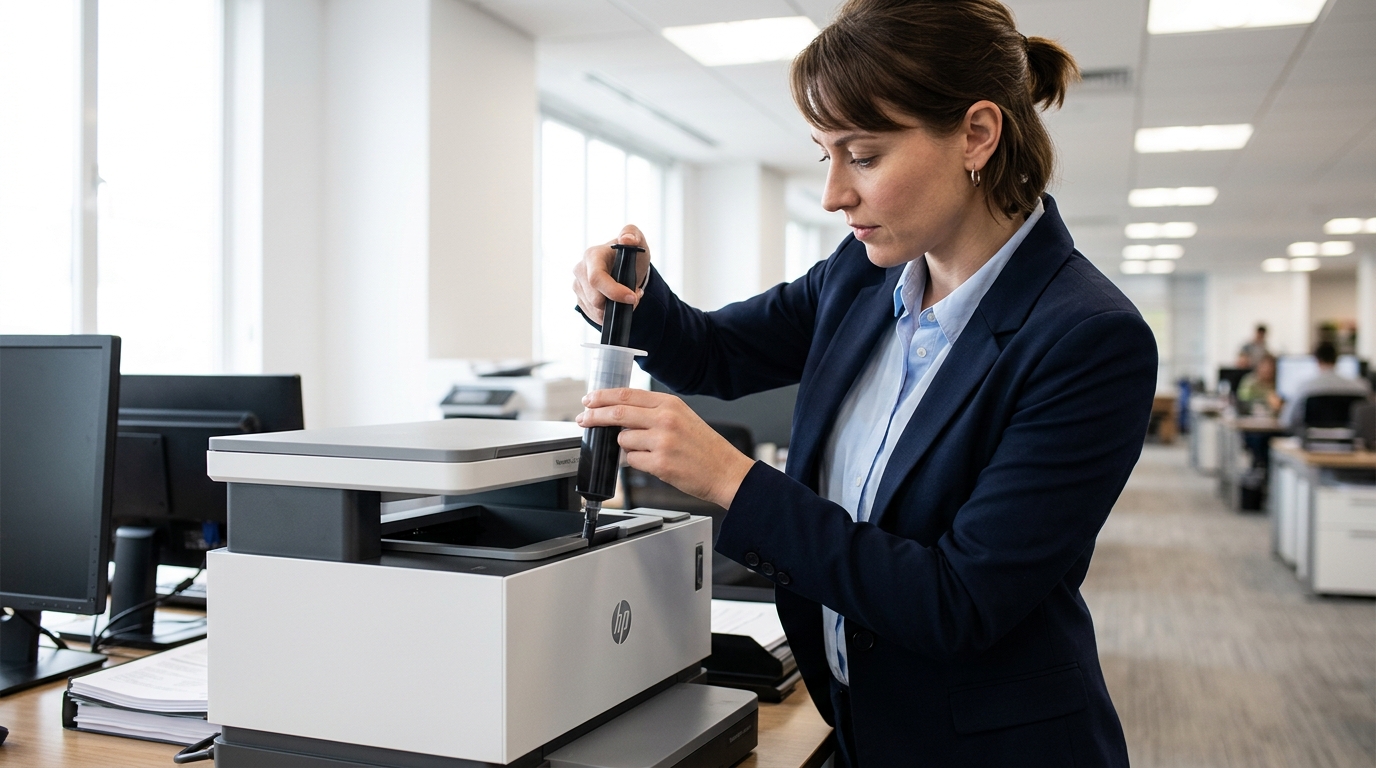
The Quick Answer
HP Neverstop toner reload kit won't turn or only fills partway? A repair tech explains the 'final click' that resets the sensor, and why it matters so much.
The reload kit turns, but not all the way. Or it turns fine, toner seems to go in.
The low toner light stays on anyway — for weeks, sometimes months. This is the single most common complaint about HP's refillable toner tank printers.
It almost always comes down to one precise mechanical detail that the quick-start instructions mention only briefly: the reload kit has to reach one exact, final stopping point, or the whole refill only half-works.
Quick-Fix Summary
Fast version:
- Confirm the printer is powered on before you begin — the sensor reset requires it.
- Align the reload kit correctly with the reload port before attempting to turn it.
- Turn it all the way to the final click — my uncommon tip, and the detail that explains almost every version of this complaint.
- Check for a blocked or dirty reload port.
- Confirm the imaging drum isn't due for replacement, which prevents reloading entirely.
Fix 1: Confirm the Printer Is Powered On First
Before opening the toner access door, make sure the printer is genuinely powered on — a solid, steady ready light, no processing sounds, fully idle — rather than in a sleep or low-power state.
Why this works: the sensor system that registers a refill and updates your toner indicator only actively monitors while the printer is properly powered on. Starting the process on a sleeping printer sets you up for a failed registration regardless of how correctly you handle everything else.
Fix 2: Align the Reload Kit Correctly
When inserting the toner reload kit into the reload port, take a moment to confirm it's seated straight. That any arrow indicators or alignment guides on the kit match up with corresponding marks on the port itself, rather than forcing it in at a slight angle.
Why this works: the reload kit needs to sit in a specific orientation to turn smoothly through its full rotation. A kit that's inserted even slightly crooked can bind partway through the turn, which is a commonly reported cause of a kit that "won't turn 180 degrees" specifically.
Fix 3: Turn It All the Way to the Final Click (My Uncommon Tip)
Here's the detail that resolves the overwhelming majority of "toner not filling correctly" complaints. It's genuinely the single most important piece of information in this entire guide.
The reload kit must be turned all the way to a specific final click — a distinct stopping point you should both feel and, in many cases, hear — to fully dispense the toner powder and reset the printer's internal toner sensor. This is not simply "turn it until it stops feeling easy" or "turn it about halfway.
This seems like enough." It's a precise mechanical endpoint, and stopping short of it, even by a small amount, produces a genuinely broken middle state: the toner only partially empties into the printer, and critically, the sensor never resets — meaning the toner level indicator continues showing low or empty even though toner has been added, sometimes persisting this way for weeks or months, exactly the symptom that brings most people to search for this problem in the first place.
This happens more easily than you'd expect. The turning motion can start to feel like it's "done" — resistance easing, the kit rotating smoothly — well before it's actually reached that true final stopping point. Stopping at that premature moment, which feels complete, is precisely what leaves the process incomplete.
To do this correctly: insert the kit fully and begin turning with steady, continuous pressure, and keep turning past the point where it starts feeling easier, all the way until you feel a distinct, unmistakable final stop — a hard click that's clearly different from the smooth resistance you felt getting there. If you're uncertain whether you've reached it, err on the side of continuing to apply gentle turning pressure rather than stopping early, since the final click is meant to be unambiguous once you actually reach it.
Why this matters so much: this single mechanical detail explains nearly every variation of "toner not filling," "low toner light won't clear,". "Refill seemed to do nothing" complaint that doesn't stem from the power-state issue covered elsewhere.
Once you understand there's a genuine, distinct, feel-able endpoint — not just "turn until it seems done" — the fix becomes mechanical and repeatable rather than a mystery. It's exactly the detail most quick-start guides mention too briefly for people to fully internalize before their first attempt.
Fix 4: Check the Reload Port for Debris
If the kit won't turn smoothly even when properly aligned, open the access door and inspect the reload port itself — the opening the kit inserts into — for any visible debris, residue, or obstruction. Gently clean it with a soft brush or lint-free cloth if needed.
Why this works: toner powder and general dust can accumulate in this opening over time and repeated use. Even a small amount of buildup can create enough resistance to prevent the kit from turning through its full, correct rotation.
Fix 5: Confirm the Imaging Drum Doesn't Need Replacement First
Check your printer's settings report or control panel indicators for any message about the imaging drum needing replacement. You cannot successfully reload toner when the imaging drum itself is due for replacement — this is a hard limitation, not a bug.
Continuing to attempt refills against a drum that's reached its end of life will not succeed regardless of technique.
Why this works: the imaging drum and the toner supply are related but separate components with their own lifespans. HP's system is specifically designed to prevent adding more toner to a drum that's already at the end of its usable printing life — attempting to force a refill in this situation wastes a reload kit without resolving anything.
When to Call a Professional
If you've confirmed the printer was powered on, aligned the kit correctly, turned it firmly all the way to a genuine final click, checked the reload port for debris. Confirmed the imaging drum isn't flagged for replacement — and toner still won't fill correctly or register — a mechanical fault with the reload mechanism itself or a broken sensor pin on the imaging drum becomes the more likely explanation.
Contact HP support with your printer's serial number and describe specifically that you reached a clear final click during the turning motion, since that detail rules out the most common cause and points their diagnosis toward genuine hardware.
FAQ
How do I know if I've turned the reload kit far enough?
You should feel a distinct, unmistakable final click that's clearly different from the smooth resistance you feel getting there — not just a point where turning starts to feel easier. If you're unsure, continue applying gentle pressure rather than stopping early.
Why does my low toner light stay on even after I've refilled?
This is the classic sign the reload kit wasn't turned all the way to its final click. The toner may have partially emptied, but the sensor that resets the indicator only resets at that specific final stopping point, not before it.
Can I still refill if the imaging drum needs replacement?
No — this is a hard limitation. The printer won't allow a successful reload when the drum itself is flagged for replacement, regardless of how correctly you handle the refill process. Replace the drum first.
Does the printer need to be on for the toner to physically transfer, or just for it to register?
The physical toner transfer can happen regardless of power state, but the sensor system that registers a successful refill and updates your toner indicator specifically requires the printer to be powered on and awake. This is why a refill can seem to succeed physically while doing nothing according to the printer's display.
HP Neverstop toner not filling correctly almost always comes down to one precise detail: the reload kit needs to reach a genuine, unmistakable final click, not just a point where it starts turning easily.
Confirm the printer's powered on, align the kit properly. Turn it firmly all the way through — past the point where it feels done — and the low toner light that's been stuck for weeks usually clears on the very next attempt.
Additional Resources
If you are still experiencing issues after trying the steps above, you may need to consult the official documentation or download the latest firmware (internal software) for your specific printer model. We recommend checking the following official resources:
