


The Quick Answer
HP OfficeJet 3830 carriage jam error explained by a repair tech: 5 fixes in order, including the output tray mistake almost nobody checks.
"Carriage jam" sounds mechanical and serious, like something's genuinely broken inside the machine. Most of the time, it isn't.
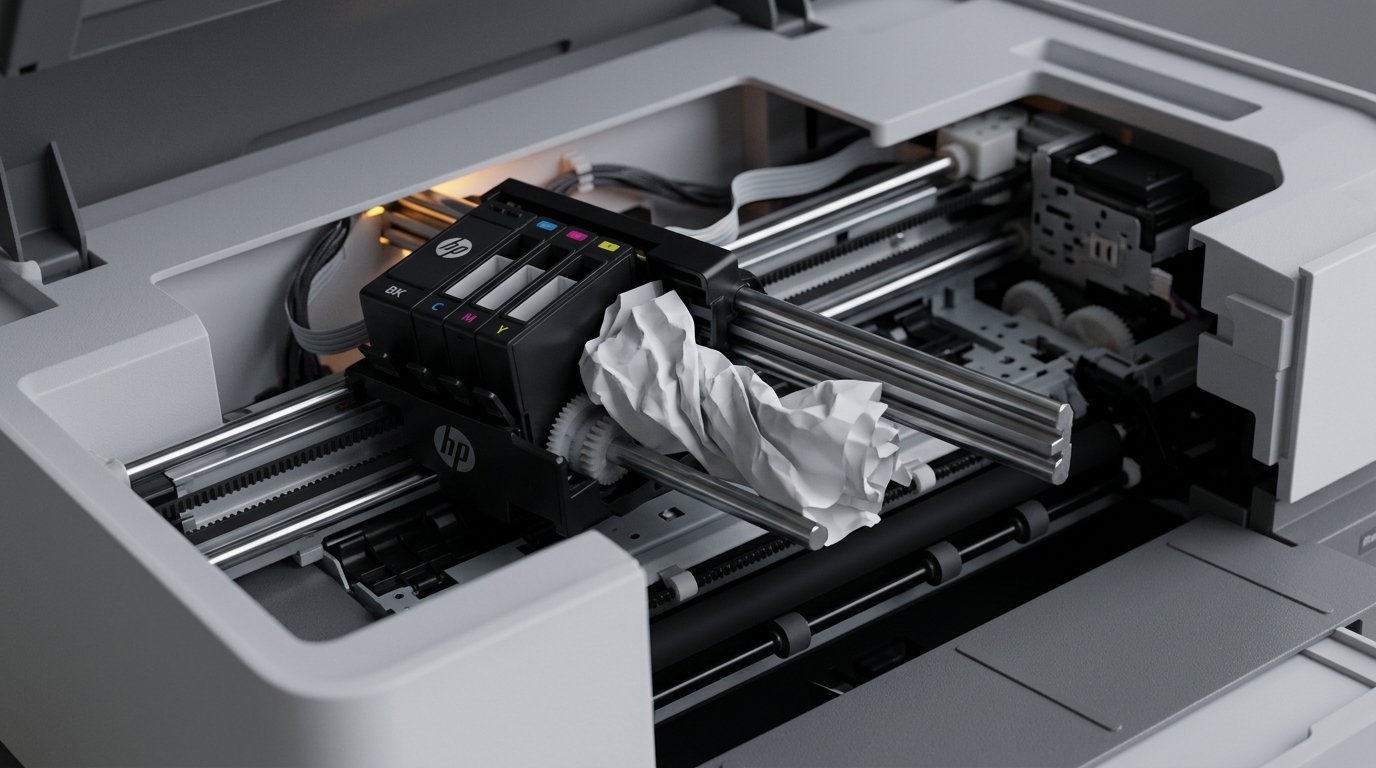
When an HP OfficeJet 3830 carriage jam error shows up on screen, the printer is telling you its print carriage — the little assembly that slides back. Forth carrying the ink cartridges — has been blocked or interrupted while trying to move.
In my repair shop, the actual cause is almost always something simple sitting in its path, not a dying motor.
Here's the fix order I run on this printer, ending with a cause so ordinary that almost nobody thinks to check it. It doesn't look related to printing at all.
Quick-Fix Summary
Fast version:
- Power off and unplug before touching anything inside.
- Open the cartridge door and look along the full rail for jammed paper or debris.
- Manually move the carriage by hand, testing for smooth, even resistance.
- Check the output tray extension — my uncommon tip, and a genuine oversight almost everyone makes.
- Reset with a full power cycle after clearing anything you find.
What "Carriage Jam" Actually Means
Inside your 3830, the carriage rides along a horizontal rail carrying the ink cartridges back. Forth across the width of the page, printing as it goes.
The printer constantly tracks the carriage's position. A "carriage jam" fires whenever something physically blocks that movement or the printer loses confidence in where the carriage actually is.
It's a description of a symptom — blocked or confused movement — not a diagnosis of a specific broken part.
Why this matters: you're not necessarily looking for something broken. You're looking for something in the way, or something dirty enough to confuse a sensor. Both are far more common than genuine mechanical failure on a printer this size.
Fix 1: Power Off Before You Touch Anything
Turn the printer off completely and unplug it from the wall before opening any covers or reaching inside.
Why this matters: working inside a powered printer risks an unexpected carriage movement while your hand is in its path. It's simply the safer, standard first step any tech takes before inspecting internals — no exceptions, regardless of how minor the job looks.
Fix 2: Inspect the Full Rail for Debris
With the printer off, open the cartridge access door. Look along the entire horizontal rail the carriage rides on, not just the center where the cartridges usually sit — jams love to hide near the edges, outside your natural line of sight.
Look for torn paper scraps, a stray label, dust clumps, or anything that doesn't belong.
Why this works: a scrap the size of your fingernail sitting at either end of the rail is enough to physically stop the carriage or throw off its position tracking. It reads to the printer's sensors as a full jam — indistinguishable from something actually broken until you've looked closely enough to rule it out.
Fix 3: Test the Carriage by Hand
With the printer still off, gently try sliding the carriage left. Right along its rail using your fingers. It should move with light, even resistance across its entire travel path — no sudden stops, no grinding, no spots where it catches.
Why this works: this simple test tells you immediately whether you're dealing with a physical obstruction (a spot where it visibly catches or stops) versus something more electronic in nature (smooth movement throughout. The printer still reports a jam).
That distinction changes what you check next far more efficiently than guessing.
Fix 4: Check the Output Tray Extension (My Uncommon Tip)
Here's the cause that catches nearly everyone. It has nothing to do with the inside of the printer. Everything to do with a small plastic flap most people forget exists.
Look at the output tray — the tray that catches printed pages as they come out. It typically has a small pull-out extension flap designed to fold out and support longer pages like standard letter-size paper.
Check whether that extension is folded down flat, retracted, or sitting at an odd angle rather than properly extended or fully closed as intended for your paper size.
Why this works: on compact all-in-ones like the 3830, physical space inside the case is tight. A misaligned or improperly positioned output tray extension can create just enough obstruction to interfere with the carriage's parking position or its full range of travel at one end of the rail — triggering a jam error that has nothing to do with anything you'd normally think to check when a screen says "carriage." It's the kind of cause that looks completely unrelated to printing.
Is exactly why almost nobody checks it. Make sure the extension is either fully extended.
Locked in its designed position, or fully retracted flat — not caught in between.
Fix 5: Full Power Cycle to Reset
After clearing any debris and confirming the output tray sits correctly, power the printer back on. If it still shows an error immediately, power off again, unplug from the wall for a full 60 seconds, then plug back in. Power on fresh.
Why this works: once the physical path is genuinely clear, the printer needs a fresh restart to re-home the carriage. Clear whatever error state it was holding in memory.
Powering on without a full reset sometimes leaves the printer stuck reporting an old error even after the actual obstruction is gone — the true unplug-from-the-wall cycle forces it to reassess from scratch.
When to Call a Professional
If the rail is completely clear, the carriage moves smoothly by hand across its full range, the output tray sits correctly. A full power cycle still produces the same carriage jam error — the carriage motor, drive belt, or a genuine position sensor fault is the more likely remaining explanation. Contact HP support with your printer's serial number;
check current warranty status first, since carriage assembly issues are a documented.
Often covered repair category. Out of warranty, weigh a repair quote honestly against a comparable new printer — on a compact all-in-one in this class, replacement is frequently the more sensible call financially.
That's worth knowing before committing to a repair.
FAQ
What does "carriage jam" actually mean on an HP OfficeJet 3830?
It means the print carriage — the assembly holding your ink cartridges — has been physically blocked or the printer has lost confidence in tracking its position. It's a symptom description, not a specific diagnosis, and the cause is usually something simple in its path.
I checked for paper jams and found nothing. What else could it be?
Check the output tray extension flap — if it's folded or positioned incorrectly, it can obstruct the carriage's parking position on some compact all-in-ones, triggering a jam error that has nothing to do with paper at all.
Is it safe to move the carriage by hand?
Yes, as long as the printer is powered off and unplugged first. Gently sliding it tests for smooth movement and helps you distinguish a physical obstruction from an electronic error reading.
Why does the error come back even after I cleared the visible jam?
The printer may still be holding the old error state in memory. A full power cycle — off, unplugged from the wall for a full 60 seconds, then back on — forces it to reassess the carriage position fresh rather than trusting a stale reading.
An HP OfficeJet 3830 carriage jam is usually a blocked path, not a broken printer. Power off, inspect the full rail closely, test the carriage by hand.
Don't skip checking that output tray extension — it's the cause almost nobody thinks to look for, precisely. It doesn't look like it belongs in a printing problem at all.
Additional Resources
If you are still experiencing issues after trying the steps above, you may need to consult the official documentation or download the latest firmware (internal software) for your specific printer model. We recommend checking the following official resources:
