


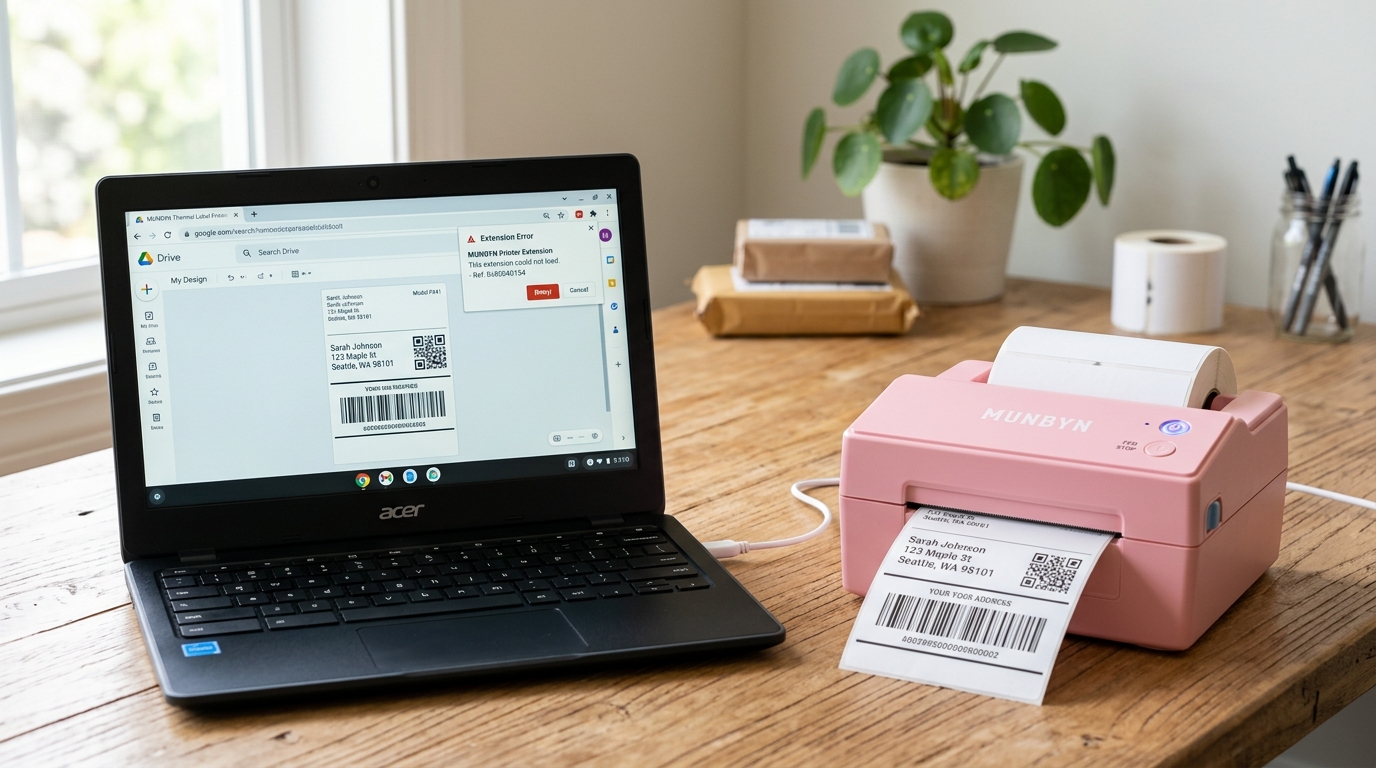
The Quick Answer
If your Munbyn Chromebook extension is acting up, a simple toggle off/on won't fix it. Here's how to properly reinstall and set permissions.
Chromebooks and label printers have a complicated relationship, and the extension is the marriage counselor. When the Munbyn Chromebook extension is not printing, the failure is almost always in one of three places: the extension's permissions, the connection between extension and printer, or a print setting that quietly changed.
The printer itself is rarely guilty — I want that on the record before we start, because I've watched too many people box up a healthy printer for return over a revoked permission.
Let's work through it the way I would at my bench: cheapest checks first, nuclear options last.
Quick-Fix Summary
Top to bottom:
- Check the printer's own light — a red light blocks everything downstream.
- Confirm USB connection — direct to the Chromebook, no hub.
- Full remove-and-reinstall of the extension — toggling it off/on isn't enough.
- Approve every permission prompt, especially USB device access.
- Fix the paper size — the 4x6 option hides under a code name.
- Try the native ChromeOS print path as a fallback.
Fix 1: Look at the Printer Before You Blame the Extension
Glance at the status light. Blinking red means the printer can't detect or measure your labels — recalibrate by loading four or more connected labels, holding FEED until one beep, and letting the printer run.
Solid red means lid or paper — press both lid corners until you hear two clicks and confirm the roll is loaded printable-side up.
Why this works: The extension can only hand jobs to a printer that's willing to accept them. A printer in an error state refuses everything, and from the Chromebook side that refusal looks exactly like "the extension isn't printing." Rule out the ten-second hardware causes before touching software — it's the order that saves the most time, which is why it's the order I bill by.
Fix 2: Check the Physical Connection
Plug the USB cable directly into the Chromebook — not into a hub, dock, or dongle chain. Reseat it at both ends. If your Chromebook is USB-C only, use a single simple adapter, and try the other USB-C port; on some Chromebooks the ports aren't equally powered.
Why this works: The extension finds the printer through the Chromebook's USB stack, and hubs are where USB signals go to get lost. A printer that appears and disappears from the extension is the classic hub symptom.
Direct connection removes the suspect entirely, and swapping to a different cable is the cheapest test in all of tech repair.
Fix 3: The Real Reinstall
Here's what customers get wrong: they toggle the extension off and on, or hit "repair," see no change, and conclude it's broken. The extension needs a full removal to reset properly.
- Click the puzzle-piece icon in Chrome's toolbar → Manage extensions.
- Find the Munbyn extension and click Remove — actually remove it.
- Restart the Chromebook completely (shut down, not sleep).
- Reinstall the extension fresh from the Chrome Web Store.
- Open it with the printer connected and powered on, and approve every permission it asks for.
Why this works: The extension's permission to talk to USB devices can get revoked — by a ChromeOS update, a Chrome update, or sync gremlins — while the extension itself stays installed. That produces the "installed but deaf" state: the extension opens fine, shows its interface, and simply never finds the printer.
Only a full remove-and-reinstall triggers the permission prompts again, and those prompts are the entire point of the exercise. Skip step 5's approvals and you've reinstalled your way right back to the same problem.
Fix 4: The Permission Nobody Reads
While we're on permissions: when the freshly reinstalled extension asks about accessing USB devices or connected hardware, that's not boilerplate — that's the one that matters. If you clicked "Deny" or closed the prompt at some point in the past, the extension has been locked out ever since.
To check without reinstalling: Manage extensions → click Details on the Munbyn extension → review its site and device permissions, and set anything relevant to allowed.
Why this works: Chrome treats hardware access as sensitive, so it's opt-in per extension. One dismissed dialog months ago is enough to break printing "out of nowhere" today, because a later update re-checked the permission and found it missing.
Fix 5: Decode the Paper Size (My Uncommon Tip)
This is the fix for the strangest version of the complaint: the extension does print, but labels come out tiny in one corner, or split across two labels — so people report it as "not printing" because nothing usable comes out.
Open the print dialog and find Paper size. On Chromebooks, the 4x6 label size frequently appears under the code name "oe w288h432" — possibly the least helpful label in all of printing.
Here's the decoder ring: Chrome measures paper in points, and there are 72 points per inch. So 288 points ÷ 72 = 4 inches wide, and 432 points ÷ 72 = 6 inches tall. w288h432 is simply 4x6 in disguise.
Select it, and set margins to none or minimum while you're in there.
Why this works: When the paper size says Letter, the Chromebook scales your 4x6 label onto an imaginary 8.5x11 page, then prints the top slice of that page onto your actual label — hence the tiny label in the corner. Choosing the real label size makes the page and the paper agree.
I've explained the 72-points-per-inch math to customers across my counter more times than I can count, and every single one remembers it afterward. Gibberish stops being scary once it's arithmetic.
Fix 6: The Native Path Fallback
If the extension refuses to cooperate today and you have orders to ship, bypass it:
- Go to Settings → Print and scan → Printers.
- With the Munbyn connected and on, add it as a printer (choose your model, or a Generic PostScript/IPP option if it's not listed).
- Print your label PDF with Ctrl+P, select the Munbyn as the destination, set paper size to the 4x6 / w288h432 option.
Why this works: The extension and ChromeOS's built-in printing are two separate roads to the same printer. When one is washed out — a bad extension update, a permission bug awaiting a patch — the other usually still runs.
A workaround that ships today's orders is worth more than a root cause found next week; you can hunt the root cause after the mail goes out.
When to Call a Professional
Escalate when: the extension can't find the printer even after a clean reinstall with all permissions granted and the printer passes its self-test (hold FEED while powering on);
or the native path also fails on the Chromebook while the printer works fine on another computer. Email Munbyn support with your ChromeOS version (Settings → About ChromeOS) and the extension version — pairing those two numbers is exactly what their developers need to reproduce a bug.
If the self-test itself won't print, the problem was never the Chromebook: pursue warranty support for the printer.
FAQ
Why does the Munbyn extension see my printer but nothing prints?
Check the printer's light first — a red light means it's rejecting jobs. If the light is green, check the paper size in the print dialog; a Letter-size mismatch can make jobs "vanish" or print unusably small.
Do I need the extension, or can Chromebooks print to Munbyn natively?
Both paths work for most models. The extension offers a label-friendly workflow; the native Print and scan route is a solid fallback. Knowing both means an update never fully strands you.
What does "oe w288h432" mean in my print dialog?
It's 4x6 inches expressed in points — 288 and 432 points at 72 points per inch. Select it for standard shipping labels.
The extension broke right after a Chrome update. Coincidence?
Probably not. Updates can silently revoke an extension's USB permissions. Do the full remove-restart-reinstall and approve every permission prompt on first launch.
When the Munbyn Chromebook extension is not printing, the villain is nearly always a revoked permission, a lost USB handshake, or a paper size wearing a disguise. Check the printer's light, reinstall the extension the complete way, grant its permissions like you mean it, and remember that w288h432 is just 4x6 speaking in points.
Keep the native print path in your back pocket, and no extension hiccup will ever stop your shipping day again.
