


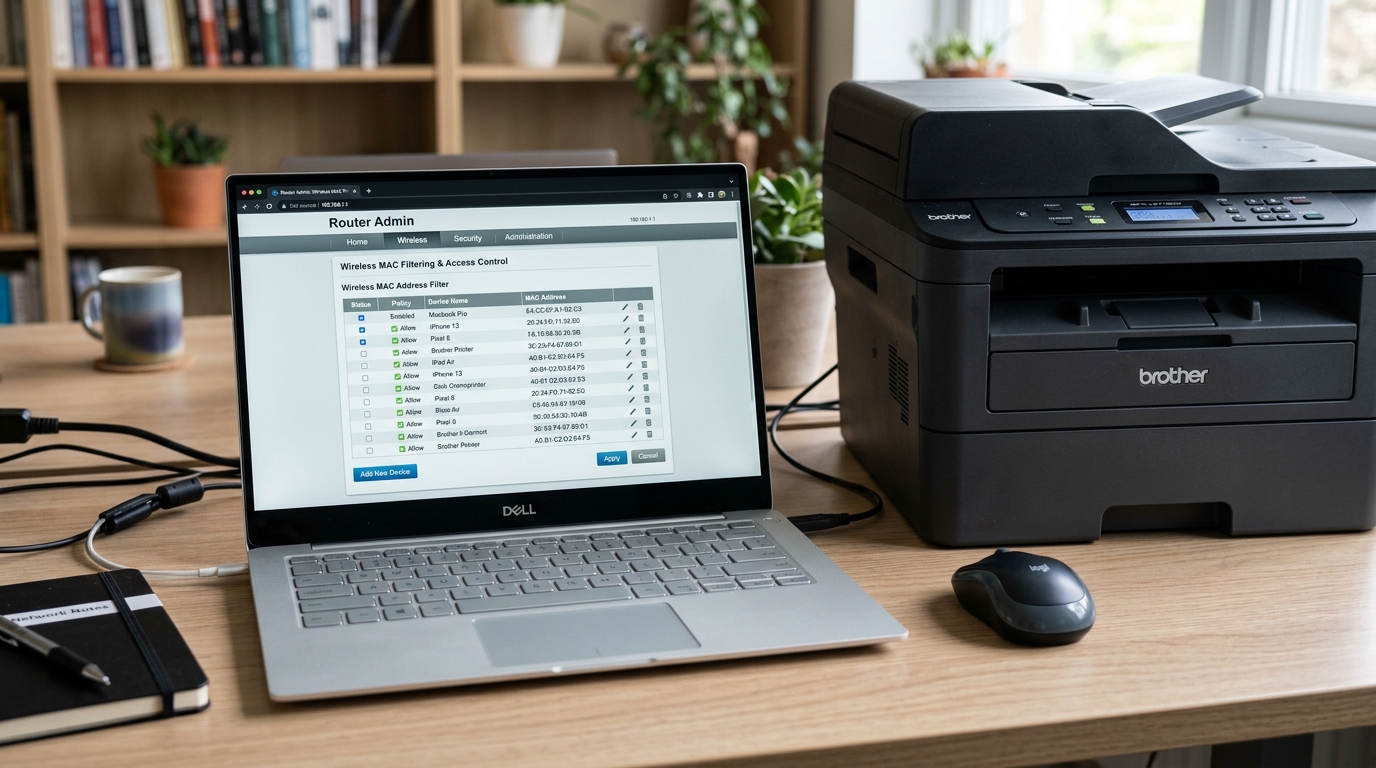
This is a genuinely easy cause to overlook,. Because there's nothing wrong with your printer, your Wi-Fi password, or your signal strength at all. Your router itself has a list of specifically approved devices, and your Brother printer simply isn't on it.
What MAC Address Filtering Actually Does
Every network device — your printer included — has a unique hardware identifier called a. MAC address, permanently assigned to its network hardware.
Some routers offer a security feature that restricts network access to only devices whose MAC. Address appears on an approved list, rejecting everything else automatically, regardless of whether the correct Wi-Fi password was entered.
Why this matters:if this feature is enabled on your router and your printer's MAC address was never. Added, the printer will fail to connect no matter how correctly everything else is configured — producing symptoms that look identical to a range or detection problem, with no obvious clue pointing toward the filter as the actual cause.
Fix 1: Find Your Printer's MAC Address
Print a Network settings pagefrom your printer (commonly accessed through a menu option,. On button-only models via a specific button combination — check your model's manual for the exact steps). This page lists the printer's MAC address (sometimes labeled "Node Name" or "Ethernet Address") clearly.
Why this works:you need this exact address before you can add it to your router's allowed list,. The printer's own settings page is the most reliable source for it.
Fix 2: Log Into Your Router's Settings
Open a browser and enter your router's IP address (commonly something like 192.168.1.1 or 192.168.0.1, though this varies by manufacturer) to reach its admin login page.
Why this works: MAC filteringis configured entirely on the router's side,. This is where the actual fix happens — nothing on the printer itself can override a router-side filter.
Fix 3: Add Your Printer's MAC Address to the Allowed List
Find the MAC filtering section (commonly under wireless security. Access control settings), and add your printer's MAC address to the allowed list, exactly as printed on the settings page.
Why this works:this explicitly grants your printer permission to join the network, resolving the block directly at. Its source rather than working around it.
Fix 4: Confirm the Filter Setting Is Set to "Allow," Not "Deny"
Check whether your router's MAC filtering is configured as an allow-list (only listed devices can connect). A deny-list (only listed devices are blocked). Make sure you're adding your printer to the correct list for how your specific router is configured.
Why this works:adding your printer's address to the wrong type of list — a deny-list, for instance. — would actually make the problem worse rather than better, so confirming which mode your router uses before making changes matters.
When to Call a Professional
If you've added your printer's MAC address to your router's allowed list correctly and the printer still can't connect, MAC filtering likely isn't your actual cause, and it's worth revisiting other TS-02-related troubleshooting — distance, obstruction, or a router that's genuinely not broadcasting properly. If you're not comfortable accessing your router's admin settings at all, whoever manages your network.
Your internet provider's support line can typically walk you through this specific step.
How MAC Address Filtering Impacts Brother Printers
Every network device possesses a globally unique 48-bit hardware identifier known as a Media Access Control (MAC) Address (e.g., 00:80:77:3A:B1:C2). When a network administrator enables MAC Filtering / Access Control on a wireless router, the.
Router drops all network traffic from any device whose MAC address is not explicitly registered in its whitelist database. 254 IPs.
Locating Your Brother Printer's MAC Address
- From the Physical Rear Label: Look at the white barcode label on the back or underside of your Brother machine. The MAC address is listed as the 12-character alphanumeric sequence (sometimes labeled "Ethernet Address" or "Wireless MAC").
- From the Control Panel Menu: Navigate to Menu > Network > WLAN (or Wired LAN) > MAC Address The 12-digit string will display on screen.
- From the Network settings Report: Print the report by pressing the Go button 3 times.
Adding the Printer to Your Router's Whitelist
- Open a browser and navigate to your router's IP address (e.g.,
192.168.1.1). - Log in with administrative credentials.
- Navigate to Wireless Settings > Wireless MAC Filter or Security > Access Control.
- Click Add Device / Add Rule.
- Enter the Brother printer's 12-digit MAC address (formatted as
XX:XX:XX:XX:XX:XXorXX-XX-XX-XX-XX-XXdepending on the router brand). Give it a friendly name like "Brother-MFC". - Save and apply settings. Power cycle the Brother printer to initiate a fresh connection handshake.
Frequently Asked Questions
Does a Brother printer have separate MAC addresses for Wi-Fi and Ethernet?
Yes. If your Brother model has both an Ethernet port.
Does resetting the printer change its MAC address?
No. A MAC address is permanently burned into the physical network interface controller (NIC) hardware at the factory.
