


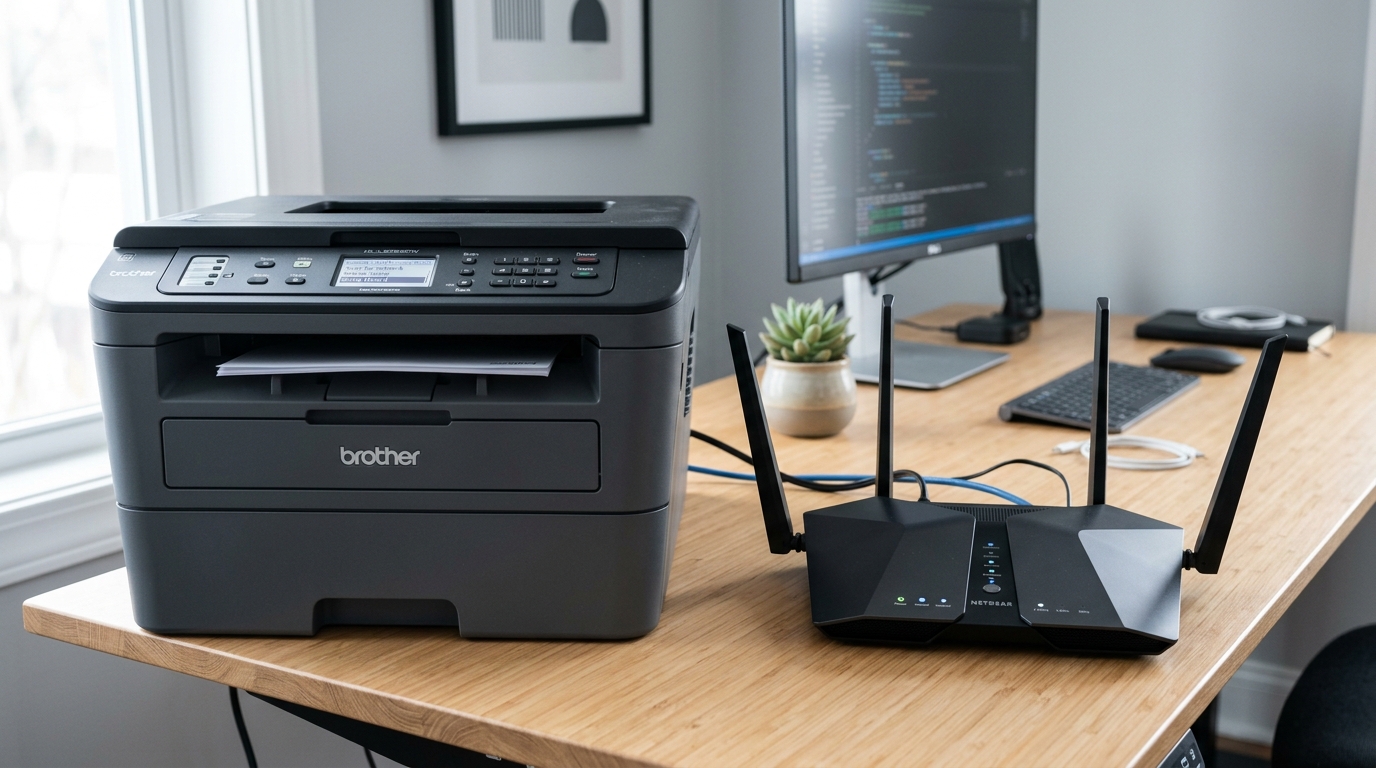
If your Brother printer has no text screen, only a wireless status light, you won't see anything like "TS-02" when a connection fails — just a light that stays off, blinks in a pattern, or simply never turns solid. This guide covers exactly that situation, working from light behavior rather than an on-screen code.
Why This Is Different From Code-Based Troubleshooting
Brother's TS-series error codes appear on models with an LCD or similar display, giving you a specific number to search for. Simpler, button-and-LED-only models — common on entry-level HL laser printers — can't display that same information.
You're working from the wireless light's behavior instead, which is less specific but still tells you something useful.
Fix 1: Check What the Light Is Actually Doing
A wireless light that's completely off generally means the wireless radio isn't active yet. A light that's blinking during setup generally means the printer is actively attempting to connect.
A light that stays solid means a successful connection. If your light is blinking and never settles to solid, the printer is trying and failing repeatedly, which points toward the same underlying causes as TS-02 on display models — the printer can't detect or complete a connection to your access point.
Why this matters: even without a specific code, this pattern tells you whether you're dealing with a radio-activation issue (light never comes on at all) or a detection/connection issue (light blinks but never completes), which changes where you focus next.
Fix 2: Activate the Wireless Setting
On most button-only models, hold down the GO button for about 10 seconds to activate the wireless setting, releasing when the printer prints a Network Configuration page. If an Ethernet cable is connected, disconnect it first, since some models won't activate wireless while wired.
Why this works: this addresses the light-never-comes-on scenario directly, activating the radio hardware itself before any actual network detection can even begin.
Fix 3: Move the Printer Close to the Router for Setup
Temporarily position the printer within about a meter of your router while running setup, even if this isn't its permanent location.
Why this works: a strong, close signal removes distance and obstruction as variables during the sensitive initial connection process, giving the printer its best chance to complete a handshake it might fail from farther away.
Fix 4: Confirm the Router Is On and Check MAC Filtering
Verify your router is powered on and working with another device, and check whether MAC address filtering is enabled and might be blocking your printer specifically.
Why this works: these are the same underlying causes behind the TS-02 code on display models — a light-only printer is experiencing the identical failure, it just can't tell you the specific number.
Fix 5: Use the Brother iPrint&Scan App for Setup
Rather than relying entirely on button presses and light-watching, try running wireless setup through the Brother iPrint&Scan app on your phone, which can guide the process with clearer feedback than button-only hardware provides on its own.
Why this works: the app gives you a considerably more informative setup experience than a single status light can, even on a printer that has no display of its own.
When to Call a Professional
If the wireless light activates and blinks correctly during setup attempts, the router is confirmed working, distance and MAC filtering have been ruled out, and the light still never settles to solid, contact Brother support with your exact model — a genuine wireless hardware fault becomes the more likely explanation at that point.
Universal Systematic Troubleshooting for Brother WLAN Failures
If your Brother printer refuses to connect to your Wireless Local Area Network (WLAN), the issue stems from one of four primary failure domains: radio frequency incompatibility, network credential corruption, router firewall/port filtering, or printer EEPROM caching errors. Follow this exhaustive checklist to establish a permanent, stable link.
Full 6-Step WLAN Diagnostic Workflow
- Print the WLAN Report to Identify the Exact Error Code:
Press Menu > Network > WLAN > WLAN Report (or press the wireless button). Look at the top of the sheet for your diagnostic code (TS-01, TS-02, TS-03, TS-04, TS-05, TS-06, TS-07, TS-08). Knowing the exact TS-code pinpoints whether the fault is physical, authentication-based, or IP assignment-based.
- Check Router 2.4GHz Channel & Bandwidth Settings:
Ensure your router's 2.4GHz wireless radio is active, broadcasting on a fixed channel (1, 6, or 11), with channel width set to 20MHz (not 40MHz or Auto). Avoid dynamic channel hopping (DFS) which drops Brother wireless links.
- Disable AP Isolation & Guest Network Restrictions:
In your router settings, verify that AP Isolation (also called Client Isolation or Station Isolation) is turned OFF. When active, AP isolation prevents wireless clients from talking to each other, blocking print jobs from computers and phones.
- Perform a Full Hardware Network Reset:
Wipe all cached wireless profiles from the printer: Select Menu > Network > Network Reset. Press 1 (or Yes) to confirm. Hold 1 for 2 seconds to reboot. Once rebooted, reconnect via the Setup Wizard.
- Temporarily Disable 5GHz During Pairing:
If using a mesh Wi-Fi system without split SSIDs, temporarily turn off the 5GHz radio in your mesh system app for 15 minutes while pairing the Brother printer, then re-enable it once pairing is complete.
- Verify DHCP Scope and Available IP Pool:
Log into your router and check the DHCP client list. If your DHCP address pool is exhausted (e.g., set to allow only 20 devices and all 20 leases are taken by smart TVs, phones, and tablets), the router will silently reject the Brother printer.
Expand the DHCP range (e.g., from .2 to .254).
Frequently Asked Questions
Why does the Wi-Fi light on my Brother printer keep blinking green?
A blinking green or blue Wi-Fi light means the printer is actively trying to negotiate an IP lease with the router. If it never turns solid, the printer is failing DHCP handshake or WPA key authentication.
Can I connect my Brother printer to Wi-Fi using my PC via USB cable?
Yes. If you install the Brother Full Driver & Software Package on your PC, the installer will prompt you to connect a temporary USB cable.
