


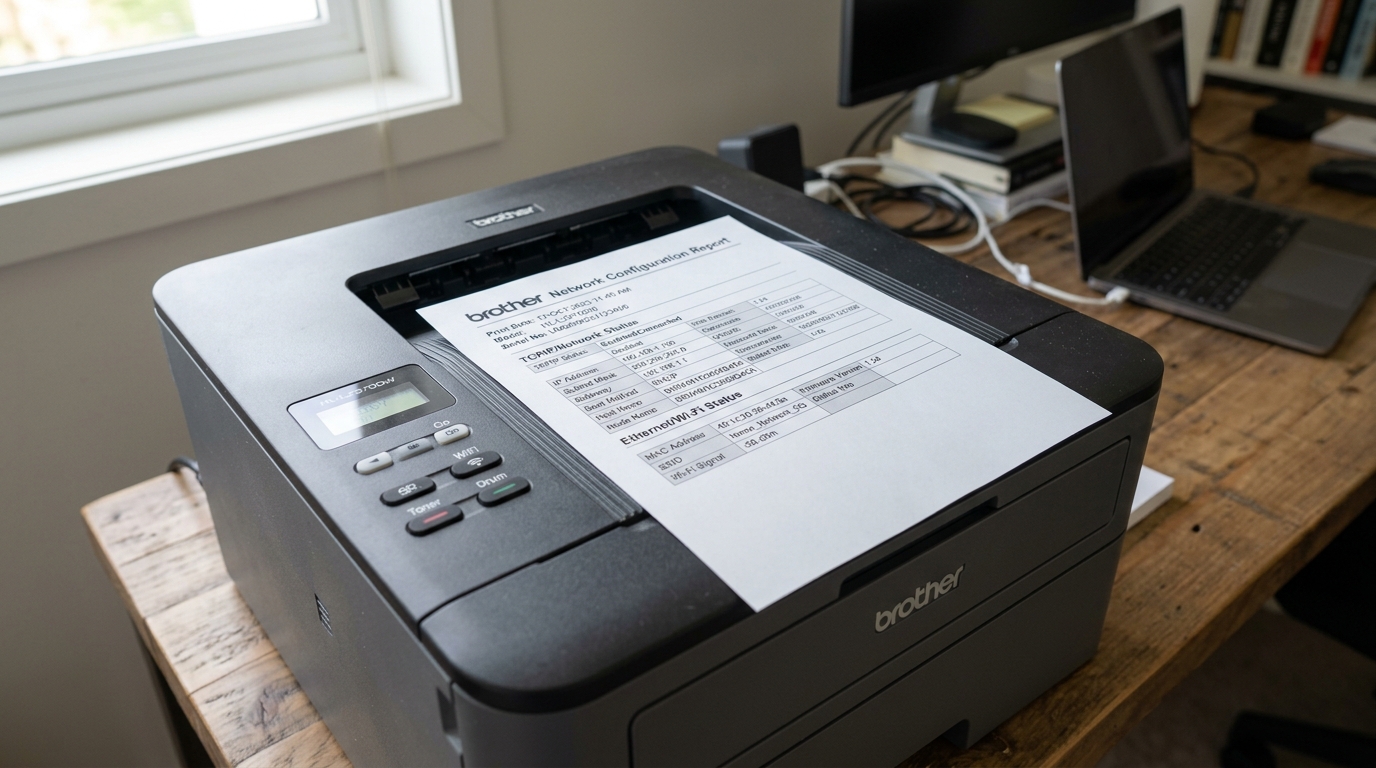
Nearly every piece of network troubleshooting advice for a Brother printer eventually asks for the same thing: your printer's network settings page. It's the single most useful diagnostic printout your machine can produce. And it takes about ten seconds once you know where the option lives.
What This Page Actually Shows You
A network settings page is a printout generated directly by the printer itself. Listing its current network status in detail — IP address. MAC (Ethernet) address, wireless network name it's connected to (if any), signal status, and several other technical details. Live nowhere else in the printer's normal display.
Why this matters: whether you're troubleshooting a wireless connection. Checking for a MAC address filtering issue. Confirming the printer's current IP address for manual setup. Or working with Brother support, this page is almost always the first thing you'll be asked to check or provide.
How to Print It
On models with a menu display: navigate to Settings → All Settings → Print Reports → Network Settings (menu wording and exact path can vary slightly by model), and select print.
On button-only models without a display: the specific button combination varies by model — commonly a held combination involving the Go or Menu button, sometimes paired with a specific number of presses. Check your exact model's quick reference guide for the precise sequence, since this differs meaningfully across Brother's product lines.
Why this works: either method triggers the printer's internal system to generate. Print its own current network status report immediately, independent of any computer or app.
What to Look For Once You Have It
- MAC Address (or Node Name): the unique hardware identifier you'd need if setting up MAC address filtering on your router.
- IP Address: the printer's current network address, useful for manual printer setup on a computer. For confirming whether it's successfully joined your network at all (an address starting with 169.254 typically indicates it hasn't obtained a proper address from your router).
- Wireless status/SSID: confirms which network name the printer currently believes it's connected to. Useful for catching a printer that's connected to the wrong network entirely. Such as an old network name that hasn't been updated.
- Signal strength/quality: gives you a general sense of connection strength. Useful context if you're troubleshooting intermittent drops rather than a complete failure to connect.
Why this matters: having this specific information in hand before troubleshooting further. or before contacting Brother support — considerably speeds up diagnosing what's actually happening. Rather than working from guesses about the printer's current network state.
When to Call a Professional
This page itself doesn't require any professional involvement to obtain. but if it reveals something you're unsure how to interpret.
an unexpected IP address range, a signal quality reading that seems consistently poor, or a MAC address you need help correctly entering into router settings — bringing this printout to Brother support.
Whoever manages your network gives them exactly the detail they need to help quickly.
How to Decode the Network Settings Report
Once your Brother printer spits out the 2-page. 3-page Network Settings Report, don't just stare at the wall of technical jargon. Here are the five mission-critical fields you must locate:
or This is the internal network name of your printer (typically formatted like: BRN30055C82A1B4). You can use this hostname in your browser or ping utilities instead of an IP address.- IP Address: Look under the
169.254.x.x, this is an APIPA (Automatic Private IP Addressing) address. Meaning your Brother printer failed to receive an IP from your router's DHCP pool. If it reads0.0.0.0, the network interface is completely disconnected. - Subnet Mask & Default Gateway: The Default Gateway must match your router's local IP address (usually
192.168.1.1or192.168.0.1). If the gateway is blank or wrong, your printer cannot communicate across subnets or receive cloud print jobs. - Wireless Link Status & Signal Strength: Under the
ActiveorOK) and Signal Strength. If signal strength is below 40% or markedWeak, intermittent offline drops will occur regardless of your PC settings. - MAC Address (Ethernet / Wireless): A 12-digit hexadecimal identifier (e.g.,
30:05:5C:82:A1:B4). This is required if you want to configure a DHCP reservation on your router. If your network uses MAC address filtering.
Assigning a Static IP Using the Settings Data
Dynamic DHCP leases frequently expire, causing Windows. MacOS to report the Brother printer as "Offline" because the printer silently hopped to a new IP address. Use the data from your printed report to lock in a permanent Static IP:
- Open a web browser on a computer connected to the same network.
- Type the printer's current IP Address into the URL bar and press Enter to open the Brother Embedded Web Server (EWS).
- Log in with the administrator password (on modern Brother machines. This is printed on the serial number label on the back of the chassis).
- Navigate to the Administrator or Network tab > Wireless or Wired > TCP/IP.
- Change the Boot Method or IPod or IP Config from
Auto / DHCPtoStatic. - Enter an IP address outside your router's active DHCP range (e.g., if DHCP gives out .2 to .100, set the printer to
.210). Copy the Subnet Mask, Gateway, and DNS servers directly from your printed report. - Click Submit to save . Your printer will never change IP addresses again.
Frequently Asked Questions
Why is my Brother printer's IP address showing 169.254.x.x on the report?
254 indicates an APIPA self-assigned address. The printer's physical network adapter is functioning, but your router's DHCP server did not respond to its request.
How many pages is a Brother Network Settings report?
Depending on the model (basic mono laser vs. multifunction color MFC), the report is between 1 and 3 pages.
Can I print the network settings sheet if my touchscreen is unresponsive?
Yes. On most Brother machines without screens or with locked screens, pressing the physical Go button 3 times consecutively within 2 seconds will force the printer engine to print the settings.
