


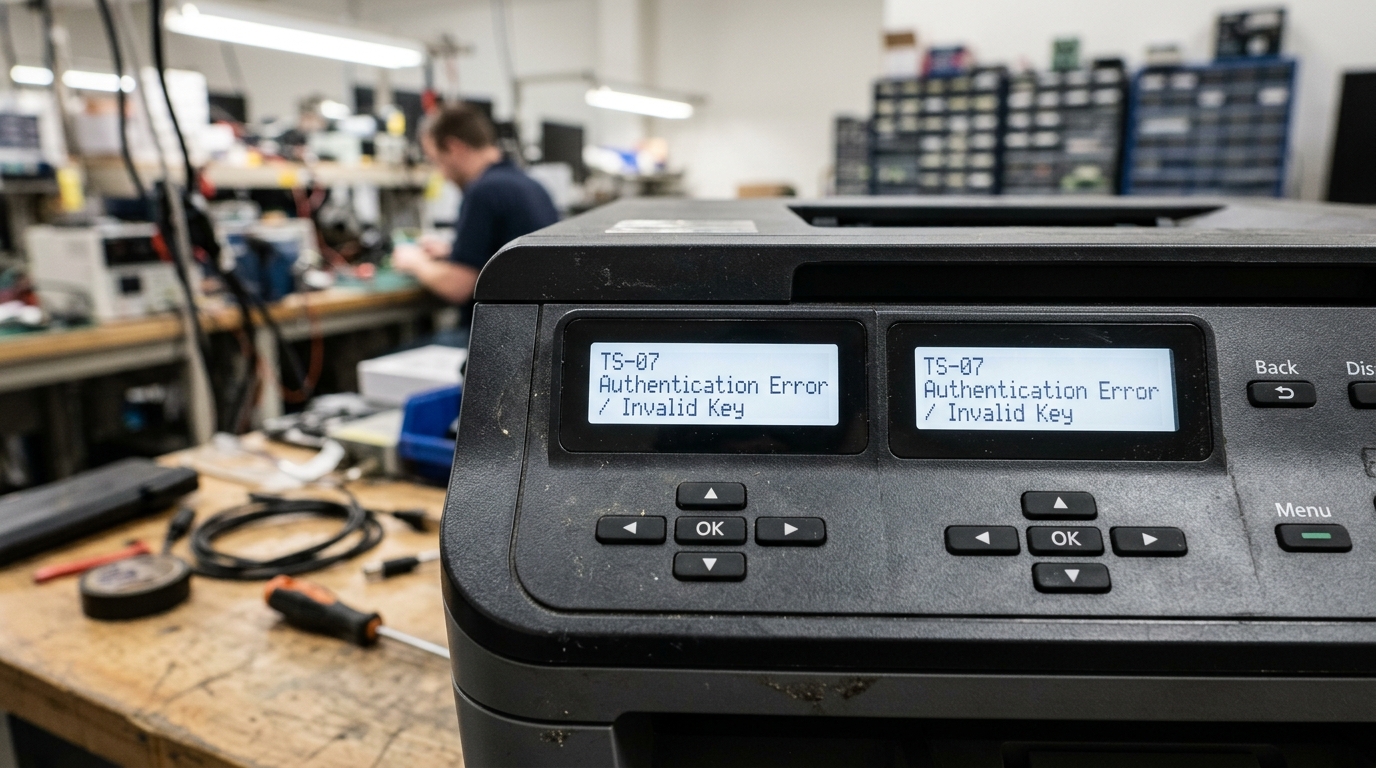
TS-07 is refreshingly specific once you know what it means: your printer found your network. Attempted to connect, and the network key you entered was incorrect. No detection issue, no security mismatch — just a password that didn't match.
What TS-07 Actually Means
Your printer successfully detected your router. Tried to authenticate using the Wi-Fi password (network key) you entered during setup, and that password didn't work. This is usually a straightforward typing issue,. There's a specific, common source of confusion worth knowing about before you assume you're typing your real password correctly.
Fix 1: Confirm You're Using the Right Password
Many routers display two different pieces of information on their label. In their settings — a general "network password" and a separate Wi-Fi-specific password that can differ from it. Confirm you're entering the actual Wi-Fi network key, not an admin login password or a different credential entirely.
Why this works: it's a genuinely common mix-up, especially on routers provided by internet service providers that print multiple different credentials on the same label,. Entering the wrong one produces exactly this "incorrect network key" result even though you typed something correctly.
Fix 2: Watch for Hyphens and Special Characters
If your Wi-Fi password includes hyphens, symbols,. A mix of characters that are easy to mistype, enter it carefully and deliberately, checking character by character rather than typing quickly from memory. Case matters too — many passwords are case-sensitive.
Why this works: this specific confusion comes up often enough to be worth calling out directly — some router-provided passwords include hyphens as separators that are easy to miss. Mistype, especially when entering a long, unfamiliar string of characters on a printer's small control panel rather than a full keyboard.
Fix 3: Re-Check the Password Directly From the Router
Rather than relying on a password you have written down. Remembered, log into your router's admin page or check its physical label directly, and copy the current password exactly as shown.
Why this works: passwords sometimes get changed — by an internet provider during a service visit, by another household member,. During a router replacement — and a password that worked previously may simply no longer be current. Checking the source directly removes any doubt.
Fix 4: Try Entering the Password via Brother iPrint&Scan
If your printer's control panel makes entering a long. Complex password error-prone, try running wireless setup through the Brother iPrint&Scan app on your phone or computer instead, where a full keyboard makes accurate entry considerably easier.
Why this works: small printer control panels. Especially button-based navigation without a full keyboard, are a common source of entry mistakes on long passwords. A proper keyboard removes that friction entirely.
When to Call a Professional
If you've confirmed the exact current password directly from the router. Entered it carefully through both the control panel and the app, and TS-07 still appears consistently, this is worth checking with Brother support, since it may point toward a deeper wireless authentication issue beyond a simple password mismatch.
Technical Explanation of TS-07 Authentication Rejection
On Brother wireless diagnostics, TS-07 indicates an active WPA/WPA2/WPA3 4-Way Handshake Failure. The printer successfully detected the SSID, negotiated the beacon frame,.
Transmitted the Pre-Shared Key (PSK), but the wireless router explicitly sent back an "Authentication Rejected" packet. Unlike TS-02 (no signal) or TS-03 (DHCP failure), TS-07 means your credentials or encryption handshakes failed.
Advanced Troubleshooting: Key Mismatches & Security Protocols
- WPA3-SAE vs. WPA2-PSK Incompatibility: Many modern Wi-Fi 6 routers default to WPA3-Personal (SAE) mode. Older Brother network cards (manufactured before 2021) do not support WPA3 cryptographic handshakes. Log into your router admin panel and set the 2.4GHz security mode to WPA2-PSK (AES) or WPA2/WPA3 Mixed Mode.
- Case Sensitivity and Hexadecimal Passwords: Brother keypad input requires special attention. If your password contains numbers, symbols, or capital letters, verify each character on the Brother screen before confirming. Note that leading/trailing spaces in router passwords will trigger TS-07 immediately.
- Guest Networks & AP Client Isolation: If you are connecting the Brother printer to a router's "Guest" network. Guest isolation policies may terminate local authentication handshakes. Always connect to the primary private SSID.
- Full Wireless Network Reset on Brother:
Clear corrupted cached keys from the printer's EEPROM:
- Press Menu. Settings > Network > Network Reset.
- Press 1 (or select Yes) to confirm.
- The machine will restart. Rerun the Setup Wizard to input the Wi-Fi key fresh.
Frequently Asked Questions
Why does TS-07 persist even when I am 100% sure my password is correct?
Special characters (such as $, %, &,. Spaces) in your Wi-Fi password can be misinterpreted by Brother's internal ASCII character mapping table.
Will changing my router's channel resolve TS-07?
While channel congestion causes TS-02 packet drops, setting your router's 2.4GHz channel width to 20 MHz (instead of 40 MHz. Auto) helps older Brother network adapters complete the timing-critical 4-way WPA handshake without timeout rejections.
