


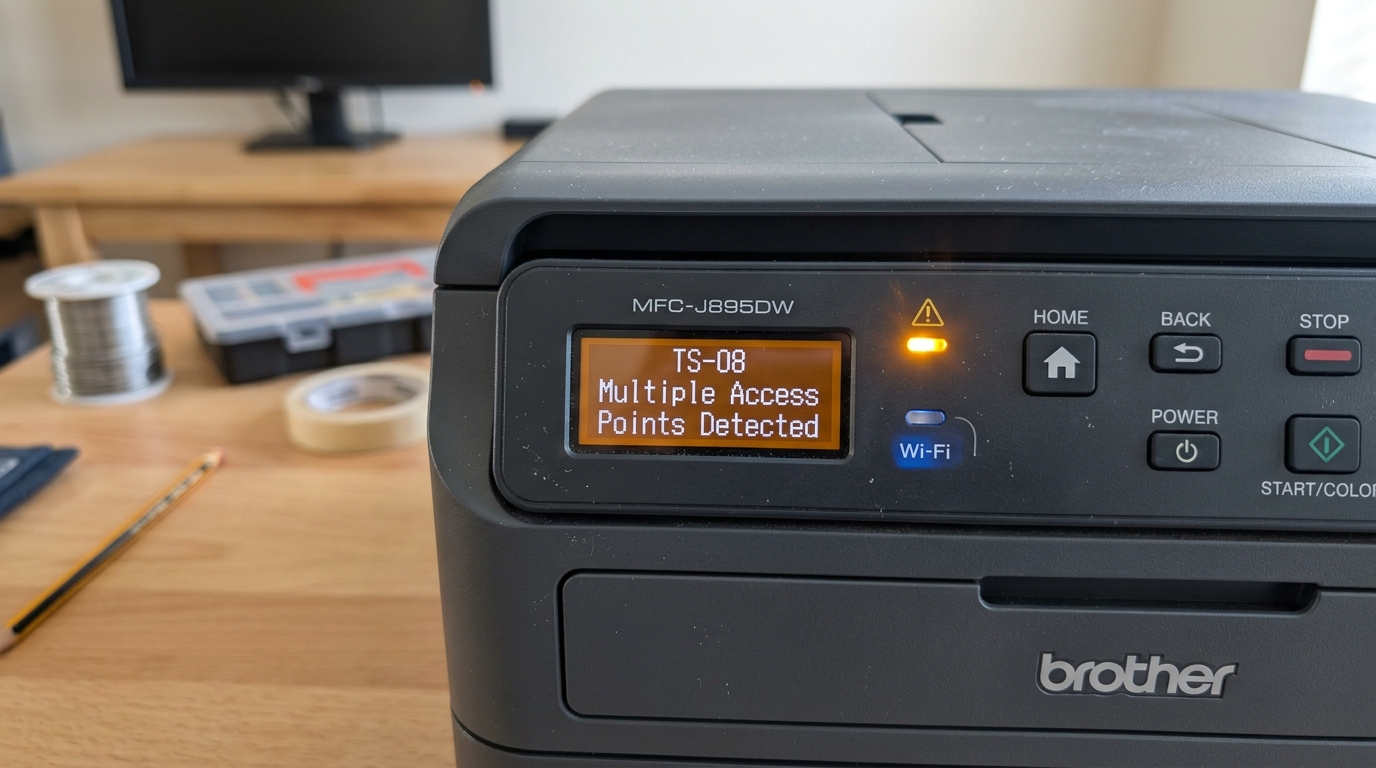
TS-08 is one of the more specific, almost funny wireless errors Brother uses: your printer isn't confused about your network at all. It's confused because it's picking up too many networks trying to talk to it at once.
What TS-08 Actually Means
This error appears specifically during WPS (Wi-Fi Protected Setup) or AOSS setup — the one-touch connection method where you press a button on your router and a corresponding button or menu option on the printer to pair them automatically without typing a password. TS-08 means the printer detected two or more wireless access points with WPS actively enabled at the same time, and it can't tell which one you actually want to connect to.
Why this matters: this usually happens in denser environments — apartment buildings, offices, or homes with a mesh Wi-Fi system where multiple nodes or nearby neighbors' routers all have WPS active simultaneously, creating genuine ambiguity for the printer.
Fix 1: Confirm Only Your Router Has WPS Active
Check that you (or whoever might have pressed a WPS button recently) haven't accidentally left WPS mode active on more than one device — including any secondary router, mesh node, or extender you own.
Why this works: if your own network setup includes multiple access points, more than one might have WPS mode currently triggered, which alone can produce this error without any neighboring network being involved at all.
Fix 2: Try Again After a Few Minutes
WPS mode on most routers only stays active for a short window — typically two to five minutes — after you press the button. Wait a few minutes to let any nearby network's WPS window close, then start the process fresh on your printer and router together.
Why this works: this is Brother's own recommended approach, and it directly addresses the actual cause — you're not fixing a setting, you're simply waiting for a temporary overlap in active WPS sessions to clear on its own.
Fix 3: Skip WPS and Enter the Password Manually
If TS-08 keeps recurring, particularly in an apartment or office with many nearby networks, skip the WPS method entirely and set up the wireless connection manually instead — selecting your network by name and entering the password directly, either through the printer's control panel or the Brother iPrint&Scan app.
Why this works: manual setup doesn't depend on WPS detection at all, sidestepping the entire category of problem TS-08 describes. In a dense wireless environment where multiple WPS sessions are a recurring nuisance, this is often simply the more reliable setup method going forward.
When to Call a Professional
TS-08 rarely points to anything wrong with your printer or router — it's almost always a timing or environmental overlap. If manual setup (Fix 3) also fails to connect your printer to your network, that points toward a different underlying issue worth troubleshooting separately, rather than continuing to fight WPS in a crowded wireless environment.
Understanding TS-08: Wi-Fi Signal Overlap & Session Overlap
On Brother WLAN diagnostic sheets, TS-08 indicates a Session Overlap / Multiple Access Point Collision error. This occurs during Wi-Fi Protected Setup (WPS) when the printer's wireless card detects two or more simultaneous WPS beacon pairing requests from different routers, or when heavy 2.4GHz RF interference from neighboring networks corrupts the cryptographic key exchange.
Step-by-Step Resolution for TS-08 Overlap Errors
- Switch from WPS to Manual Setup Wizard:
Because WPS is vulnerable to session collisions in dense apartment complexes or office buildings with multiple broadcasting routers, bypass WPS entirely:
- On the Brother printer: Navigate to Menu > Network > WLAN > Setup Wizard.
- The printer will scan and display a clear list of SSIDs. Select your specific network name and enter your WPA2 password manually. Manual pairing is 100% immune to TS-08 session overlap errors.
- Isolate WPS Pairing Time:
If you must use WPS, ensure no other wireless devices in your home (smart plugs, Wi-Fi extenders, TVs) are attempting WPS pairing at the exact same moment. Power cycle your router, press the router WPS button, and immediately initiate WPS on the Brother printer within 30 seconds.
- Turn Off Wi-Fi Range Extenders During Pairing:
If you have mesh nodes or Wi-Fi range extenders that clone your main router's SSID, the Brother printer can receive conflicting WPS beacon frames from both the base router and the extender simultaneously. Unplug range extenders during initial printer setup, pair to the main router, and then plug extenders back in.
Frequently Asked Questions
What is the difference between TS-08 and TS-07?
TS-07 means the network security key entered was wrong. TS-08 means multiple WPS pairing signals collided during the wireless handshake.
Can Wi-Fi extenders cause Brother printers to go offline?
Yes. If an extender creates a secondary DHCP subnet or blocks mDNS Bonjour packets, your computer and printer may end up on different logical network segments.
