


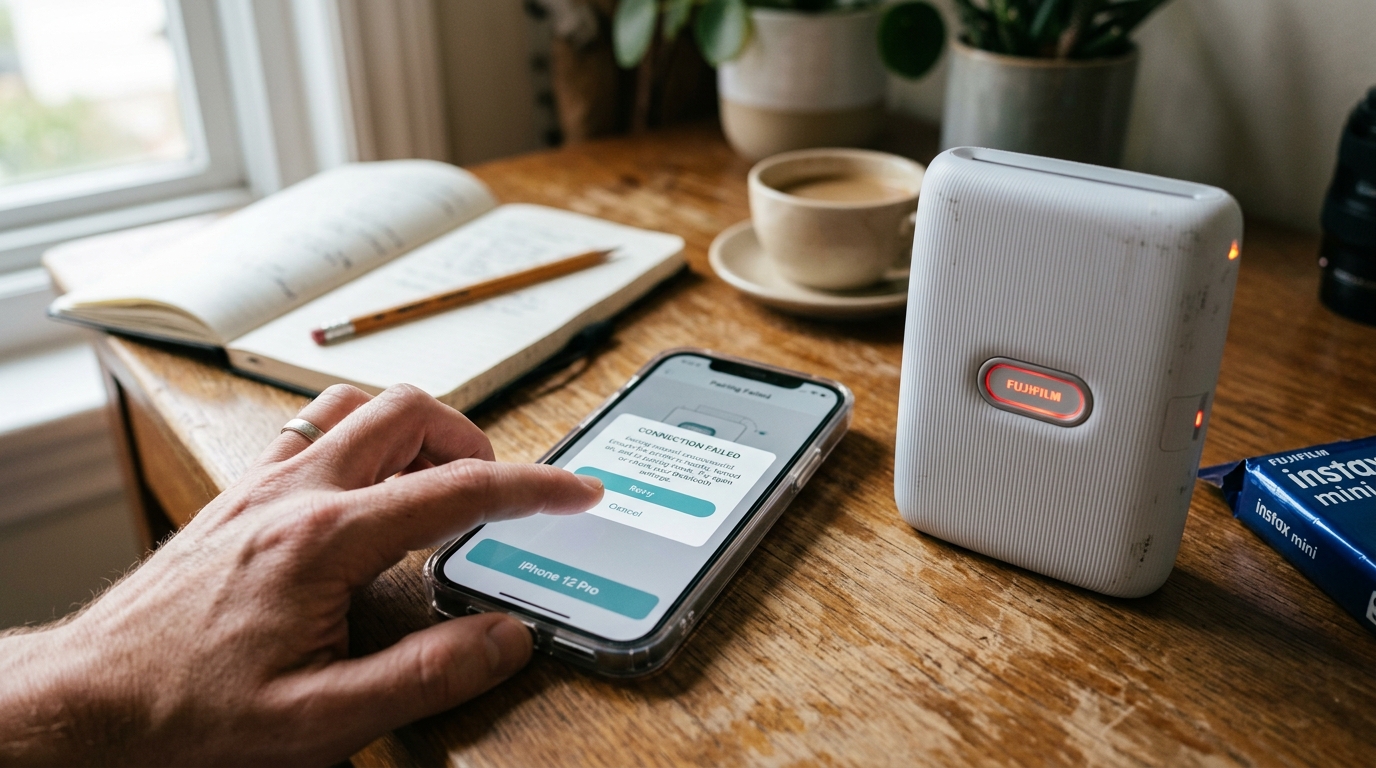
The Instax Mini Link relies entirely on Bluetooth Low Energy (BLE) to communicate with your smartphone. Because it lacks physical ports for data transfer, a stable Bluetooth connection is the lifeline of the device. When pairing fails, the printer becomes effectively a stylish paperweight.
## Why This Happens Understanding the underlying mechanisms of the Instax Mini Link is crucial for effective troubleshooting. The Bluetooth connection and pairing failure typically doesn't happen out of nowhere; it is usually the result of a specific sequence of events or a gradual degradation of system harmony. Let's explore the technical reasons why you might be experiencing this.Bluetooth cache corruption on the smartphone is a primary culprit. Over time, as a phone connects and disconnects from dozens of Bluetooth devices (headphones, cars, smartwatches), the local Bluetooth cache can become corrupted, preventing handshakes with new or existing devices like the Instax.
The Instax printer itself may be stuck in a compromised state. If the device was powered down improperly during a firmware update or a print job, its internal Bluetooth module might be caught in a loop, broadcasting a signal but refusing to accept pairing requests.
Operating system permission restrictions. Modern iOS and Android systems heavily restrict location and Bluetooth access for privacy reasons. If the Instax app was denied "Nearby Devices" or "Location" permissions during initial setup, it will be completely blind to the printer, even if the phone OS sees it.
## Step-by-Step Fix Now that we have established the theoretical background, it's time to roll up our sleeves and apply practical solutions. Follow these steps meticulously, and do not skip any, as sometimes the most obvious fix is the correct one.- Forget the Device: Go to your smartphone's Bluetooth settings. Find the Instax Mini Link in the list of paired devices, tap the info icon, and select "Forget This Device" or "Unpair".
- Check App Permissions: Navigate to your phone's main Settings, scroll down to the Instax Mini Link app, and verify that Bluetooth/Nearby Devices and Location permissions are explicitly enabled.
- Reset the Printer: Locate the small reset button on the printer (often near the charging port). Use a paperclip to press and hold it for several seconds while the device is on, until the LED indicators flash, signaling a hard reset.
- Clear Bluetooth Cache (Android): If using Android, go to Settings > Apps > Show System Apps > Bluetooth, and clear the Storage Cache and Data. (iOS users can simply toggle Bluetooth off and on, or restart the phone).
- Re-pair via the App: Open the official Instax Mini Link app (do NOT pair via the phone's Bluetooth menu first). Follow the in-app instructions to discover and pair the printer freshly.
If you have completed all the steps above and the Bluetooth connection and pairing failure persists, it indicates that the problem might be more deeply rooted in the system architecture or requires a more intrusive intervention. Do not panic; the standard troubleshooting phase resolves the issue for the vast majority of users, but there are still further avenues to explore.
## Advanced Troubleshooting When standard procedures fall short, we must employ advanced diagnostics. These steps are intended for users who are comfortable navigating deeper system settings or performing careful hardware inspections on the Instax Mini Link.Interference from 2.4GHz Wi-Fi networks can sometimes obliterate the BLE signal. If you are trying to pair the printer while standing next to a powerful Wi-Fi router, move to a different room. The dense signal congestion can prevent the initial handshake packets from arriving intact.
If the printer's battery voltage drops below a certain threshold, the device may power on its LEDs but disable the power-hungry Bluetooth radio to conserve energy. Ensure the printer is charged to 100% using a wall adapter, not just a low-output laptop USB port, before attempting to pair.
Check for conflicting apps. Sometimes, background apps for other smart devices (like smart home hubs or other brand portable printers) aggressively poll Bluetooth and intercept the connection. Force-closing all other apps before pairing can resolve this.
## FAQ Here are some of the most frequently asked questions regarding the Instax Mini Link and the Bluetooth connection and pairing failure.Why does the app say "Printer Not Found" even when the printer light is on?
The printer light being on only means it has power. It must be actively broadcasting.
Can I connect multiple phones to the Instax Mini Link?
You cannot connect simultaneously. You must disconnect from Phone A before Phone B can successfully pair and send a print job.
Does the printer work with iPads or tablets?
Yes, as long as the tablet supports Bluetooth Low Energy and can run the official Instax application, it will function identically to a smartphone.
Furthermore, network topology can indirectly impact peripheral performance. If your device relies on wireless connectivity, interference from overlapping Wi-Fi channels, physical obstructions, or even microwave ovens can disrupt the data packet transmission.
This packet loss can sometimes be misinterpreted by the print controller as a data corruption error, causing the device to halt unexpectedly. Ensuring a strong, dedicated connection, or opting for a direct USB connection during critical tasks, can mitigate these invisible environmental factors.
