


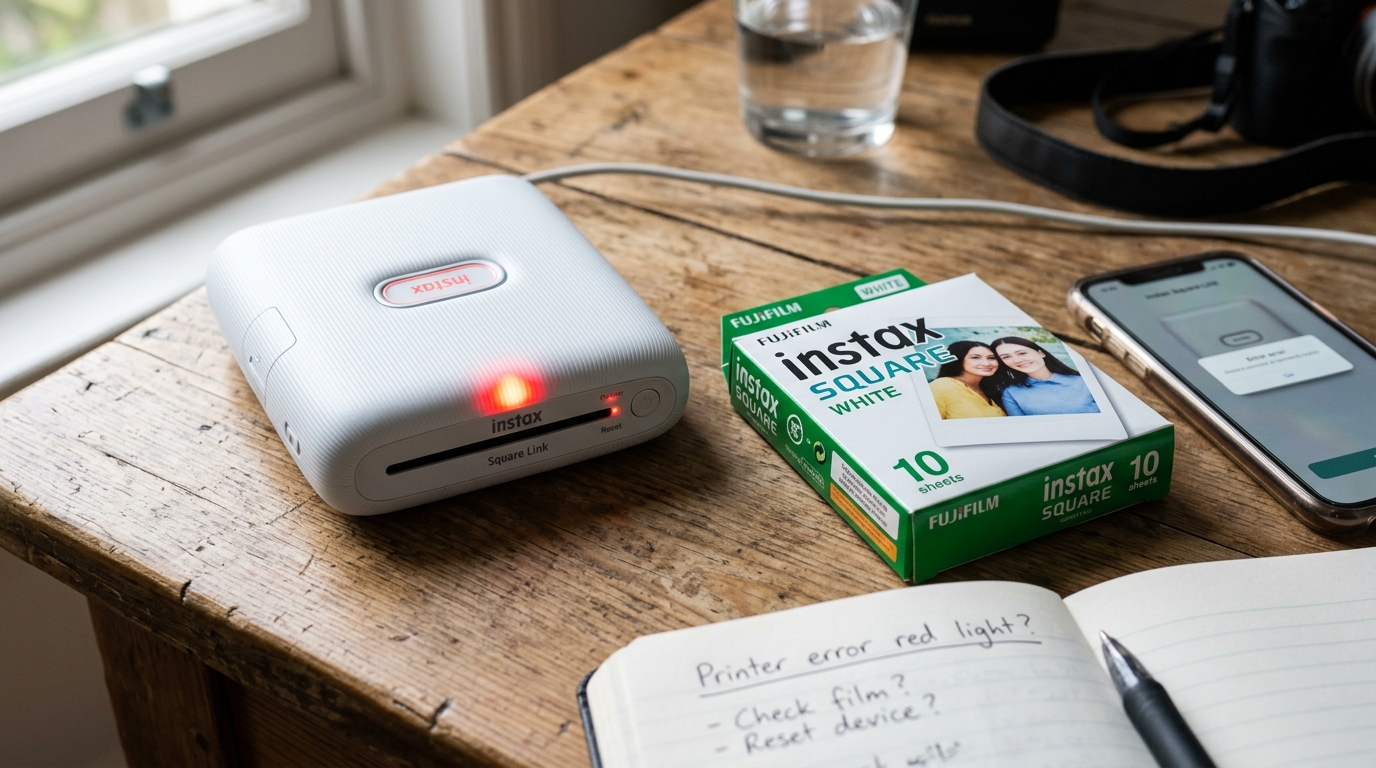
Introduction to Instax Square Link and Wide Errors
When working with Fujifilm's Instax Square Link or Wide printers, you might occasionally encounter film loading errors. These devices are generally reliable for instant photography, but.
They rely on mechanical processes to extract and develop film, any slight misalignment or internal fault can trigger an error. Understanding how the film ejection mechanism operates is key to diagnosing these problems.
The printer uses a precise series of rollers. Motors to push the film out of the cartridge, distributing the developer chemicals evenly.
If the film gets stuck. Or if the cartridge is inserted incorrectly, the printer will display an error, often via flashing LED lights on the device body.
Film loading errors can disrupt your workflow. Whether you're printing memories at a party or creating physical copies of your digital art.
It is critical to address these issues carefully. As forcing the film or mishandling the printer can cause permanent damage to the delicate internal rollers.
This comprehensive guide will walk you through the various causes of film loading errors in the Instax Square Link. Wide printers, explain the underlying mechanics, and provide detailed, step-by-step solutions to get your printer back in working order.
Why This Happens
There are several primary reasons why you might experience a film loading error with your Instax printer. The most common culprit is a depleted or weak battery.
The motors that drive the film ejection require a significant burst of power. If the battery is low.
The motor may not have enough torque to push the film through the rollers, causing it to stall mid-ejection. Another frequent cause is an improperly seated film cartridge.
If the cartridge is not perfectly aligned when the film door is closed. The printer's internal mechanisms may not engage correctly with the film pack.
Furthermore, exposing the film cartridge to light before it is fully used can ruin the film. Sometimes cause it to jam.
Environmental factors also play a role. The developer chemicals in Instax film are sensitive to extreme temperatures.
If the printer or the film is too cold. The chemicals may become viscous, making it harder for the rollers to squeeze the film out.
Conversely, excessive heat can warp the plastic of the film pack. Lastly, dirt or debris on the internal rollers can create friction, preventing the smooth ejection of the film.
Regular maintenance and proper handling are essential to prevent these issues from arising in the first place.
Let's delve deeper into the mechanical aspects. The film pack contains a dark slide that is automatically ejected when you close the film door.
If this dark slide fails to eject properly, it usually points to a mechanical blockage or a sensor failure. The printer has small optical sensors that detect the presence of the film and its position during ejection.
If these sensors are obscured by dust or fail due to electronic issues. The printer will not know when to start or stop the motor, leading to a film jam or a flashing error light.
In addition to hardware issues, firmware (internal software) glitches can occasionally cause communication breakdowns between your smartphone (which sends the print command via Bluetooth). The printer.
Ensuring that your printer's firmware (internal software) is up to date through the official Instax. App can mitigate these software-related anomalies.
Understanding this interplay between hardware, software, and the chemical nature of the film is crucial for effective troubleshooting.
Step-by-Step Fix
- Check the Battery Level: Before attempting any mechanical fixes, ensure your printer is fully charged. Connect the printer to a high-quality USB wall charger (avoid using a computer's USB port, as it may not provide sufficient amperage). Let it charge for at least two hours. A solid light usually indicates a full charge.
- Inspect the Film Ejection Slot: Look closely at the slot where the film comes out. If you see a piece of film partially ejected, do not pull it forcefully. Gently try to grasp it and pull with steady, even pressure. If it does not move easily, stop immediately to avoid breaking the internal gears.
- Power Cycle the Printer: Turn the printer off completely. If the power button is unresponsive, locate the small reset button (usually hidden in a pinhole near the charging port). Press it with a paperclip. Wait 30 seconds before turning the printer back on. Often, a simple reboot will prompt the printer to finish the ejection cycle automatically.
- Open the Film Compartment in a Dark Room: If the film is jammed internally and cannot be pulled out from the slot, you must open the film door. To prevent exposing the remaining unexposed film. Do this in a completely dark room (a closet or a bathroom with no windows). Open the door and carefully remove the film pack.
- Clear the Jam: Once the film pack is removed, feel inside the printer for any loose pieces of film or debris. If the jammed film is stuck between the rollers, gently pull it back towards the film compartment. Never use sharp tools inside the printer.
- Clean the Internal Rollers: While the film compartment is open (you can turn the lights back on if the film pack is safely stored in a light-tight container). Use a microfiber cloth lightly dampened with isopropyl alcohol to clean the rollers. Rotate them manually if possible to ensure all surfaces are clean. Let the alcohol evaporate completely.
- Reinsert the Film Pack: In the dark room again, carefully reinsert the film pack. Ensure the yellow lines on the printer and the film pack align perfectly. Close the door securely until it clicks.
- Test Print: Turn the printer on. If you had to reinsert a partially used pack. The printer might try to eject the top sheet, assuming it's the dark slide. This sheet will be ruined by light exposure, but subsequent sheets should print normally. Connect to the app and send a test print.
Advanced Troubleshooting
If the standard troubleshooting steps fail to resolve the film loading error. You may be dealing with a more complex hardware failure.
One possibility is a stripped gear within the motor assembly. If you hear a grinding noise when the printer attempts to eject film.
This is a strong indicator of gear damage. Unfortunately, replacing internal gears requires specialized tools.
Technical expertise, and it is usually recommended to contact Fujifilm support for repair or replacement options under warranty.
Another advanced issue involves the optical sensors. If the printer continuously flashes an error light even when there is no film jam.
The sensors that detect the film's position may be faulty or permanently obscured. In some cases.
Carefully blowing compressed air into the printer's internals (from a safe distance to avoid condensation) can dislodge dust from these sensors. However, if the sensor itself has failed, professional repair is necessary.
Always consult the user manual for specific flashing light error codes, as different light patterns (e. g. , rapid flashing vs. slow pulsing) can indicate distinct types of failures, such as a motor fault versus a battery failure.
For users comfortable with minor electronics repair, checking the flex cable connections between the mainboard. The motor assembly can sometimes resolve intermittent issues.
A loose connection caused by dropping the printer can lead to erratic behavior during the printing process. However.
Opening the printer's casing will void the warranty, so this should only be attempted as a last resort on out-of-warranty devices.
FAQ
Why did my film come out completely white?
A completely white photo indicates that the film was exposed to light before it was printed. This usually happens if the film door is opened accidentally while there is still unexposed film in the cartridge.
Can I reuse a film cartridge if it jammed?
If you remove the jammed cartridge in a completely dark room. Manage to clear the jam without damaging the remaining film sheets, you can attempt to reuse it.
What does a rapidly flashing red light mean?
A rapidly flashing red light typically indicates a critical mechanical failure. Such as a severe film jam or a motor stall.
Is it safe to pull jammed film out by force?
No, pulling jammed film by force is highly discouraged. The internal rollers and gears are delicate.
How often should I clean the internal rollers?
It is good practice to inspect. Gently clean the internal rollers every few months, or after every 10-15 film packs, to ensure smooth operation and prevent debris buildup that can cause jams or streaks on your photos.
