


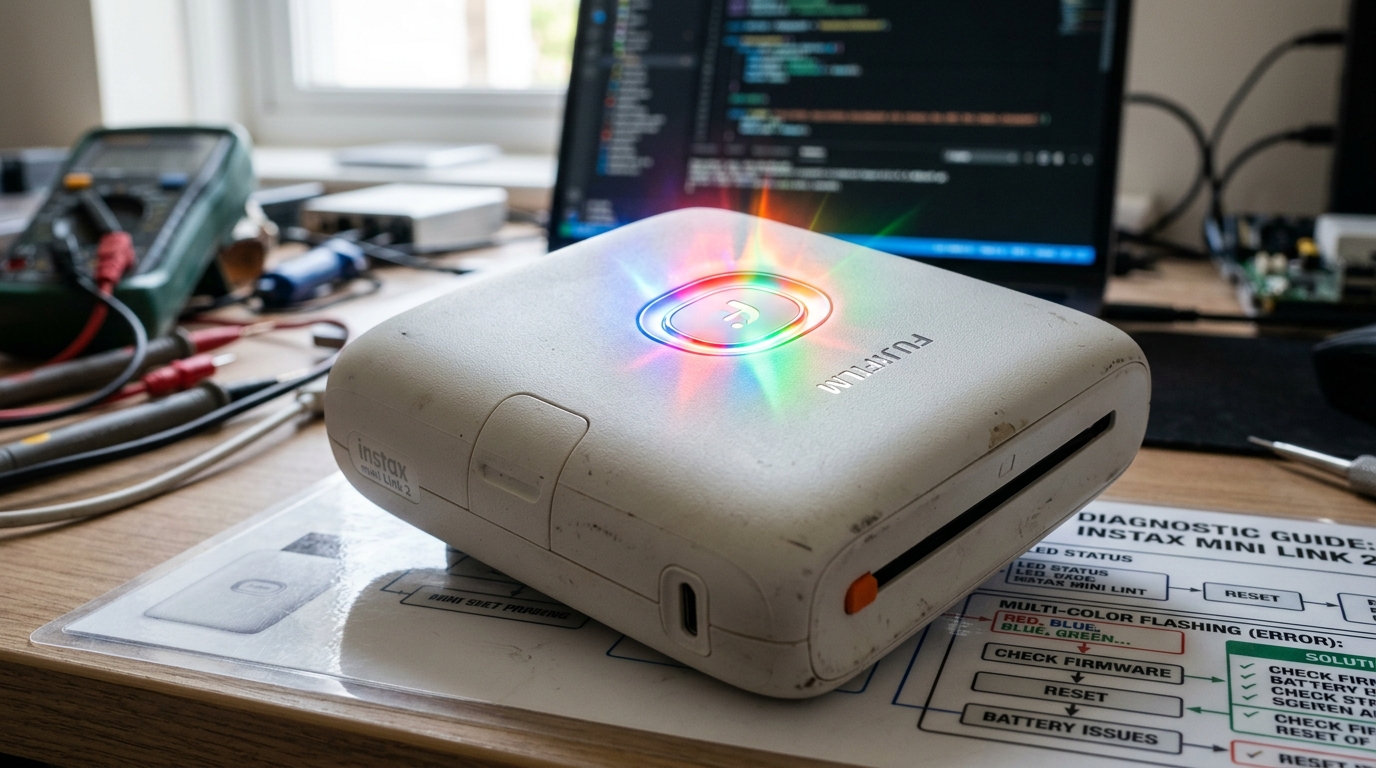
Introduction to Instax Mini Link 2 Diagnostics
The Fujifilm Instax Mini Link 2 is a remarkably popular, portable smartphone printer that brings the charm of instant photography to the digital age.By connecting via Bluetooth to your iOS or Android device, it allows you to print photos directly from your camera roll. Add frames, and even use augmented reality features.
Its compact, stylish design makes it a favorite for parties, travel, and creative journaling.However, unlike traditional printers with LCD screens detailing exact error codes. The Mini Link 2 communicates entirely through a single, multi-colored LED indicator located on the front button.
While this minimalist design is aesthetically pleasing, it can be incredibly frustrating when things go wrong.When the printer stops working and simply flashes a mysterious color sequence. Users are often left guessing what the issue is.
Is the battery dead? Is the film jammed?
Is the Bluetooth connection failing? Understanding this "visual language" is essential for owning and operating the device smoothly.
This diagnostic guide is designed to decode the flashing lights of the Instax Mini Link 2.We will categorize the LED behaviors by color and flash pattern. Explaining exactly what each sequence means and, more importantly, providing the specific, step-by-step actions required to resolve the underlying problem and get you back to printing your memories.
Why This Happens: Decoding the LED Language
The LED indicator on the Instax Mini Link 2 is directly tied to the internal logic board. Which monitors several key systems: power management, Bluetooth radio status, mechanical film advancement, and internal temperature.Because there is no screen, the device must use a combination of colors (White.
Blue, Green, Yellow, Orange, Red, Pink) and states (Solid, Slow Flash, Fast Flash) to represent a wide array of conditions.
For example, power management states are typically represented by Green (fully charged) or Red (low battery). Connection states rely heavily on Blue (Bluetooth pairing or data transfer).
Mechanical or systemic errors are almost universally communicated via flashing Red or Orange lights.When a print fails, the logic board detects the fault—perhaps the motor drew too much current indicating a film jam. Or the Bluetooth handshake dropped mid-transfer—and triggers the corresponding LED pattern.By learning these patterns, you bypass the guesswork and can immediately target the failing system.
Whether that means plugging in the charger, clearing the app cache, or physically inspecting the film cartridge door.
Step-by-Step Fix: Resolving Common Flashing Light Errors
- Identify the Light Pattern: Observe the LED button closely. Note the color. Note if it is solid, flashing slowly (about once per second), or flashing rapidly (multiple times per second). This observation is your diagnostic key.
- Resolving Red Flashing (Battery and Hardware Errors):
- Slow Flashing Red: This indicates the battery is critically low. The printer does not have enough power to heat the thermal head and run the motorized rollers. Fix: Plug the printer in using the provided Micro-USB cable and a standard 5V wall adapter. Wait until the light turns solid green before attempting to print again.
- Fast Flashing Red: This is a general hardware error, most commonly a film jam or a cartridge misalignment. Fix: Turn the printer off. Open the film door in a completely dark room (to avoid exposing the remaining film). Carefully check for any film that has partially ejected and gently pull it out. Ensure the yellow line on the film cartridge aligns with the yellow line inside the printer. Close the door securely.
- Resolving Blue Flashing (Connection Issues):
- Fast Flashing Blue:The printer is in pairing mode and actively searching for a connection. Or it is in the middle of receiving data from your phone. Fix: If it's pairing, ensure your phone's Bluetooth is on and open the Instax Mini Link app. If it flashes blue endlessly without printing, the data transfer has stalled. Force close the app on your phone, turn the printer off and on, and try the print job again.
- Resolving Orange/Yellow Flashing (System Warnings):
- Flashing Yellow: Usually indicates that the printer is too cold or too hot to operate safely. Fix: Move the printer to an environment with normal room temperature (around 68°F - 77°F or 20°C - 25°C). Wait 15-30 minutes for the internal temperature to normalize.
- Flashing Orange: The film door is open or not latched correctly. Fix: Firmly press the film door closed until you hear a distinct click.
- Performing a Hard Reset: If the printer is unresponsive, flashing erratically, or a light is stuck on, you need to reset the logic board. Fix: Locate the tiny reset hole near the charging port. Use a paperclip or SIM ejector tool to press the button inside for 3-5 seconds while the printer is powered on. The device will shut down and reset its internal state.
Advanced Troubleshooting: firmware (internal software) and App Integration
If you have addressed the physical hardware (battery charged, film loaded correctly. No jams) and the printer still flashes error codes or refuses to connect, the issue likely resides in the software layer—either the printer's firmware (internal software) or the smartphone app.
Fujifilm periodically releases firmware (internal software) updates to improve Bluetooth stability and fix bugs. These updates are pushed through the Instax Mini Link app.
Open the app, navigate to the settings menu, and look for 'Printer Update' or 'firmware (internal software) Version'. If an update is available, follow the on-screen instructions carefully.Ensure your phone and the printer have at least a 50% charge before starting.
As a power failure during a firmware (internal software) update can severely damage the printer. During the update, the LED will usually flash a specific sequence (often pink or white); do not interrupt this process.
Bluetooth cache corruption is another frequent hidden issue, especially after an iOS or Android OS update. Your phone remembers the printer, but the security handshake fails.To resolve this deep-seated connection issue: go to your phone's Bluetooth settings.
Find the Instax printer, and select 'Forget This Device' or 'Unpair'.Then, go to your phone's app settings, locate the Instax Mini Link app. And clear its Cache and Data (on Android) or uninstall and reinstall the app (on iOS).
Finally, turn the printer on, open the freshly reset app, and follow the initial pairing process from scratch. This establishes a clean, newly authenticated Bluetooth connection.
FAQ
What does it mean if the light is a solid Pink or Purple?
A solid or slowly pulsing pink/purple light often indicates that the printer is in "Fun Mode" rather than standard "Print Mode," . It is currently processing an InstaxAiR action.
Will using a non-OEM charger cause the red light to flash?
Yes, potentially. If you use a cheap, low-quality charger or a high-voltage laptop charger that doesn't negotiate power down correctly.
Why did the light turn off completely while charging?
When you plug the printer in, the LED should illuminate (usually green . When the battery is 100% fully charged, the charging circuit cuts off to prevent overcharging.
Can I fix a fast flashing red light without losing my film?
If the fast red flash is due to a film jam, you must open the door. Instax film is extremely sensitive to light.
