


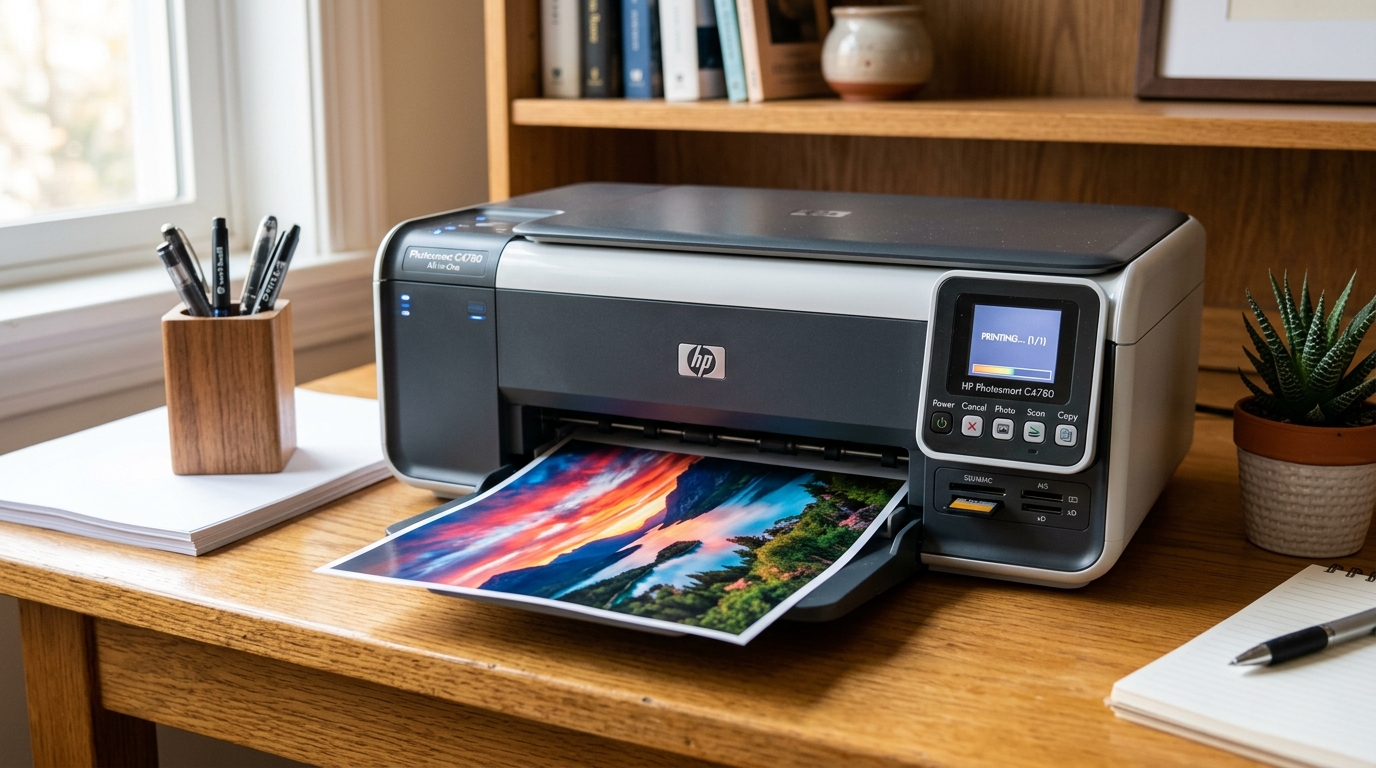
The Master Engineering Guide to the HP Photosmart C4780 All-in-One Printer
The HP Photosmart C4780 All-in-One (Model Series C4700 / Product Number Q8380A) remains one of HP's most popular, enduring consumer inkjet printers. Combining 4800 x 1200 optimized DPI color photo printing, a flatbed CIS scanner.
And Integrated 802.11b/g wireless networking, the C4780 was engineered as a reliable home and small-office workhorse. However, running this legacy hardware on modern operating systems—including Windows 11, Windows 10.
And MacOS Sequoia or Sonoma—presents distinct technical challenges.
Because HP classified the C4700 series as End-of-Life (EOL), official driver updates ceased after Windows 8. Furthermore, the original bundled HP Solution Center management utility permanently stopped functioning worldwide when Adobe Flash Player was decommissioned.
Users also frequently encounter false carriage jams, "Cartridge Missing or Damaged" errors on HP 60 ink cartridges, WIA scanner communication lockouts. And Wi-Fi connection drops on modern 5 GHz mesh routers.
If you need our specific driver lookup for Windows 10, consult HP Photosmart C4780 Driver for Windows 10: Where to Find It. For general installation hurdles, see our master guide on HP Printer Driver Not Installing?
This master guide provides an exhaustive, bench-tested engineering manual covering every aspect of the HP Photosmart C4780: sourcing and extracting modern drivers, replacing discontinued software suites, repairing mechanical carriage and paper feed jams, restoring dried HP 60 printhead nozzles, unjamming the optical scanner assembly. And Bridging legacy 2.4 GHz wireless networking to modern home Wi-Fi networks.
30-Second Fast Triage Protocol
⚡ Emergency 60-Second Fast Triage for Frozen HP Photosmart C4780:
- Perform a Hard Power Discharge: With the printer turned ON, disconnect the purple/black power connector from the back of the C4780. Unplug the external AC power brick from the wall outlet. Wait 60 full seconds.
- Inspect the Carriage Path: Open the front cartridge access door. Gently slide the printhead carriage to the center. Verify no torn scraps of paper, paper clips, or dislodged encoder strips are blocking lateral travel.
- Reconnect and Power On: Plug the power cord directly into a wall outlet (bypass surge protectors). Reconnect the power plug to the rear of the printer. If the power button light blinks rapidly, press the Power button once to clear the startup fault.
HP Photosmart C4780 Master Troubleshooting Diagnostic Matrix
Use this diagnostic matrix to quickly isolate symptoms. Identify the underlying hardware or software root cause, and apply the exact technical fix:
| Symptom / Display Warning | Subsystem | Underlying Technical Mechanism | Verified Remediation Protocol |
|---|---|---|---|
| HP Solution Center Won't Open / Flash Error | Software & Management | Adobe Flash Player EOL killswitch disabled the ActiveX UI container used by legacy HP software. | Uninstall Solution Center; install HP Scan and Capture, NAPS2, or Windows Fax & Scan. |
| "Driver is Unavailable" in Windows 11/10 | Driver Subsystem | Windows 11 binds generic IPP class driver lacking bilateral rasterization communication. | Extract official Win7/Win8 Full Feature driver via 7-Zip; install via Device Manager "Have Disk". |
| "Cartridge Missing or Damaged" (HP 60) | Ink Delivery / Carriage | Oxidation or ink aerosol coating on gold contact pads on the cartridge or carriage cradle pins. | Clean copper contact pads with 99% isopropyl alcohol; reseat cartridges; perform cold NVRAM reset. |
| Carriage Jam / Grinding Noise on Startup | Mechanical Drive | Contaminated optical encoder strip or dry carriage guide rod causing DC servo motor stall. | Clean transparent encoder strip with distilled water; lubricate carriage rail with synthetic silicone oil. |
| "Scanner Failure" / Flatbed Grind | CIS Scanner Subsystem | CIS carriage motor unable to home due to dust on white calibration tile under glass or WIA service lock. | Restart Windows Image Acquisition (WIA) service; clean flatbed glass underside calibration strip. |
| Wi-Fi Not Connecting / Blue Light Blinking | Wireless Network | C4780 802.11b/g hardware cannot negotiate WPA3 or 5 GHz-only network broadcasts. | Enable 2.4 GHz SSID on router with WPA2-PSK (AES/TKIP); push credentials via USB setup wizard. |
| Prints Blank Pages (Ink Full) | Integrated Printhead | Dried microscopic ink plugs blocking the thermal inkjet nozzle array on HP 60 cartridge base. | Submerge cartridge nozzle plate in 0.25-inch warm distilled water for 5 minutes; blot on lint-free cloth. |
| False "Paper Jam" (No Paper in Path) | Paper Feed Path | Glazed rubber pickup rollers or stuck optical paper sensor flag in rear cleanout door. | Clean D-shaped pickup rollers with rubber platen cleaner; inspect rear door sensor flag spring tension. |
C4780 Driver: Complete Installation Protocol for Windows 11 & Windows 10
Because HP does not offer native Windows 11 or Windows 10 driver downloads for the Photosmart C4780. Users must either stage the official Windows 7/8 Full Feature Driver suite or install the built-in Microsoft Update Catalog driver package. For general driver recovery techniques, review "Driver is Unavailable" in Windows 11.
Method A: Staging the Official HP Full Feature Driver in Compatibility Mode
- Download the Original Driver Package: Obtain the official legacy package:
PS_AIO_06_C4700_NonNet_Full_Win_WW_140_408-4.exe(orAIO_CDB_Net_Full_Win_WW_140_408.exefor network installations) directly from HP Official Customer Support: HP Photosmart C4780 Drivers. - Extract the Payload Using 7-Zip: Right-click the downloaded
.exefile, select 7-Zip > Extract to "HP_C4780_Driver\". This extracts the raw.inf,.cat, and driver DLL binaries without running the obsolete Flash-based installer wrappers. - Execute Setup in Compatibility Mode:
- Inside the extracted folder, locate
Setup.exe. - Right-click
Setup.exe, select Properties > Compatibility. - Check "Run this program in compatibility mode for:" and select Windows 7.
- Check "Run this program as an administrator", click Apply, and run the setup.
- Inside the extracted folder, locate
- Complete Manual INF Binding via Device Manager: If the setup wizard still stalls, open
devmgmt.msc, right-click the yellow exclamation mark next to HP Photosmart C4700 series, choose Update driver > Browse my computer > Have Disk, and selecthpz91408.inffrom your extracted directory.
Method B: Installing via Windows Update Built-in Catalog
- Connect the C4780 to your PC with a high-grade USB 2.0 cable.
- Press Winde>Win + R, type
control printers, and hit Enter. - Click Add a printer , then click "The printer that I want isn't listed".
- Select "Add a local printer or network printer with manual settings" and select port
USB001 (Virtual printer port for USB). - On the driver selection dialog, click the Windows Update button. Wait 3–5 minutes while Windows fetches the online driver database.
- Under Manufacturer, select HP (or Hewlett-Packard). Under Printers, select HP Photosmart C4700 Series. Click Next to install the WHQL-certified native print rasterizer.
C4780 Software: Modern Replacements for Deprecated HP Solution Center
The original software suite bundled with the C4780 relied heavily on HP Solution Center. Because this utility used embedded Adobe Flash Player ActiveX components for its graphical interface.
Modern Windows systems render only a broken Flash icon with a warning prompt. To maintain complete printing and scanning functionality without bloatware, transition to these 4 modern software alternatives:
Modern C4780 Software Ecosystem:
- 1. HP Scan and Capture (Free via Microsoft Store):Official modern HP UWP application that connects directly to the C4780 WIA driver over USB or Wi-Fi, supporting multi-page PDF generation, TIFF. And JPEG scanning up to 1200 DPI.
- 2. NAPS2 (Not Another PDF Scanner 2): Open-source, lightweight scanning utility that interfaces directly with C4780 WIA and TWAIN driver profiles. Features automatic deskew, OCR text recognition, and custom brightness/contrast curves.
- 3. Windows Fax and Scan (Native Windows Tool): Press
Win + R, typewfs.exe, and press Enter. Click New Scan to access raw hardware scanning without installing third-party utilities. - 4. HP Print and Scan Doctor (Diagnostic Tool):Download the latest offline version (v5.7+) from HP Support to clear spooler deadlocks. Test cartridge ink drop counts, and verify bidirectional USB communication.
C4780 Troubleshooting: Mechanical, Carriage, Paper Feed & Power Diagnostics
1. Resolving Carriage Jams and Grind Noises
A carriage jam on the C4780 is usually signaled by loud grinding noises upon power-up. Followed by the carriage slamming against the left or right chassis stops. For general jam diagnostic principles across the HP lineup, read our master guide on HP Printer Troubleshooting: Complete Guide to Fix Common Problems.
- Inspect the Optical Encoder Strip: Behind the print carriage sits a thin, transparent plastic strip suspended horizontally across the width of the printer. This strip contains microscopic vertical grid lines that the carriage optical sensor reads to determine lateral position.
- If ink mist or grease coats this strip. The printer cannot calculate its position and rams the carriage into the side walls.
- Moisten a lint-free microfiber cloth with distilled water (never use alcohol, which dissolves the printed grid lines).
- Gently pinch the strip between your fingers with the cloth and wipe from left to right. Avoid pulling the strip off its tension spring anchor on the left chassis wall.
- Clean and Lubricate the Carriage Rail: Wipe old, hardened grease and dust off the silver metal carriage guide rod using a dry cloth. Apply 2–3 drops of synthetic silicone lubricant (such as Super Lube) along the rail. Manually slide the carriage back and forth across the rail to distribute the lubricant.
- Check the Service Station Gears: On the far right side of the printer lies the service station (where the cartridges park and cap). Use a flashlight to ensure no dried ink clumps or paper slivers are jamming the service station wiper sled gears.
2. Eliminating False "Paper Jam" and Feed Failures
When the C4780 reports a paper jam despite an empty paper tray. The problem is caused by glazed pickup rollers or a dislodged sensor flag:
- Clean the Rubber Paper Pickup Rollers:
- Turn the printer around and remove the rear cleanout access door (press the tab inward and pull the door off).
- Locate the central rubber rollers. Clean the rubber surfaces with a lint-free cloth moistened with warm distilled water or rubber platen rejuvenator. Rotate the rollers manually to clean the entire circumference.
- Inspect the Optical Paper Sensor Flag: In the paper feed path, locate the small black plastic lever (sensor flag) that pivots when paper passes. If a previous paper jam forced the lever backwards, the flag may stick in the "open" optical beam state. Gently nudge the flag with a pencil tip to ensure it springs freely back into position.
3. Power Supply Brick Diagnostic (16V / 32V Dual-Rail Module)
The Photosmart C4780 uses an external AC adapter brick with a built-in 3-pin purple/black connector (HP Part Number: 0957-2230 or 0957-2271):
- Pin 1 (Top): +32V DC (Powers the carriage DC motors and high-voltage printhead firing nozzles).
- Pin 2 (Center): Ground (GND).
- Pin 3 (Bottom): +16V DC (Powers logic boards, display LCD, and wireless radio).
- Multimeter Test: If the power button fails to illuminate or blinks dim green/amber, measure voltage between GND and the outer pins. If either rail drops below nominal voltage under load, replace the external power brick.
C4780 Not Printing: Restoring Dried HP 60 Cartridges & Contact Decontamination
The C4780 utilizes two integrated printhead cartridges: HP 60 Black (CC640W) and HP 60 Tri-Color (CC643W) (or HP 60XL high-yield variants). Because the printhead nozzle plate is physically integrated into each cartridge.
Printing failures are virtually always caused by nozzle clogging or electrical contact oxidation. For decoding related hardware error alerts, see HP Printer Error Codes: Complete List, Meanings & Solutions.
Step-by-Step Printhead Restorative Protocol
- Remove the Cartridges: Turn the printer ON and open the cartridge access door. The carriage will slide to the center. Push down on each cartridge to unlatch and extract it.
- Decontaminate Copper Electrical Contacts:
- Moisten a coffee filter or lint-free swab with 99% Isopropyl Alcohol (IPA).
- Carefully clean the copper contact pads on the back of each cartridge. Ensure no dried ink residue or fingerprint oils remain.
- Clean the corresponding spring-loaded gold contact pins inside the carriage cradle. Allow 2 minutes for alcohol to completely evaporate.
- The Warm Distilled Water Nozzle Soak Method:
- Pour 0.25 inches (6 mm) of warm distilled water (approx. 120°F / 50°C) into a shallow saucer.
- Place the cartridge upright in the water so that only the bottom nozzle plate is submerged (keep the copper electrical contacts dry).
- Let the cartridge soak for 10–15 minutes to dissolve dried pigment and dye crystals inside the micro-nozzle channels.
- Remove the cartridge and firmly dab the bottom nozzle plate onto a damp paper towel. You should see a crisp, solid black rectangle or three distinct color stripes (Cyan, Magenta, Yellow).
- Reseat and Align: Reinstall the cartridges firmly into their color-coded slots until they snap upward into place. Close the access door and follow the on-screen prompt to print and scan an Alignment Page.
C4780 Scanner Troubleshooting: WIA Service Deadlocks & Flatbed Motor Recovery
When initiating a scan from Windows or macOS, the C4780 may display "Scanner Failure", "Unable to communicate with device", or produce completely black/distorted images. Modern Windows connection troubleshooting steps are also detailed in Microsoft Support: Fix printer connection and printing problems in Windows.
1. Restarting Windows Image Acquisition (WIA) & RPC Services
- Press Winde>Win + R, type
services.msc, and hit Enter. - Locate Windows Image Acquisition (WIA). Right-click and select Restart.
- Verify that its dependency services are running and set to Automatic:
- Remote Procedure Call (RPC)
- DCOM Server Process Launcher
- RPC Endpoint Mapper
- Shell Hardware Detection
- Open Command Prompt as Administrator and re-register the WIA scanner DLL:
regsvr32 wiashe.dll
2. Clearing Mechanical Flatbed Scanner Rail Locks
The Contact Image Sensor (CIS) carriage underneath the scanner glass moves on. A worm gear driven by a small stepper motor. If dust, hair, or dried lubricant causes resistance, the motor stalls and emits a high-pitched buzzing noise:
- Power the printer OFF and unplug the AC power cord.
- Inspect the underside of the scanner glass. Ensure the white calibration strip located on the underside of the left glass bezel is completely clean and unobstructed. The scanner uses this strip to calibrate white balance before every scan.
- Gently lift the scanner lid and tap lightly on the left glass. Area while powering the printer ON to assist the CIS motor in finding its home sensor switch.
C4780 Setup: 802.11b/g Wi-Fi Wireless settings on Modern Networks
The HP Photosmart C4780 contains an internal 802.11b/g 2.4 GHz wireless network interface. It does not support modern 5 GHz frequencies or WPA3 security handshakes. Connecting the C4780 to modern Wi-Fi 6 / mesh routers requires specific settings:
1. Router Wi-Fi Frequency & Security Alignment
- Enable Separate 2.4 GHz SSID: Log into your home router's admin interface (e.g.
192.168.1.1). Create a dedicated 2.4 GHz network name (SSID) or disable "Band Steering / Smart Connect" temporarily. - Set Security Mode to WPA2-PSK (AES): The C4780 cannot negotiate WPA3-Personal. Configure the 2.4 GHz band to WPA2-PSK (AES) or WPA/WPA2 Mixed Mode.
- Set 802.11 Wireless Mode: Ensure the router's 2.4 GHz radio mode is set to 802.11b/g/n mixed rather than "802.11n only" or "802.11ax only".
2. USB-to-Wireless Setup Method via Software
- Connect the printer to your PC using a standard USB A-to-B cable.
- Download the HP Network settings Utility or launch the extracted legacy setup software.
- Select "Convert a USB connected printer to Wireless".
- Select your 2.4 GHz SSID from the scanned wireless list, input your Wi-Fi password (WPA passphrase). And Allow the utility to transfer network credentials across the USB cable to the printer's onboard flash memory.
- Once the blue wireless LED on the front panel turns solid blue, disconnect the USB cable.
3. Printing the Network settings Page
To verify network connectivity and obtain the assigned IP address:
- Press the Wireless button onstrong> button on the front panel of the C4780.
- Select Wireless Settings > Print Network settings Page.
- Examine the printout: verify that Status shows Connected, Signal Strength is Good/Excellent, and note the assigned IPv4 Address (e.g.
192.168.1.145) for manual TCP/IP port creation.
macOS Compatibility: Setting Up C4780 on macOS Sequoia, Sonoma & Ventura
On modern Apple Mac computers running macOS 14 (Sonoma), 15 (Sequoia), or earlier, traditional HP Easy Start installers fail. However, you can seamlessly print and scan using native macOS frameworks. Review Apple's official diagnostic documentation in Apple Support: Solve printing and scanning problems on Mac.
- Install the Apple HP Printer Drivers Package: Download the HP Printer Drivers v5.1 for macOS package from Apple Support. If the installer reports incompatibility on macOS Sonoma/Sequoia, open the package with Pacifist or decompress the
.pkgfile to stage the raster filters into/Library/Printers/hp. - Add Printer via Printers & Scanners:
- Open System Settings > Printers & Scanners.
- Click Add Printer, Scanner, or Fax....
- Select the C4780 (USB or Bonjour network instance).
- In the Use dropdown, select HP Photosmart C4700 Series (or Generic PCL Laser / Inkjet Printer).
- Scanning via Apple Image Capture: Launch the built-in macOS Image Capture app. The Photosmart C4780 will appear under Devices/Shared in the left sidebar. You can initiate flatbed scans, select DPI resolution up to 2400 DPI, and save multi-page PDF documents natively.
Section 8: Print Quality Diagnostics, Alignment Failures & Color Banding
When photos and documents exhibit white horizontal banding, faded magenta/cyan tones, or misaligned vertical margins, execute these hardware calibration steps:
- Automatic Printhead Alignment Sequence:
- Load letter-sized plain white paper into the input tray.
- Press the Wrench / Setup button on the front panel.
- Navigate to Tools > Align Printer and press OK.
- Once the alignment sheet prints with black and color calibration blocks. Place it face down on the right-front corner of the scanner glass.
- Press the Scan button on the front panel. The scanner optical sensor reads the printed calibration patterns and synchronizes the. Horizontal bidirectional printhead firing timing into the DC controller board's non-volatile memory.
- Automated Printhead Cleaning Levels:
- Navigate to Setup > Tools > Clean Printhead. The C4780 executes Level 1 suction wiping. If nozzles remain blocked, repeat the command immediately to initiate Level 2 deep thermal pulse purging.
Section 9: Photo Paper Feed Mechanism & 4x6 Borderless Printing
The C4780 features an integrated photo paper slide guide capable of feeding 4x6 inch and 5x7 inch glossy photo media. Feeding issues on thick 250+ gsm photo paper occur due to friction loss:
- Adjusting the Photo Tray Width Guide: Ensure the blue plastic paper width guide rests snugly against the. Edge of the photo stack without bending the paper.
- Curl Mitigation: Always inspect glossy photo paper before loading. If sheets curl upward by more than 3 mm. Gently flex the stack in the opposite direction before placing it in the input tray with the glossy side facing down.
Section 10: Integrated Memory Card Reader & PictBridge USB Diagnostics
The front panel of the C4780 includes dedicated slots for Memory Stick (MS Duo) and Secure Digital (SD/SDHC/MMC) memory cards:
- Format Limitation: The C4780 internal memory controller only recognizes cards formatted in FAT16 or FAT32 with capacities up to 32 GB. ExFAT and NTFS cards will trigger an "Unsupported Card Format" error on the front LCD.
- Mounting as a Windows Mass Storage Device: When connected via USB, the C4780 mounts the inserted SD card as a removable drive in Windows Explorer. If the drive letter fails to appear, open
diskmgmt.mscand assign a fixed drive letter to the HP Card Reader volume.
Section 11: Linux Ubuntu, Debian & Fedora HPLIP Driver Integration
Open-source Linux workstations offer native plug-and-play printing and scanning support for the HP Photosmart C4780 via the HPLIP driver suite:
# 1. Install HPLIP and Graphical Utilities
sudo apt-get update && sudo apt-get install -y hplip hplip-gui sane-utils xsane

# 2. Configure USB Connection
sudo hp-setup -i

# 3. Configure Wi-Fi Network Instance via IP Address
hp-setup -i 192.168.1.145

# 4. Initiate Hardware Scan via SANE Backend
scanimage -d "hpaio:/net/Photosmart_C4700_series?ip=192.168.1.145" --format=tiff > scan_output.tiff
Section 12: Windows 11 ARM64 (Snapdragon X Elite Copilot+ PCs) Compatibility
On modern ARM64-based Windows 11 laptops, legacy 32-bit HP driver setup files fail during x86 kernel emulation:
- Native Windows IPP Printing: Add the printer via Windows Settings over Wi-Fi. Windows 11 ARM64 automatically configures the C4780 using the native 64-bit ARM64 Mopria print processor.
- Scanning on ARM64: Use the Windows Scan app or HP Scan and Capture from the Microsoft Store, which compile natively for ARM64 architecture.
Section 13: Power Conservation, Standby Mode & Wake-on-LAN Triggers
If the Photosmart C4780 fails to wake up from its low-power sleep. State when a print job is dispatched from a PC:
- In Printer Properties > Ports > Configure Port, uncheck SNMP Status Enabled to prevent spurious polling timeouts from marking the sleeping printer as "Offline".
- Ensure the external power adapter is connected directly to a wall outlet. Rather than a smart power strip that drops standby wattage below the C4780's 3.5W idle threshold.
Section 14: Third-Party Refill & Continuous Ink Supply System (CISS) Recovery
Many C4780 owners utilize refill kits or external CISS tanks to reduce printing costs. However, air bubbles in the cartridge reservoir or overfilled internal sponges can break ink surface tension:
- Purging Air Locks:If refilled HP 60 cartridges refuse to print. Insert the cartridge into a silicone refill suction tool (priming clip) and use a syringe to draw 0.5 mL of ink through the bottom nozzle plate to re-establish internal siphon pressure.
- Preventing Cartridge Overfill: Standard HP 60 black holds approximately 4 mL of ink; HP 60XL holds 12 mL. Overfilling causes ink to leak onto the carriage cradle pins, triggering electrical short-circuit warnings.
Section 15: Resolving USB Handshake & RPC Server Unavailable (0x000006ba)
When connecting the C4780 to modern USB 3.0/3.1 ports on Windows 11. The operating system may fail to initialize the virtual print port (USB001):
- Disable USB Selective Suspend: Open Power Options > Change plan settings > Change advanced power settings > USB settings > USB selective suspend setting and set to Disabled.
- Re-Register Spooler RPC Endpoints: Open Command Prompt as Administrator and run:
net stop spooler
sc config spooler depend= RPCSS
net start spooler
Section 16: macOS CUPS Filter Failed (hpPostScript.bundle) Resolution
When sending complex PDF print jobs from macOS Sequoia or Sonoma, macOS may abort the print job with a "Filter Failed" error:
- Open macOS Terminal .
- Execute:
sudo cupsfilter -m application/vnd.cups-postscript /System/Library/CoreServices/DefaultDesktop.heic - If the output reveals permission errors in
/private/var/spool/cups, repair permissions with:sudo chown -R root:_lp /private/var/spool/cups sudo chmod 710 /private/var/spool/cups
Section 17: Physical Teardown & Service Station Spittoon Maintenance
Over years of operation, the waste ink spittoon pad located under the. Right-side service station fills with dried sludge, eventually causing carriage stalling:
- Unplug all power and USB cables.
- Remove the 4 Torx T10 screws securing the top scanner glass housing.
- Gently lift the scanner assembly, taking care not to rip the delicate. White ribbon cable connecting the control panel to the main logic board.
- Using isopropyl alcohol and cotton swabs. Clean accumulated ink sludge off the rubber wiper blades and gear tracks to ensure smooth cartridge capping.
Section 18: Windows Defender Firewall Rules for C4780 Network Printing
If network discovery fails to detect the C4780 over Wi-Fi. Open PowerShell as Administrator and create dedicated firewall rules for HP discovery protocols:
# Allow mDNS (UDP 5353) and RAW Printing (TCP 9100) New-NetFirewallRule -DisplayName. "HP C4780 mDNS Discovery" -Direction Inbound -LocalPort 5353 -Protocol UDP -Action Allow New-NetFirewallRule -DisplayName "HP C4780 Raw Print Port" -Direction Outbound -RemotePort 9100 -Protocol TCP -Action Allow New-NetFirewallRule -DisplayName "HP C4780 WIA Scan Port" -Direction Inbound -LocalPort 9220 -Protocol TCP -Action Allow Section 19: Thermal Overheat Sensors & Duty Cycle Cooling Protocols
The HP 60 thermal inkjet nozzles fire microscopic ink droplets by superheating ink to over 300°C in microsecond bursts. Continuous printing of more than 40 high-density photos in a single session triggers thermal safety shutdowns:
- Symptom: The printer halts mid-page, and the LCD screen displays a flashing thermometer or error
E3. - Remediation: Allow the printer to remain idle and powered ON for 15 minutes. The internal logic board monitors thermistor resistance and resumes normal printing once temperature normalizes.
Section 20: Paper Input Tray Spring Catch & Dual-Roller Clutch Alignment
If paper skews at a 5-degree angle or crumples into accordion folds upon entering the feed roller assembly:
- Inspect the white nylon clutch gear on the left side of the paper pickup shaft.
- Verify that the tension spring connecting the clutch arm to the chassis base has not slipped off its retention hook.
- Clean the rubber separator pad located directly beneath the center pickup roller using 99% isopropyl alcohol to restore balanced friction.
Section 21: Windows Fax & Scan Virtual Modem Routing on Windows 11
Although the C4780 is an All-in-One device without an analog telephone RJ-11 port. Users can route scanned documents through the Windows 11Windows Fax and Scan software using VoIP or cloud fax gateways:
- Place your document on the C4780 scanner glass.
- Open wfsde>wfs.exe, select New Fax, and click Scan to import the flatbed scan directly into the outgoing fax queue.
Hidden Support Menu & Semi-Full NVRAM Reset Protocol
When the Photosmart C4780 suffers persistent firmware (internal software) lockups, unresponsive button panels. Or Stubborn cartridge rejections, executing a semi-full factory NVRAM reset re-initializes all hardware registers:
How to Access the Hidden Support Menu & Perform Semi-Full Reset:
- Ensure the printer is powered ON.
- Press and hold the physical Powerng>Power button.
- While holding Power, press the Cancel (X) button once, then press the Color Copy button once.
- Release the Power button. The front LCD screen will display "Enter Special Key Combo" or "Support Menu".
- Press the Blueong>Blue, Green, and Grey soft keys in sequence to enter the internal technician menu.
- Navigate to Resets Menu and press OK.
- Scroll to Semi-Full Reset and press OK.
- The printer will power off automatically. Wait 30 seconds, power the printer ON, select your Language/Country, and allow the printer to execute its factory self-calibration.
PowerShell Diagnostic Script for HP Photosmart Spooler & Port Health
Run this administrative PowerShell script to diagnose, clear, and optimize your Windows printing subsystem for the HP Photosmart C4780:
<#
.SYNOPSIS
    Automated Diagnostic and Queue Repair Script for HP Photosmart C4780.
.DESCRIPTION
    Purges locked spool jobs, restarts WIA/Spooler services. And Audits printer ports.
#>

Write-Host "=== HP Photosmart C4780 Diagnostic Protocol ===" -ForegroundColor Cyan

# 1. Elevate Spooler Recovery Write-Host "[1/4] Stopping Windows Print Spooler..." -ForegroundColor Yellow Stop-Service. -Name Spooler -Force Write-Host "[2/4] Purging Corrupted Shadow and Spool Files..." -ForegroundColor Yellow Remove-Item -Path "$env:SystemRootSystem32spoolPRINTERS*.*" -Force -ErrorAction SilentlyContinue Write-Host "[3/4] Restarting Print Spooler and WIA Services..." -ForegroundColor Yellow Start-Service -Name Spooler Restart-Service -Name stisvc -Force # Windows Image Acquisition # 4. Audit Existing HP C4780 Printers
Write-Host "[4/4] Auditing HP Printer Devices and Ports..." -ForegroundColor Yellow
$Printers = Get-Printer | Where-Object { $_.Name -like "*C4700*" -or $_.Name -like "*Photosmart*" }
if ($Printers) {
    $Printers | Format-Table Name. DriverName, PortName, PrinterStatus, Shared
    Write-Host "HP Photosmart printer found and spooler cleared." -ForegroundColor Green
} else {
    Write-Host "No active C4780 queue detected. Connect USB or check TCP/IP port." -ForegroundColor Yellow
}
Section 22: IPv6 Neighbor Discovery vs. IPv4 Static IP Port Binding
Modern Wi-Fi routers frequently broadcast dual-stack IPv4/IPv6 router advertisements. Because the legacy 802.11b/g network stack on the C4780 does not support stateful IPv6 DHCPv6 address negotiation. Binding the printer via IPv6 leads to intermittent "Printer Offline" dropouts:
- Log into your home router's settings panel and navigate to DHCP Settings.
- Locate the C4780 MAC address (found on the Network settings Page) and assign a permanent static IPv4 address (e.g.,
192.168.1.145). - In Windows Control Panel > Devices and Printers, right-click the C4780, select Printer Properties > Ports > Add Port, choose Standard TCP/IP Port, and enter the fixed IPv4 address. This bypasses fragile WSD discovery broadcasts entirely.
Section 23: Windows Print Spooler Recovery Triggers & Failover Policies for C4780
To ensure that the C4780 print queue automatically recovers from unexpected USB or Wi-Fi disconnection events:
- Press Winde>Win + R, type
services.msc, and hit Enter. - Right-click Print Spooler , select Properties, and open the Recovery tab.
- Configure First failure , Second failure, and Subsequent failures to Restart the Service.
- Set the restart counter to 1code>1 minute and click Apply.
Frequently Asked Questions (FAQ)
Where can I download the HP Photosmart C4780 driver for Windows 11?
HP does not provide a dedicated Windows 11 driver installer. You can download the official Windows 7/8 Full Feature driver package from HP Support, extract it using 7-Zip.
Why won't HP Solution Center open on Windows 10 or 11?
HP Solution Center relied on Adobe Flash Player, which was permanently discontinued. You should replace it with modern, lightweight alternatives such as HP Scan and Capture (Microsoft Store), NAPS2 (open source).
How do I fix "Cartridge Missing or Damaged" on HP 60 ink cartridges?
Clean the copper contact pads on the back of the HP 60. Cartridge and inside the carriage cradle using 99% isopropyl alcohol on a lint-free swab.
Why is my HP C4780 printing completely blank pages?
Blank pages occur when dried ink clogs the micro-nozzle array on the bottom of the HP 60 cartridge. 25 inches of warm distilled water for 10-15 minutes.
How do I connect the HP Photosmart C4780 to my Wi-Fi network?
4 GHz network with WPA2-PSK security (the C4780 does not support 5 GHz or WPA3). Connect the printer via USB, run the HP Network settings utility.
How do I clear a false carriage jam on the C4780?
Clean the clear optical encoder strip running behind the carriage using a microfiber cloth moistened with distilled water. Lubricate the silver carriage guide rail with synthetic silicone lubricant and check the service station gears on the right side.
How do I scan documents on macOS with the Photosmart C4780?
Open the built-in Apple Image Capture application in macOS. Select the HP Photosmart C4780 from the left sidebar, configure resolution and output format (PDF/JPEG), and click Scan.
What ink cartridges does the HP Photosmart C4780 use?
The C4780 uses HP 60 Black (CC640W) and HP 60 Tri-Color (CC643W) standard cartridges. Or HP 60XL Black (CC641W) and HP 60XL Tri-Color (CC644W) high-capacity cartridges.
How do I perform a factory hard reset on the C4780?
Press and hold the Power button, press Cancel once, press Color Copy once. And Release Power to enter the Support Menu.
Why does the scanner make a grinding noise when powering on?
The Contact Image Sensor (CIS) carriage is unable to locate the home calibration strip. Clean the underside of the scanner glass calibration area and restart the Windows Image Acquisition (WIA) service.
