


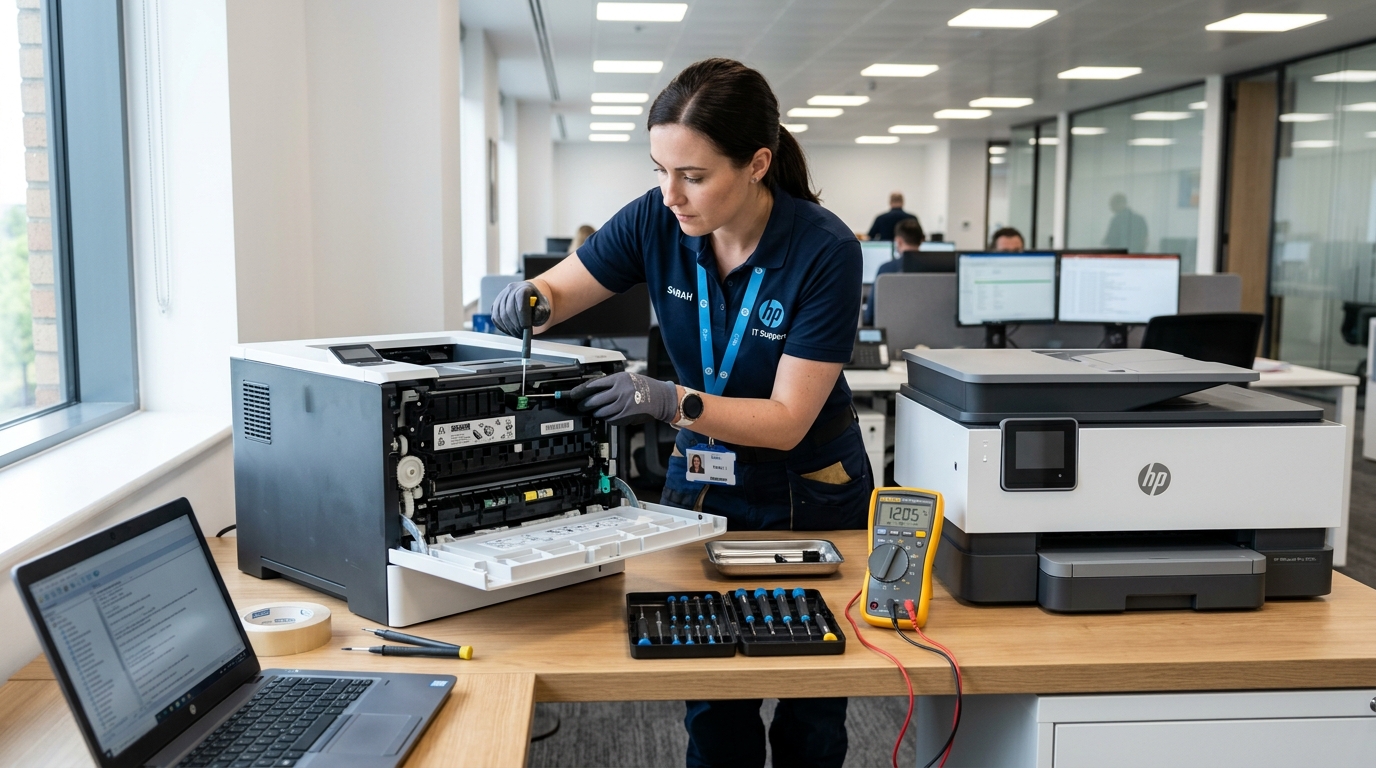
The Ultimate Engineering Guide to HP Printer Diagnostics & Hardware Repair
Hewlett-Packard (HP) manufactures some of the world's most widely deployed consumer, small business, and enterprise printing systems—spanning the HP DeskJet, HP Envy, HP OfficeJet Pro, HP LaserJet, HP Smart Tank, and HP Neverstop product lines. Despite their widespread engineering pedigree, HP printers frequently encounter hardware stalls.
Wireless communication drops, driver synchronization failures, mechanical paper path obstructions, printhead micro-nozzle clogs, fuser assembly thermal degradation, and firmware (internal software) lockouts.
Whether you are dealing with a consumer DeskJet displaying a phantom paper jam, an OfficeJet Pro refusing to lay down black pigment ink, an enterprise LaserJet locked with a 50.xx fuser error, or an Envy printer pulsing an unexplained purple LED ring. This master guide provides field-tested, bench-verified diagnostic protocols to isolate and resolve the root cause.
With over 80+ distinct HP printer models analyzed across 8 core product families. This documentation serves as your centralized reference manual for resolving every common failure mode.
30-Second Quick Diagnostic Triage
⚡ Emergency Triage Protocol for Any Stalled HP Printer:
- Perform a 60-Second Hard Power Drain: With the printer powered ON, disconnect the AC power cord directly from the rear of the unit. Unplug from the wall outlet. Disconnect all USB/Ethernet cables. Wait 60 seconds (or 30 minutes for persistent fatal codes) to discharge on-board logic board capacitors. Then plug directly into a dedicated wall receptacle.
- Verify Physical Paper Path & Carriage Movement: Open all access doors (front, rear cleanout, and cartridge bay). Confirm the carriage glides smoothly from left to right with no physical obstructions. Or torn micro-scraps of paper in the platen channel.
- Check Network & Port Settings: In Windows Devices and Printers, verify the printer is not assigned to a dynamic WSD port. Reassign to a Standard TCP/IP Port using the printer's static local IP address to eliminate intermittent offline drops.
- Clean Cartridge / Printhead Terminals: Remove ink cartridges or toner modules. Wipe the gold-plated electrical contacts with 99% anhydrous isopropyl alcohol to eliminate. Communication dropouts caused by ink mist or skin oil contamination.
Master HP Troubleshooting & Symptom Resolution Matrix
Use this comprehensive reference table to identify your exact hardware symptom, understand the root mechanical or electrical failure, and execute the immediate bench resolution:
| Symptom / Error Pattern | Affected HP Model Family | Probable Root Cause | Immediate Technical Fix |
|---|---|---|---|
| Printer Won't Turn On / No Power Light | DeskJet, Envy, OfficeJet, LaserJet | Tripped internal power module or dead external DC power brick. | Unplug AC cable for 60s; test wall outlet directly (bypass surge protectors). |
| Printer Constantly Drops Offline | LaserJet M209dwe, Envy 5055, DeskJet 4155e | Windows WSD port timeout & router 5GHz band steering collision. | Assign a static IP; convert Windows print port to Standard TCP/IP. |
| "Driver is Unavailable" in Windows 11 | All HP All-in-Ones & LaserJets | Corrupt Windows print spooler inf cache or generic IPP driver mismatch. | Remove device; delete corrupted INF registry keys; install HP Full Feature software. |
| Prints Blank Pages / Missing Black Ink | OfficeJet Pro 6978, 8025e, 9015e, Smart Tank | Dried pigment black nozzle crusting or air-locked continuous ink tubes. | Perform warm distilled water platen towel soak; execute printhead cleaning. |
| Paper Jam Alert When Tray is Completely Empty | DeskJet 2755e, Envy 6055e, Envy Photo 7855 | Stuck mechanical optical sensor flag or microscopic paper scrap. | Inspect rear cleanout path with flashlight; manually flick and clean flag sensor. |
| Blinking Purple Edge Light / Amber Lights | HP Envy 6000 / 6400 series, DeskJet 3755 | Wi-Fi setup pairing timeout (2-hour window) or carriage stall. | Hold rear Wi-Fi reset button for 5 seconds to re-enter setup beacon mode. |
| Error 50.xx Fuser Failure (50.1, 50.2, 50.4) | LaserJet Pro M404dn, M15w, P4015 | Fuser thermistor open circuit, slow warmup, or halogen lamp failure. | 30-min power drain; verify 15A wall line voltage; replace fuser module. |
| Error 79 / Error 49.xx Service Error | Enterprise LaserJet & Color LaserJet | Corrupted PostScript/PCL print job in memory or firmware (internal software) exception. | Disconnect network cable; reboot printer; purge corrupted spool queue on host PC. |
| Third-Party Ink Blocked / Cartridge Not Recognized | HP+ Enabled Printers (e-Series, Instant Ink) | HP Dynamic Security firmware (internal software) cryptographic signature verification lock. | Clean cartridge copper contacts; install updated smart microchip or OEM tanks. |
Section 1: Hardware & Power Supply Failures
When an HP printer fails to power on, makes aggressive mechanical grinding noises. Or shuts down intermittently during print operations, the issue stems from power conditioning faults or mechanical gear train binding. Understanding the power delivery system and mechanical drive chain prevents unnecessary hardware disposal.
1.1 Recovering an HP Printer That Won't Turn On
If your printer displays zero LED activity and does not respond to the power button, follow the comprehensive diagnostic procedure detailed in our guide on HP Printer Won't Turn On, No Power Light? [Fixed]. Modern HP printers incorporate built-in switch-mode power supply (SMPS) modules with over-voltage and over-current crowbar protection circuits.
If a lightning strike, power surge, or line brownout occurs. The internal fuse diode enters a latch-off state to shield sensitive CMOS microcontrollers.
- Disconnect External Surge Protectors: Laser printers and high-draw thermal inkjets pull significant inrush current (up to 12A during fuser heating). Power strips, ungrounded extension cords, and uninterruptible power supplies (UPS) can throttle peak current draw, causing power module undervoltage lockouts. Always plug directly into a verified 120V/240V wall receptacle.
- Inspect the Power Module LED: On older models utilizing an external power brick (e.g., HP OfficeJet 200 Mobile Printer), verify whether the green indicator LED on the power brick stays solid. If the light blinks, clicks rhythmically, or dims when connected to the printer. The mainboard logic circuitry contains a shorted surface-mount decoupling capacitor or motor driver MOSFET.
- Discharge Volatile CMOS/EEPROM Registers: Disconnect the power cord from both the printer and the wall. Press and hold the physical Power button for 30 seconds while completely unplugged. This drains lingering charge stored in secondary filter electrolytic capacitors, clearing transient latch-up states. Reconnect the cable and attempt to power on.
1.2 Resolving Mechanical Grinding Noises & Carriage Binding
High-pitched squealing, repetitive clicking, or harsh grinding during carriage setup indicates that the. Transport mechanism is struggling against mechanical friction, gear misalignment, or foreign debris. Refer to our in-depth teardown guide on HP Printer Grinding Noise? The Tray Test That Finds It.
- Clean and Lubricate the Carriage Guide Rod: Accumulated paper dust, airborne fibers, and dried factory grease create drag on the carriage sintered bronze bushings. Wipe the silver steel carriage guide rod with a lint-free microfiber cloth moistened with 99% isopropyl alcohol. Apply 2–3 drops of synthetic PTFE or silicone oil across the top and bottom of the rod. Never use spray lubricants like WD-40, which degrade rubber drive belts and attract abrasive debris.
- Inspect the Service Station Purge Unit: On inkjet models, the capping maintenance station on the right side contains. A rubber wiper blade, vacuum purge pump, and drive gears. If dried pigment ink solidifies in the gear teeth. The carriage motor stalls during startup wiping cycles, generating loud gear chattering.
- Check for Paper Tray Gear Lift Failure: On laser printers, stripped sector lift gears prevent the motorized paper tray from elevating the. Stack to meet the pickup roller, resulting in continuous ratcheting noises during pickup cycles.
1.3 Unusual Smells, Vibrations, and Thermal Anomalies
During high-volume laser printing runs, a faint ozone odor generated by. The corona wire or primary charge roller is completely normal.
However, acrid burnt-plastic smells, smoke, or excessive mechanical vibration require immediate shutdown. Consult our guides on HP Printer Burning Smell?
What's Normal vs. Dangerous and HP Printer Vibrating or Shaking?
Here's What's Normal to differentiate between normal fuser roller Teflon heat curing and hazardous electronic transformer shorts. If your printer is processing jobs at an agonizingly sluggish pace, check out HP Printer Printing Very Slowly?
Check This Setting to disable quiet mode and resolve buffer throttles.
Section 2: Wi-Fi, Offline Status & Network Connectivity
Network communication breakdowns represent over 40% of all printer support requests. When Windows or macOS marks an HP printer as "Offline". Print jobs accumulate in the local spooler queue and fail to dispatch over the local area network (LAN).
2.1 Why HP Printers Keep Going Offline in Windows 11
The primary culprit behind persistent offline states is the Web Services for Devices (WSD) port protocol. Windows 10 and 11 frequently assign network printers to dynamic WSD ports by default.
When your Wi-Fi router renews the printer's DHCP lease and assigns a new local IP address. The WSD discovery pipe fails to update, leaving the printer stranded.
For detailed model-specific walk-throughs, read our guides on HP Printer Keeps Disconnecting From Wi-Fi? [Solved], HP Envy 5055 Offline But Connected? [Real Fix], HP LaserJet M209dwe Keeps Going Offline? Fixed, and HP LaserJet M111w Says Offline? [Quick Fix].
2.2 Converting to a Permanent Standard TCP/IP Port
To eliminate offline drops permanently, configure a static IP and switch your driver port:
- Print a Network Settings Page: On the printer control panel, navigate to Settings > Reports > Network Settings Page. Identify the IPv4 Address (e.g.,
192.168.1.145) and Default Gateway. - Set a DHCP Reservation or Static IP: Follow our step-by-step tutorial on How to Set a Static IP on Your HP Printer to lock the address in your router admin console or via the printer's Embedded Web Server (EWS).
- Reconfigure Windows Printer Properties:
- Open Control Panel > Devices and Printers.
- Right-click your HP printer > Printer Properties > Ports tab.
- Click Add Port... > Standard TCP/IP Port > New Port....
- Enter your printer's static IP address. Complete the wizard and click Apply.
- Click Configure Port... and uncheck "SNMP Status Enabled". Simple Network Management Protocol (SNMP) polling frequently fails when third-party firewall rules. Drop community string packets, falsely flagging the printer as offline.
2.3 Resolving Duplicate Printer Icons & Network Collisions
If your computer displays multiple instances of the same printer (e.g., "HP Printer (Copy 1)"), Windows has created duplicate queues over both Wi-Fi Direct and your local LAN. Resolve this by following our guide on Why Your HP Printer Shows Up Twice on the Network.
For Wi-Fi pairing failures on specific home models, consult HP DeskJet 4155e Won't Connect to Wi-Fi? (Quick Fix) and HP OfficeJet Pro 8025e Wi-Fi Keeps Dropping? Fixed.
2.4 Enterprise Network, Wi-Fi Direct & Certificate Errors
Corporate environments utilizing radius authentication, active directory discovery, or TLS certificates require specialized settings. See our technical references on HP Printer 802.1x Authentication Failed? [Real Fix], HP Printer Certificate Error on Network?
Check This First, HP Web Jetadmin Not Discovering Printers? [Fixed], and HP Wireless Direct Not Showing Up on Your Phone? Fix.
Section 3: Drivers, Windows 11 / macOS Sequoia & HP Smart App Ecosystem
Modern HP printers rely heavily on software integration through the HP Smart App, the Windows Print Spooler, and Apple AirPrint architectures. Software mismatches, failed Windows Updates, and app setup loops can completely freeze print workflows.
3.1 Resolving "Driver is Unavailable" in Windows 11
When Windows displays the yellow alert "Driver is unavailable", Microsoft's automatic class driver installer has corrupted the printer's INF binding. Follow the comprehensive registry cleanup steps in HP Printer "Driver is Unavailable" in Windows 11? Fix and HP Printer Driver Missing After a Windows Update? Fixed.
- Uninstall Generic IPP Drivers: Go to Windows Settings > Bluetooth & devices > Printers & scanners. Select your HP printer and click Remove .
- Purge the Windows Driver Store: Press
Windows Key + R, typeprintui.exe /s /t2, and press Enter. Locate all HP printer drivers in the list, select them, and click Remove > Remove driver and driver package . - Reset the Windows Print Spooler via PowerShell: Run PowerShell as Administrator and execute:
Stop-Service -Name Spooler Remove-Item -Path "$env:SystemRoot\System32\spool\PRINTERS\*" -Force Start-Service -Name Spooler - Download and Install HP Full Feature Software: Navigate to official HP support, search your exact printer model, and download the full offline driver executable (avoid basic mini-drivers).
3.2 Overcoming HP Smart App Setup Loops & Discovery Stalls
The HP Smart App requires an active internet connection. Bluetooth Low Energy (BLE) beacon discovery, and cloud account verification during setup. When the app hangs or fails to locate your machine, follow our specialized troubleshooting guides:
- HP Smart App Can't Find Your Printer on Windows 11? Fix
- HP Smart App Stuck Searching for Printer? [Fixed]
- HP Smart App Scan to PC Not Showing Up? Fix
- How to Uninstall HP Smart App Without Breaking Your Printer
- HP+ Printer Stuck on Setup Screen? [Solved]
3.3 macOS Sequoia, AirPrint & Cross-Platform Printing
If you are operating on Apple macOS, Apple iOS, or Google ChromeOS, review our targeted cross-platform setup guides:
- HP Printer Not Showing Up on macOS Sequoia? Fix
- HP Utility Not Opening on Mac? Try This Workaround
- HP Printer Not in Your AirPrint List on iPhone? Fix
- HP Printer Won't Print From a Chromebook? [2026 Fix]
- HP OfficeJet 4650 Scanner Not Working on Mac? Fix
- HP Scanner Says 'Door Open' When It's Closed? Fix
- How to Set Up Scan to Email on an HP Printer (Gmail)
- HP Printer Fax Error: No Dial Tone Detected? Fix
- HP Photosmart C4780 Driver for Windows 10: Where to Find It
- HP LaserJet M1136 Driver for Windows 11 [Install Guide]
Section 4: Print Quality Failures (Blank Pages, Streaks, Ghosting, Missing Colors)
Degraded print quality—manifested as horizontal white streaks, faded text. Missing black pigment, color shifting, or faint ghost duplicates—indicates printhead fluidic blockage or laser electrophotographic drum degradation.
4.1 Why HP Printers Stop Printing Black Ink
HP inkjets utilize Thermal Inkjet (TIJ) technology. Microscopic thin-film resistors superheat ink droplets to over 300°C to eject dots through micro-nozzles.
Because black ink is formulated with dense pigment particles for crisp document text. Allowing the printer to sit idle for more than 2–3 weeks causes pigment to dry into a hardened lacquer crust over the nozzles.
For model-specific recovery procedures, see HP OfficeJet Pro 6978 Won't Print Black? [Fixed], HP OfficeJet Pro 6978 Not Printing Black? Do This, HP OfficeJet Pro 8025e Not Printing Color? [Fixed], and HP Tango X Printing Colors Wrong?
4.2 The Capillary Warm Distilled Water Towel Soak Method
When automated head cleanings fail, execute this non-invasive manual recovery technique:
- Fold a high-absorbency microfiber cloth or lint-free paper towel into a 1-inch wide strip. Moisten with warm distilled water (approx. 50°C / 120°F). Never use tap water containing mineral deposits or aggressive rubbing alcohol on nozzle faces.
- Power on the printer. Open the cartridge access door. When the carriage moves to the center, pull the AC power cord to park the carriage safely in the middle.
- Place the moist cloth flat across the print platen track.
- Manually slide the printhead carriage directly over the wet towel. Leave parked for 1 to 2 hours. The warm capillary moisture will soften the dried pigment plug from the bottom up.
- Slide the carriage away, remove the towel, reconnect power, and execute one automated Level 2 Printhead Cleaning from the printer maintenance menu.
4.3 Cleaning Electrical Contacts & Resolving Alignment Errors
If printed text shows jagged double-vision edges, consult HP Printhead Alignment Keeps Failing? The Real Fix. Clean the copper contact grid on the rear of the cartridge. And the spring pins inside the carriage cradle using 99% isopropyl alcohol on a foam swab to eliminate electrical crosstalk.
4.4 Diagnosing Laser Ghosting, Banding & Toner Streaks
On HP LaserJet printers, image defects originate from the electrophotographic cycle. Consult our guides on HP Toner Streaking Down the Page?
Check This First, HP Printer Ghosting a Faint Duplicate Image? Fixed, HP Printer Banding Horizontal Stripes? [Fixed], HP Envy 4520 Printing Lines?
The #1 Cause, and HP Borderless Printing Grayed Out? Here's Why.
- Repeating Ghost Image (Exact Circumference Spacing): If a faint duplicate image repeats every 75mm (3 inches) down the page. The Organic Photo Conductor (OPC) drum is worn or the primary charge roller (PCR) is failing to neutralize residual static charges. Replace the imaging drum unit.
- Repeating Ghost Image at 95mm Spacing: If the defect repeats at larger intervals matching the fuser circumference. The fuser pressure roller Teflon coating has worn off, picking up hot toner and re-depositing it onto subsequent page sections.
- Vertical Dark Lines: A scratched OPC drum or a nicked doctor blade inside the toner. Hopper allowing loose toner powder to streak across the page.
Section 5: Paper Handling, Jams, Phantom Errors & Feed Mechanism Maintenance
Paper transport errors range from physical sheets caught in the roller nip to elusive. "phantom jams" where the printer halts despite an empty, clean paper path.
5.1 Resolving "Paper Jam But No Paper" (Phantom Jam Sensor Stickiness)
The most frustrating error across HP consumer all-in-ones is a persistent paper jam error when no paper is inside. For detailed walk-throughs on specific models, read our dedicated guides on HP DeskJet 2755e Paper Jam But No Paper?
[Fixed], HP Envy 6055e Paper Jam But No Paper? (Solved), HP Envy Photo 7855 Paper Jam Error:
The Real Fix, and HP Printer 13.20 Paper Jam Error: The Real Fix.
- Locate the Optical Interrupter Sensor Flag: Inside the paper path sits a delicate black or white plastic lever (sensor flag). When a sheet feeds, it pushes this flag, interrupting an infrared beam. If a previous paper jam was pulled forcefully out from the front (instead of the rear). The flag can be bent, dislodged from its spring pivot, or stuck in the "engaged" position.
- Check for Microconfetti: Tiny torn paper corners (microconfetti measuring just 2mm) frequently lodge inside the optical sensor slot. Use a bright flashlight and fine tweezers to inspect the sensor channel.
- Clean the Rubber Pickup Rollers: Paper dust glazes the D-shaped rubber pickup rollers, causing them to slip against the bottom sheet. Clean the rubber tread with distilled water on a microfiber cloth.
5.2 Resolving Carriage Jams, ADF Double-Feeding & Duplex Binding
Review our guides on HP OfficeJet 3830 Carriage Jam: The Full Fix, HP Printer Double-Feeding From the ADF? [Fixed], HP Printer Paper Curling Out of Tray? [Fixed], and HP Envy 7855 Duplex Printing Not Working? Solved.
- Carriage Stall Obstructions: Check the clear linear optical encoder strip running behind the carriage. If coated with ink mist or lubricant, clean it gently with distilled water.
- ADF Double-Feeding: The Automatic Document Feeder utilizes a rubber separation pad. When worn smooth, the friction coefficient drops, allowing multiple sheets to pull simultaneously. Replace the ADF separation pad assembly.
- Paper Curling: Excessive fuser temperature or humid paper stock causes intense thermal curl. Adjust paper type to "Heavy / Recycled" in driver preferences to lower fuser nip temperature.
Section 6: Master Error Code & LED Light Cadence Decoder
HP printers communicate hardware diagnostics via LED flash cadences on display-free models, and alphanumeric hexadecimal support codes on touchscreen displays.
6.1 DeskJet & Envy Edge Lighting & LED Cadence Reference
For in-depth light decoding, see HP DeskJet 3755 Flashing Lights Meaning (Decoded), HP Envy 6055e Blinking Purple Light: What It Means, and HP Neverstop Printer Error Light? [Decoded].
- Pulsing Purple Light (Center Light Bar): The printer is in Wireless Setup Beacon mode waiting for HP Smart app pairing. If left unconfigured for 2 hours, the mode times out. Press the rear Wi-Fi button for 5 seconds to reset.
- Amber / Orange Flashing Fast: Carriage stall or critical media jam. Open the cartridge bay door and inspect the platen.
- All Control Panel Lights Blinking in Unison: Critical logic board firmware (internal software) crash (Fatal Exception). Perform a 30-minute power drain reset.
6.2 LaserJet 50.xx Fuser Error Family & Firmware (internal software) Codes
On HP LaserJet printers, the 50.xx series indicates fuser assembly thermal failure. Read our dedicated engineering guides on HP LaserJet 50.2 Fuser Error: What It Means & Fixes, HP LaserJet M15w Fuser Error?
Here's What It Means, HP LaserJet Pro M404dn 50.xx Fuser Error: Explained, HP LaserJet P4015 Error 49.4C02: The Real Fix, HP Printer Error 79 Service Error? [Real Fix], and HP Color LaserJet M283fdw Error 59: Step-by-Step Fix.
- 50.1 Fuser Low Temp: The fuser thermistor failed to reach operating temperature (180°C–205°C) within warmup timeout. Check line voltage.
- 50.2 Fuser Warmup Failure: Slow heat dissipation caused by an aging halogen heater rod or ceramic heating element.
- 50.3 Fuser High Temp (Overheat): Thermistor drive circuit failure. The printer cuts power to prevent thermal runaway.
- 50.4 Fuser Drive Circuit Fault: Unstable line AC frequency or bad fuser power supply board.
- Error 79 / Error 49: Print engine firmware (internal software) crash triggered by a corrupt PostScript font or PDF memory buffer overflow. Disconnect the network cable, reboot, and clear host spoolers.
6.3 OfficeJet & Smart Tank Alphanumeric Error Codes
Consult our detailed repair walkthroughs:
- HP OfficeJet Pro 9015e Error 0x610000f6 [Fixed]
- HP OfficeJet Pro 9015e Printhead Missing or Failed
- HP OfficeJet Pro 9130e Error? Here's the Real Fix
- HP Printer Error 0xc19a0003: Problem With Printhead
- HP Printer Error 0xC4EB827F: Ink System Failure Fix
- HP Printer Cartridge Sensor Failure Error? [Fixed]
- HP Smart Tank 5101 Printhead Error: How to Fix It
- HP Envy 6055e Printhead Error: What It Really Means
Section 7: Ink, Toner, Continuous Tanks & HP+ / Instant Ink Management
Modern HP printers feature complex supply chain authentication systems including HP+, Instant Ink DRM subscriptions, and high-capacity continuous ink tank delivery systems.
7.1 Managing HP+ Dynamic Security & Third-Party Cartridge Blocks
HP printers enrolled in the HP+ ecosystem require continuous internet connectivity. An active HP account, and the exclusive use of Original HP Ink or Toner. When third-party cartridges are rejected with "Non-HP Chip Detected", refer to our technical guides:
- HP+ Blocking Third-Party Ink After an Update? Fix
- Can You Bypass HP+ Without Instant Ink? The Truth
- How to Cancel Instant Ink and Keep Printing
- Instant Ink Cartridge Shows Empty But It's Full? Fix
- HP DeskJet 2755e Cartridge Not Recognized? Fix
7.2 Continuous Ink Tanks (Smart Tank & Neverstop) Troubleshooting
Continuous ink tank printers (HP Smart Tank 500/600/700 series). And reloadable toner systems (HP Neverstop Laser) eliminate cartridges in favor of bulk reservoirs. When ink stops flowing or reload kits jam, consult our specialized walk-throughs:
- HP Smart Tank 720 Ink Not Flowing? Try This First
- HP Smart Tank 7602 Fax Not Working? [Fixed]
- HP Neverstop Laser Refill Not Printing? Try This First
- HP Neverstop Toner Not Filling Correctly? Try This First
- HP LaserJet Tank MFP Setup Problems? [Solved]
7.3 Step-by-Step Initial Setup Protocols for New HP Models
If you are unboxing or re-provisioning an HP printer, follow our dedicated setup guides for flawless initial network pairing:
- How to Set Up HP DeskJet 3755 Wi-Fi Without an App
- HP DeskJet 4155e Wi-Fi Setup: Step-by-Step Guide
- HP Envy 6455e Setup Problems? [Solved]
- HP Envy Inspire 7255e Stuck on Setup? Here's the Fix
- HP OfficeJet 6500 Wireless Setup on Windows 11 [2026]
- HP M428fdw Scan to Email Not Working? Fixed
Section 8: Pre-Boot Diagnostic Menus & Firmware (internal software) Recovery
Enterprise and workgroup HP LaserJet and PageWide printers feature an internal Pre-Boot Diagnostic Menu built into the formatter board. When the printer fails to boot, displays a blue screen error, or halts with a 49/79 firmware (internal software) crash, access the pre-boot console to execute recovery tools:
8.1 Accessing the Pre-Boot Menu on Modern HP LaserJets
- Turn the printer ON.
- Watch the control panel display. When the HP logo appears and the memory counter starts (1/8 count), touch the center of the touchscreen or press the physical Cancel (X) button once.
- The screen will turn blue and display the Pre-Boot Menu with numbered options:
- 1: Administrator: Contains diagnostic tests, firmware (internal software) downloads, and disk wipe utilities.
- 2: Service Diagnostics: Tests individual motor sensors, laser scanners, and solonoids.
- 3: Cold Reset: Restores factory network and print engine defaults while preserving page counters.
- 4: Partial Clean: Clears corrupted firmware (internal software) partitions without erasing the base bootloader.
8.2 Recovering Corrupted Firmware (internal software) via USB Drive
If the printer displays "Resend Upgrade" or a corrupted ROM error:
- Download the latest official
.BDLfirmware (internal software) binary file from HP Support onto a FAT32-formatted USB flash drive. - Insert the USB drive into the external hardware port on the printer formatter.
- In the Pre-Boot Menu, navigate to Administrator > Download > USB Thumbdrive. Select the
.BDLfile and press OK to flash the system ROM.
Section 9: Diagnostic Test Prints & Internal Service Reports
Before replacing any physical parts, generate built-in diagnostic test patterns to evaluate mechanical registration, color density, and sensor counts:
| Report Name | Access Path | Key Diagnostic Information |
|---|---|---|
| Settings Page | Setup > Reports > Config Report | Total page count, firmware (internal software) revision, duplexer status, memory installed. |
| Event Log / Error History | Service Menu > Event Log | The last 50 error codes with exact page timestamps and engine sub-codes. |
| Print Quality Diagnostic Page (PQDP) | Tools > Print Quality Report | Solid color bars (CMYK) to identify missing nozzles, drum scratches, or transfer roller voids. |
| Engine Test Print | Rear chassis pinhole button | Prints fine horizontal grid lines directly from the DC controller, bypassing the formatter board. |
Section 10: Environmental, Paper Media & Duty Cycle Engineering
External ambient conditions and media selection dramatically affect printing physics and component longevity across all HP hardware lines:
- Relative Humidity & Toner Transfer: Laser printing relies on electrophotographic static charges (-600V on the OPC drum). If ambient room humidity drops below 20%, static charges dissipate rapidly, causing light, washed-out prints and heavy background scatter. If humidity exceeds 80%, paper absorbs moisture, creating steam blisters, toner adhesion failure, and fuser jams. Maintain a 40%–60% relative humidity environment.
- Paper Grain Direction: For smooth feeding, always load paper with the grain parallel to the feed direction (Grain Long for standard letter/A4 sheets). Loading grain-short paper through high-speed duplexers causes severe paper curling and accordion jams.
- Monthly Duty Cycle Limits: Consumer DeskJet printers are engineered for 50–100 pages per month; running 500 pages causes premature motor overheating. OfficeJet Pro models handle 1,500–2,000 pages monthly, while enterprise LaserJets are rated for 5,000–20,000 monthly pages. Exceeding recommended volumes accelerates roller wear by 300%.
Section 11: HP PJL, PCL6, and PostScript Spooler Commands
For systems administrators managing networked HP printers in enterprise environments, raw print streams can be diagnosed directly via Printer Job Language (PJL) and Printer Command Language (PCL6) header commands. When print jobs stall with raw buffer hangs, sending low-level PJL reset packets directly via telnet or raw TCP port 9100 clears stalled firmware (internal software) queues without requiring physical power cycles:
%-12345X@PJL
@PJL INFO STATUS
@PJL RESET
@PJL EOJ
%-12345X
Sending this raw ASCII sequence via netcat (nc -w 3 192.168.1.145 9100 < reset.pjl) commands the HP formatter board to discard pending corrupted raster buffers and initialize the print engine back into a Ready status.
Section 12: Comprehensive HP Maintenance Kit Reference
LaserJet printers require scheduled replacement of wearable transport components at predetermined page intervals. Consult the table below for OEM part numbers and duty cycle thresholds:
| HP LaserJet Model Family | Maintenance Kit OEM Part Number | Rated Page Life | Included Wearable Components |
|---|---|---|---|
| LaserJet Pro M404 / M428 Series | RM2-5679-000CN / RM2-6435 | 100,000 pages | Fuser assembly, Tray 2 pickup roller, Tray 2 separation pad. |
| LaserJet Enterprise M607 / M608 / M609 | L0H24A / L0H25A | 225,000 pages | Fuser unit, transfer roller, 5x cassette pickup/feed rollers. |
| LaserJet Enterprise P4014 / P4015 / P4515 | CB388A / CB389A | 225,000 pages | Fuser module, transfer roller, Tray 1 roller, plastic removal tool. |
| Color LaserJet Pro M283 / M479 Series | RM2-6460 / RM2-6461 | 150,000 pages | Fuser assembly, intermediate transfer belt (ITB), secondary transfer roller. |
Frequently Asked Questions (FAQ)
How do I factory reset my HP printer to clear stubborn errors?
On touchscreen models, navigate to Settings > Printer Maintenance > Restore > Restore Factory Defaults. On display-free models (DeskJet/Envy), power off the printer, press and hold the Power + Cancel (X) or Wi-Fi + Power buttons simultaneously for 10 seconds until all control panel LEDs flash, indicating a complete NVRAM memory reset.
Why does my HP printer say "Offline" even when connected to Wi-Fi?
This is caused by Windows defaulting to a Web Services for Devices (WSD) port combined with router IP lease renewals. Assign a static IP to the printer and convert the Windows printer port to a Standard TCP/IP Port in Printer Properties > Ports tab.
Can I use third-party ink in an HP+ enabled printer?
Printers enrolled in the HP+ program (models ending with an 'e'. Such as DeskJet 2755e, OfficeJet 9015e) enforce HP Dynamic Security via firmware (internal software), requiring an original HP microchip.
How do I fix an HP printer that prints blank pages with full ink?
Thermal inkjet nozzles become clogged with dried pigment black ink. Place the printhead carriage over a warm distilled water-moistened towel for 1–2 hours to dissolve the hardened plug.
What causes a 50.xx Fuser Error on HP LaserJet printers?
The 50.xx error indicates that the fuser assembly's heating element, halogen bulb, or thermistor failed to reach or maintain operational fusing temperature. A 30-minute power drain clears temporary voltage trip codes; persistent errors require replacing the fuser module.
Why does my HP printer report a paper jam when there is no paper stuck?
A phantom paper jam occurs when the mechanical optical sensor flag inside the paper path is stuck in the depressed position by paper dust. Torn microconfetti (small torn corners), or a dislodged sensor return spring.
How do I access the secret Support / Service Menu on HP printers?
On touchscreen models (OfficeJet / Envy), tap the Back Arrow icon 4 times in rapid succession while on the home screen. A hidden Engineering Support Menu will appear, allowing access to Resets, System Settings, and Sensor Tests.
What is the difference between HP Level 1, Level 2, and Level 3 Printhead Cleanings?
Level 1 cleans surface ink film using a 30-second vacuum pulse. 5ml of ink under higher pump pressure for stubborn nozzle plugs.
When to Perform Component Replacement vs. Contact HP Support
If your HP printer continues to fail after performing the 30-minute power drain, manual optical sensor cleaning, printhead towel soaking, and TCP/IP port reconfiguration, determine whether component replacement is economically viable:
- User-Replaceable Modular Components: Fuser kits on LaserJet printers (e.g., RM2-5679 on M404dn), modular printhead assemblies (e.g., 3WT90A on OfficeJet 9015e), and ADF separation roller assemblies are easily replaced in under. 10 minutes at a fraction of the cost of a new printer.
- Mainboard & Engine Controller Board Failures: If logic board capacitors are blown (indicated by persistent Error 79 or total power refusal after testing with a verified good power supply). Units under active HP 1-year or 2-year factory warranty should be submitted for authorized OEM exchange.
