


Introduction
Nelko Bluetooth label printers have surged in popularity due to their ultra-portability. Affordability, and convenience, making them a favorite tool for small business owners, crafters, and home organizers.
Operating primarily via smartphone apps, these compact thermal printers eliminate the need for cumbersome cables. However, the reliance on Bluetooth technology introduces a host of potential connectivity hurdles.
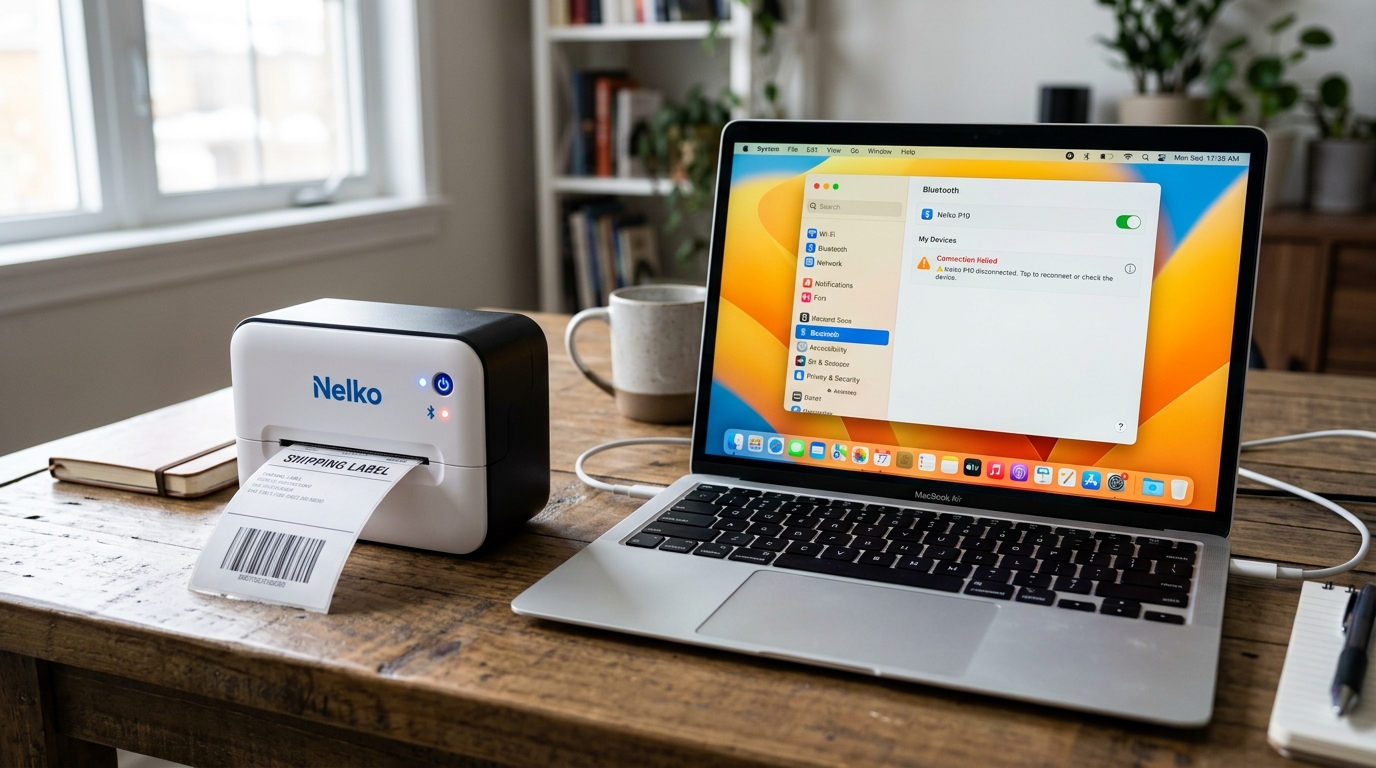
Users frequently report immense frustration with their Nelko printer spontaneously disconnecting mid-print. Refusing to pair with a new device, demanding unclear location permissions, or failing entirely when attempting to connect to a Windows PC or Mac.
Bluetooth is a notoriously finicky protocol, highly susceptible to environmental interference. Aggressive smartphone battery management systems, and complex OS-level permission structures.
When your Nelko printer refuses to connect, it transforms from a time-saving gadget into a productivity roadblock. This comprehensive troubleshooting guide will break down the precise reasons why these connectivity drops occur.
We will provide a rigorous, step-by-step framework to establish a stable, persistent Bluetooth connection. Resolve the often-misunderstood app permission requirements, and provide explicit instructions for successfully pairing and printing from a desktop computer—a feature often poorly documented in standard user manuals.
Why This Happens
To effectively fix Nelko connectivity issues, it is essential to understand the. Underlying mechanics of how the printer communicates with your devices. The printer uses Bluetooth Low Energy (BLE) to communicate with the built-in Nelko app on your mobile device. Or standard Bluetooth profiles when connecting to a PC.
Here are the primary reasons your connection is failing or dropping:
- Aggressive OS Battery Optimization: Modern smartphones (especially Android devices) aggressively manage background apps to save battery life. If the Nelko app is pushed to the background while you are formatting a label. The OS might sever the Bluetooth connection to save power, resulting in a disconnected printer when you hit 'Print'.
- Missing Location Permissions (Android specific): This is a massive point of confusion. Android's operating system architecture dictates that scanning for Bluetooth Low Energy devices can. Technically be used to determine a user's location (via Bluetooth beacons). Therefore, Android requires the user to grant "Location" permissions to the Nelko. App just to allow it to scan for the printer. Without this permission, the app literally cannot see the printer.
- Direct OS Pairing vs. App Pairing: A common mistake is attempting to pair the Nelko printer directly through the. Phone's main Bluetooth settings menu (like you would a pair of headphones). Nelko printers are designed to be paired internally through the Nelko app itself. Direct OS pairing often occupies the Bluetooth channel, preventing the app from establishing the necessary communication link.
- Interference and Distance: Bluetooth operates on the crowded 2.4GHz spectrum (shared with Wi-Fi routers, microwaves, and baby monitors). High interference or moving the phone more than 15-20 feet away. From the printer will cause packet loss and eventual disconnection.
- PC Driver Conflicts: Connecting a Nelko to a PC via Bluetooth is complex. Because Windows often applies generic Bluetooth serial drivers that do not understand the printer's specific command language. Proper connection usually requires installing specific Nelko-provided drivers before attempting the Bluetooth pairing.
Step-by-Step Fix
Follow these steps methodically. Do not skip steps, as solving Bluetooth issues requires eliminating variables one by one. The steps below focus on mobile connectivity, which is the most common use case.
- Unpair and Forget the Device: Start with a clean slate. Go into your smartphone's main Bluetooth settings (iOS Settings > Bluetooth, or Android Settings > Connections > Bluetooth). If you see the Nelko printer listed under "Paired Devices". Tap the info icon next to it and select "Forget This Device" or "Unpair". Turn your phone's Bluetooth off, then back on.
- Reboot Both Devices: Turn the Nelko printer completely off by holding the power button. Turn your smartphone completely off and reboot it. This clears the Bluetooth cache on both devices, resolving temporary software glitches that prevent handshakes. Turn the printer back on; ensure the status light is blinking, indicating it is in pairing mode.
- Grant Necessary App Permissions (Crucial for Android): Open your smartphone's settings menu. Navigate to Apps > Nelko app > Permissions. You MUST grant permissions for both Bluetooth (or "Nearby Devices") and Location. Set the Location permission to "Allow all the time" or "Allow while using the app". Without this, the app will never find the printer.
- Disable Battery Optimization for the App: To prevent the OS from killing the connection mid-print, go to Settings > Apps > Nelko app > Battery. Change the setting from "Optimized" to "Unrestricted" (Android) or ensure Background App Refresh is toggled ON (iOS).
- Pair ONLY Through the Nelko App: Open the Nelko application. Do not go to your phone's Bluetooth menu. On the app's home screen, tap the "Unconnected" or "Link Device" button at the top. The app will scan for nearby devices. The Nelko printer should appear in the list. Tap it to connect. A successful connection will usually result in a beep from the printer and a solid status light.
- Perform a Test Print: Immediately create a simple text label and hit print to verify the connection is stable and data is transmitting correctly. If it prints successfully, your mobile connection is resolved.
Advanced Troubleshooting: Connecting to a PC (Windows/Mac)
Printing from a desktop computer via Bluetooth requires a different approach, as you are bypassing the mobile app.
Windows PC Connection: First, DO NOT pair the printer yet. You must go to the official Nelko website and download the specific Windows driver for your model.
Run the installer. When the installer prompts you for the connection type, select "Bluetooth".
Now, go to Windows Settings > Devices > Bluetooth & other devices > Add Bluetooth or other device. Select the Nelko printer.
Once Windows pairs it, the previously installed driver will map to the new Bluetooth COM port. If you paired it before installing the driver.
Go to Device Manager, find the generic Bluetooth printer, uninstall it, and start over.
Mac OS Connection: Macs are generally more plug-and-play, but still require drivers. Download the Mac driver from Nelko's site and install it.
Go to System Preferences > Bluetooth and pair the printer. Then, go to System Preferences > Printers & Scanners.
Click the "+" button. Select the Nelko printer from the list.
Crucially, in the "Use:" dropdown menu at the bottom, do not use "Generic PostScript Printer". Select "Select Software..." and find the Nelko driver you just installed.
Add the printer.
Firmware (internal software) Updates: If you experience constant, unexplainable disconnects even when the phone is resting right next to the printer. The printer's firmware (internal software) may have a bug.
Open the Nelko app, navigate to the settings or device information page. And look for a "Firmware (internal software) Update" option.
Apply any available updates to improve Bluetooth stability.
FAQ
Why does the app ask for my Location just to print a label? Is it spying on me?
No, the app is not tracking your physical location for surveillance. This is a technical requirement imposed by the Android operating system.
I paired the printer in my iPhone's Bluetooth settings, but the app says "Disconnected". Why?
This is the most common error. The Nelko app requires exclusive access to the printer's communication channel to send built-in print commands.
My PC says the Nelko printer is "Paired" via Bluetooth, but it won't print from Word. How do I fix this?
Being "Paired" just means the Bluetooth radios are talking. It does not mean Windows knows how to format a document for a thermal label printer.
The printer connects fine, but disconnects immediately when I tap 'Print'. What is causing this?
This usually indicates a sudden power draw issue or a corrupt print data packet. When the printhead activates, it draws significant power.
