


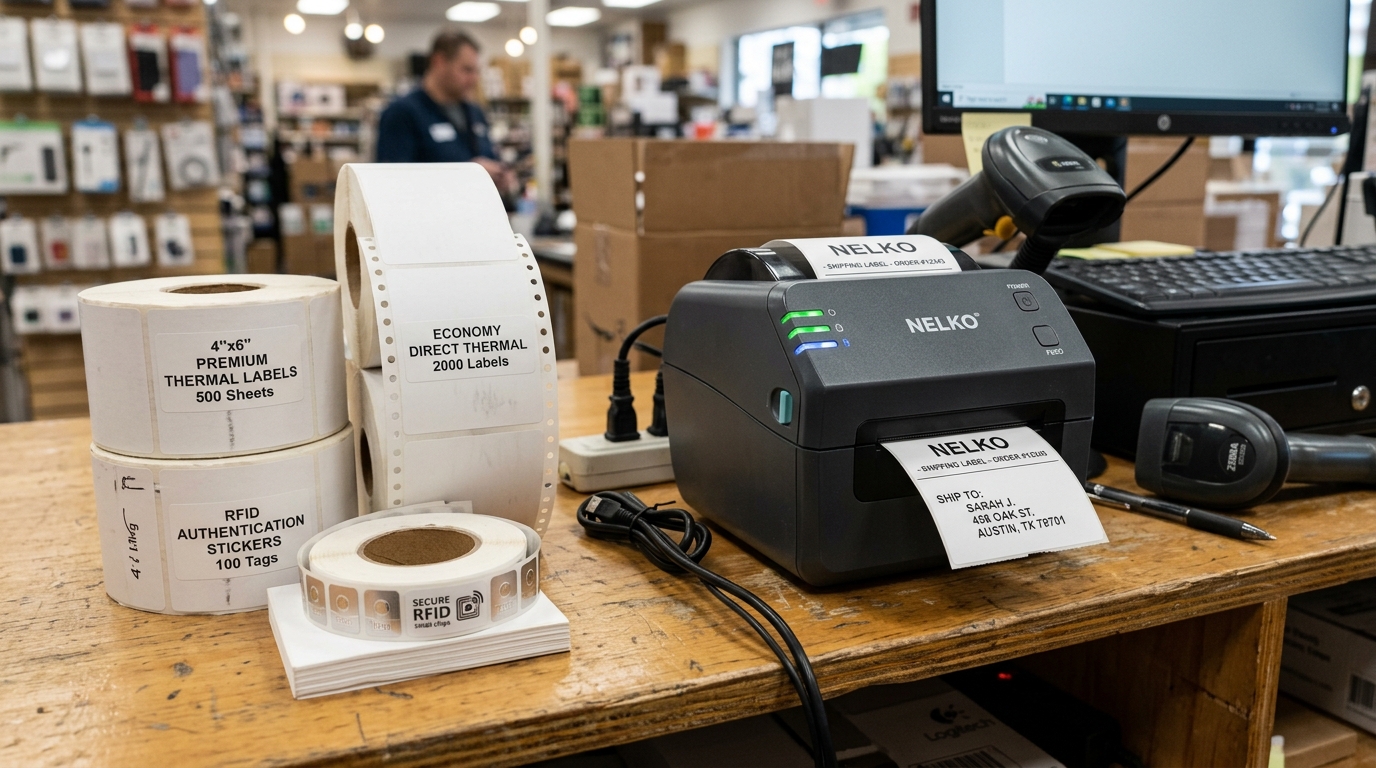
Introduction to Nelko Printers and Label Compatibility
Nelko label printers are popular because they are cheap, small, and easy to use with mobile apps. These direct thermal printers work great for home organizing, small e-commerce shipping labels, and barcodes.
But many users get frustrated when they try to use third-party label rolls. The printer itself costs little, but the ongoing cost of built-in label rolls adds up fast.
Because of this, many users look for cheaper generic thermal labels online.
Put these third-party labels in your printer, and you will often see many errors. You might see "Size Error" messages, paper jam warnings, or endless blank labels.
Sometimes, the printer refuses to recognize the paper at all. This is not a glitch.
The maker designed it this way. Nelko uses a digital rights management (DRM) system for its label rolls.
This guide explains why these errors happen and how the RFID stickers work. We also show how to bypass these locks to use third-party labels and how to troubleshoot problems.
We cover the warranty risks of changing these settings as well.
Why This Happens: The Mechanics of RFID Authentication
Your Nelko printer rejects third-party labels because of a small RFID (Radio Frequency Identification) sticker. Look inside the cardboard or plastic core of a real Nelko label roll.
You will find a tiny RFID chip hidden in a sticker. Place the roll into the printer, and a reader near the paper scans this chip.
The chip holds secure data about the real roll and the exact label size. Sometimes, it even counts how many labels remain on the roll.
Insert a generic third-party roll, and the printer's RFID reader finds nothing. Without the right signal from a real chip, the printer's firmware (internal software) starts an error state.
The generic labels might match the exact size of the Nelko labels. But the printer cannot check this without the chip.
So, the app shows a "Size Error" because the printer uses an unknown size setting. The printer also needs the RFID chip to set up the optical gap sensor.
Without the chip, the printer cannot find where one label ends. This causes endless paper feeding or crooked prints.
This system helps the maker in two main ways. First, it forces you to use tested label paper that works well with their print head.
Second, it creates a steady income stream. This is often called the "razor and blades" business model.
You must understand this setup first. Then, you can troubleshoot the issue and decide how to use third-party supplies.
Step-by-Step Fix: Bypassing the Authentication System
If you are determined to use third-party labels and accept the potential risks, there is a workaround. Follow these steps carefully.
- Save an Empty Genuine Core: Keep the cardboard or plastic core when you finish a real Nelko label roll. Check the inside of the core to find the small RFID sticker. It looks like a small square with metal lines.
- Remove the RFID Sticker (Carefully): Use a craft knife or tweezers to gently peel the RFID sticker from the core. Do not tear the sticker or damage the metal lines. This will ruin the chip. Use a hairdryer to apply low heat. This softens the glue and makes removal easier.
- Prepare the Third-Party Roll: Check that your new third-party labels match the exact size of the old real roll. The chip tells the printer the size. If the paper size is wrong, it will print badly.
- Transplant the Sticker: Stick the removed RFID chip inside the core of your new third-party label roll. Place it in the same spot near the edge. This helps the printer's reader find it.
- Install and Calibrate: Put the changed third-party roll into the Nelko printer. Turn the printer on. The printer should spot the moved chip and accept the roll. Press the feed button once. This lets the printer set up the gap sensor for the new paper.
- Configure the App: Open the Nelko app. Make sure it shows the right label size. Now you can design and print your labels.
Advanced Troubleshooting
You might still see "Size Errors" or crooked prints even with the moved RFID chip. The chip tells the printer the expected size.
But the generic paper might look a bit different. The backing paper might block more or less light.
This confuses the optical sensor. Does the printer feed paper non-stop with the chip inside?
Clean the optical sensor in the paper path using isopropyl alcohol. A dirty sensor and strange backing paper will ruin the setup.
Another problem is "Chip Depletion". Some DRM systems write data back to the RFID chip.
They count down as you print labels. When the count hits zero, the chip is marked empty forever.
You cannot reuse it, even on a new roll. Did you move a chip but the printer says "Empty Roll"?
The chip is likely empty. You must get a fresh RFID chip from a new real roll.
Sometimes the print quality on third-party labels looks faded or patchy. This is a physical problem, not an electronic error.
Different thermal papers need different heat settings. The real Nelko chip sets the heat to match Nelko paper.
Generic paper might need more or less heat to work right. You cannot change the heat setting in the Nelko app.
This means some generic papers will never look as good as the built-in ones.
FAQ
Will using third-party labels void my Nelko warranty?
Yes, most likely. Makers often state that using non-genuine parts voids the warranty.
Why does the printer feed out three blank labels before printing?
This means the setup failed. The printer tries to find the gap between the labels.
Can I just tape the RFID chip to the inside of the printer permanently?
Some users tape the RFID chip directly over the reader inside the printer. This skips the need to move it to every new core.
Are there any third-party labels that work without modifying the chip?
No. Nelko uses an active RFID system.
