


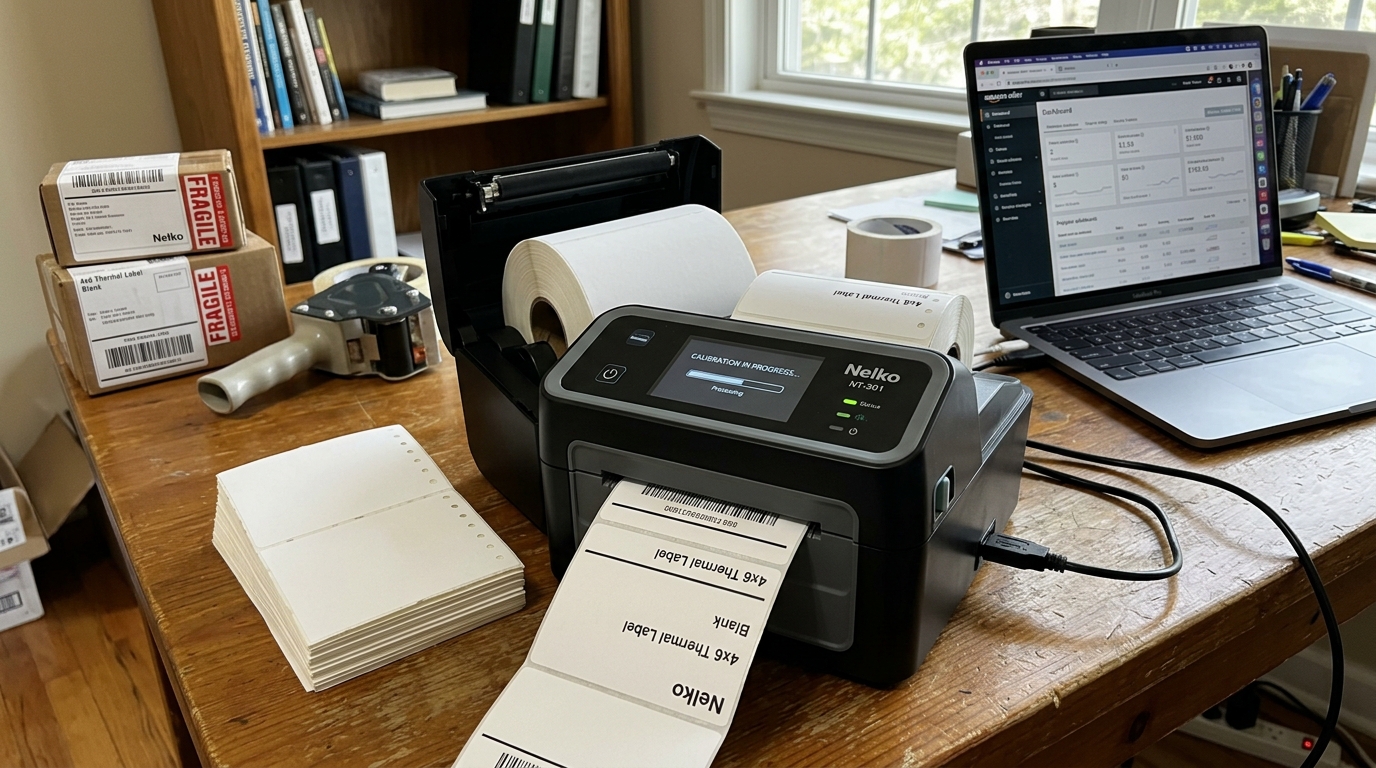
The Nelko 4x6 shipping label printer has become a favorite among e-commerce entrepreneurs. Small business owners, and drop-shippers due to its affordability and fast print speeds.
Whether you are fulfilling orders on Shopify, Etsy, Amazon. EBay, having a reliable thermal printer is essential for streamlining your shipping process.
However, new users frequently encounter setup hurdles, particularly regarding label calibration. The frustrating issue of the printer spitting out blank labels.
Proper initial settings is crucial; without it, your shipping labels may print misaligned. Cut off, or not print at all, wasting valuable supplies.
This comprehensive guide is designed to take you from unboxing to printing your first perfect shipping label. We will cover driver installation on Windows and Mac, the critical label calibration process.
And how to troubleshoot the common blank label phenomenon.
Understanding the intricacies of modern hardware is essential for maintaining a seamless workflow. When devices fail to operate as expected, it not only impacts productivity but can also lead to significant operational downtime.
Manufacturers continuously update firmware (internal software), drivers, and software utilities to address emerging bugs. Improve compatibility with new operating systems and network protocols.
Therefore, staying informed about the latest technological updates and adhering strictly to the recommended maintenance schedules is paramount. This foundational knowledge serves as the bedrock for effective troubleshooting, allowing IT professionals.
End-users alike to diagnose complex issues with confidence. By systematically eliminating potential variables—such as faulty cables, outdated software.
Environmental interference—you can drastically reduce the time spent on resolving hardware malfunctions and ensure long-term reliability.
Why This Happens
Printing blank labels or experiencing alignment issues on the Nelko printer is almost always tied to incorrect media calibration. Reversed label orientation, or mismatched page sizes in the print driver.
Thermal printers rely on optical sensors to detect the gap or black mark between each label. If the printer is not calibrated, it does not know where one label ends.
The next begins, causing it to continuously feed paper or print across the gaps. Blank labels are often caused by loading the thermal paper upside down; since these are direct thermal printers.
Heat is applied directly to the chemically treated side of the label. If the standard backing paper faces the printhead, no image will appear.
Furthermore, if your e-commerce platform generates a standard 8. 5x11 inch PDF, but your printer driver is expecting a 4x6 inch format.
The image data may be sent outside the printable area, resulting in blank or severely cropped output.
The root causes of these hardware and software discrepancies often. Trace back to a lack of standardization in peripheral communication protocols.
While Universal Serial Bus (USB) and IEEE 802. 11 Wi-Fi standards have bridged many gaps, the built-in nature of device drivers.
Means that even a minor operating system update can disrupt previously stable connections. Furthermore, environmental factors in industrial or retail settings—such as excessive dust, fluctuating temperatures.
Electrical noise from heavy machinery—can degrade electronic components faster than in standard office environments. Preventative maintenance, such as regular physical cleaning and environmental monitoring, plays a crucial role in mitigating these risks.
Ignoring these subtle environmental warning signs frequently exacerbates minor software glitches, culminating in total hardware failure.
Step-by-Step Fix
- Unbox the Nelko printer, connect the power adapter, and plug the USB cable into both the printer and your computer.
- Load the 4x6 fanfold or rolll labels, ensuring the printable (usually whiter. Smoother) side is facing upward towards the printhead.
- Adjust the green or blue media guides inside the printer. They hold the label stock snugly without bending the edges.
- Turn the printer on and wait for the status light to turn solid green, indicating it is ready for calibration.
- Perform the auto-calibration by pressing and holding the feed button until you hear one beep, then release it immediately.
- The printer will feed a few labels back. Forth to measure the gap distance and automatically position the tear-off point.
- Download the official Nelko print driver from their website; do not rely solely on the generic OS plug-and-play drivers.
- Install the driverr, go to your operating systems printer settings. Set the default paper size strictly to "4 x 6" or "100mm x 150mm".
- Open your shipping platform (e.g., ShipStation, Etsy), navigate to printer settings, and change the output format from standard PDF to "4x6 Thermal Label".
Executing these steps requires careful attention to detail. Skipping a diagnostic phase or rushing through a firmware (internal software).
Update can result in a "bricked" device, leaving it entirely inoperable. It is highly recommended to perform these maintenance tasks during off-peak hours to minimize disruption to your business operations.
Documenting each change you make—such as new IP addresses, driver versions. Modified settings settings—will create an invaluable reference log for future troubleshooting.
If you manage a large fleet of devices, utilizing centralized endpoint management software can automate many of these settings pushes. Ensuring uniformity across your organization and drastically reducing the manual labor required to maintain hardware health.
Advanced Troubleshooting
Advanced setup may require tweaking print density and speed to achieve optimal barcode scannability. If your barcodes look faded or fuzzy, open the Nelko Printing Preferences, lower the print speed to 2.
3 inches per second, and increase the darkness/density setting to 8 or higher. For Mac users experiencing margin issues, use the CUPS web interface (localhost:631).
To gain finer control over the printer margins and media tracking settings. If the printer fails to calibrate even after holding the button, the internal gap sensor might be dirty.
Use a Q-tip with alcohol to clean the optical sensor located under the media guides. Finally, ensure that any PDF reader you use (like Adobe Acrobat) has "Fit to Page" selected.
"Choose paper source by PDF page size" unchecked to prevent unwanted scaling.
In cases where standard operating procedures fall short, engaging with deep-level diagnostic tools becomes necessary. System administrators might need to employ packet sniffers like Wireshark to intercept.
Analyze the raw data packets traveling between the host machine and the peripheral device. This level of analysis can reveal malformed network requests, latency spikes, or unauthorized broadcast storms that disrupt communication.
Additionally, reviewing the Windows Event Viewer or Linux Syslog can uncover underlying operating system errors that indirectly affect peripheral performance. When hardware degradation is suspected, using multimeters to test power supply voltage stability.
Inspecting internal circuit boards for blown capacitors can isolate the physical failure points. Engaging the manufacturers tier-two support with this detailed diagnostic data usually expedites the RMA (Return Merchandise Authorization) process.
Yields specialized beta firmware (internal software) designed to patch highly specific edge-case bugs.
We also strongly advise creating a robust backup strategy for all device configurations. Many modern peripherals offer the ability to export their settings to an XML or JSON file.
By securely storing these settings backups on a central server. You can rapidly provision replacement hardware in the event of an unrecoverable failure.
Training your frontline staff on basic triage—such as identifying error light codes, safely power-cycling equipment. Replacing consumable supplies correctly—forms the first line of defense against prolonged downtime.
Cultivating a proactive maintenance culture rather than a reactive repair mentality ultimately. Translates to lower total cost of ownership and higher overall operational efficiency.
FAQ
Why is my Nelko printer printing faded labels?
Faded prints usually mean the print density is set too low. In the driver settings, or you are using low-quality thermal labels.
How do I fix the printer skipping labels?
Skipping labels indicates a calibration error. Re-run the automatic calibration by holding the feed button until it beeps.
Does the Nelko printer need ink or toner?
No, Nelko printers use direct thermal technology. The printhead applies heat directly to specially treated thermal paper to create the image, requiring zero ink or toner.
Why is my label printing sideways or cut off?
This is a software setting issue. Ensure your shipping platform is configured to generate 4x6 labels.
