


Introduction
Star Micronics printers are generally known for their reliability and precision in high-volume point-of-sale environments. However, dealing with a Star Micronics printer.
This means that Won't cut, double cuts, or only performs half cuts can severely impact business operations, causing bottlenecks at the checkout counter and frustrating both staff and customers. These cutting mechanisms rely on a precise interaction between hardware components—such as the guillotine blade, stepper motors.
And Sensors—and software instructions sent from the POS system or driver. When the synergy between these elements breaks down, the result is paper jams, partial receipts, or continuous feeding without separation.
Understanding the root causes of these cutting anomalies is essential for restoring optimal performance. This comprehensive guide will walk you through the underlying reasons for these issues, provide a detailed step-by-step resolution process.
And Offer advanced troubleshooting techniques to keep your Star Micronics printer operating smoothly for years to come.
Why This Happens
The cutting issues in Star Micronics printers typically stem from a combination of mechanical wear, software misconfiguration, and environmental factors. Firstly, the auto-cutter mechanism is a mechanical component subjected to continuous stress.
Over time, paper dust, adhesive residue (if using sticky paper), and general debris can accumulate within the cutting blade track. This buildup increases friction, preventing the blade from completing its full stroke, which results in partial or half cuts.
Secondly, double cutting often occurs due to software conflicts. Many point-of-sale systems send redundant cut commands.
Or the printer driver itself might be configured to append a cut command at the end of the document, while the POS software is also sending one. Thirdly.
Total failure to cut can be caused by physical jams where the blade is stuck, or a disconnected sensor failing to detect the paper's presence. Additionally.
Outdated firmware (internal software) or incorrect paper width settings can confuse the printer's logic board, leading to erratic cutting behavior. Identifying whether the issue is mechanical (debris.
Wear) or logical (driver, POS settings) is the first step toward a permanent solution.
Step-by-Step Fix
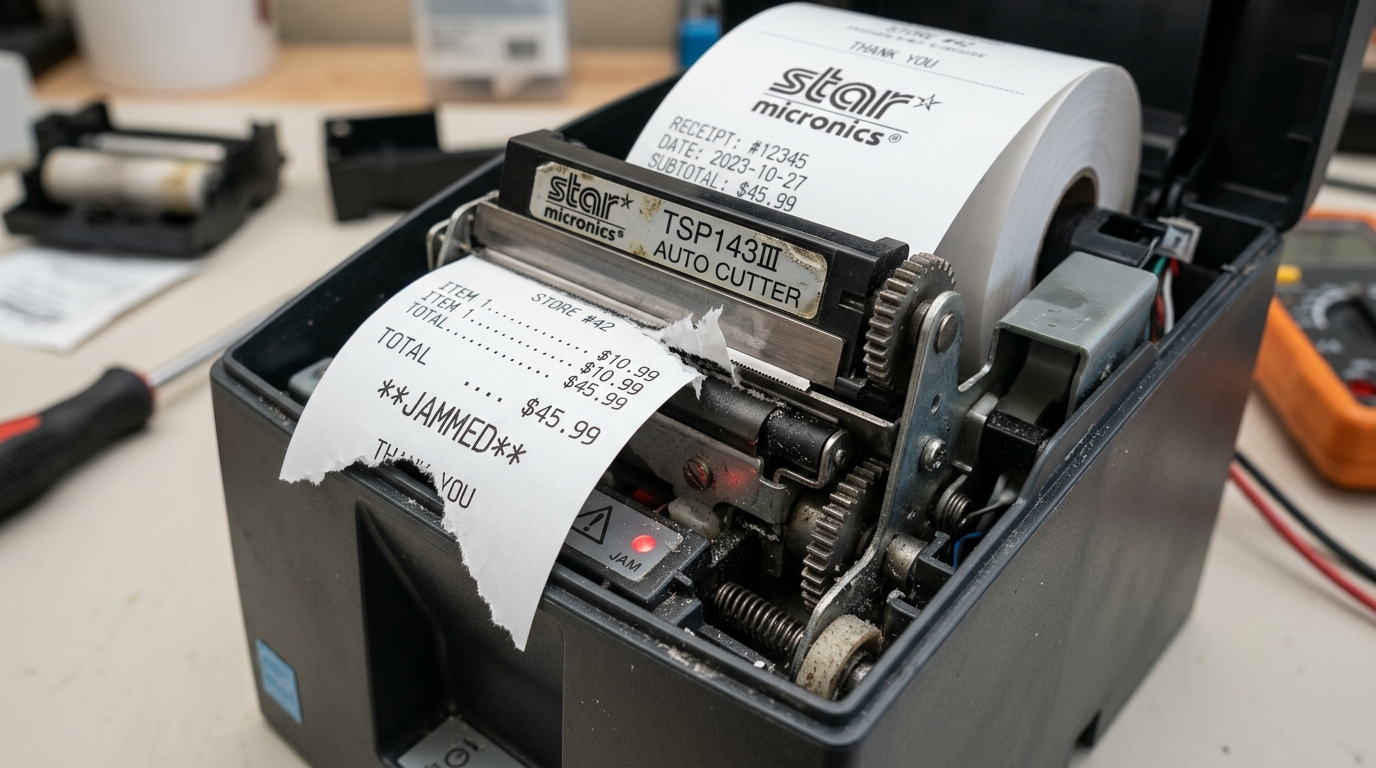
- Power Cycle and Clear Jams: Turn off the printer and unplug it from the power source. Open the front cover and gently remove any visible paper jams. Do not force the paper out, as this can damage the gears. If the cutter blade is exposed or stuck halfway. Look for the manual cutter release knob (usually a small gear on the side of the cutter assembly) and turn it manually to retract the blade.
- Clean the Cutter Mechanism: Using compressed air, blow out any loose paper dust from the cutter area. Dampen a lint-free cloth or a cotton swab with isopropyl alcohol (at least 90%) and carefully clean the exposed parts of the cutter blade. Remove any adhesive buildup. Allow it to dry completely before reassembling.
- Check Paper Specifications: Ensure that the thermal paper roll matches the specifications recommended for your specific Star Micronics model. Using paper that is too thick or has an incorrect core size can put undue stress on the cutter motor. Verify that the paper is loaded correctly, feeding from the bottom of the roll.
- Verify Driver Settings: On your computer, navigate to the printer properties (Control Panel > Devices and Printers on Windows). Go to the 'Device Settings' or 'Advanced' tab and look for the cutter options. Ensure that the setting is configured to 'Partial Cut' or 'Full Cut' according to your preference. And That redundant commands are disabled.
- Configure POS Software: Open the settings in your point-of-sale application. Check the receipt formatting section to ensure. This means that It is not sending an additional, hard-coded cut command (like ESC/POS commands) if the Windows/Mac driver is already handling the cutting. Choose one source of truth for the cut command.
- Update firmware (internal software): Visit the official Star Micronics support website and download the latest firmware (internal software) for your specific printer model. Follow the provided instructions to flash the firmware (internal software). This Can resolve known bugs related to cutter timing and sensor detection.
- Perform a Self-Test: Hold down the FEED button while turning the printer on. The printer will print a self-test diagnostic ticket and should perform a clean cut at the end. If the self-test cuts perfectly, the hardware is fine, and the issue lies within your computer or POS software settings.
Advanced Troubleshooting
If the standard steps do not resolve the cutting issues, you may need to explore more advanced diagnostics. Begin by inspecting the auto-cutter sensor.
This sensor detects when the blade has returned to its home position. If it is faulty or covered in dust.
The printer may attempt to cut repeatedly (double cut) or halt operation entirely. Carefully cleaning the sensor window can sometimes resolve this.
Furthermore, check the internal cabling connecting the cutter mechanism to the main logic board. A loose or crimped wire can interrupt the signal necessary to engage the motor.
If the printer frequently jams on half cuts, the motor itself might be failing under load. You can test the motor's resistance using a multimeter, comparing the readings against the specifications in the service manual.
For software-related double cutting. This means that Persists despite driver adjustments, you might need to use a port monitor or raw data logger to inspect the exact hex codes being sent to the printer.
Look for duplicated '1B 69' (ESC i) or '1B 6D' (ESC m) commands and work with your POS software vendor to suppress the extra code. Finally.
If the physical blade is nicked or completely dull after millions of cuts, the entire cutter assembly may need to be replaced, as sharpening these precision blades is rarely effective.
FAQ
Why is my printer only making a small notch instead of cutting the paper?
This is often caused by a mechanical obstruction. Paper dust or adhesive residue can prevent the blade from completing its cycle.
Can I replace just the blade on my Star Micronics printer?
In most Star Micronics models, the auto-cutter is sold and replaced as a single module rather than just the blade. Replacing the entire module ensures that the gears, motor, and sensors are all calibrated correctly.
My POS system is web-based; how do I stop it from double cutting?
Web-based POS systems often rely on the browser's print dialog. Ensure that the browser's margins are set correctly and.
Does the type of thermal paper affect the cutter's lifespan?
Yes, significantly. Using paper that is thicker than the manufacturer's recommendation forces the motor to work harder and dulls the blade faster.
What does the red error light mean when the printer stops cutting?
A flashing red error light accompanying a cutter failure usually indicates a cutter jam. The printer's sensors detect that the blade has not returned to its home position.
