


Introduction
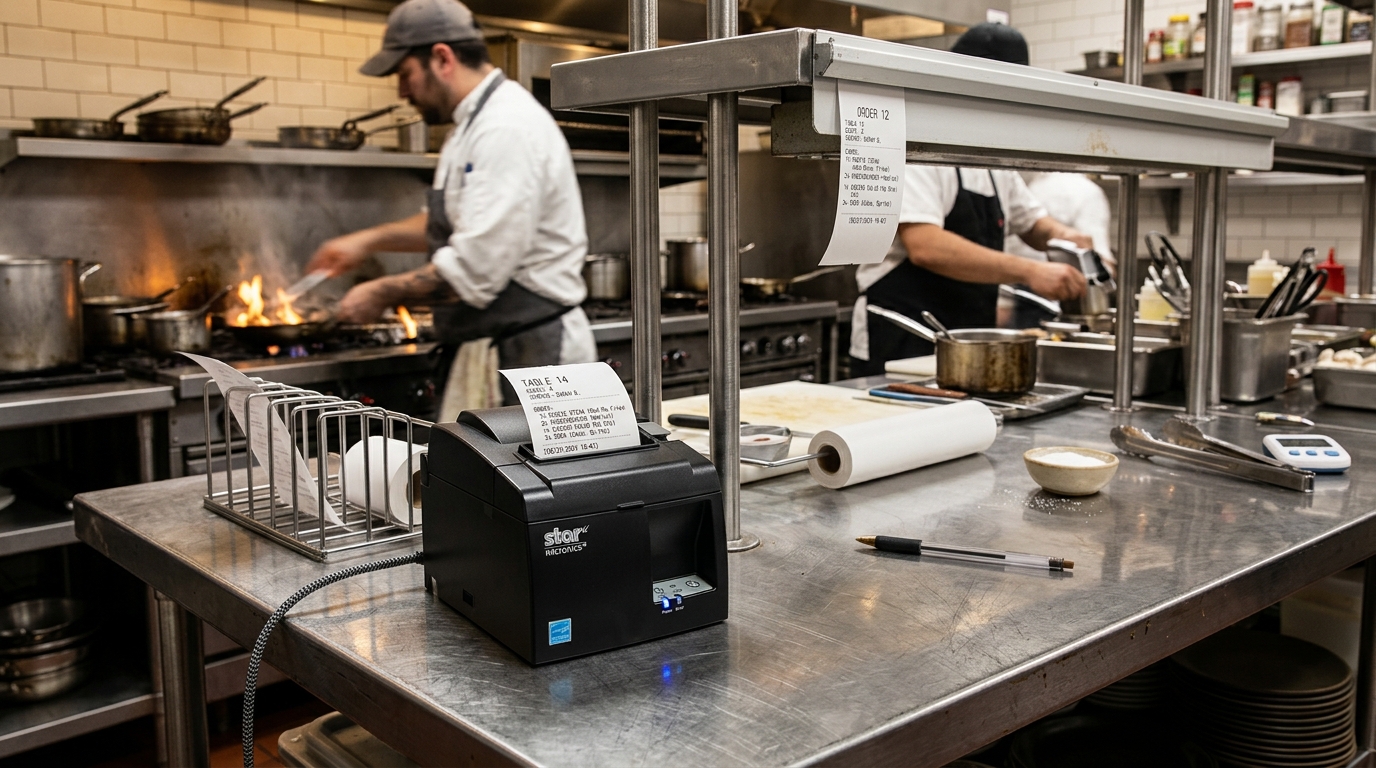
Setting up a reliable Bluetooth kitchen printer system using Star Micronics hardware like the mC-Print3, SM-L200, or SM-T300i is critical for seamless restaurant operations. The kitchen environment is famously harsh on electronics—high heat, steam, grease, and non-stop fast-paced activity demand robust hardware and rock-solid connectivity.
A dropped connection during a busy Friday night dinner rush means lost tickets, delayed orders, and angry customers. While Star Micronics provides some of the best point-of-sale receipt printers in the industry, configuring them for optimal Bluetooth performance in a commercial kitchen involves more than just a simple pairing process.
This comprehensive guide details the precise configurations, environmental considerations, and troubleshooting protocols required to establish an unbreakable wireless printing setup for your culinary environment.
Why This Happens: Bluetooth in the Kitchen
Bluetooth connectivity issues in a kitchen setup are rarely due to hardware defects; they are almost entirely environmental and configuration-based. A commercial kitchen is essentially a Faraday cage filled with interference.
Stainless steel prep tables, massive commercial refrigerators, and industrial ovens act as massive signal reflectors and blockers, severely attenuating the 2.4GHz Bluetooth signal. Furthermore, the 2.4GHz spectrum is highly crowded.
If the restaurant offers free guest Wi-Fi on the 2.4GHz band, or if staff are using mobile devices, this creates immense RF (Radio Frequency) congestion. When a POS iPad at the front counter tries to send a print job to an mC-Print3 in the back kitchen, the Bluetooth packets must navigate this gauntlet of metal and noise.
If too many packets are dropped, the connection times out. Additionally, older POS applications may not properly manage background Bluetooth states, causing the connection to enter a sleep mode from which it fails to wake up quickly enough when a new ticket is generated.
Step-by-Step Fix: Optimal Setup and Stabilization
- Strategic Printer Placement: Position the Star Micronics printer (e.g., mC-Print3) as high up as safely possible. Do not place it underneath stainless steel counters or directly next to a microwave oven. A clear, elevated line-of-sight toward the general direction of the POS terminal significantly improves Bluetooth range and reliability.
- Perform a Factory Initialization: Before integrating the printer into your POS, reset it to clear any factory test pairings. For the mC-Print3, hold the FEED button while turning on the power, and release when the network configuration prints. Consult the manual for specific reset button combinations for the SM-L200 and SM-T300i.
- Use the Star Quick Setup Utility: Download the Star Quick Setup Utility app on your iOS or Android device. This official tool is essential for configuring the printer's deep settings, updating firmware, and testing the connection outside of your specific POS software.
- Update Printer Firmware: Connect the printer to the Quick Setup Utility and immediately check for firmware updates. Star Micronics frequently releases updates that specifically optimize Bluetooth stability and compatibility with newer iOS/Android OS versions.
- Configure Auto-Connection (iOS specifically): If you are using an iPad, ensure the 'Auto-Connection' feature is enabled within the printer's internal settings via the utility app. This forces the printer to aggressively seek out the last paired iPad and reconnect automatically if a temporary drop occurs.
- Disable Unnecessary Bluetooth Profiles: Some printers support multiple profiles (like SPP and MFi). Ensure the printer is configured to the specific profile required by your POS (usually MFi for iOS devices or SPP for Android). Mixed profiles can cause pairing confusion.
- Optimize the Wi-Fi Environment: Even though you are using Bluetooth, Wi-Fi interference is your biggest enemy. Log into your restaurant's router and force the main Wi-Fi network (especially the guest network) to use the 5GHz band exclusively, clearing out the 2.4GHz airspace for the printers.
- Implement Dedicated POS Devices: Do not use a personal phone or an iPad loaded with games and other apps to run the POS. Background apps can hijack Bluetooth resources. Use a dedicated tablet locked into Single App Mode or Kiosk Mode for maximum stability.
- Test with StarPRNT SDK: If your POS allows, ensure it is utilizing the latest StarPRNT SDK rather than legacy driver emulation. The modern SDK includes built-in error handling and automatic retry logic for dropped Bluetooth packets.
- Establish a Restart Protocol: Train the kitchen staff on a rapid-recovery protocol. If a connection drops, the procedure should be: 1. Turn off printer. 2. Force close POS app on tablet. 3. Turn on printer. 4. Wait for Bluetooth LED indicator. 5. Relaunch POS app. This sequence guarantees a clean handshake.
Advanced Troubleshooting: Diagnostics and Emulation
When basic placement and configuration fail, advanced diagnostics are required. You can print a self-test diagnostic page on most Star Micronics printers by powering them on while holding the FEED button.
This printout details the exact Bluetooth MAC address, the current firmware version, and the active emulation mode. The emulation mode is critical; many modern POS systems require the printer to be in 'StarPRNT' mode, whereas legacy systems might require 'ESC/POS' emulation.
If the emulation mode on the diagnostic printout does not match what your POS software expects, it will connect but print gibberish or nothing at all. You can use the Star utility app or a series of hardware dip switches (depending on the model) to change the emulation mode.
Furthermore, for the portable SM-L200 (which uses BLE - Bluetooth Low Energy), be aware that it does not pair through the standard iOS Bluetooth settings menu. It must be paired exclusively within the POS application itself.
Attempting to force a connection in the OS menu will block the POS software from seeing the BLE broadcast.
FAQ
Why does the printer disconnect when the iPad screen goes to sleep?
iOS suspends active Bluetooth data streams when the device sleeps to save battery. Ensure the iPad is plugged in, and set 'Auto-Lock' to 'Never' in the Display & Brightness settings to maintain an always-on connection for the kitchen.
Can multiple iPads print to one Star Bluetooth printer simultaneously?
No. Bluetooth Classic establishes a 1-to-1 connection.
What is the realistic range of these Bluetooth printers in a kitchen?
While Bluetooth specifies up to 33 feet (10 meters), in a commercial kitchen with stainless steel and interference, the reliable range is often reduced to 10-15 feet. Maintain a clear line of sight whenever possible.
Why is the SM-L200 not showing up in my iPad's Bluetooth settings?
The SM-L200 utilizes Bluetooth Low Energy (BLE). Unlike standard Bluetooth devices, BLE devices do not need to be paired in the iOS Settings app.
How do I know if a ticket failed to print?
Properly integrated POS software using the Star SDK will monitor the printer's status. If a ticket fails, the POS screen should display an error or 'offline' alert.
