


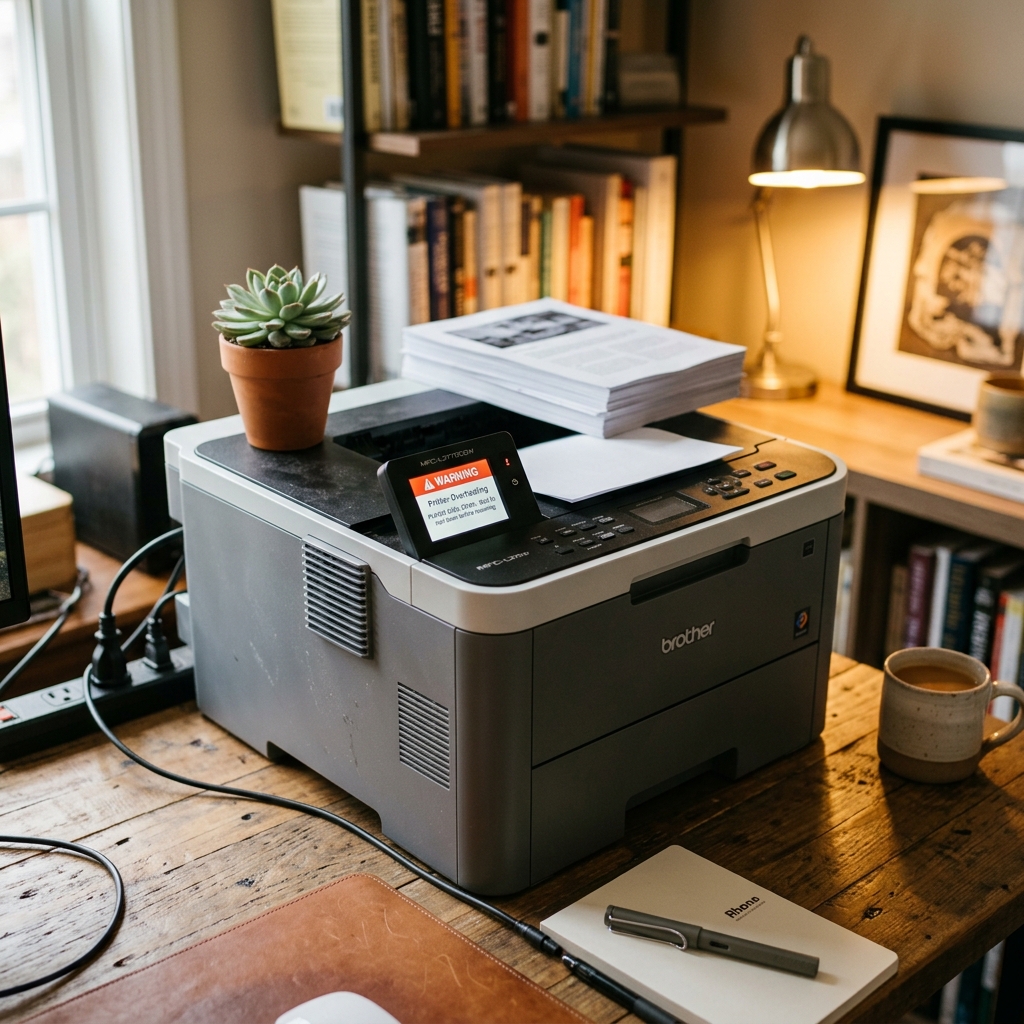
Brother printer error 40 is the mirror image of the "too cold" error — instead of running too cool, the printer's internal temperature has climbed past what it considers safe. It's stopping itself before that becomes a real problem rather than just a warning.
What Error 40 Actually Means
Internal components, especially the fuser, generate real heat during normal operation. Brother printers monitor this closely because running too hot risks component damage, poor print quality, or in rare cases, a genuine safety concern.
Error 40 is the printer pausing operation specifically to let that internal temperature come back down to a safe range.
Why this matters: this is almost always a temporary, self-resolving protective pause — not a sign of a broken part —. Understanding that distinction saves you from unnecessary troubleshooting on a printer that's doing exactly what it's supposed to do.
Fix 1: Let It Cool Down Undisturbed
Leave the printer powered on but don't attempt to print again immediately. Give it 15 to 30 minutes to cool naturally, especially if this followed a large, sustained print job.
Why this works: the internal temperature genuinely needs time to drop. This happens on its own as long as you're not continuing to push print jobs through during the cooldown. Most error 40 situations resolve completely with nothing more than patience.
Fix 2: Check the Room Temperature and Ventilation
Confirm the printer isn't sitting somewhere unusually warm — direct sunlight, next to a heating vent, or in an enclosed space with poor airflow around it.
Why this works: a printer working normally can still trigger this error if its surrounding environment is already hot, since it has less margin before hitting its internal limit. Moving it to a cooler spot with better airflow around its vents addresses the actual contributing factor rather than just waiting out one occurrence.
Fix 3: Reduce Print Job Size for Heavy Sessions
If this error tends to appear specifically during long, continuous print runs, split large jobs into smaller batches with a short rest between them going forward.
Why this works: sustained heavy printing is exactly what pushes internal temperature toward its limit fastest. Giving the printer brief pauses between large batches keeps it comfortably under that threshold rather than repeatedly bumping against it.
When to Call a Professional
If error 40 appears during light, ordinary use with no large print jobs involved, or if it doesn't clear even after a genuine cooldown period, an internal temperature sensor or cooling-related component may have a real fault. That's worth professional diagnosis rather than continuing to wait it out.
Understanding Brother Error 40 (Internal Chassis Overheating)
Brother laser printers monitor ambient internal chamber temperatures via negative temperature coefficient (NTC) thermistors positioned on the low-voltage power supply and logic boards. When internal chassis air temperature exceeds safe electronic thresholds (typically 122°F / 50°C), the mainboard shuts down print execution with Error 40 to prevent logic IC failure, capacitor bulging, and toner cake melting inside the developer unit.
Step-by-Step Cooling & Airflow Restoration
- Immediate Power Down & Environmental Assessment:
Turn the printer OFF immediately. Unplug the AC power cord. Do not leave the printer running in a hot, unventilated cabinet, close to a radiator, or in direct sunlight. Relocate the machine to a room with ambient temperature between 60°F and 80°F (15°C - 27°C).
- Inspect and Clean the Exhaust Cooling Fan Grille:
Locate the cooling fan exhaust vent on the left or rear side of the chassis. Use a flashlight to inspect the fan blades.
Paper lint and dust bunnies frequently jam the fan rotor. Use a vacuum or can of compressed air to clear the vent grille, ensuring the fan can spin freely.
- Maintain Required 4-Inch Clearance:
Brother laser printers generate significant heat during continuous multi-page print runs. Ensure at least 4 inches (10 cm) of clear open air space on all four sides and above the top output tray.
- Allow a 30-Minute Passive Cooldown:
Leave the printer completely powered down for 30 minutes. Once the internal thermistor detects that temperatures have stabilized below 95°F (35°C), reconnect power. Error 40 will automatically clear on startup.
Frequently Asked Questions
How does Error 40 differ from Error 50?
Error 50 is a dedicated Fuser Unit failure (heater lamp or fuser roller circuit). Error 40 represents ambient internal chassis/logic board overheating.
Can printing 100+ pages consecutively cause Error 40?
Yes. Continuous heavy print runs without cooling pauses in a warm room can heat the internal cavity rapidly.
