


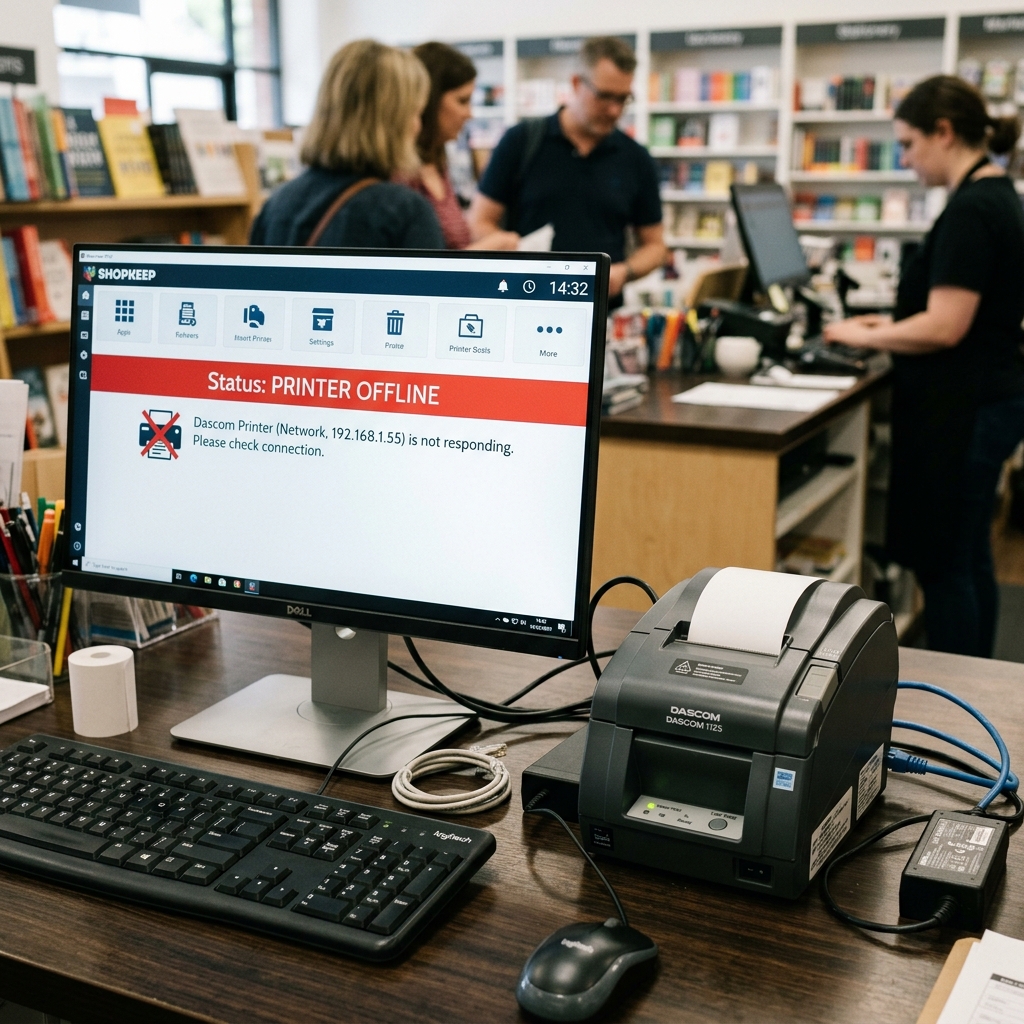
A Dascom Point of Sale (POS) printer suddenly going offline in a retail or restaurant environment is a critical failure that directly impacts business operations and customer satisfaction. The "offline" status essentially severs the communication link between the POS terminal and the receipt printer, preventing any transactions from being finalized with a physical record.
When troubleshooting this issue, particularly when dealing with the standard ESC/POS driver architecture, it is essential to approach the problem methodically, isolating the hardware connections from the software layer. This guide provides a thorough, technically sound approach to diagnosing and resolving Dascom POS printer offline errors, ensuring your point of sale system returns to full functionality with minimal downtime.
Why This Happens
The "offline" state in a Windows or Linux POS environment indicates that the operating system's print spooler cannot establish a two-way connection channel with the printer hardware. In the context of Dascom POS printers utilizing ESC/POS emulation, this breakdown can stem from several distinct areas.
At the most fundamental level, physical connectivity is a primary suspect. A loose USB cable, a damaged Ethernet port, or a faulty serial cable will immediately cause the printer to drop offline.
POS environments are often chaotic, with cables being bumped or stressed, leading to intermittent connection failures.
Beyond the physical layer, the software and driver settings is the most common culprit. POS printers rely on specific driver mappings to translate high-level print commands into low-level ESC/POS byte sequences.
If the Windows driver is pointing to the wrong virtual port (e.g., pointing to COM3 when the printer is actually on USB001), the OS will flag the printer as offline because it receives no response on the configured port. Similarly, in a networked environment, IP address conflicts or DHCP lease expirations can cause the POS terminal to lose track of the printer's location on the network.
Finally, power management settings in the operating system can aggressively suspend USB ports or network adapters to save energy, effectively putting the printer to sleep and causing it to appear offline to the POS application until physically awakened.
Step-by-Step Fix
- Verify Physical Connections and Power: Start with the basics. Ensure the Dascom printer is powered on and the ready light is illuminated solid green. Inspect the data cable (USB, Serial, or Ethernet). Unplug it from both the printer and the POS terminal, check for bent pins or debris, and firmly reconnect it. If using a USB hub, bypass the hub and connect directly to a root USB port on the POS motherboard.
- Check the Windows Print Spooler Service: Press Win + R, type
services.msc, and hit Enter. Scroll down to the "Print Spooler" service. If it is stopped, right-click and select "Start." If it is running, right-click and select "Restart." A hung spooler service is a very frequent cause of false offline statuses in POS environments. - Verify the Port settings in Printer Properties: Open the "Devices and Printers" control panel. Right-click the Dascom printer icon and select "Printer properties." Navigate to the "Ports" tab. Look at the checked port. If it's a USB printer, it should be checked on a "Virtual printer port for USB" (e.g., USB001, USB002). If it's on an LPT or COM port incorrectly, check the correct USB port and click Apply.
- Disable "Use Printer Offline" Setting: While in the "Devices and Printers" menu, right-click the Dascom printer again and select "See what's printing." Click on the "Printer" menu at the top of the queue window. If there is a checkmark next to "Use Printer Offline," click it to remove the checkmark. This manually forces Windows to attempt communication.
- Reinstall the ESC/POS Driver: If the port settings are correct but the printer remains offline, the driver itself may be corrupted. Download the latest official Dascom ESC/POS driver from their support site. In "Devices and Printers," completely remove the existing printer. Run the downloaded driver installer. During installation, manually select the correct connection type (USB, LAN, Serial) to ensure the driver binds to the correct port from the start.
- Address Network settings (For Ethernet Printers): If your Dascom is connected via Ethernet, print a self-test page (usually by holding the feed button while powering on) to obtain its current IP address. Open a command prompt and ping that IP address. If it times out, you have a network issue. Ensure the printer has a static IP address assigned outside the main DHCP pool to prevent IP conflicts. And update the standard TCP/IP port in the Windows printer properties to match this new static IP.
- Disable USB Selective Suspend: Go to the Windows Power Options, click "Change plan settings," then "Change advanced power settings." Expand "USB settings" and then "USB selective suspend setting." Change the setting to "Disabled." This prevents Windows from putting the USB port to sleep, which often causes POS printers to drop offline.
Advanced Troubleshooting
If the printer remains stubbornly offline after executing the standard fixes, you must investigate deeper system-level issues. One common advanced problem involves USB controller conflicts.
Sometimes, the POS terminal's chipset drivers are outdated, causing instability with legacy USB 1.1 or 2.0 devices like many receipt printers. Updating the motherboard chipset drivers from the manufacturer's website can resolve deep-seated USB communication dropouts.
Additionally, check the Device Manager for any unknown devices or devices with a yellow exclamation mark, particularly under the "Universal Serial Bus controllers" section. A faulty USB host controller will prevent any attached printer from staying online.
In environments using Serial (RS-232) connections, the baud rate, parity, data bits. And stop bits configured on the printer hardware (often via DIP switches on the bottom of the Dascom unit) must perfectly match the COM port settings configured in the Windows Device Manager and the POS software.
Even a slight mismatch (e.g., printer set to 9600 baud, PC set to 19200 baud) will result in zero communication and an offline status. Consult the Dascom manual to verify the DIP switch settings for serial communication and mirror them exactly in the OS.
Finally, consider the POS software architecture itself. Some legacy POS applications bypass the Windows print spooler entirely and communicate directly with the hardware port using raw ESC/POS commands (often called "Raw Printing").
If the POS software is configured to talk directly to COM1. But you recently moved the printer to a USB port (which maps virtually to USB001), the Windows spooler might see the printer as online.
But the POS software will report it as offline because it's looking in the wrong place. You must explore the POS software's internal settings settings and update the hardware port mapping to align with the new physical reality.
FAQ
What is ESC/POS and why is it important?
ESC/POS (Epson Standard Code for Point of Sale) is a built-in command system developed by Epson. This has become the de facto industry standard for receipt printers.
Why does the printer go offline only after the computer goes to sleep?
This is almost certainly caused by the "USB selective suspend" feature in Windows power management. When the PC sleeps, it cuts power to the USB ports.
The Windows test page prints, but my POS software says the printer is offline. Why?
This indicates a discrepancy between the Windows spooler and the POS application. The POS software is likely configured to use a different port or driver than the one Windows is currently using.
Can a bad power supply cause an offline error?
Yes. If the power adapter is failing, it might provide enough voltage to turn the printer's LEDs on.
How do I find the IP address of a networked Dascom printer?
Turn the printer off. Press and hold the "Feed" button, then turn the power switch back on while continuing to hold the Feed button for about 3-5 seconds.
