


Introduction
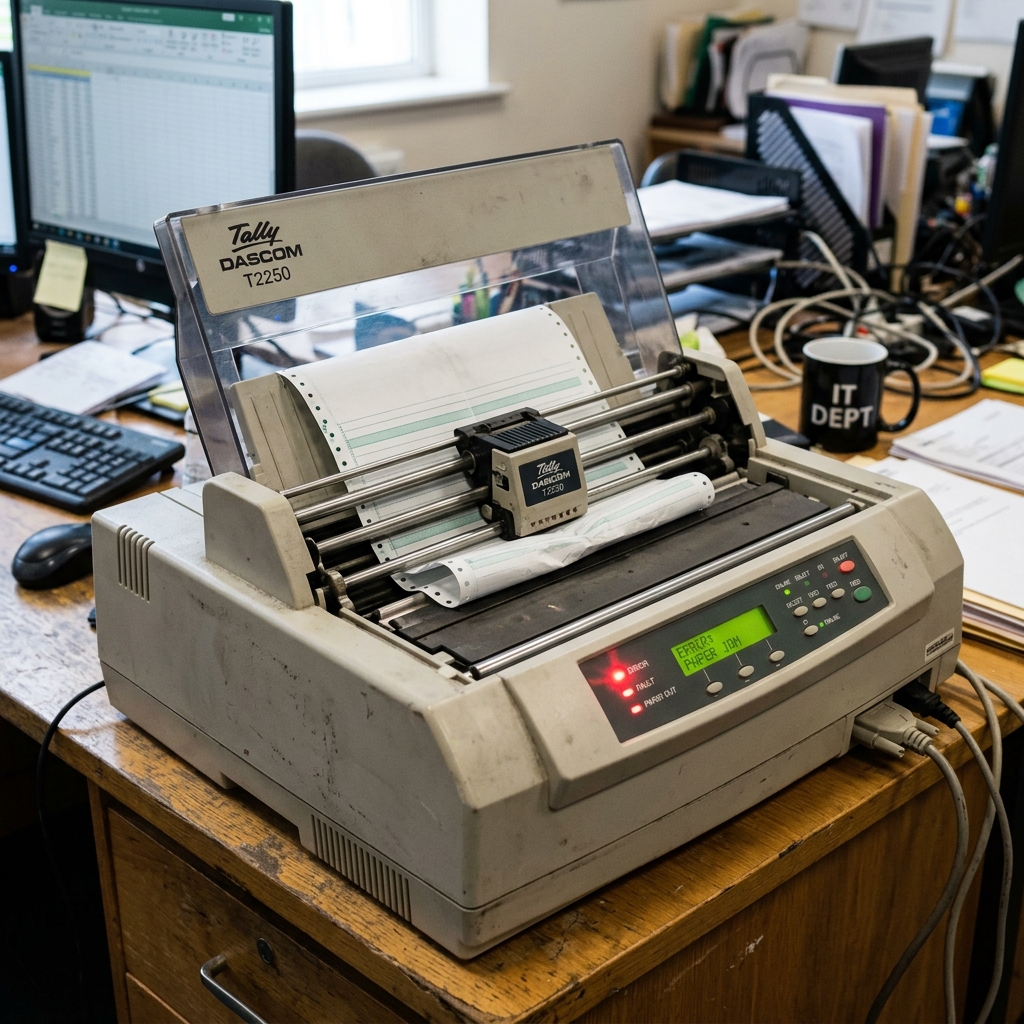
The Dascom T2250 is a robust, heavy-duty serial matrix printer designed for demanding industrial and commercial environments. Known for its reliability in printing multi-part forms, invoices, and continuous tractor-feed paper, it is a workhorse that many businesses rely on daily.
However, like all complex electromechanical devices, it can encounter issues that bring your printing operations to a sudden halt. When a problem occurs, the T2250 communicates its status through a specific sequence of error code lights on its front control panel.
Interpreting these blinking, solid, or alternating LED indicators can be confusing, leaving operators guessing about whether they are facing a simple paper jam, a depleted ribbon, or a critical hardware failure. This comprehensive guide is designed to explain the Dascom T2250 error code lights, explaining exactly what each pattern means, why the errors occur, and providing a detailed, step-by-step approach to troubleshooting and resolving them so you can get your printer back online as quickly as possible.
Why This Happens
Dot matrix printers operate using a combination of precision mechanics, sensors, and continuous consumables. The error lights on the T2250 are triggered by the internal diagnostic system when it detects that a component is out of its expected parameters. Here are the primary reasons why these errors occur:
1. Paper Path Obstructions and Sensor Faults: The most frequent cause of error lights involves the paper handling system.
The printer uses optical and mechanical sensors to track the continuous form paper. If the paper tears, jams in the tractor feed mechanism, or if a label peels off inside the paper path, the sensors will trigger an alert.
Additionally, paper dust can accumulate over time, blocking the sensors and causing false "out of paper" or "paper jam" errors.
2. Printhead Overheating and Mechanical Strain: The printhead of the T2250 contains tiny pins that fire rapidly against the ribbon to create characters.
During heavy, continuous printing—especially graphics or dense barcodes—the printhead can overheat. The printer has a built-in thermal sensor; if the temperature exceeds a safe threshold, an error light will indicate a thermal pause.
Similarly, if the carriage motor encounters too much resistance due to lack of lubrication or a dirty carriage shaft, a mechanical error will be triggered.
3. Ribbon Depletion or Jamming: The ink ribbon is a continuous loop inside a cartridge.
If the ribbon reaches the end of its life, becomes frayed, or if the ribbon advance mechanism jams, the printhead can snag on the fabric. This not only causes poor print quality but triggers an error light as the ribbon drive motor detects abnormal resistance.
4. Firmware and Communication Errors: Sometimes the issue is not mechanical but digital.
If the printer receives corrupted data from the host computer, or if there is a buffer overflow due to an incorrect driver setting or a faulty interface cable (Parallel, USB, or Serial), the printer will halt and display an error code indicating a data reception fault.
Step-by-Step Fix
When your Dascom T2250 stops printing and starts flashing error lights, follow this systematic approach to identify and resolve the issue. Always begin by observing the exact pattern of the lights on the control panel.
- Identify the Light Pattern: Look at the control panel. Note which LEDs (Ready, Paper Out, Fault, etc.) are illuminated, whether they are solid, flashing slowly, or flashing rapidly. Consult the printer's manual or a cheat sheet to match the pattern to the specific error category.
- Clear the Paper Path (For Paper Out/Jam Errors): If the 'Paper Out' or 'Fault' light is on, turn off the printer. Open the top cover and the tractor feed doors. Carefully remove any continuous forms. Look for torn pieces of paper, especially around the platen roller and under the printhead. Use tweezers to remove small fragments. Blow compressed air over the paper sensors to remove dust. Reload the paper, ensuring the tractor holes are properly seated on the sprockets.
- Inspect and Replace the Ribbon: If the printer sounds like it's printing but no text appears, or if the carriage seems to struggle, check the ribbon. Remove the ribbon cartridge and turn the tension knob manually; it should turn smoothly. If the ribbon is frayed, twisted, or bone dry, replace it with a new, genuine Dascom ribbon. Ensure the ribbon shield is correctly positioned between the printhead and the paper.
- Address Printhead Overheating (Flashing Ready/Fault): If the printer stops in the middle of a large job and the lights indicate thermal protection, do not turn the printer off. The internal fan needs power to cool the printhead. Simply wait 5 to 10 minutes. The printer should automatically resume the print job once the temperature drops to a safe level.
- Clean and Lubricate the Carriage Shaft: If you hear a grinding noise or get a carriage error, the printhead carriage may be binding. Turn off the printer. Wipe the silver carriage shaft with a clean, lint-free cloth lightly dampened with isopropyl alcohol to remove old, sticky grease and paper dust. Apply a very small amount of light machine oil (like sewing machine oil) to the shaft and manually slide the printhead back and forth to distribute it evenly.
- Perform a Self-Test: To isolate hardware from software, perform a self-test. Turn the printer off. Hold down the 'LF/FF' (Line Feed/Form Feed) button while turning the power back on. The printer should print a configuration page or a rolling ASCII test pattern. If it prints perfectly, the hardware is fine, and the issue lies with your computer, driver, or cable.
- Reset the Printer: If a data error occurred, clearing the buffer is necessary. Turn the printer off, wait 15 seconds, and turn it back on. Check your interface cables and ensure you are using the correct Dascom T2250 driver on your host PC before resending the print job.
Advanced Troubleshooting
If the standard fixes do not resolve the error lights, the problem may require deeper technical intervention or part replacement.
Checking the Printhead Pins: A common failure point in dot matrix printers is broken printhead pins. If you notice horizontal white lines through your printed text, a pin has failed.
While this doesn't always trigger an error light, a severely damaged printhead can cause a short circuit that will trigger a fatal hardware error. Removing the printhead (usually involving two screws and a ribbon cable) and inspecting the face for missing pins can confirm this.
Printheads are replaceable consumable items.
Power Supply Issues: If all lights on the control panel are flashing erratically, or if the printer turns on but the carriage does not initialize, the internal power supply board may be failing. This can be caused by power surges or aging capacitors.
Testing the voltage outputs of the power supply requires a multimeter and should only be attempted by a qualified technician.
Main Logic Board Failure: A solid 'Fault' light with no other response, even after a hard reset, often points to a failure on the main logic board. This could be a corrupted EEPROM or a blown motor driver chip.
In this scenario, replacing the logic board or contacting Dascom support for authorized repair is usually the only recourse.
FAQ
What does it mean when the 'Paper Out' light is flashing but there is paper loaded?
This typically indicates a sensor error. The optical paper sensor is likely covered in paper dust or obstructed by a small scrap of paper.
Why does the printer stop printing and flash the 'Ready' light during a large job?
This is the thermal protection mode kicking in. Dot matrix printheads get very hot during continuous use, especially when printing graphics or dark text.
Can I use WD-40 to lubricate the carriage shaft?
No, you should never use standard WD-40 on a printer carriage shaft. WD-40 is a solvent, not a true lubricant, and it will attract dust and eventually gum up the mechanism.
How do I clear the print buffer if a bad job is causing a data error?
The easiest way to clear the buffer is to turn the printer off, wait about 15 to 30 seconds for the internal capacitors to discharge, and then turn it back on. You must also clear the print queue on your computer (Windows Print Spooler or Mac Print Queue) to prevent the bad data from being sent again.
Is it worth repairing a T2250 logic board, or should I buy a new printer?
The Dascom T2250 is an expensive, industrial-grade printer. In most cases, replacing a logic board or a printhead is significantly cheaper than buying a brand-new unit.
