


Introduction
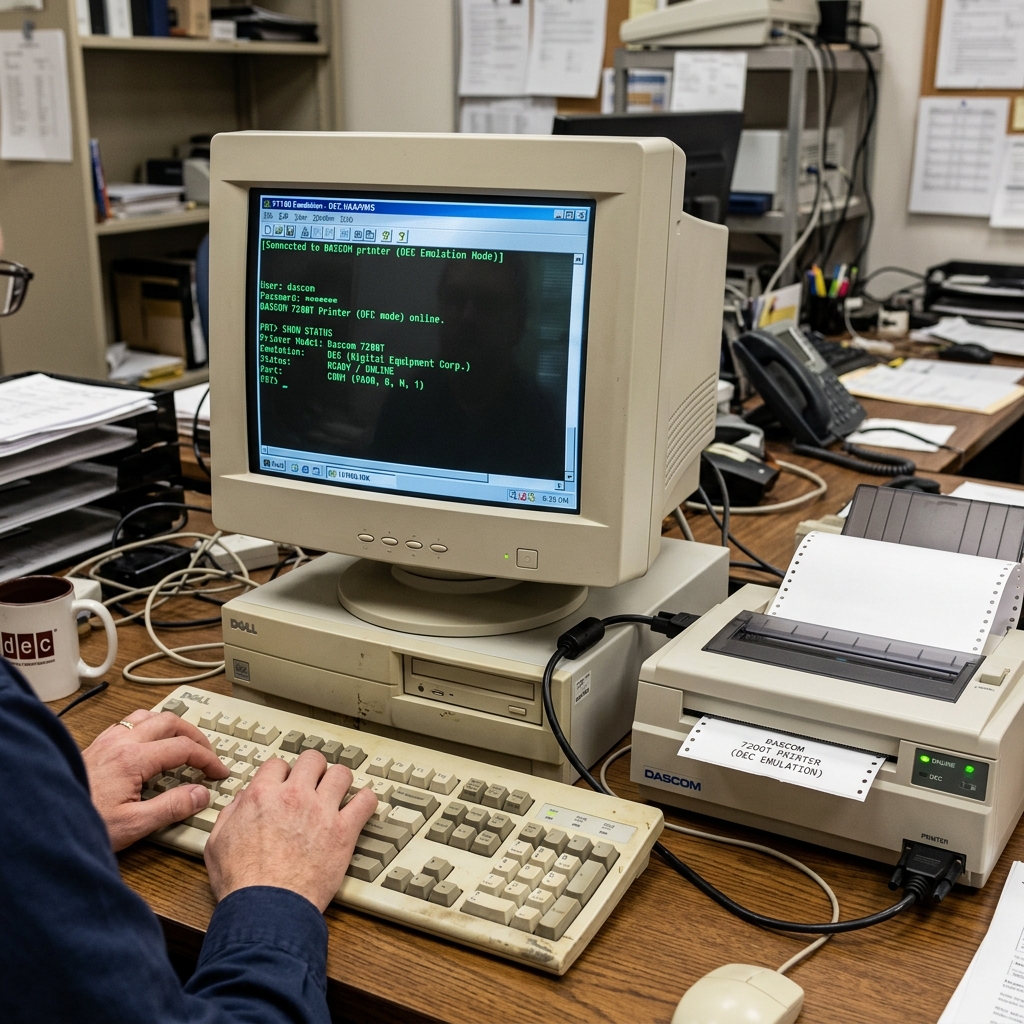
Setting up DEC emulation on Dascom printers is a critical task for organizations operating legacy systems. Mainframes, or specialized UNIX/Linux environments.Dascom, known for its robust matrix and thermal printers.
Often serves as a modern replacement for older Digital Equipment Corporation (DEC) hardware, such as the venerable LA120 or LA36 terminals.DEC emulation allows these modern printers to understand. Perfectly interpret the specific escape sequences and formatting commands native to DEC systems.Without proper emulation, print jobs will emerge as garbled text.
Endless strings of raw code, or suffer from severe alignment issues. This settings process ensures seamless integration, allowing businesses to upgrade their hardware without rewriting decades-old software or disrupting established workflows.This comprehensive guide will explain the mechanics behind DEC emulation, provide a detailed, step-by-step setup procedure.
Explore advanced settings options to guarantee your Dascom printer interfaces flawlessly with your legacy infrastructure.
Why This Happens
The need for DEC emulation arises because different computer systems and printers historically spoke different 'languages'. Modern environments largely rely on standard protocols like PCL (Printer Command Language) or PostScript.
However, legacy mainframe applications and older Unix systems were hardcoded to communicate using DEC-specific control codes (such as DEC ANSI or VT100/VT220 escape sequences).When a modern Dascom printer receives these codes without the proper emulation mode active. It attempts to process them using its default language (often Epson FX or IBM ProPrinter).
This mismatch leads to chaotic output.For example, a command intended to set line spacing in a DEC environment might be interpreted as a command to switch character sets in Epson mode. Resulting in unreadable characters.By activating DEC emulation via the printer's front panel or settings utility, you instruct the printer's logic board to load the specific translation table required to interpret DEC control codes accurately, ensuring margins, fonts.
Line feeds are rendered exactly as the original host system intended.
Step-by-Step Fix
- Access the Printer Menu: Power on your Dascom printer. Ensure it is loaded with paper and in the 'Offline' state. Press the 'Setup' or 'Menu' button on the front control panel to enter settings mode. The LCD screen should display the top-level menu options.
- Navigate to Emulation Settings:Use the directional arrow keys (usually Up/Down or Next/Previous) to scroll through the menu categories until you find 'System Settings'. 'Interface', or 'Emulation'. Press the 'Enter' or 'Select' button to access this sub-menu.
- Select DEC Emulation: Within the Emulation menu, scroll through the available languages (which typically include EPSON, IBM, MT, etc.). Stop when 'DEC' or 'LA' (referring to LA-series emulation) is highlighted. Press 'Enter' to select it.
- Configure Character Set and Code Page: After selecting DEC, you may be prompted to choose a specific character set. Depending on your host system's region, select 'US ASCII', 'DEC Multinational', or the appropriate ISO code page. This ensures special characters are printed correctly.
- Adjust Carriage Return/Line Feed (CR/LF): Navigate to the 'Auto CR' and 'Auto LF' settings within the DEC emulation sub-menu. Legacy UNIX systems often send only a Line Feed (LF), requiring the printer to automatically add a Carriage Return (CR). Adjust these settings based on how your host system formats line endings to prevent staggered text.
- Save and Exit:Once all DEC-specific parameters are set, navigate back to the main menu. Look for the 'Save Config' or 'Exit and Save' option. Confirm the save action. The printer may restart to apply the new emulation settings.
- Perform a Test Print: Put the printer back 'Online'. Send a standard test document from your legacy host system. Verify that the formatting, margins, and special characters are printed correctly. If there are alignment issues, you may need to fine-tune the lines-per-inch (LPI) or characters-per-inch (CPI) settings in the menu.
Advanced Troubleshooting
When basic DEC emulation setup doesn't resolve all formatting anomalies, deeper troubleshooting is required. First, verify the exact DEC model your host software expects (e.g., LA120, LA34, LA75).
While general 'DEC' emulation covers most bases, some legacy applications rely on obscure escape sequences specific to certain models.If your Dascom printer supports extended DEC configurations. Try toggling specific LA-series modes via the web interface (if equipped with an Ethernet card).
Another common issue involves flow control. Legacy systems often rely on XON/XOFF software flow control or specific hardware handshaking (DTR/DSR) over serial connections.If your print jobs drop characters or truncate midway.
Verify that the flow control settings on the printer perfectly match those on the host server's serial port settings. Additionally, you can utilize the printer's 'Hex Dump' mode.
By enabling Hex Dump, the printer will print the raw hexadecimal values of the data it receives.By comparing this hex data against a DEC programming manual, you can identify exactly which control codes are being sent. Determine if the printer is misinterpreting them, or if the host system is sending malformed data.
FAQ
Why is my printer printing continuous lines without returning to the left margin?
Your host system is sending a Line Feed command to move down a line. Not a Carriage Return command to return the printhead to the left margin.
Can I switch between DEC emulation and regular Windows printing automatically?
Yes, many advanced Dascom models support automatic emulation switching. However, for this to work flawlessly, the print jobs must contain standard header commands that the printer can recognize to trigger the switch.
The text is printing fine, but all the boxes and lines look like strange letters. How do I fix this?
This indicates a character set mismatch. Box-drawing characters rely on specific code pages.
Is there a software utility to configure these settings instead of the front panel?
Yes. Dascom provides a settings Tool (often downloadable from their website) that allows you to manage all printer settings via a USB or Network connection from a Windows PC.
Does DEC emulation affect the printing speed?
Emulation itself does not significantly reduce the physical print speed.However, legacy serial connections (like RS-232 running at 9600 baud) are much slower than modern USB or Ethernet connections. Which can make the overall printing process appear slower when interfacing with old host systems.
