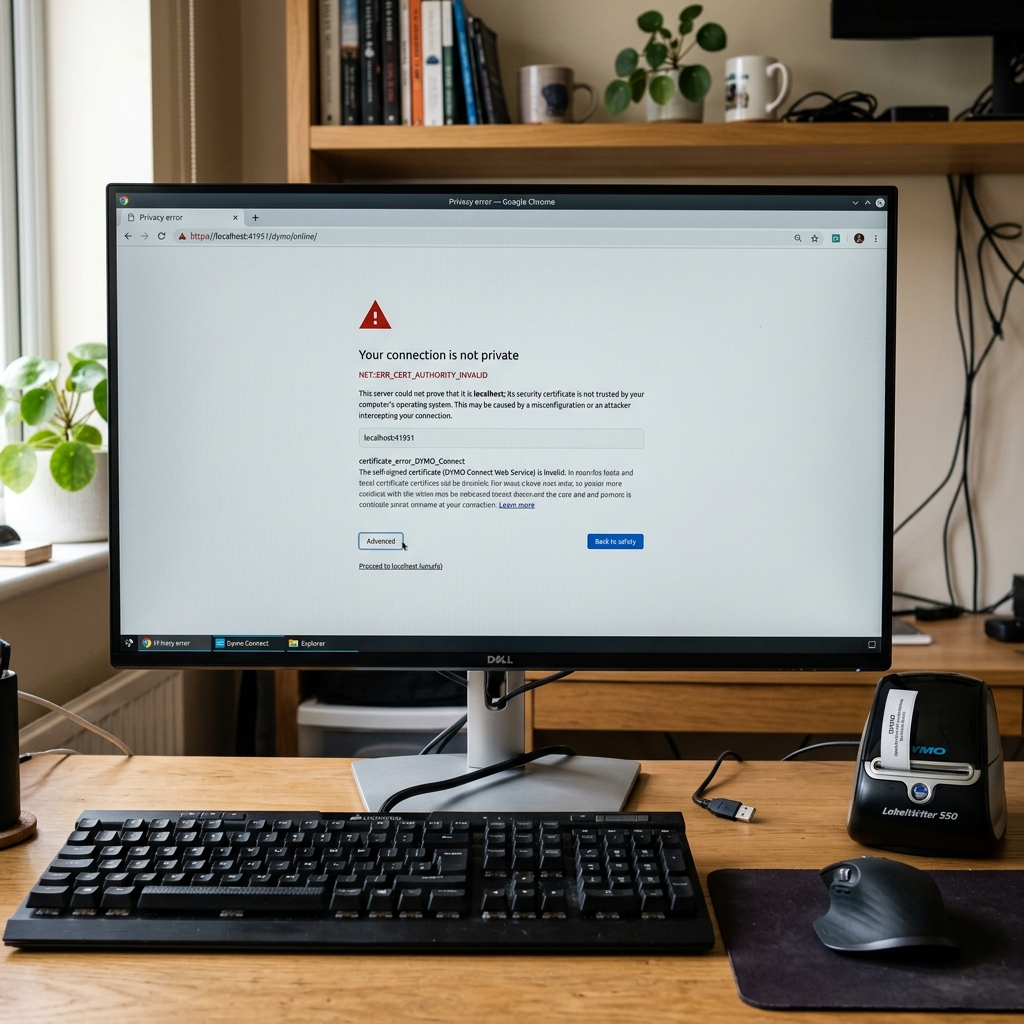
For developers, IT administrators, and businesses integrating label printing into custom web applications, the DYMO Connect Web Service is an invaluable tool. It acts as a local bridge, allowing web browsers to communicate directly with a DYMO LabelWriter printer connected to the computer via USB. However, a persistent and highly disruptive issue frequently arises: the dreaded localhost SSL certificate error. Modern web browsers (Chrome, Firefox, Safari, Edge) strictly enforce secure connections (HTTPS). When a web application hosted on an HTTPS domain attempts to send a print command to the DYMO Web Service running locally (usually on port 41951), the browser demands a valid SSL certificate for "localhost" or "127.0.0.1". If the DYMO software fails to properly install, update, or bind its self-signed SSL certificate, the browser aggressively blocks the connection due to Mixed Content or Certificate Invalid errors. This immediately breaks the printing functionality of your web-based point-of-sale, visitor management system, or shipping platform. Understanding how the DYMO Web Service implements security certificates, how operating systems manage trust stores, and how browsers interpret these rules is critical for diagnosing and permanently resolving this sophisticated networking issue. This guide provides an in-depth, technical walkthrough to banish the certificate error and restore seamless web-to-printer communication.
## Why This Happens
The root cause lies in the architecture of modern web security. The DYMO Web Service operates as a tiny, locally hosted web server on your machine. To accept commands from a secure (HTTPS) website, this local server must also serve its endpoints over HTTPS. To achieve this, the DYMO software installation process attempts to generate a self-signed SSL certificate for "localhost" and automatically injects it into your operating system's Trusted Root Certification Authorities store (Windows) or the System Keychain (macOS).
Errors occur when this automated installation process fails. Antivirus software, strict corporate Group Policies, or insufficient user privileges often block the DYMO installer from modifying the system trust store. Consequently, the certificate is generated but not trusted by the OS. When your browser requests a print job, it sees an untrusted certificate and blocks the connection, throwing an `ERR_CERT_AUTHORITY_INVALID` or similar error.
Another common cause is certificate expiration. DYMO's self-signed certificates have an expiration date. Older versions of the DYMO Label software or DYMO Connect may possess expired certificates. Even if the certificate is in the trust store, the browser will reject it because the valid dates have passed.
Furthermore, browser-specific security changes constantly evolve. For instance, Chrome regularly updates its policies regarding localhost connections and cross-origin resource sharing (CORS). A setup that worked perfectly for months might suddenly break after a routine browser update if the browser decides to enforce stricter localhost certificate validation. Finally, port conflicts can cause issues; if another application is using port 41951, the DYMO service cannot bind to it, causing the web service to fail silently or report false certificate errors because the browser is hitting the wrong application.
## Step-by-Step Fix
- Verify the DYMO Web Service is running: Look in your system tray (Windows, bottom right). Menu bar (Mac, top right) for the DYMO icon. Right-click it and ensure "Start Service" is grayed out and "Stop Service" is available, indicating it is actively running.
- Check the connection locally: Open your web browser and navigate directly to:
https://localhost:41951/DYMO/DLS/Printing/Check. Alternatively, try https://127.0.0.1:41951/DYMO/DLS/Printing/Check.
- Analyze the browser error: If the page loads and shows XML/JSON saying "true" or "DYMO", the service is working. If you get a red warning screen (e.g.. "Your connection is not private"), proceed to the next steps to fix the certificate trust.
- Bypass the warning (Temporary test): On the red warning screen in Chrome/Edge, click "Advanced", then click "Proceed to localhost (unsafe)". This manually tells the browser to trust the certificate for this session. Test your web application; if it prints now, you have confirmed it is purely a certificate trust issue.
- Completely uninstall DYMO software: The cleanest fix is often a full reinstall. Uninstall DYMO Connect or DYMO Label software from your control panel or applications folder. Crucially, reboot your computer after uninstallation to clear cached certificates.
- Download the latest version: Go to the official DYMO website and download the absolute newest version of DYMO Connect. Do not use an old installer you have saved, as older installers contain expired certificates.
- Install as Administrator (Windows): Right-click the downloaded installer and select "Run as Administrator". This elevated privilege is essential for the installer to successfully inject the new certificate into the Windows Trusted Root store without being blocked by security policies.
- Accept certificate prompts: During installation. You may see a terrifying pop-up warning from Windows asking if you want to install a certificate from an unknown publisher. You MUST click "Yes" or "Install". If you decline, the web service will fail.
- Verify certificate installation (Windows): Press Win+R, type
certlm.msc, and hit Enter. Expand "Trusted Root Certification Authorities" > "Certificates". Look for a certificate named "localhost" issued by "DYMO". Double-click it and ensure the expiration date is in the future.
- Clear browser cache and restart: Close all instances of your web browser. Reopen it, clear your browser cache (specifically cached images and files), and test your web application again. The certificate error should be permanently resolved.
## Advanced Troubleshooting
If the automatic installation fails due to strict corporate IT policies, you may need to install the certificate manually. On Windows, locate the DYMO certificate file (often found in the DYMO installation directory as a .cer or .pfx file). Use the Microsoft Management Console (MMC) to add the Certificates snap-in for the Local Computer. Manually import the DYMO certificate directly into the "Trusted Root Certification Authorities" store. IT administrators can also deploy this specific certificate via Group Policy (GPO) to all domain machines to ensure the web service functions seamlessly across the organization.
On macOS, open the "Keychain Access" application. Search for "localhost" or "DYMO". If you find the certificate, double-click it, expand the "Trust" section, and change "When using this certificate" to "Always Trust". You will need to enter your Mac administrator password to apply this change. This manually overrides the system's reluctance to trust the self-signed cert.
If the certificate is trusted but connections still fail, investigate port conflicts. Open Command Prompt (Windows) and run
netstat -ano | findstr 41951 to see what process ID (PID) is listening on that port. Use Task Manager to verify that PID belongs to the DYMO Web Service executable. If another application (like a local database server or development tool) has hijacked that port, you must reconfigure the conflicting application to use a different port, as the DYMO web service port is hardcoded into many web integrations.
## FAQ
Can I just use HTTP instead of HTTPS for my web app to avoid this?
Technically yes, if your web application is served over HTTP, it can communicate with the DYMO Web Service over HTTP (usually port 41952) without SSL certificate errors. However, this is highly discouraged. Modern browsers actively block mixed content (loading HTTP resources from an HTTPS page) and are deprecating HTTP entirely for sensitive tasks. It is best practice to fix the HTTPS certificate issue rather than downgrading your app's security.
Why does DYMO use a self-signed certificate instead of a real one?
Real SSL certificates (like those from Let's Encrypt or DigiCert) are issued to public domain names (like example.com) that can be verified via DNS. It is impossible for a Certificate Authority to issue a publicly trusted certificate for "localhost" or "127.0.0.1" because everyone owns localhost on their own machine. Therefore, any local web server requires a self-signed certificate.
The DYMO icon is green, but the Check URL still fails. Why?
A green icon means the service executable is running, but it doesn't guarantee the network port bound successfully. Check your antivirus or firewall settings. Some strict endpoint protection software (like Bitdefender or Sophos) actively blocks local network traffic on unusual ports like 41951, preventing the browser from reaching the running service.
Does this error happen on Chromebooks or mobile devices?
The DYMO Web Service is only designed to run on Windows and macOS computers. You cannot run the DYMO Web Service on a Chromebook, iPad, or Android device. Therefore, web applications attempting to print via this method will inherently fail on those platforms unless they utilize a different, cloud-based printing API.